Repository navigation
Batch processing and the Scene Queue
StableGen has three ways to process many assets without supervision:
| Feature | Input | Use it to |
|---|---|---|
| Scene Queue | Snapshots of .blend scenes |
Run several prepared scenes, each with its own settings. |
| TRELLIS.2 folder batches | A folder of images | Generate one asset per image. |
| DAE/GLB batch texturing | A folder of .dae or .glb models, or a CSV manifest |
Import, texture, bake and export existing models. |
Enable Enable Scene Queue in the add-on preferences. In the StableGen panel, open Scene queue from the More menu.
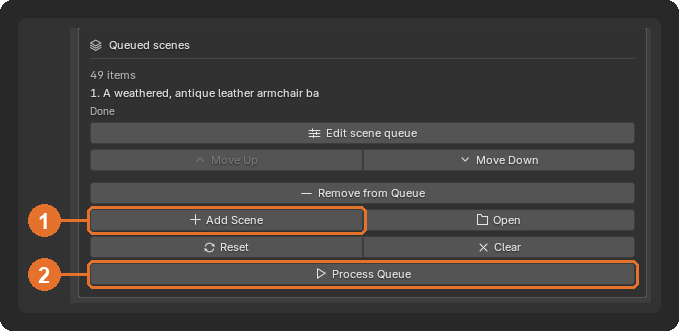
Set up a scene completely, including cameras, prompt and preset, then click Add Scene (1). Enter a short name; it defaults to the start of the prompt. StableGen saves a copy of the current .blend file to <output directory>/queue_jobs/<name>_<date>_<time>.blend and adds it to the list. The open file is not changed, and later edits to it do not affect the queued copy. You can continue editing the scene and add it again with different settings.
An output directory must be set before you can add scenes.
Click Process Queue (2). For each pending item, StableGen opens its snapshot, runs the generation and saves the snapshot when it finishes. Scenes with the TRELLIS.2 architecture run the full mesh pipeline (with the preview gallery turned off); other scenes run texturing with all cameras.
A failed item is retried from a fresh copy of its snapshot, up to three attempts in total. After that it is marked as failed with the reason, and the queue moves on. Items already completed are skipped when you process the queue again.
The queue is saved to sg_scene_queue.json in the output directory and survives restarting Blender. If Blender closes while the queue is running, processing resumes when a file is next opened.
| Command | Effect |
|---|---|
| Open | Opens the snapshot of the selected item, including its results once it has finished. |
| Reset | Marks a finished or failed item as pending again. For TRELLIS.2 items, it also removes the generated meshes and cameras from the snapshot. |
| Remove, Clear | Remove one or all items. The snapshot files of items that have not finished are deleted. |
| Move Up, Move Down | Change the processing order. |
Enable Export Orbit GIF/MP4 to render a turntable after each item. The options match the orbit export and use the camera whose name sorts first. Also Export Without PBR adds a second render without PBR maps, saved as orbit_no_pbr.gif and .mp4.
With the TRELLIS.2 architecture and Generate From set to Image, click the folder button next to Input Image and choose a folder of images. StableGen processes every .jpg, .jpeg, .png, .webp, .bmp, .tiff and .tif file in the folder (not its subfolders) in name order, using the current TRELLIS.2 and texturing settings for all of them. Click Generate Batch to start and Cancel Batch to stop.
| Option | Default | Purpose |
|---|---|---|
| Name meshes after input files | On | Name each mesh after its image, with _01, _02 suffixes when a model has several meshes. |
| Bake Textures after each model | On | Bake each model when its texturing finishes. Bake Settings sets the resolution, unwrap method, PBR maps, ORM packing and normal convention, as for Bake Textures. |
While a model is being generated, all objects from before the batch and from earlier models are hidden, so that cameras, texturing and baking only see the current model. Finished models are moved to a Batch Results collection, excluded from rendering, and shown again when the batch ends. The cameras created for each model are deleted.
A plain-text log, stablegen_batch_<date>_<time>.txt, is written to the image folder. It records the shape, texture and bake times for each image and the total time.
Batch texture DAE / GLB on the Tools page imports a set of models, textures each one with the current scene settings, bakes it and exports a textured .glb. It requires a connected ComfyUI server.
For each model, StableGen:
- Imports and prepares it. DAE files go through the SketchUp cleanup. GLB files receive light preparation only: non-mesh objects are removed, meshes are joined and the model is centered with its lowest point at zero.
- Places cameras using the settings in the TRELLIS.2 Camera Placement section.
- Applies the reference image, if any, as IPAdapter input for SDXL or as the external style image for Qwen.
- Generates the textures, bakes them to a new UV map and exports the
.glb.
| Option | Default | Purpose |
|---|---|---|
| Output Directory | <input folder>/textured |
Where the textured .glb files are written, mirroring the input folder structure. |
| Recursive | On | Include subfolders. |
| Batch Manifest | — | A CSV file listing models, references and outputs. See below. |
| Reference Images | — | A folder of reference images, matched to models by file name. |
| Bake Textures | On | Bake before export. |
| Bake Resolution | 2048 | Size of the baked maps. |
| Replace Materials | On | Remove imported materials before texturing. |
| Generation Retries | 2 | How often a failed model is re-imported and retried. |
| Continue After Failed Model | On | Skip a model that still fails, instead of stopping the batch. |
Without a manifest, a model's reference image is the first image in Reference Images whose name contains the model's file name as a whole word, or else a file named ref.png, ref.jpg or ref.jpeg next to the model, in the reference folder, or in the top input folder.
A manifest gives an exact reference image and output path for each model. It is a UTF-8 CSV file with a header row and three required columns; other columns are ignored.
| Column | Contents |
|---|---|
model_path |
A .dae or .glb file. |
reference_path |
A .png, .jpg, .jpeg, .webp, .bmp or .tiff image. |
output_path |
The output file, ending in .glb, relative to the output directory. |
model_path,reference_path,output_path
models/house_01.glb,refs/house_01_front.png,out/house_01.glb
model_path and reference_path are relative to the folder containing the manifest and must stay inside it. StableGen rejects the whole manifest before starting if a file is missing, a path is absolute or leaves the folder, a type is unsupported, or a model or output path appears twice; the error names the row. If no manifest is set but the input folder contains batch_manifest.csv, that file is used. In manifest mode the reference image is required, and the batch stops if one cannot be found.
Models whose output .glb already exists are skipped, so you can stop a batch and run it again to continue. Failed bakes are retried without regenerating the images. Models that still fail after all retries are recorded in batch_failures.json in the output directory, with the stage, error and number of attempts.
Import DAE imports a single COLLADA file from SketchUp and prepares it for texturing. Batch import DAE converts a folder of .dae files to .glb or .fbx with the same cleanup, without texturing.
| Option | Default | Purpose |
|---|---|---|
| Merge Distance | 0.001 | Merge vertices closer than this. |
| Remove Interior Faces | On | Remove faces enclosed inside the mesh, such as internal walls. |
| Replace Materials | On | Replace imported materials with a plain Principled BSDF. |
| Join Meshes | On | Join all parts into one mesh. |
| Topology | Fix Triangle Fans | None, Fix Triangle Fans (re-triangulates the long thin triangles SketchUp produces), Subdivide Large Faces, Dissolve + Subdivide or Voxel Remesh (loses sharp edges). |
| Triangulate | On | Convert all faces to triangles. |
| Target Size (BU) | 0 | Scale the model to this size; 0 keeps its size. |
| Shading | Flat | Flat, Smooth or Auto Smooth. |
| Center at Origin | On | Center the model and place its lowest point at zero. |