Repository navigation
TRELLIS.2 mesh generation
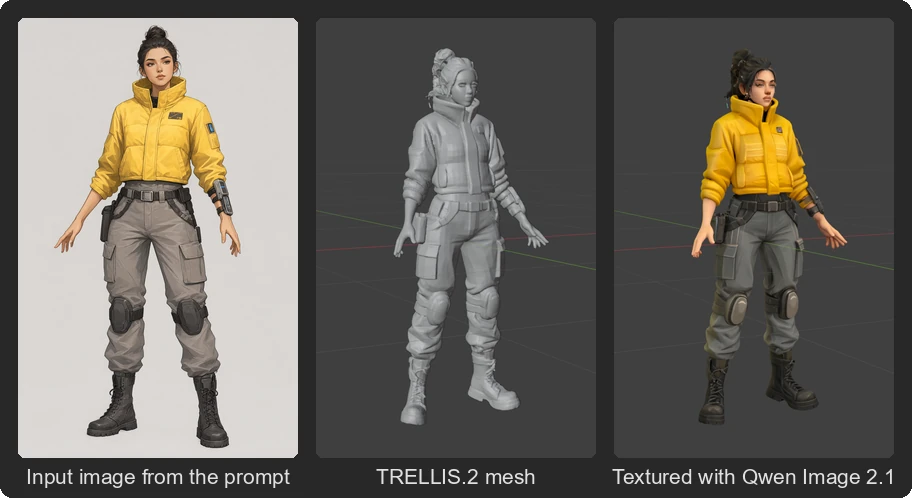
With the TRELLIS.2 architecture, StableGen generates a 3D mesh from an image or a text prompt using Microsoft's TRELLIS.2 through the ComfyUI-TRELLIS2 custom node. It can then texture the mesh with TRELLIS.2's own texture model or with any diffusion architecture.
Install the node with package 8 of installer.py (see Installation). StableGen detects it by checking the server for the Trellis2ImageToShape node. If the node is missing, the generate button reads TRELLIS.2 nodes not found.
For a walkthrough, see Quick start.

A run has up to four phases:
- Input image. With Generate From set to Prompt, StableGen first generates an image from the prompt.
- Mesh. TRELLIS.2 removes the background, builds the shape and, in Native mode, the texture. StableGen downloads the result as a GLB, imports it and scales it to Import Scale (BU).
- Rigging. Optional; see Rigging and animation.
- Texturing. In a diffusion texture mode, StableGen places cameras around the new mesh and runs the selected texturing workflow.
| Setting | Purpose |
|---|---|
| Generate From | Image builds the mesh from Input Image. Prompt generates the input image first. |
| Initial Image Architecture | With Prompt and the None or Native texture mode, the architecture used to generate the input image. In diffusion texture modes, the texturing architecture is used. |
| Background Removal | Auto (BiRefNet) removes the background; Skip (Use Alpha) uses the image's alpha channel. |
| Background Color | Color placed behind transparent areas: Black, Gray or White. |
The prompt and checkpoint for the input image are the normal texturing prompt and checkpoint. Enable Use separate texture prompt on the Texture page to texture with a different prompt.

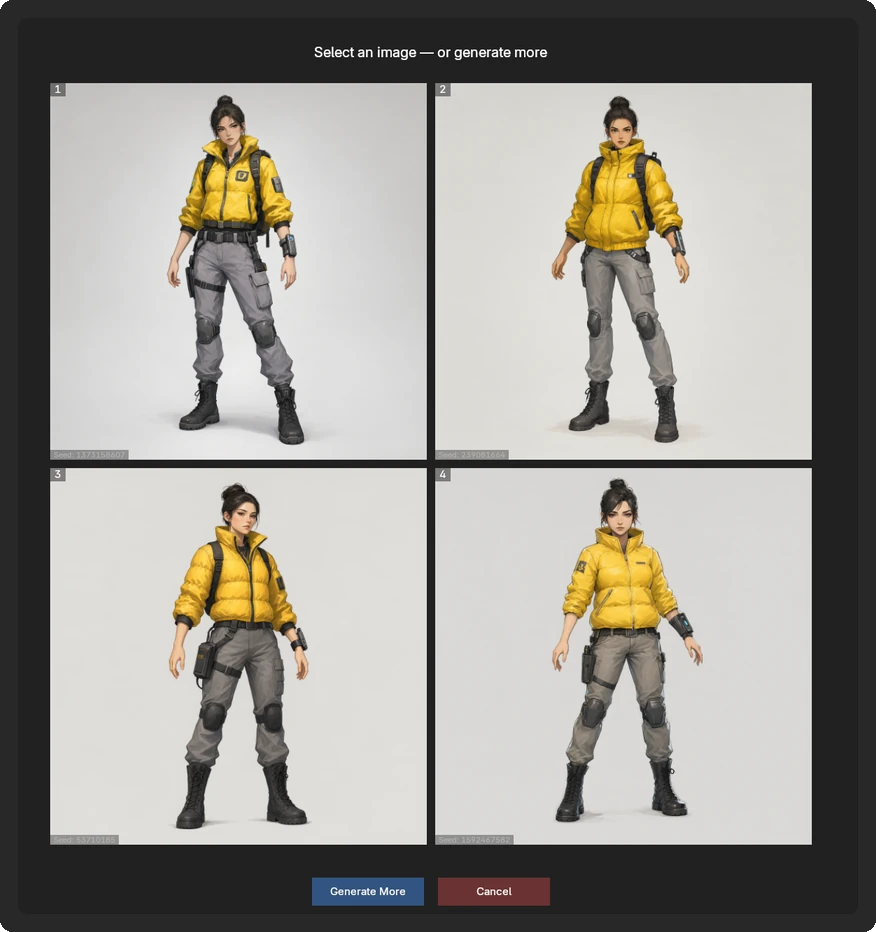
With Generate From set to Prompt, enable Preview gallery to choose the input image before the mesh is built. StableGen generates Image count candidates (1 to 16, default 4) and shows them in the viewport. Click an image to continue with it, or click Generate More for another set. Cancel or Esc stops the run.
The candidates use seeds derived from the main Seed setting. With a seed of 0 they are random; otherwise the same seed gives the same candidates. The chosen image's seed is written back to Seed.
These are in the Mesh & Post-Processing section of the Mesh page.
| Setting | Default | Purpose |
|---|---|---|
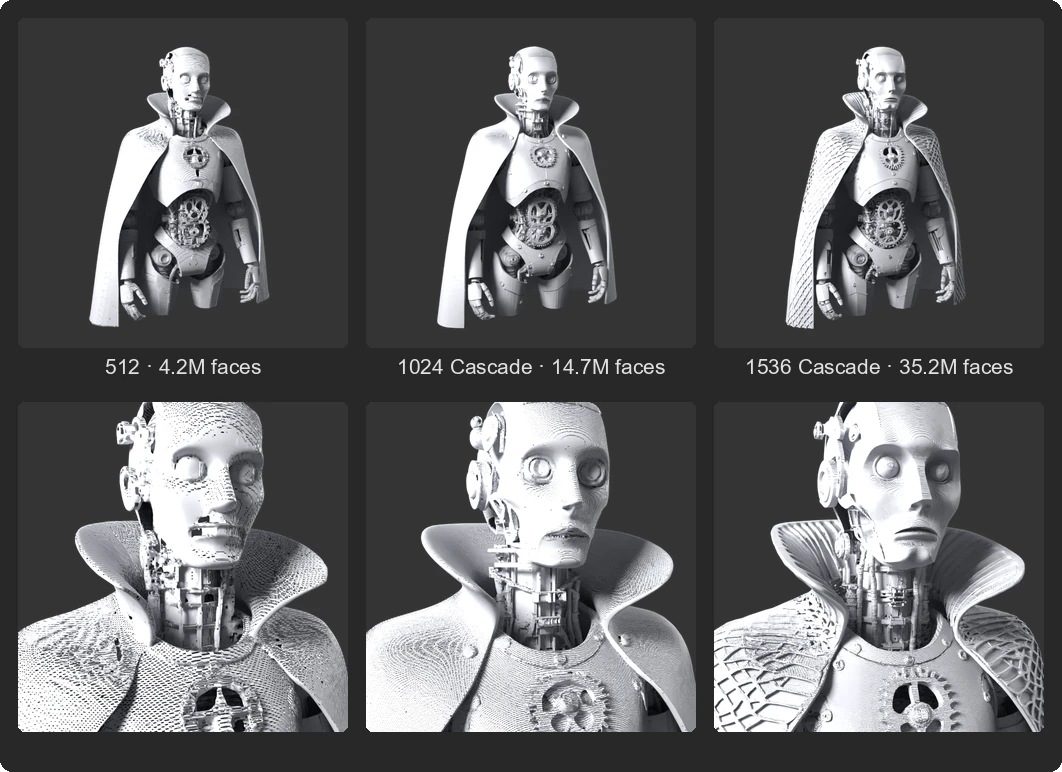
| Mesh generation resolution | 1024 Cascade | 512, 1024 Cascade or 1536 Cascade. Higher values give more geometric detail and use more time and memory. |
| Sparse voxel budget | 49152 | Token budget for the cascade modes. |
| Precision | BF16 | Auto, BF16, FP16 or FP32. |
| Attention Backend | Auto | Auto, Flash Attention, xFormers, SDPA or SageAttention. |
| Seed | 0 | TRELLIS.2 seed, separate from the image generation seed. |
| Structure guidance / steps | 7.5 / 12 | Sparse structure stage. |
| Shape guidance / steps | 7.5 / 12 | Shape stage. |
| Setting | Default | Purpose |
|---|---|---|
| Post-Processing | On | Enables the options below. |
| Decimation Method | Server-Side QEM | None (Raw), Server-Side QEM, or Collapse Decimate (Local) in Blender. |
| Remesh/Retopo Method | QDC (Server) | None (Trimesh), QDC (Server), or Quadriflow (Local) [Experimental]. |
| Decimation Target | 100000 | Target face count. |
| Solidify Mesh | Off | Makes the mesh solid. Skipped when auto-rigging. |
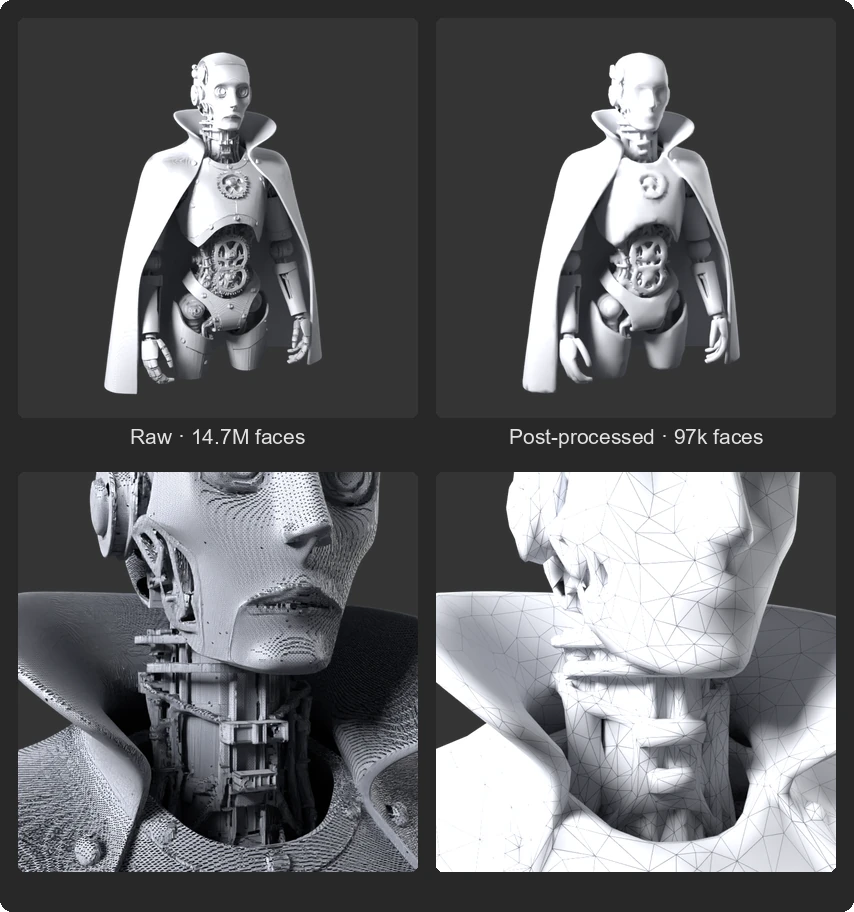
Run Local Post-Processing applies the local decimation and remeshing methods to the active mesh after import. Raise Mesh Generation Timeout in the preferences if server-side post-processing times out.
| Setting | Default | Purpose |
|---|---|---|
| Import Scale (BU) | 2.0 | Size of the imported mesh in Blender units. 0 keeps the original size. |
| Shading | Flat | Flat, Smooth or Auto Smooth. |
| Auto Studio Lighting | On | Adds a three-point light rig. Native texture mode only. |
Texture mode is on the Texture page.
| Mode | Behavior |
|---|---|
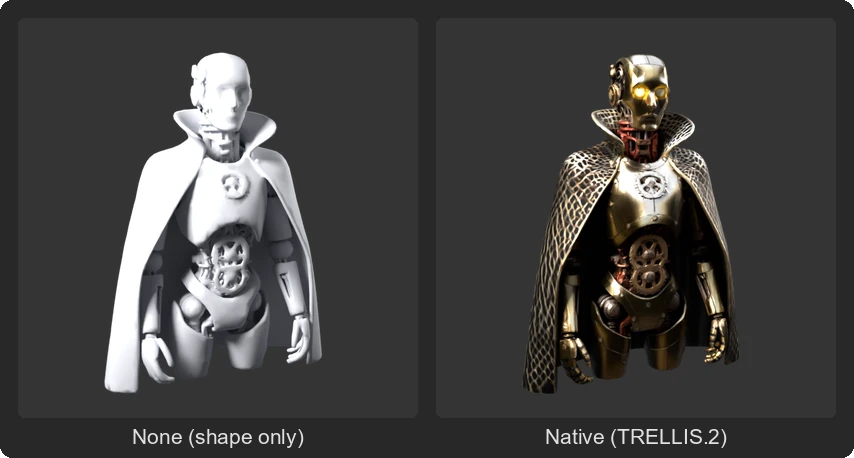
| None | Shape only. No texture is generated. |
| Native (TRELLIS.2) | TRELLIS.2 generates PBR textures and bakes them to UV maps. Settings: Texture guidance, Texture steps and Texture size (px) (default 4096) in the Native Textures section. See the license note. |
| SDXL, Qwen Image Edit, Qwen Image 2.1 and the other texturing architectures | The mesh is generated without texture, then textured by projection with the selected architecture, using the current texturing settings (workflow, sampling, blending and so on). The menu tags experimental and deprecated architectures; FLUX.1 and FLUX.2 Klein are listed only when deprecated architectures are enabled. |
The Camera Placement section on the Cameras page controls the cameras placed around the generated mesh. The options match Add Cameras; the defaults differ.
| Setting | Default |
|---|---|
| Import Scale (BU) | 2. The generated mesh is scaled so its longest axis is this many Blender units; 0 keeps the original size. |
| Placement Mode | Normal-Weighted |
| Camera Count | 8 (2 to 32) |
| Camera coverage target, Max Cameras (Greedy) | 0.95 and 12, used by Auto (Greedy Coverage) |
| Fan Angle | 90°, used by Fan from Camera |
| Clamp Elevation | Off. When on, avoids extreme top-down and bottom-up views. |
| Auto View Prompts | On |
| Auto Aspect Ratio | Per Camera |
| Occlusion Handling | None (Fast) |
| Exclude Bottom Faces | On |
| Consider Existing Cameras | On |
| Delete Cameras After | Off. When on, the placed cameras are deleted after texturing. |
To generate one asset per image in a folder:
- Set Generate From to Image.
- Click the folder button next to Input Image and choose a folder. StableGen counts the
.jpg,.jpeg,.png,.webp,.bmp,.tiffand.tiffiles in it. Subfolders are not searched. - Optionally enable Name meshes after input files and Bake Textures after each model. Bake Settings sets the bake options for the batch.
- Click Generate Batch.
See Batch processing for how the results and log are stored.
This section applies only to the TRELLIS.2 feature. StableGen's standard texturing pipelines (SDXL, Qwen Image Edit, Qwen Image 2.1, the experimental architectures and the deprecated FLUX architectures) do not use any of the libraries listed below and are unaffected by these restrictions.
The TRELLIS.2 feature relies on several third-party components, each with its own license. Be aware of these licenses, particularly the non-commercial restrictions on the NVIDIA libraries used in the TRELLIS.2 native texture pipeline.
| Component | License | Commercial use permitted |
|---|---|---|
| TRELLIS.2 (Microsoft) | MIT | Yes |
| TRELLIS.2-4B model weights | MIT | Yes |
| ComfyUI-TRELLIS2 | MIT | Yes |
| DINOv3 (Meta, image conditioning) | DINOv3 License | Yes |
| BiRefNet (background removal) | MIT | Yes |
| FlexGEMM (sparse convolutions) | MIT | Yes |
| CuMesh (mesh operations) | MIT | Yes |
| O-Voxel (voxel processing, part of TRELLIS.2) | MIT | Yes |
| nvdiffrast (NVIDIA) | NVIDIA Source Code License | No, non-commercial only |
| nvdiffrec (NVIDIA) | NVIDIA Source Code License | No, non-commercial only |
The NVIDIA libraries nvdiffrast and nvdiffrec are used only when Texture mode is set to Native (TRELLIS.2), for UV rasterization and PBR texture baking. Their license restricts use to "research or evaluation purposes only and not for any direct or indirect monetary gain" (Section 3.3). Only NVIDIA and its affiliates may use these libraries commercially.
The other texture modes do not introduce these restrictions:
- None (shape only) does not use nvdiffrast or nvdiffrec. All other pipeline components are permissively licensed (MIT or Apache 2.0, plus the DINOv3 License).
- Projection-based texture modes (SDXL, Qwen Image Edit and the others) do not use nvdiffrast or nvdiffrec. The license terms of the selected diffusion model apply as usual; for example, Qwen Image 2.1 and FIBO 2.0 Edit are for non-commercial use only, independently of the TRELLIS.2 pipeline.
If you need to use the Native (TRELLIS.2) texture mode commercially, contact NVIDIA about commercial licensing for nvdiffrast and nvdiffrec.