Repository navigation
Cameras
StableGen generates one image per scene camera and projects it onto the meshes, so the cameras decide which surfaces receive texture and from which direction. Every camera in the scene is used. There is no fixed limit on the number of cameras; more cameras give better coverage but take longer.
The camera commands are in the panel toolbar, which is shown with every architecture, TRELLIS.2 included. The Cameras page lists the scene cameras with their generated images, view prompts and generation order. The eye button on a camera card selects that camera and looks through it in the viewport.
Add cameras opens a dialog for placing a set of cameras around the subject. By default it first removes all existing cameras (Remove Existing Cameras).
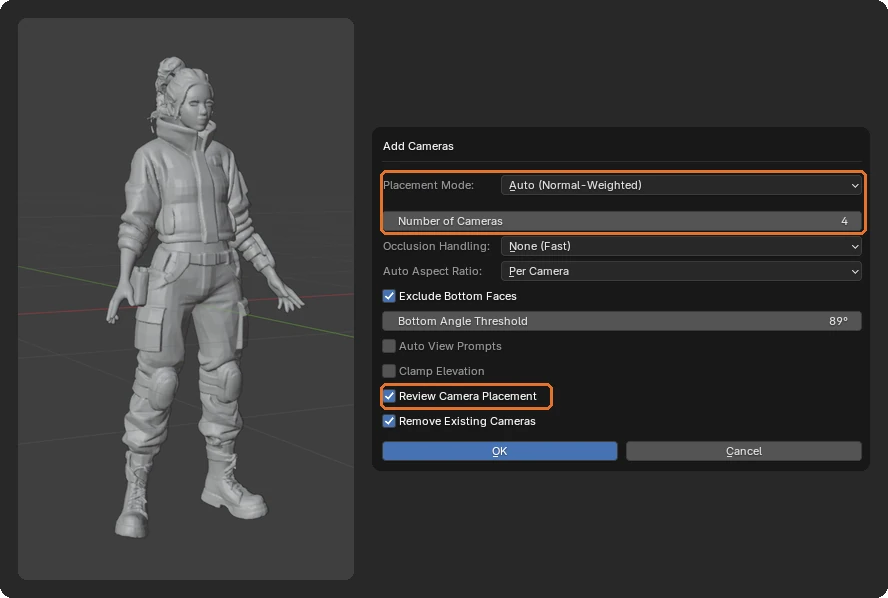
| Mode | Behavior |
|---|---|
| Orbit Ring | Places cameras in a circle around the center, at the elevation of the reference camera or viewport. |
| Sphere Coverage | Distributes cameras evenly over a sphere. |
| Auto (Normal-Weighted) | Default. Clusters the mesh's face normals, weighted by area, and places a camera for each cluster. |
| Auto (PCA Axes) | Places cameras along the mesh's principal axes. Produces at most six directions. |
| Auto (Greedy Coverage) | Adds cameras one at a time, each covering the most new surface, until Coverage Target is reached or Max Cameras cameras exist. Determines the count itself. |
| Fan from Camera | Spreads cameras in an arc of Fan Angle degrees around the active camera's position. |

Orbit Ring and Fan from Camera use the active camera, or the current view if there is none, as the reference, and its distance from the center as the radius. Center Type selects whether the center is the active object or the view center.
The four automatic modes (Sphere Coverage and the three Auto modes) compute each camera's distance from the mesh silhouette and offer further options:
| Option | Purpose |
|---|---|
| Occlusion Handling | How self-occlusion is considered. See below. Not shown for Sphere Coverage. |
| Auto Aspect Ratio | Off, Shared (one aspect ratio for all cameras) or Per Camera (default). See Per-camera resolution. |
| Exclude Bottom Faces | Ignores downward-facing geometry, such as the underside of a building, beyond Bottom Angle Threshold. |
| Auto View Prompts | Gives each camera a direction prompt such as front view or rear view, from above. |
| Clamp Elevation | Limits cameras to between Min and Max elevation, avoiding extreme top-down or bottom-up views. |
| Consider Existing Cameras | When existing cameras are kept, treats them as already covering their directions. |
Running an automatic mode with Auto View Prompts off clears all existing view prompts.
Occlusion handling is a separate option from the placement mode.
| Option | Behavior |
|---|---|
| None (Fast) | Back-face culling only; ignores self-occlusion. |
| Full Occlusion Matrix | Checks visibility with ray casting before placing cameras. Most accurate, slowest. |
| Two-Pass Refinement | A fast pass, then ray casting only for faces no camera sees. |
| Visibility-Weighted | Reduces the influence of mostly hidden faces. Normal-Weighted mode only; other modes use Full Occlusion Matrix. |
| Interactive Visibility | As Visibility-Weighted, with a live preview. Scroll (or press numpad plus and minus) to change the balance, Enter to confirm and Esc to cancel. Normal-Weighted mode only. |
Occlusion computation can take a while on dense meshes. Press Esc to cancel it.
With Review Camera Placement enabled (the default), the viewport looks through each new camera in turn using Blender's fly navigation. Adjust the camera if needed and confirm to move to the next one. Disable the option to create the cameras immediately.
| Toolbar button | Operator | Behavior |
|---|---|---|
| Clone | Clone Camera | Creates a camera at the active camera's position and starts fly navigation so you can move it. Useful for adding cameras one at a time. |
| Mirror | Mirror Camera | Creates a copy of the active camera mirrored across the X, Y or Z axis through the active mesh's origin (or the world origin if the active object is not a mesh), pointing at that center. |
| Auto aspect | Apply Auto Aspect | Recomputes aspect ratio, resolution and framing from the mesh silhouette for the selected cameras, or all cameras if none is selected. This keeps each camera's viewing direction but changes its distance and aim. |
| Display | Camera Display | Chooses which cameras show numbered labels and generated image previews, and whether actual image frames and state indicators are drawn. |
With Auto Aspect Ratio set to Per Camera, each camera gets its own resolution matched to the mesh silhouette, keeping roughly the same pixel count as the scene resolution. The values are stored on the camera object as the custom properties sg_res_x and sg_res_y, and StableGen switches to them while rendering and generating each view.
For display, the scene output resolution is set to a square of the largest side. Do not rely on Output Properties > Resolution to read a camera's actual size; the camera frame overlay shows it.
With Shared, StableGen instead sets the scene resolution to the average aspect ratio. With Off, every camera uses the scene resolution.
Fit camera resolution (in Output & materials on the Texture page, enabled by default) scales each camera's resolution to a target pixel budget while keeping its aspect ratio.
The Cameras page lists cameras in generation order. Without a custom order, cameras are processed in natural name order (Camera_2 before Camera_10).
To set a custom order, drag a camera card by its handle, or click Sort… and choose a strategy. Either action enables Custom generation order.

| Strategy | Order |
|---|---|
| Alphabetical (Original) | By name. |
| Front → Back → Sides | Front-facing cameras first, then rear, then sides. |
| Back → Front → Sides | Rear first, then front, then sides. |
| Alternating (Opposites) | Alternates between opposite directions. |
| Top → Bottom | Highest elevation first. |
| Reverse Current | Reverses the current order. |
"Front" is the direction of the alphabetically first camera, not a world axis. The order matters most in Generate Sequentially, where the first view establishes the appearance that later views continue. The numbers on the viewport labels follow the same order.
A view prompt is extra text for one camera, such as front view or close-up on face. When Use view prompts is enabled on the Cameras page, it is placed before the main prompt for that camera's view.
There are three ways to edit view prompts:
- Collect camera prompts in the toolbar steps through the selected cameras, or all cameras, and asks for a prompt for each.
- On the Cameras page, select a camera card and edit its View prompt field.
- In the viewport, click the page icon on a camera's label to open an inline text field. Ctrl Enter, Tab or clicking outside saves; Esc cancels.


Auto View Prompts in Add Cameras fills the prompts from each camera's direction.