Repository navigation
Export
A StableGen texture is a projection material that combines the camera images at render time. To use the result elsewhere, bake it into ordinary UV textures, then export. All exported files are written to the current run folder in the output directory; see Output files.
Bake in the panel footer (Bake Textures in the legacy panel) bakes the projected material of each target object into UV image maps with Cycles. It uses the Target objects setting to decide which meshes to bake. In the StableGen panel, the button is disabled while projection settings have changed but not been reprojected.

| Option | Default | Purpose |
|---|---|---|
| Texture Resolution | 2048 | Size of each baked map, 128 to 8192. |
| Render Samples | 16 | Cycles samples for the bake. |
| Denoise Baked Textures | On | Denoise the result. |
| Unwrap Method | Smart UV Project | How to create the bake UVs (see below). |
| Overlap Only | Off | Unwrap only objects whose existing UVs overlap. |
| Add Material | On | Create a material named <object>_baked that uses the baked maps. |
| Bake & Continue Refining | Off | Put the baked texture back into the StableGen projection material and remove the earlier projection images, so you can continue with Refine or Local Edit on a lighter material. |
| Bake PBR Maps | On | Bake each PBR channel to its own map. See PBR maps. |
| Pack ORM Texture | Off | Also write a packed occlusion, roughness and metallic map. |
| Normal Convention | OpenGL (Y+) | OpenGL (Y+) or DirectX (Y-). |
Unwrap methods:
| Method | Notes |
|---|---|
| None | Use the existing UVs. |
| Cube Project | Fast; suitable for very dense meshes such as TRELLIS.2 output. |
| Smart UV Project | A balance of quality and speed. |
| Basic Unwrap | Angle-based unwrap. Best quality but very slow on dense meshes. |
| Lightmap Pack | Lightmap Pack with default settings. |
| Pack Islands | Pack the existing islands. |
An object without its own UV map is always unwrapped, even with None. The bake is written to a UV map named BakeUV. The color map is saved as baked/<object>.png.
Bake & Continue Refining applies only to objects baked as a plain color map; objects baked through the PBR path keep their baked material.
Export in the panel footer (Export for Game Engine in the legacy panel) exports meshes and their rigs. It exports the materials currently on the objects and does not bake, so run Bake first.
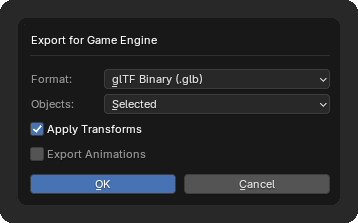
| Option | Default | Purpose |
|---|---|---|
| Format | glTF Binary (.glb) |
glTF Binary (.glb), glTF + Textures (.gltf) (separate .gltf, .bin and image files), or FBX (.fbx) with embedded textures, for example for Unreal Engine. |
| Objects | Selected | Selected meshes or All Mesh visible meshes. Armatures that deform them are included automatically. |
| Apply Transforms | On | Apply object transforms. Skipped for rigged exports. |
| Export Animations | Off | Include animation actions. |
Selecting an armature also includes the meshes it deforms. Hidden objects and objects in collections whose names contain not_exported are excluded. glTF exports include tangents and use Y-up. The file is saved as baked/<first mesh name>.glb (or .gltf or .fbx).
FBX does not record which UV map a texture uses, so engines such as Unreal Engine read every texture through the first UV channel. When a mesh's materials all use one UV map, as after Bake (the BakeUV map), FBX export writes that map as the first channel. Material slots that no face uses, such as the projection material kept beside the baked one, are left out of the file. The mesh in Blender is unchanged.
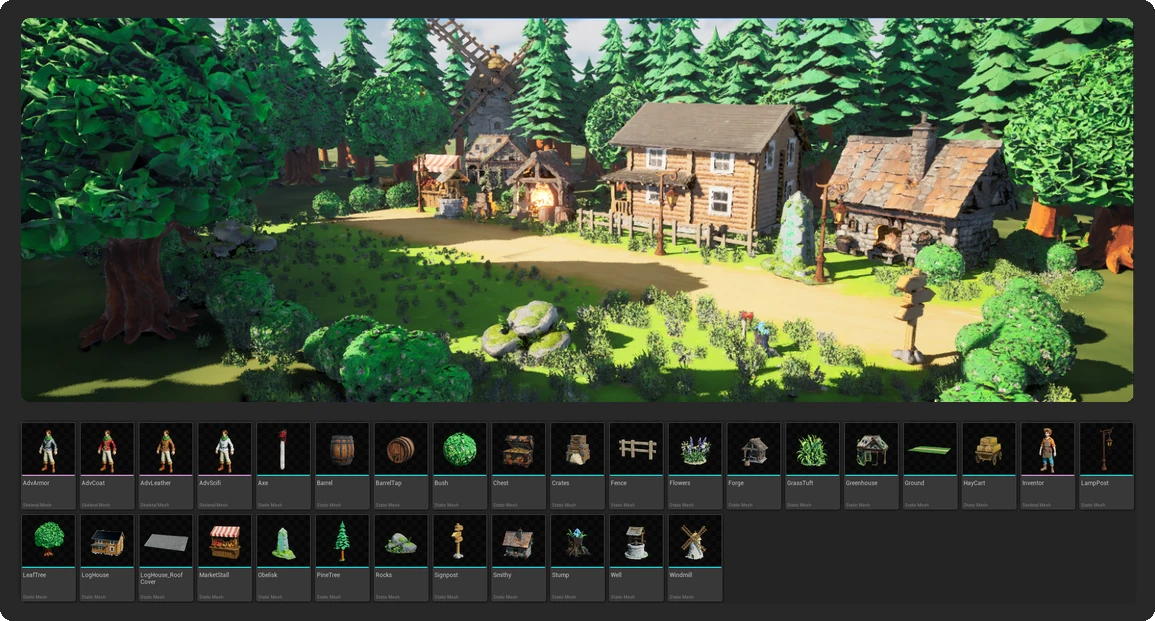
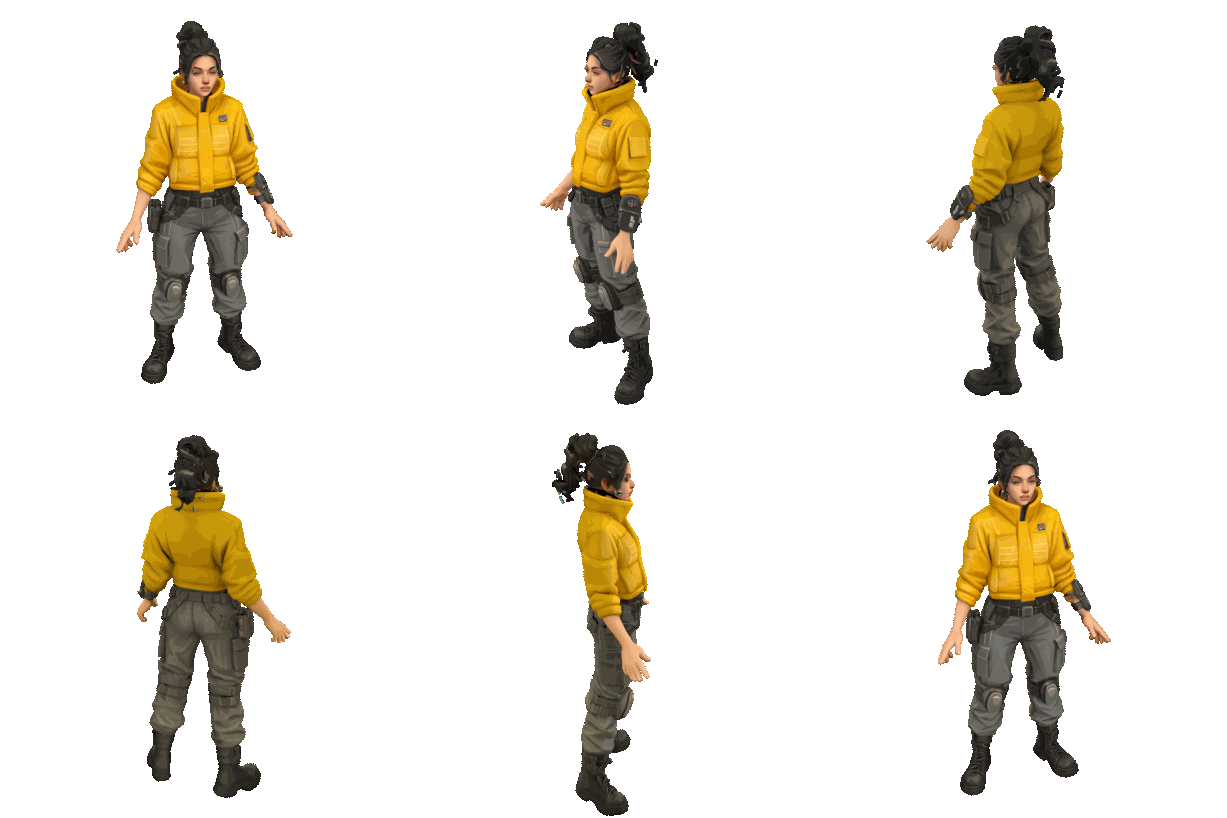
Export orbit GIF / MP4 on the Tools page (Export Orbit GIF/MP4 in the legacy panel) renders a turntable of the active object from the scene camera's distance and height, and saves both orbit.gif and orbit.mp4 in the run folder. It requires an active mesh or empty and a scene camera.
| Option | Default | Purpose |
|---|---|---|
| Duration (seconds) | 5.0 | Length of one orbit. |
| Frame Rate (fps) | 24 | Frames per second. |
| Resolution % | 50 | Percentage of a 1024 × 1024 frame. |
| Samples | 32 | Render samples. |
| Render Engine | Cycles | Workbench, Eevee or Cycles. Use Cycles to show an unbaked projection material. |
| Rotation Curve | Linear | Linear or Ease In/Out. |
| HDRI Environment | Off | Use the world's environment texture, for example one added with Add HDRI lighting. Without one, a temporary sky is used. |
| Environment Rotation | 0° | Initial rotation of the environment. |
| Environment Mode | Fixed | Fixed (the environment stays still), Locked (it rotates with the camera, so lighting looks the same from every angle), Counter-Rotate, or Environment Only (the camera stays still and only the environment rotates). |
| Denoise | On | Denoise Cycles renders. |
| GPU Compute | On | Render Cycles on the GPU. Blender 5.1 and later. |
The background is rendered transparent.
Enable Enable 3D Printing in the add-on preferences. The tools then appear on the 3D printing page, opened from the More menu. In the legacy panel they are in a separate StableGen Print sidebar tab.
The exporters convert the texture into filament colors for multi-material printers.

Choose a Print Preset or build your own palette (1):
| Preset | Palette |
|---|---|
| CMYW (Dithered) | Cyan, magenta, yellow and white, mixed by dithering. Default. |
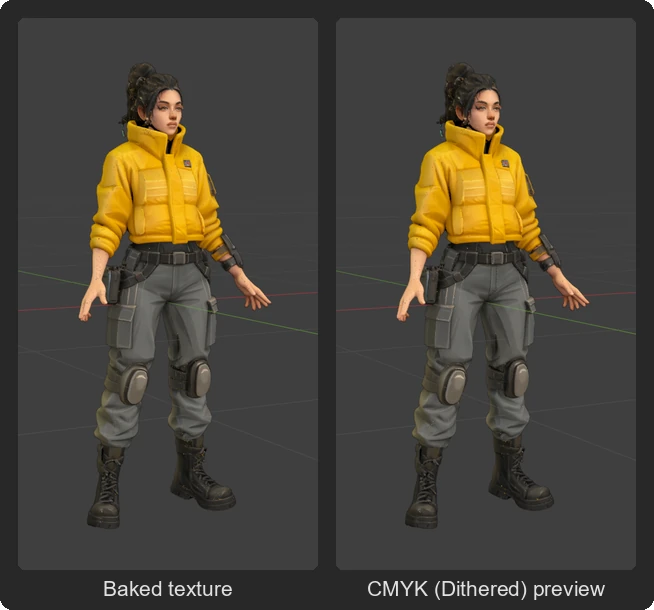
| CMYK (Dithered) | Cyan, magenta, yellow and black, mixed by dithering. |
| CMYW + Mixes (Non-Dithered) | The four CMYW colors plus 1:1, 2:1 and 1:2 mixes of each pair, as solid colors. |
| CMYK + Mixes (Non-Dithered) | The same for CMYK. |
| Custom | Your own colors. Adding, removing or editing a color switches to Custom. |
With Dithered (Full Spectrum) (Full-spectrum dithering, 2) enabled, colors are mixed by alternating filaments across layers. Layer Height (default 0.08 mm) and Model Height (default 50 mm) define the layer stack. Without dithering, each face is printed in the closest filament, and Island cleanup passes and Saturation cutoff remove small noisy color islands.
Show Advanced Settings exposes the color solver. Color mixing model defaults to Kubelka-Munk, a pigment-mixing model; Linear Additive and Linear Subtractive are alternatives. Saturation Penalty prevents desaturated colors from being mixed into saturated regions; high values favor primary colors.
The preview commands are Colors, Slices and Clear on the page (4).
| Command | Effect |
|---|---|
| Preview Palette Colors | Shows the quantized colors on the active mesh in Solid shading. |
| Preview Slices | Slices and dithers the active mesh and shows the printed layers as a preview object, SG_SlicedPreview. Runs in the background. |
| Clear Preview | Removes the previews and restores material display. |
AI-generated meshes are often open or have internal geometry. Make Solid (Solid print preparation, 3) (in the print settings, and as a command on the Tools page) keeps the outer shell found by ray casting from Raycast Angles directions, deletes internal geometry and fills holes at the bottom. When Make Solid is enabled in the print settings, the STL and 3MF exporters run it on a temporary copy; this requires running Preview Palette Colors first. Keep Largest Island removes disconnected fragments.
The exporters are the STL, 3MF and Textured OBJ buttons (5).
| Exporter | Output | Notes |
|---|---|---|
| Export 3MF | baked/<first mesh>.3mf |
Multi-color 3MF with per-triangle colors and project metadata for OrcaSlicer, Bambu Studio and PrusaSlicer. |
| Export STL | baked/<first mesh>.stl |
Geometry only, without color. Refuses meshes that are not closed unless Make Solid is used. |
| Export Textured OBJ |
baked/<object>_textured_print.obj with .mtl and texture |
For slicers that read image textures. Requires a baked base color image; run Bake first. Refuses open or non-manifold meshes. |
Each exporter offers Objects (Selected or All Mesh) and Apply Transforms.