Repository navigation
Sign in and Organizations
SAP Bridge sign-in identifies your account and organization. Your workspace vault has a separate master password that protects saved SAP credentials. Complete sign-in first, then unlock the vault.
For initial registration as an organization or an individual user, contact the Author to arrange account access. Your account needs an active membership in the intended organization. Ask your organization administrator to arrange access through the current administration process. You do not need a WorkOS project Dashboard account or API key to sign in.
Self-service organization onboarding and automatic trials are not available in this release. Downloading the software or creating a sign-in account alone does not grant organization access.
Start SAP Bridge and open the dashboard link for your workspace. Click Sign in.
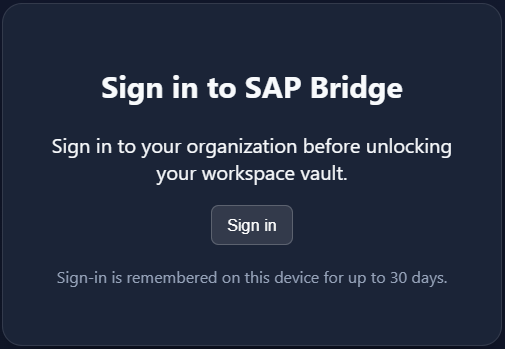
Click Open sign-in page. In the hosted WorkOS page:
- Use an authentication method offered for your account, such as email/password, an enabled social provider, or your organization's SSO. Complete email verification or MFA if requested.
- Select the intended organization when several memberships are offered.
- Check that the device code matches the code displayed by your own bridge, then confirm it.
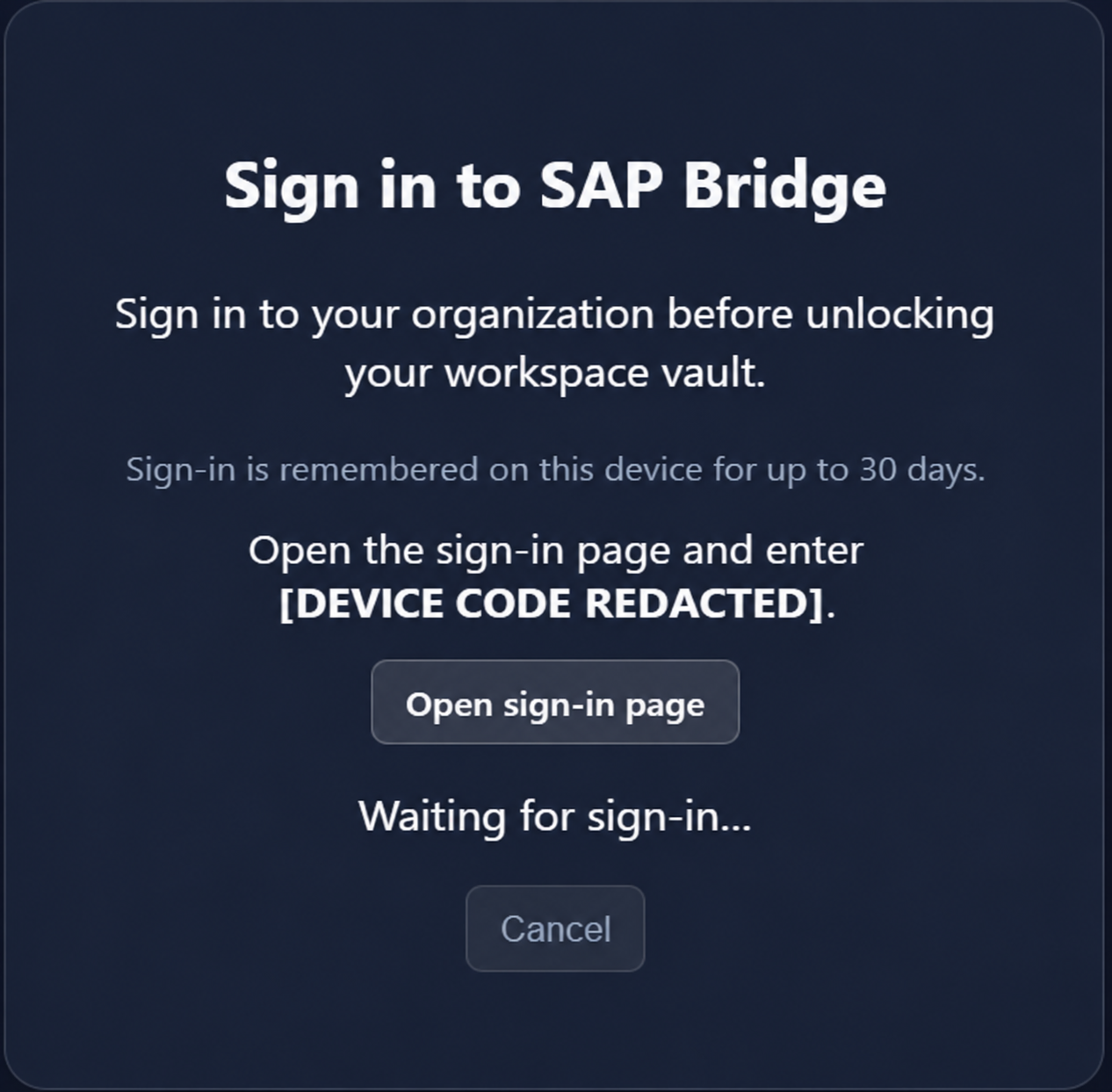
The screenshot's device code is redacted. Use the current code on your own dashboard. If it expires, cancel and start a new sign-in.
WorkOS may already remember your account. In that case, it can open directly at device confirmation without asking for your email or password again. Return to the dashboard after confirmation; it completes sign-in automatically.
On first use, create the workspace master password. For an existing vault, enter its master password and click Next. Enter the workspace authenticator code if vault 2FA is enabled.
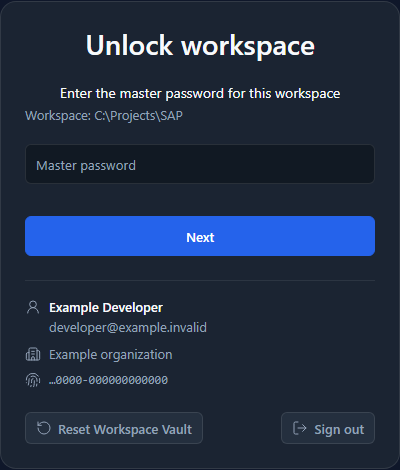
Check the displayed workspace, signed-in account and organization before continuing. The dashboard and enabled SAP tools become available after the required vault checks and workspace preparation complete. Keep the vault password private; it is entered in the dashboard rather than shared with the agent.
The small fingerprint control identifies the installation. Click it to copy the installation ID when it is needed for support; it is separate from your organization and user identity.
The bridge remembers sign-in on this device for up to 30 days. Session expiry, revoked access or unavailable renewal can require an earlier sign-in. SAP Bridge uses one selected sign-in across every dashboard, workspace and local MCP chat connected to that daemon, including different browser profiles. Each workspace still requires its own vault unlock. Local chats use this sign-in confirms the shared selection. Separate server instances keep independent sign-ins and settings; see Instance setup and version selection.
Remembered organization sign-in does not automatically unlock saved credentials. After restarting SAP Bridge, explicitly unlock the workspace vault. Workspace vault 2FA remains independent of authentication required by WorkOS or your SSO provider.
The remembered sign-in period is separate from feature authorization: the bridge refreshes membership and feature evidence with a maximum five-minute policy lifetime. A remembered session does not retain old permissions for 30 days. See Organization feature access.
| Control | Effect |
|---|---|
| Lock UI | Locks the human dashboard while leaving the vault available to authorized agents. Unlock the dashboard again to manage it. |
| Panic | Locks the UI and vault, clears temporary approvals and blocks subsequent SAP calls. Requests already running may finish. |
| Sign out | Ends the bridge identity session and redirects through hosted WorkOS logout before returning to sign-in. If hosted logout cannot be confirmed, use Retry hosted sign-out; the bridge reports that partial outcome. Use Panic when the immediate goal is to stop subsequent agent work. |
See Permissions for the additional feature, guard and SAP authorization checks.
Use Sign out beside Sign in on the initial screen, or below the signed-in account in the sidebar or vault dialog. Then start sign-in again and choose the intended account and organization in the hosted flow.
When the bridge knows the remembered WorkOS session, it redirects directly through hosted logout and returns to sign-in. If that session reference is unavailable, the bridge displays a separate Sign out of WorkOS confirmation with a device code. WorkOS may ask you to authenticate or select an organization first. Confirm your own displayed code to identify the account to sign out; this confirmation does not grant bridge access or unlock the vault. Canceling leaves hosted sign-out unconfirmed and offers a retry.
Tabs and normal windows in the same browser profile share hosted WorkOS cookies. Other profiles can retain different hosted logins, but completing a new SAP Bridge sign-in changes the daemon's selected account everywhere. Dashboards clear the previous view and existing local MCP connections use the new selection on their next call. An older browser profile cannot restore its previous bridge account. Sign-out retires the selected bridge sign-in for that server instance; status and documentation remain available.
For email/password accounts, use Forgot password on the hosted sign-in page and follow the reset email. Social and enterprise SSO users manage their password with their identity provider. Changing that password does not change the workspace vault password. See WorkOS hosted authentication and email/password authentication for the provider-managed flows.
The organization selected at sign-in determines your membership and available features. Organization selection does not enforce ownership or separation of local workspace folders, vaults or SAP connections. Open the intended customer workspace, unlock its vault and select the correct SAP system before working.
SAP Bridge provides Manage organization for authorized member administration. Click the external-link icon beside the signed-in organization to open it in a separate tab. The page follows this Bridge instance's selected account and organization, independently of the workspace vault. Confirm the displayed organization before making a change.
Access requires the actual widgets:users-table:manage permission and a current online verification. An administrator role name alone does not grant it. If the icon is unavailable, ask your organization administrator or the operator to arrange the required access, then use System → Daemon → Refresh permissions.
In the member-management page you can invite members, remove memberships and assign existing roles when your access permits those operations. Review the member and intended role before applying a change, then confirm the resulting membership. Defining roles and changing the organization's maximum feature availability remain part of the operator's administration process. Assigned roles remain subject to enabled features; see Organization feature access.
Organization management needs an online connection, including when ordinary SAP work is continuing under an offline-access allowance. The page provides Refresh permissions to retry verification. If the selected account, organization or access changes, the previous management view is cleared. If live verification becomes unavailable, the view is hidden until access is verified again; retain any reported technical failure and confirm the original membership outcome before repeating a change.
Accept the invitation using its hosted flow. On the return page, use Open dashboard, then complete SAP Bridge sign-in and confirm its current device code. If Bridge currently has another account selected, sign out of that account first. Accepting an invitation does not silently replace the instance's selected sign-in or unlock a workspace vault. If the return page reports a failure, preserve that information and ask the administrator to verify the invitation and membership.
Customer administrators do not need access to the operator's WorkOS project Dashboard for this screen. See WorkOS organization memberships and custom roles for provider concepts; use the Bridge's own Manage organization entry for its member-management workflow.
Your organization's enabled features and your membership permissions determine which operations, dashboard tabs and controls are available. The MCP catalog stays stable; protected calls check current permissions. Experimental ATC and Cloudification features can be enabled for selected organizations. Contact your administrator when a required feature is unavailable; creating or verifying an email account alone does not grant organization access.
Every remembered native sign-in can continue with its verified capabilities for up to 12 hours after the last successful online verification, bounded by its sign-in deadlines. No additional role permission is required. The dashboard shows the expiry, and the bridge retries online verification while in use. A red cloud-off badge beside the account shows online verification failures; hover or focus it for details, the last successful verification and the allowance expiry. It clears after online verification succeeds. New sign-in and organization selection require online access. See Permissions#organization-feature-access for expiry and revocation behavior.
| Symptom | Next step |
|---|---|
| Device code expired or was rejected | Cancel the pending attempt and start a new sign-in. |
IDENTITY_CONTEXT_FORBIDDEN |
Check the selected organization and ask an administrator to verify active membership and account access. |
IDENTITY_UNAVAILABLE |
Retry when the identity service is reachable. Retain the displayed technical error for support. |
| Sign-in is remembered, but a password is requested | Check whether the screen is the separate workspace vault unlock. |
| Wrong account or organization appears | Sign out and start again with the intended browser profile. |
See Setup, Permissions and Dashboard Diagnostics.