People and Devices
Two adjacent Settings screens for the household: Family members (Settings → Family members) is the list of people the app color-codes and assigns things to; Devices (Settings → Devices) is the list of phones, tablets, and kiosks that have joined the family. Both are family-scoped and real-time published — edits on one device show up everywhere within ~1 s.
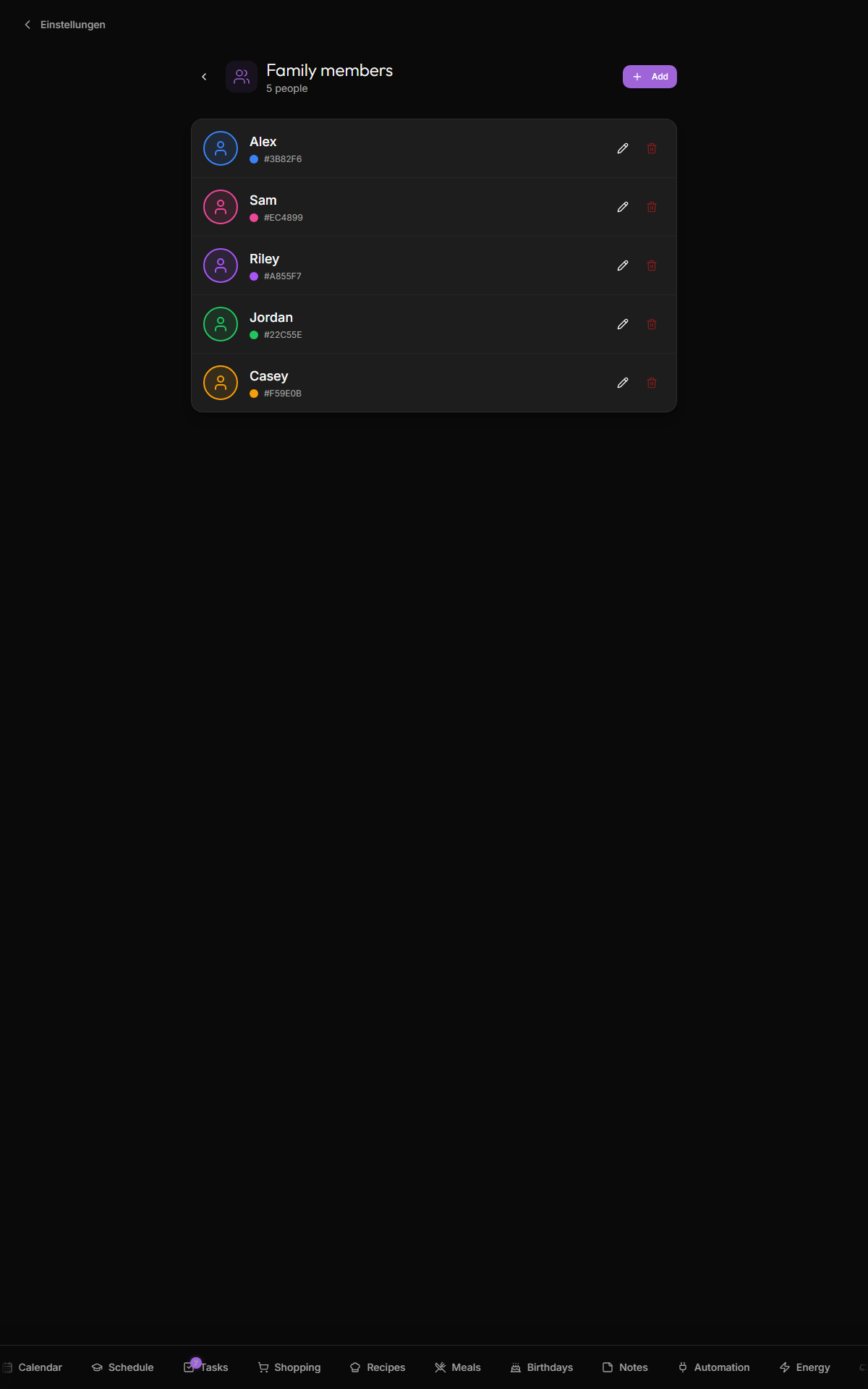
Add a person with a name, a color, an avatar (emoji, uploaded image, or external URL), and an optional "child / student" toggle. That's it — the person appears across the app immediately.
Three modes: emoji (a curated set of family + pet emoji, renders inline, no bandwidth cost), uploaded image (cropped to a circle, scaled to 256×256, stored as a base64 data URL in people.avatar_url — locally stored, no CDN), and external URL (Gravatar, a Google profile photo, anywhere image-served — depends on the source staying up).
Each person's color drives event chips on the calendar, task assignment badges, schedule cell tints, birthday ring dots, the avatar ring on the dashboard, and the mapping-rule preview in Google-Calendar settings. The palette has 16 swatches; most families use ≤ 6 so repetition isn't an issue.
Marks the person as a school-schedule consumer: they become selectable in Schedule, the dashboard's schedule widget can pick them, and their pack list appears on the day-of. Adults and pets stay off.
Tap the trash icon → confirm. Cascade behavior, current as of v1.4.0:
- Pocket-money account (if any) — permanently deleted, balance and history included.
- School schedules for them — permanently deleted.
- Events, todos, and birthdays assigned to them — kept, unassigned (events become "family" events, todos become unassigned, birthdays stay but unlinked from the person).
Deleting a person doesn't touch any device — devices and people are independent rows; see below to remove a device.
- Color = mood: pick distinctive colors so a glance at the calendar tells you whose events are whose without reading names.
- Pets get a row: emoji avatar, no birthday, used for tracking vet appointments.
- One person per device is not a thing. Kinboard's auth model is family-scoped, not person-scoped — there's no "active person" login, and no per-person permission roles.
public.people table. Real-time published.
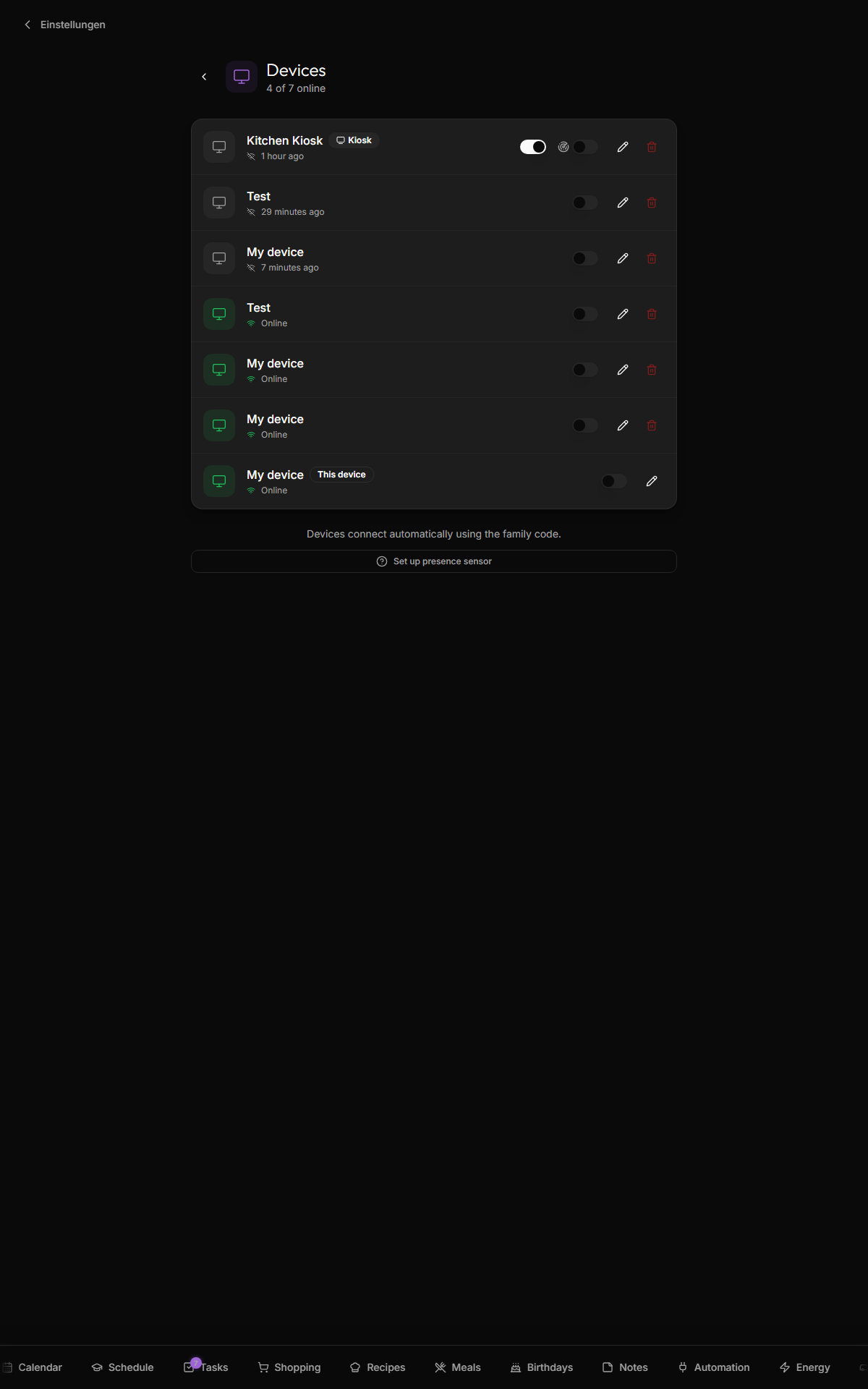
Each row shows an auto-detected icon, an editable name, an online indicator (green = active in the last 5 minutes, from a 60-second heartbeat), a "this device" badge, and edit/delete actions.
Hides the nav drawer, disables admin actions (creating/leaving a family), and renders larger touch targets for wall-display ergonomics. Toggle on for the wall-mounted display, off for personal devices. It's UI-only — it doesn't add real security. To keep kids from disabling it, set a Settings PIN.
Toggle on when an LD2410 presence sensor is wired into this device. Reveals the device ID (needed by the presence-sensor script), a live presence indicator, and a "Connection lost" badge if the sensor stops reporting for >30 s.
Tap delete → confirm. The device's row is removed from the family — it can no longer read/write until it re-joins with the family code. The device's local cookie isn't invalidated, so a physically-present device just gets logged out, not bricked. You can't remove "this device" from the list (would lock yourself out); use Settings → Leave family on the active device instead. Devices that haven't pinged in 30+ days are good candidates to prune — Kinboard doesn't auto-delete stale devices.
If a browser's cookies/site data are wiped, the device re-creates as a new row with a new ID on next join — the old row stays orphaned and needs manual deletion. Kinboard tries to avoid this by falling back to a browser fingerprint; see how device recognition works for the mechanism and its limits.
Don't manually edit the devices table unless you know what you're doing — the webapp uses the row's UUID as the active device key in cookies. Renaming a row is fine; deleting or replacing its UUID can strand the device (logs it out, or worse, leaves it pointing at nothing).
-
After adding a family member: open
/settings/devices, name each row properly, mark which one is kiosk. - Kid-only devices: set the kiosk toggle even off-wall — it locks down accidental "leave family" taps.
- Security-and-Threat-Model — the auth model, PIN gate, and device recognition mechanism
- Birthdays — link a birthday to a person to inherit the color
- Schedule — the "child" toggle enables school features
- Google-Calendar — assign Google calendars to people
- Presence-Sensor — using a device's ID in the LD2410 script