MDT Incidents
Everything an incident does inside the MDT: how to create one, attach yourself, comment, set the response code, resolve, and find old ones again. Plus the Bulletin Board ("Schwarzes Brett") on the Attachment tab.
Switch to Calls from the toolbar (or via /dispatch's active list). It shows every active (non-resolved) incident in the CAD.
📸 Screenshot — Calls tab list:
images/mdt-calls-tab.png
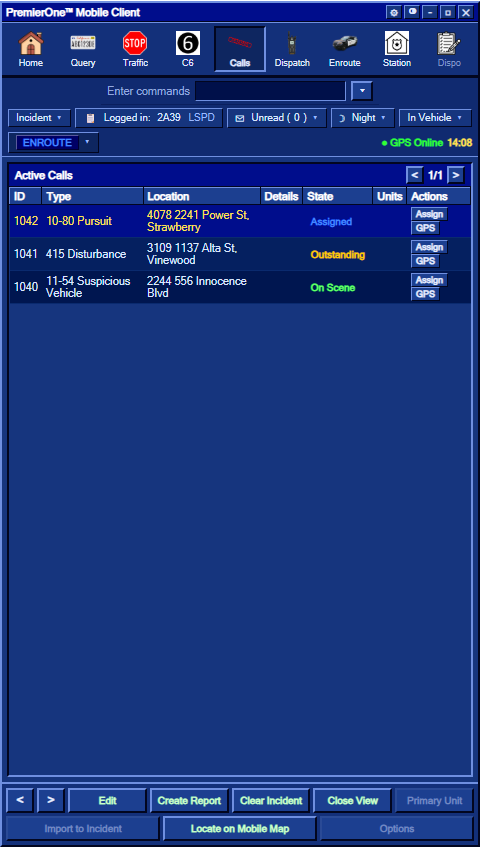
| Column | Meaning |
|---|---|
| ID | Incident number (e.g. 20011) |
| Type |
Traffic Stop, Code 6, Incident, 911 Emergency, 311 Non-Emergency, Panic Button, Crime Broadcast … |
| Location | Postal + street |
| Details | Original call message |
| State |
Outstanding, Assigned, On Scene, Resolved
|
| Units | Callsigns currently attached |
| Actions | Assign (attach yourself + ENROUTE) · GPS (set waypoint) |
A row in bold yellow is unread — a new incident you haven't viewed yet.
Click a row to select it; it becomes your active incident in the Home view.
🔊 Sound cues: new incidents created by an officer play
mdtentry.oggfor every on-duty unit. New comments on an incident you're attached to play the same sound. A 3-second cooldown per sound prevents spam.
There are three ways for an officer to create an incident from the MDT:
- Creates a Traffic Stop incident at your current street
- Auto-sets your status to CODE SIX
- Auto-attaches you as the primary unit
- Broadcasts the new incident to all on-duty units (with a sound cue)
📸 Screenshot — Traffic Stop incident just created:
images/mdt-traffic-create.png

- Creates a Code 6 incident (general "out on a scene")
- Auto-sets your status to CODE SIX
- Auto-attaches you
Some workflows let you type an incident manually with free-text details (kind = manual). The handler accepts up to 180 characters of details and does not force a status change.
For each created incident, the server:
- Allocates the next incident number
- Stores it in the
callsstore (DB + JSON mirror) - Logs the creation in the audit trail (admin-only,
/calllog) - Pushes a fresh
SyncCallsto every open MDT/Dispatch - Sends the
mdtentry.oggsound to every on-duty unit (client-side cooldown protects against spam) - Sets your
incidentfield to the new number
⚠️ Spam protection: the same officer can create incidents at most once every 3 seconds. Faster clicks are silently dropped with a notify — no broadcast, no sync, no sound.
From the Calls tab, click Assign on a row. The server:
- Sets your status to ENROUTE
- Attaches you to the incident
- Posts an entry in the incident comments: "Assigned — en route"
- Updates the call state to Assigned
- Notifies you
Dispatchers can also assign you (or any unit) via the Dispatch Console — see Dispatch Console.
The Comments sub-tab is the running log for the incident. Anything important you do in the CAD shows here:
- Manual comments you type in the Comments input
- System events (assigned, state changed, response code set, resolved, …)
- Dispositions when an incident is cleared
📸 Screenshot — Comments sub-tab with mixed entries:
images/mdt-comments.png
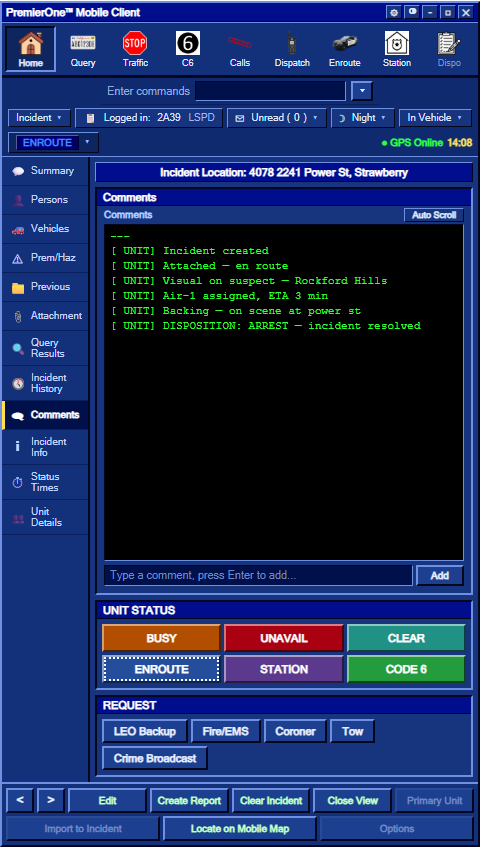
Comments are persisted in the calls store (DB + JSON mirror) and visible in the Summary's narrative section too.
🔊 Sound cue: every unit attached to the incident hears
mdtentry.oggwhen a new comment lands (3-second cooldown).
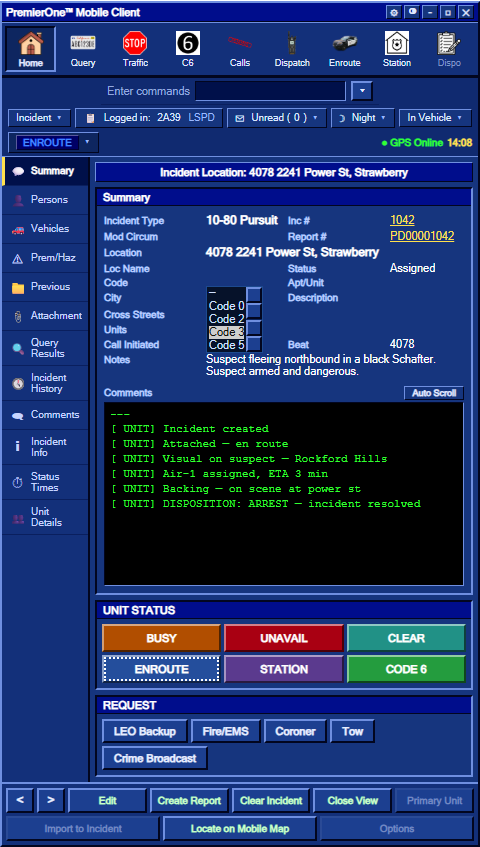
Each incident has a response code — how fast units should respond:
| Code | Meaning |
|---|---|
| (empty) | No incident / not set |
| 0 | Routine |
| 2 | Standard emergency response |
| 3 | High-priority emergency response |
| 5 | Special / urgent |
Auto-assigned at creation:
-
311 Non-Emergency→ Code 2 -
911 Emergency→ Code 3
All other types start with an empty code and you can set it yourself in the Summary or Incident Info sub-tab. The change is logged as a comment.
📸 Screenshot — Code dropdown in Summary:
images/mdt-code-dropdown.png
Click Clear Incident in the bottom action bar (or use the Dispo toolbar button).
📸 Screenshot — Disposition modal:
images/mdt-dispo-modal.png

Pick a disposition code (3-6 letters, e.g. UTL, GOA, ARR, CMP). The server:
- Sets the incident's state to Resolved
- Appends to notes:
DISPO // <time> // <reason> // <unit> - Adds a comment to the audit log: "DISPOSITION: <reason> — incident resolved"
- Records the resolution in the admin audit
- Sends the final state to you (so your panel still shows the resolved incident)
- Removes the incident from the active broadcast (other terminals no longer see it on the Calls tab)
Resolved incidents remain in the calls store for CallRetentionDays (default 7 days), so they're searchable in Incident History.
The Incident History sub-tab is your archive of resolved incidents — handy for reviewing what happened earlier in the shift or finding a specific incident again.
📸 Screenshot — Incident History tab with many rows:
images/mdt-history.png

The view shows:
- Top section — quick recap of the currently active incident (if any)
- Bottom section — paginated table of resolved incidents, newest first, up to 200
Each row:
| Column | Meaning |
|---|---|
| INC | Incident number |
| Type | Original type (Traffic Stop, 911, …) |
| State | Always Resolved here |
| When | Date the incident was created |
| View | Load this incident back into your Home view (read-only) |
The list scrolls within the panel — no matter how many entries there are, the UNIT STATUS and REQUEST strips at the bottom stay visible.
💡 Tip: searching is by scrolling for now. If your shift had 200+ incidents, ask a dispatcher to use
/calllog <number>from the server console.
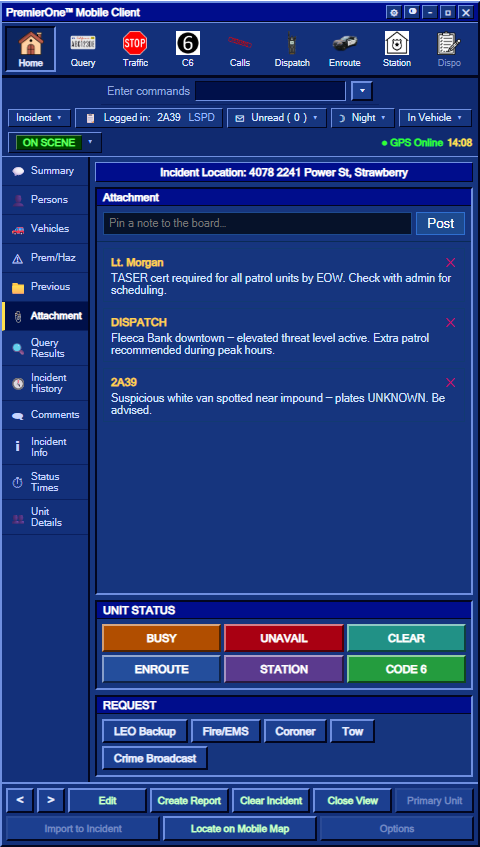
The Attachment sub-tab is the department's shared bulletin board — anyone on duty can pin a short note for everyone else.
📸 Screenshot — Bulletin board with several posts:
images/mdt-board.png
Use it for:
- "Watch for a red Sultan with a busted tail-light in Vinewood"
- "Code 3 to anyone responding to 4500 Innocence — BOL details inside"
- Shift handover notes
- Supervisor announcements
How it works:
-
Post — type up to 240 characters, hit
Enteror click Post. The note is saved server-side (DB storeboard, mirrored todata/board.json) and broadcast to every open MDT. - Delete — click the ✕ on any note you posted. Staff can delete anyone's note.
- Limit — the board keeps the 100 most recent entries; older ones drop off automatically.
- Identification — each entry shows the author's callsign + time.
🛡️ This is technically open to all on-duty units. Use it responsibly — it's not a chat. Repeat offenders can be moderated by staff (and the audit trail records every post).
- Persons — after a successful Query run, the matched person's record (DL, warrant, physical, notes, registered vehicles) shows here automatically. See Query: Running People & Plates.
- Vehicles — vehicles linked to the active incident.
Click Unit Details in the left rail to see every on-duty unit at once.
📸 Screenshot — Unit Details with many units:
images/mdt-unit-details.png

Columns (narrow on purpose so a lot of units fit):
| Column | Meaning |
|---|---|
| UNIT | Callsign. Click to expand and see the officer(s) in that unit (▸ / ▾) |
| ST | 2-letter status code (CL / EN / AS / C6 / BY / UA / ST) — full status on hover |
| UNIT Location | Street the unit is at; CLEAR = empty, STATION = "OUT TO STATION" (or custom text) |
| Inc | Incident number the unit is attached to (blank if none) |
| Type | Incident type |
| Code | Response code for that incident (auto from 311/911, manual otherwise) |
Filter buttons: All · LEO · FD/EMS · Coroner
Sort dropdown: Callsign (natural) · Status · Default (server order)
Editing your own Location — click the Location cell on your own row to type a custom override (useful when STATION / BUSY / UNAVAIL away from your home base). Saved server-side; cleared automatically when you go CLEAR.
💡 Units sharing the same callsign (partners in one car) are merged into one row, with a number badge
(2)and the dropdown showing both officers.
NEW CALL  →  Outstanding
              │
              ▼  (officer assigns → enroute)
            Assigned
              │
              ▼  (officer arrives)
            On Scene  ◄──┐
              │           │ (comments, status changes, code updates)
              ▼           │
            Clear Incident (Dispo modal)
              │
              ▼
            Resolved  ──►  Incident History (kept for CallRetentionDays)
                            │
                            ▼
                          Pruned (one-time backup written before first prune)
- MDT Toolbar & Status — every UI element explained
-
Query: Running People & Plates —
/run, VREG, stolen-vehicle flow - Dispatch Console — the full-screen dispatcher CAD
- Status labels — what the colour-coded badges mean