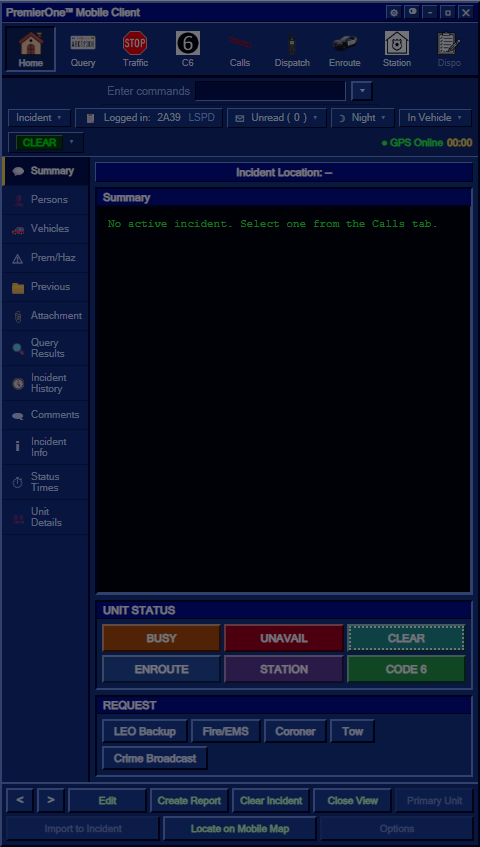
MDT Toolbar and Status
Every button, dropdown and status indicator in the MDT, top to bottom.
📸 Screenshot — Toolbar with all icons:
images/mdt-toolbar.png

| Icon | Button | What it does |
|---|---|---|
| 🏠 | Home | Switch to the Home view (active incident workspace) |
| 📇 | Query | Open the Query view (run a person, vehicle, or plate) |
| 🛑 | Traffic | Create a Traffic Stop incident at your current street and auto-set your status to CODE 6 |
| ⑥ | C6 | Go Code 6 at your current street (create a Code 6 incident, set status CODE SIX) |
| 📞 | Calls | Switch to the active-calls list (all open incidents in the CAD) |
| 🎙 | Dispatch | Switch to the in-MDT Dispatch chat view — talk to dispatchers without leaving your car |
| 🚓 | Enroute | Quickly set your status to ENROUTE |
| 🏢 | Station | Set your status to OUT TO STATION (and clear your active incident assignment) |
| 📋 | Dispo | Open the Disposition modal to clear/close your current incident with a reason |
💡 Traffic and C6 also create incidents that get broadcast to everyone on duty — including a sound cue (
mdtentry.ogg). They are not just status changes.
⚠️ Spam protection: the server rate-limits incident creation to one every 3 seconds per officer, so button-mashing won't broadcast a flood of incidents or sounds. Spam clicks are silently dropped with a brief notify.
📸 Screenshot — Command bar in detail:
images/mdt-command-bar.png

| Field | Meaning |
|---|---|
| Enter commands | Free-text command box (RP/typed commands) |
| Incident ▾ | Quick navigator for your active incident |
| Logged in: <callsign> <agency> | Your current on-duty identity |
| Unread (n) ▾ | Number of unread/new incidents you haven't viewed |
| Day/Night ▾ | Time of day indicator |
| In Vehicle ▾ | Whether you're seated in a unit |
📸 Screenshot — Status bar showing current status + GPS:
images/mdt-status-bar.png

The left side shows your current unit status as a dropdown — click it to set your status to any valid value (instead of using the status grid below).
The right side shows:
- ● GPS Online — your position is being reported to dispatch / the map
- <HH:MM> — current in-game time
📸 Screenshot — Left rail close-up:
images/mdt-rail.png

Each entry switches the main panel between different views of the currently selected incident (or general workspace if no incident is selected). Detailed contents are in Using the MDT and Working with Incidents.
Sub-tabs you'll use most:
- Summary — at-a-glance view of the incident + comment narrative
-
Persons — pops up after a successful
/runquery - Comments — add commentary; new comments play a sound for every attached unit
- Incident History — searchable archive of resolved incidents
- Unit Details — every on-duty unit on one screen
- Attachment — the department Bulletin Board (a.k.a. "Schwarzes Brett")
📸 Screenshot — Status grid:
images/mdt-status-grid.png

Quick buttons to change your own status:
| Button | Status | ST Code | When to use |
|---|---|---|---|
| BUSY | BUSY |
BY |
Currently occupied, can't take calls |
| UNAVAIL | UNAVAILABLE |
UA |
Off the air for a longer period |
| CLEAR | CLEAR |
CL |
Available for assignment |
| ENROUTE | ENROUTE |
EN |
Heading to a call |
| STATION | OUT TO STATION |
ST |
At the station / off the road |
| CODE 6 (LEO) | CODE SIX |
C6 |
Investigating / out on a scene |
| ON SCENE (Fire/EMS) | ON SCENE |
AS |
Arrived at the incident |
The grid auto-adapts to your role: LEO sees CODE 6; Fire/EMS sees ON SCENE.
Your current status is highlighted (subtle border / coloured outline).
See Status labels for what the colour-coded badges mean across the CAD.
📸 Screenshot — Request grid:
images/mdt-request-grid.png

Quick action to ping other units / services on the channel. Each button fires the appropriate radio message:
| Button | What it does |
|---|---|
| LEO Backup | Requests law-enforcement backup to your location |
| Fire/EMS | Requests fire / EMS response |
| Coroner | Requests the coroner |
| Tow | Requests a tow truck |
| Crime Broadcast (LEO) | Broadcasts a crime alert (/cb equivalent) — your callsign + current street + your message |
📸 Screenshot — Bottom action bar:
images/mdt-action-bar.png

| Button | What it does |
|---|---|
| < / > | Cycle through active incidents (same as ↑ / ↓ arrows) |
| Edit | Edit the active incident |
| Create Report | Create a follow-up report |
| Clear Incident | Resolve the active incident with a disposition (UTL, GOA, ARR, CMP …) — see Working with Incidents |
| Close View | Close the open detail/modal view |
| Primary Unit | Mark yourself as the primary unit on this incident |
| Import to Incident | Pull related records into the incident |
| Locate on Mobile Map | Set GPS / waypoint to the incident location |
| Options | Misc options |
| Key | Action |
|---|---|
| O | Toggle open / close |
| ESC | Close the topmost layer (modal → dispatch → MDT) |
| Backspace | Same as ESC, but ignored when typing in a text field |
| ← / → | Previous / next tab |
| ↑ / ↓ | Previous / next incident or list item |
| Enter | Submit input (comments, chat, plate, …) inside its field |
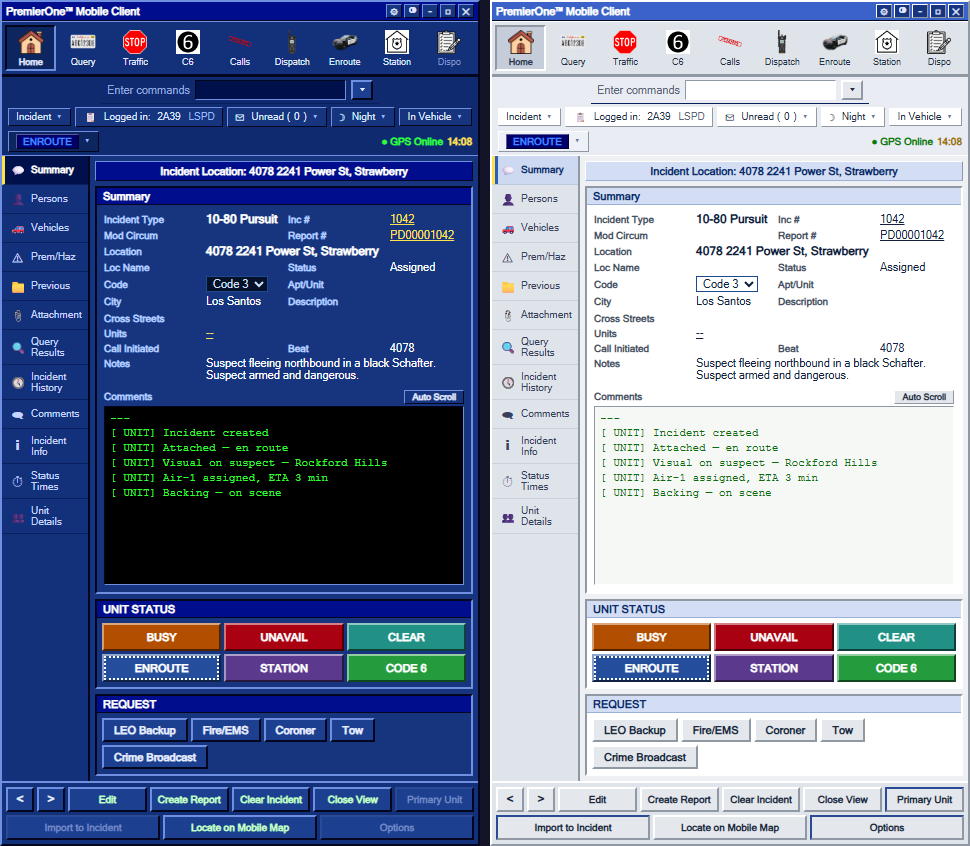
The default theme is the dark PremierOne Blue. Switch to White Mode (light, high-contrast — useful in daylight or for streaming) via:
- The ◙ circle icon in the title bar
- The
/mdttheme [white|normal]command (no arg toggles) - Persisted in
localStorageper client
📸 Screenshot — Normal vs. White theme side-by-side:
images/mdt-theme-compare.png
Open the ⚙ gear in the title bar:
- Opacity — slider 50–100 % (drop it if the MDT covers something important)
- Scale — 0.8–1.4× (handy on ultrawide / 4K)
-
Position —
Right(default),Center,Left, orCustom (dragged)
Dragging the title bar switches Position to Custom (dragged) automatically. All values are saved per client.
📸 Screenshot — Settings modal:
images/mdt-settings-modal.png