Using the MDT
The MDT (Mobile Data Terminal) is the in-car CAD for Law Enforcement, Fire/EMS, and Coroner units. It's modeled after the real PremierOne™ Mobile Client used in LAPD vehicles, and is the central hub for working incidents, running queries, managing your status, and talking to dispatch.
📑 Deep dives:
- MDT Toolbar & Status — every button explained
- Working with Incidents — create, attach, resolve, history, board
- Query: Running People & Plates —
/run, VREG flow, stolen plates
| Action | Default |
|---|---|
| Open / close |
O key · /mdt command |
| Close also via | ESC · Backspace (outside text fields) · the ✕ in the title bar |
| Switch tabs | ← / → arrow keys (when no input is focused) |
| Move through incidents/calls | ↑ / ↓ arrow keys |
Only on-duty LEO / Fire / EMS / Coroner can open it. Go on duty with:
/onduty <agency> <callsign> e.g. /onduty LAPD 1A-12
📸 Screenshot — MDT closed → opened:
images/mdt-open-close.png

The MDT is designed so you can still play the game with it on screen:
- ✅ Move your character normally (WASD)
- ✅ Talk on the radio (pma-voice "funken" key) — the radio binding fires even with the MDT focused
- ✅ Mouse stays on the UI — clicking buttons doesn't fire your weapon, mouse movement doesn't turn the camera
- ❌ Typing into a text field is captured by the MDT only while that field is focused — your keystrokes never leak into game keybinds
If something is mapped to mouse-click in the game, it's automatically blocked while the MDT is open: attack, aim, melee, weapon wheel, reload, etc.
┌────────────────────────────────────────────────────────────────┐
│  PremierOne™ Mobile Client                            ⚙ ⊙ – ▢ ✕│  ← Title bar (drag to move)
├────────────────────────────────────────────────────────────────┤
│ 🏠 Home  📇 Query  🛑 Traffic  ⑥ C6  📞 Calls  🎙 Dispatch …    │  ← Toolbar
├────────────────────────────────────────────────────────────────┤
│ [Incident ▾] [Logged in: 1A-12 LAPD] [Unread (0) ▾] [Night ▾] …│  ← Command bar
│ [ OUT TO STATION ▾]                       ● GPS Online   5:12  │  ← Status bar
├──────────┬─────────────────────────────────────────────────────┤
│ Summary  │                                                     │
│ Persons  │     Active incident details / sub-tab content       │
│ Vehicles │                                                     │
│ Prem/Haz │                                                     │
│ Previous │                                                     │
│ Attach.  │                                                     │  ← Left rail (sub-tabs)
│ Query Re.│                                                     │      + main content area
│ Inc Hist.│                                                     │
│ Comments │                                                     │
│ Inc Info │                                                     │
│ Status T.│                                                     │
│ Unit Det.│                                                     │
├──────────┴─────────────────────────────────────────────────────┤
│ UNIT STATUS:  BUSY  UNAVAIL  CLEAR  ENROUTE  STATION  CODE 6   │  ← Status grid
│ REQUEST:      LEO Backup   Fire/EMS  Coroner  Tow  Crime Br.   │  ← Request grid
├────────────────────────────────────────────────────────────────┤
│ < >  Edit   Create Report   Clear Incident   Close View   …    │  ← Bottom action bar
└────────────────────────────────────────────────────────────────┘
📸 Screenshot — Full MDT overview with labels:
images/mdt-layout-overview.png
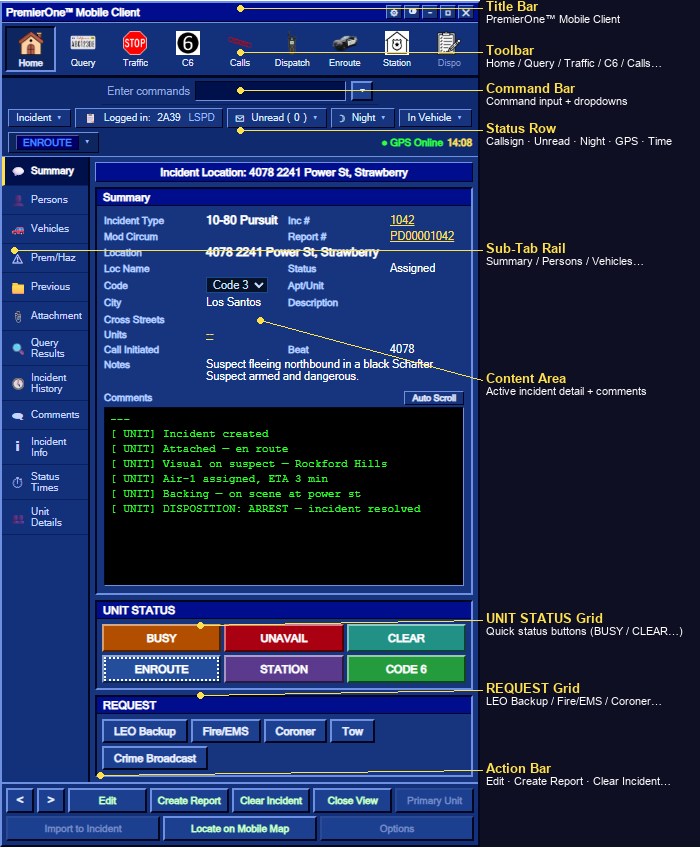
What each area does is detailed in MDT Toolbar & Status.
The Home tab shows the currently selected incident (the one you're attached to or just clicked on). The left rail drives which sub-view is shown in the main panel:
| Sub-tab | What it shows |
|---|---|
| Summary | Incident field-mask (type, location, code, units, beat, notes) + comment narrative |
| Persons | Person record from a recent /run query (DL/warrant/notes/vehicles). Auto-jumps here after a successful query. |
| Vehicles | Vehicles attached to the incident |
| Prem/Haz | Premise hazards (warnings about a location) |
| Previous | Other incidents at the same postal |
| Attachment | Department Bulletin Board ("Schwarzes Brett") — everyone on duty can pin notes |
| Query Results | Quick textual summary of the last query |
| Incident History | All resolved/closed incidents — searchable archive |
| Comments | The incident's running comment log (= audit trail) with an Add-Comment field |
| Incident Info | Same field-mask as Summary, no narrative — pure fields |
| Status Times | Timestamps & state metadata |
| Unit Details | All on-duty units (UNIT / ST / Location / Inc / Type / Code), filterable, sortable, expandable to show officers |
📸 Screenshot — Left rail sub-tabs:
images/mdt-rail-sub-tabs.png

| Setting | Effect |
|---|---|
| Opacity | MDT transparency — see the world behind |
| Scale | Resize the whole MDT (useful for ultrawide / 4K) |
| Position | Preset positions (Right, Center, Left) or Custom (dragged)
|
| Theme |
Normal (CAD blue) or White (high-contrast) — also via the ◙ icon in the title bar, or /mdttheme
|
Drag the title bar to move the MDT anywhere — the position is saved per client. The Position setting automatically switches to Custom (dragged) when you do.
📸 Screenshot — Settings modal open:
images/mdt-settings.png
| Goal | How |
|---|---|
| Open / close |
O · ESC · Backspace · /mdt
|
| Switch theme |
◙ in title bar · /mdttheme [white|normal]
|
| Settings (opacity, scale, …) | ⚙ in title bar |
| Move | Drag the title bar |
| Cycle tabs | ← / → |
| Cycle incidents | ↑ / ↓ |
| Run a person/plate |
Query tab · /run <name or plate>
|
| Quick traffic stop | Traffic toolbar button |
| Go Code 6 | C6 toolbar button |
| Set status | The status-grid buttons, the ▾ next to your callsign, or the toolbar buttons (Station, Enroute) |
-
"It won't open" — you're not on duty. Run
/onduty <agency> <callsign>. - "The mouse keeps turning the camera" — outdated build; pull the latest, the camera-look controls are blocked while the MDT is open.
- "I clicked and shot my gun" — same as above; attack controls are blocked too in the latest build.
- "It's covering my view" — drop the opacity in Settings or drag it to a corner.
- "I want it back where it was" — Settings → Position → pick a preset (Right is the original placement).
- "Unread MDT Calls banner won't go away" — fixed in 3.0.4; the banner clears when you open the MDT.