Repository navigation
Devices and History
The Devices tab lists every device the tracker knows about, including ones that have left the network.
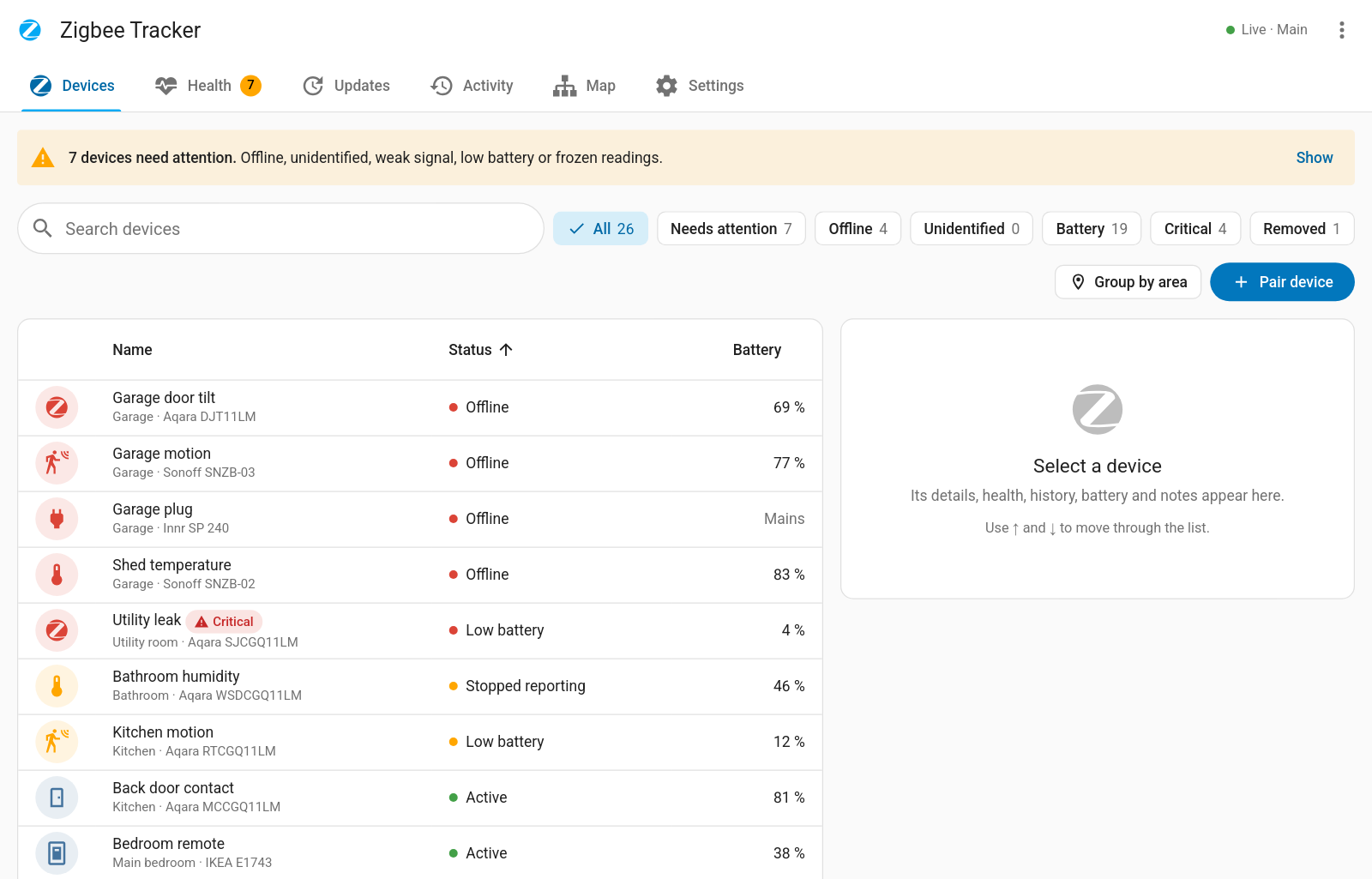
Search matches names, former names, models, manufacturers, areas and IEEE addresses. The filter chips narrow the list:
| Filter | Shows |
|---|---|
| All | Every device still on a network. |
| Needs attention | Devices that are offline, unidentified or have a warning. |
| Offline | Devices Zigbee2MQTT reports as unavailable. |
| Unidentified | Devices that joined but whose interview never completed. |
| Battery | Devices that report a battery level. |
| Critical | Devices marked as critical. |
| Removed | Devices that are no longer on any network. |
Group by area splits the list by room. Click a column heading to sort by name, area, model, status, battery, signal or last seen. On a wide screen, the arrow keys move up and down the list while the side panel is open.
On a phone, the battery and signal columns are hidden and shown in each row's second line instead, and the sidebar's tabs (Devices, Health and the rest) move to a bar at the bottom of the screen.
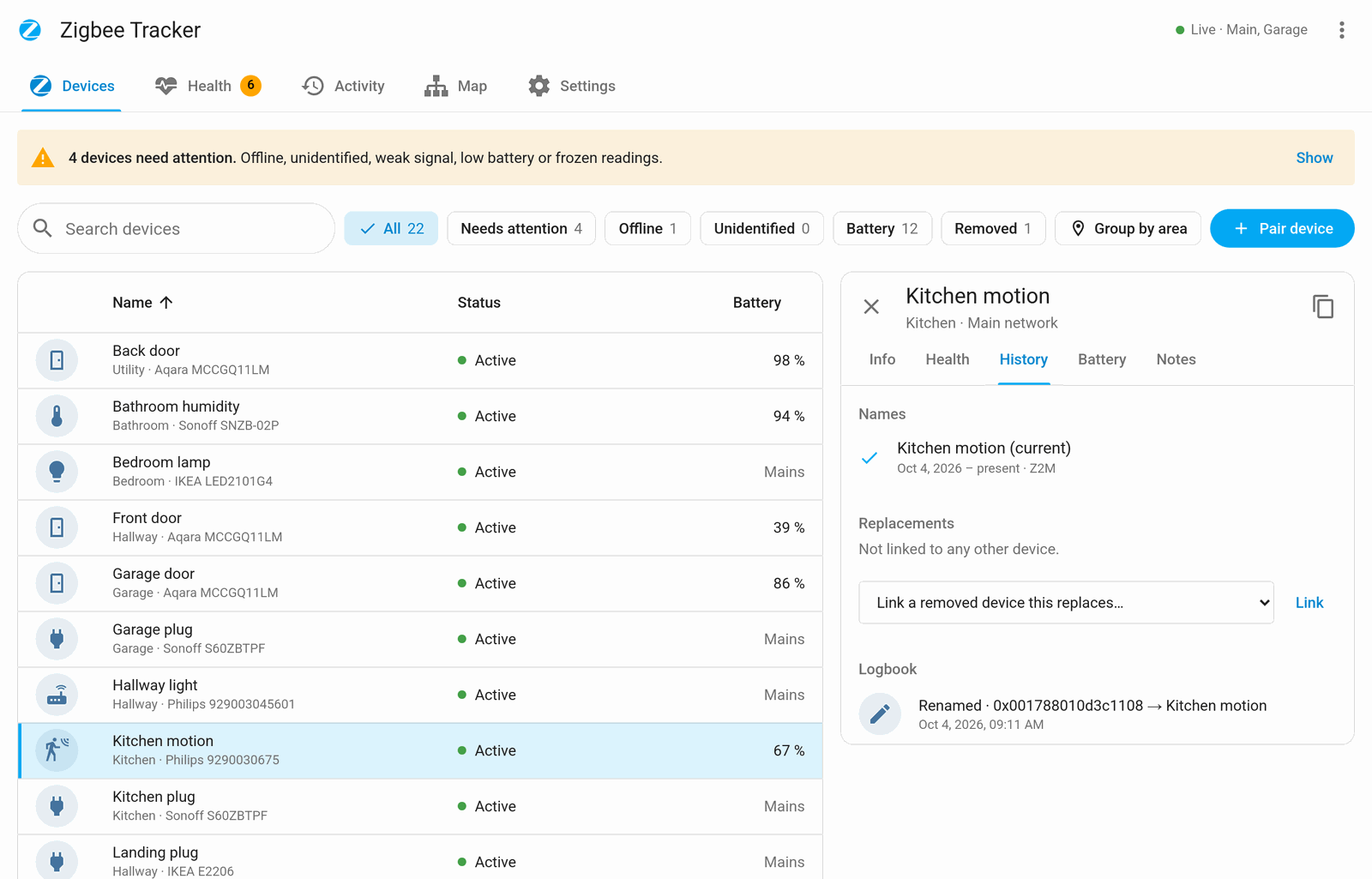
Open a device to see its tabs:
| Tab | What's on it |
|---|---|
| Info | Model, manufacturer, firmware, power source, network, area, IEEE address, radio maker (worked out from the address, useful for devices Zigbee2MQTT couldn't identify), its traffic (messages an hour over the last 6 hours, its usual rate, messages in the last 24 hours, and Zigbee2MQTT's own message, leave and address-change counters), its current and lost bindings (with Restore for lost ones), and the device's capabilities. The Critical device switch and, for mains devices, the Ping button are at the top. |
| Health | Current problems, signal over the last 7 days, availability and 30-day uptime, monitored readings, routing from the last scan, Commands, Reporting, When this device alerts, Expected reporting and Limits for this device. |
| Trends | Link quality and battery over 24 hours, 7, 30 or 90 days, and for routers the nightly reply time. See Trends. |
| History | Every name the device has had, and its logbook: joins, leaves, renames, interviews, reconfigures, firmware updates, battery changes, maintenance done, reporting changes, changes to its options in Zigbee2MQTT, and bindings added, removed, restored or unbound. For an end device, also the router it connected through in each recent routing scan, and the one with the best link. |
| Battery | Only for battery devices. See Batteries. |
| Notes | Free-text notes, asset details and maintenance tasks. |
From a device you can:
- Reconfigure it. Asks Zigbee2MQTT to re-send the device's reporting setup. This is the first fix for a frozen reading.
-
Rename or set area. Renames the device in Zigbee2MQTT (and its Home Assistant entities with it), and sets its area in Home Assistant. Names can't contain
+or#or end with/. - Check for firmware update and Update it over the air. See Firmware updates.
- Ping it (mains devices only). See Ping.
- Change router: move it to another router. See Pairing and moving devices.
- Replace… it with a new device, when it's offline, silent, unidentified or removed. See Replacing a device.
- Forget it. Deletes the device and all its history from the tracker. Only use this for a device you never want to see again: if it's still on the network, it's added back as new.
A device's Bindings list on the Info tab shows its current bindings and any it has lost. Each lost binding has a Restore button, and Restore all appears when there are several. The same button is on the Binding lost problem.
Restoring asks Zigbee2MQTT to re-create the binding. It works for bindings to another device, to a group, or to the coordinator (which it does with a reconfigure). It asks you first, and can take up to a minute per binding. A battery device may be asleep, so press a button on it just before you confirm. The result shows at the bottom of the screen.
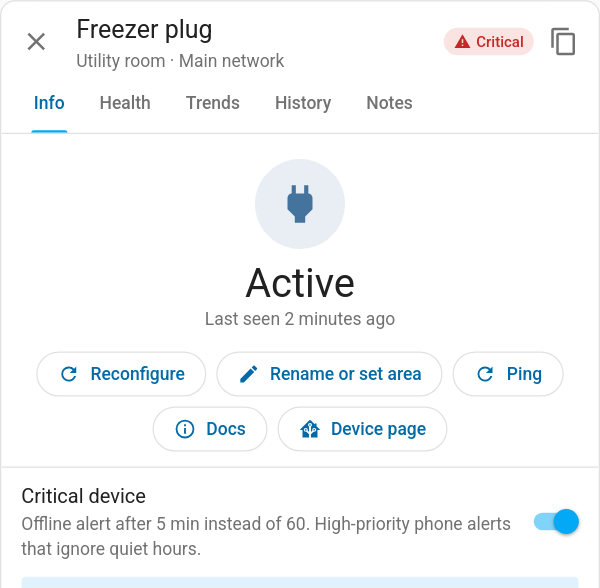
Turn on Critical device on the Info tab for devices that must never fail quietly, such as smoke and leak sensors or the freezer plug. A critical device alerts sooner when it goes offline (after critical_offline_minutes, default 5), sends high-priority phone alerts, and alerts straight away during quiet hours. It has a red Critical tag and its own filter in the device list. See Critical devices.
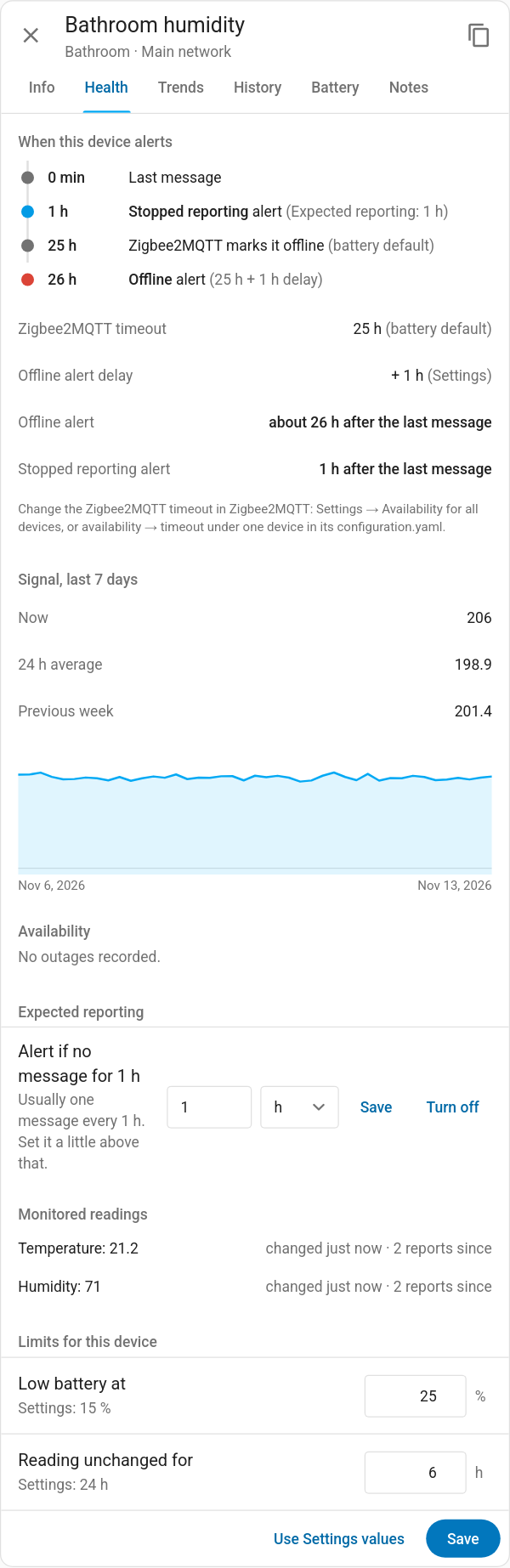
Zigbee2MQTT decides when a device is offline: by default after 10 minutes for mains devices and 25 hours for battery devices. For a device that should report more often, set your own limit on its Health tab under Expected reporting, from 30 seconds to 7 days, in seconds, minutes or hours. If the device sends nothing for that long, the Stopped reporting check flags it, even while Zigbee2MQTT still shows it online.
The tab shows how often the device usually reports ("Usually one message every …"). Set the limit a little above that. Turn off clears it.
The check is off for every device until you set a limit. It is skipped while that device's Zigbee2MQTT is offline, so a network outage raises one alert, not one per device. To set it for many devices at once, see Expected reporting for many devices.
The Health tab's When this device alerts shows how long this device takes to alert, step by step: its last message, when Zigbee2MQTT marks it offline (with where that timeout comes from: the mains or battery default, set in Zigbee2MQTT, or set for this device), the offline alert delay, and Expected reporting if set. See When a device alerts.
A device can have its own Low battery at level (battery devices) and Reading unchanged for time (devices with monitored readings), under Limits for this device on its Health tab. Each row shows the value from Settings for comparison. Use Settings values removes the device's own limits.
Mains devices have a Ping button on the Info tab. It reads one attribute (the Basic cluster's ZCL version, the same read Zigbee2MQTT's availability check uses) and shows how long the reply took, for example "Replied in 42 ms", or "No reply in 10 s". Nothing is written to the device. Battery devices sleep, so they have no Ping button.
Every night, the hour after the routing scan (04:00 when networkmap_hour is -1), the app pings each online router once, one at a time, 2 seconds apart. A router's Trends tab shows the last 14 nights as Nightly reply time, last 14 days, and the Router getting slower check uses them. 30 nights are kept.
Ping uses Zigbee2MQTT's bridge/request/action API, so it needs Zigbee2MQTT 2.7 or newer. The time includes the trip through MQTT and Zigbee2MQTT, a few milliseconds.
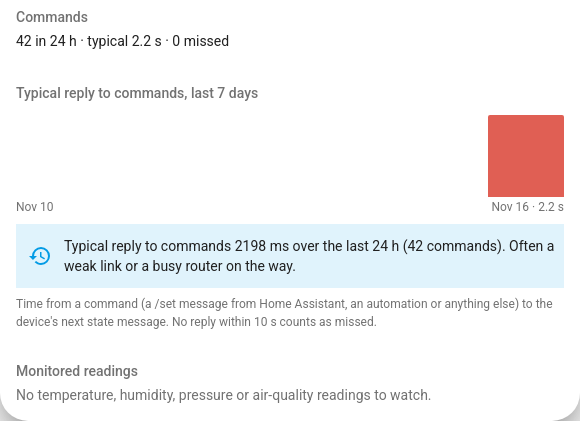
Every command sent to a device is timed: any <name>/set message, from Home Assistant, an automation, a script or anything else. The time runs until the device sends a state message showing what was asked (on, off, a brightness and so on). Commands within 2 seconds of each other count as one. No reply within 10 seconds, or none before the next command, counts as missed.
The Commands section of the Health tab shows, for the last 7 days, how many commands were sent, the typical (median) reply time and how many were missed, with a chart of the typical reply per day. Commands sent while Zigbee2MQTT marks the device offline aren't counted.
The Slow to respond and Misses commands checks use these times.
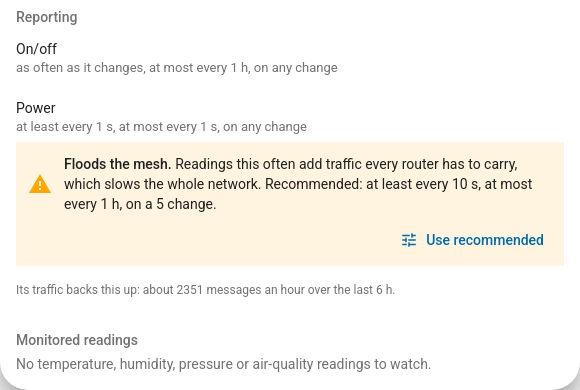
Zigbee2MQTT tells each device when to report its values: no more often than a minimum interval, at least once per maximum interval, and whenever the value changes by a set amount. The Reporting section of the Health tab lists these in plain words, for example "Temperature: at least every 10 s, at most every 1 h, on a 0.1 °C change".
Settings that need a change are flagged, with the reason and the recommended values:
| Flag | When | Recommended |
|---|---|---|
| Drains the battery | A battery device with any maximum interval under 5 minutes, or a minimum interval of 0 on a measurement that changes often (temperature, humidity, pressure, illuminance, CO₂, PM2.5, soil moisture). Every report wakes the radio. | Maximum 1 h, minimum 30 s, and a 0.2 °C or 1 % change instead of 0. Battery level: 1 h to 12 h. |
| Floods the mesh | A mains device reporting power, energy, current or voltage with a maximum interval of 5 seconds or less, or on every change with a minimum interval under a minute. Every router has to carry that traffic. | Maximum 1 h, minimum 10 s, and a small change instead of 0. |
| May go silent | A measurement with reporting turned off (maximum interval 65535), or a measurement the device has but no reporting set for it. The second only counts on devices that use configured reporting for something else: many (Aqara, most Tuya) send values without it. | Maximum 1 h. For missing reporting, Reconfigure asks Zigbee2MQTT to set up its defaults again. |
Recommended values change only the part that's wrong and keep the rest. Use recommended asks first, then sends the change to Zigbee2MQTT and logs a "reporting changed" event. A battery device may be asleep: press its button just before you confirm. When the device's message rate over the last 6 hours backs up a finding, the problem says so.
The Reporting settings check lists every device with a flag.
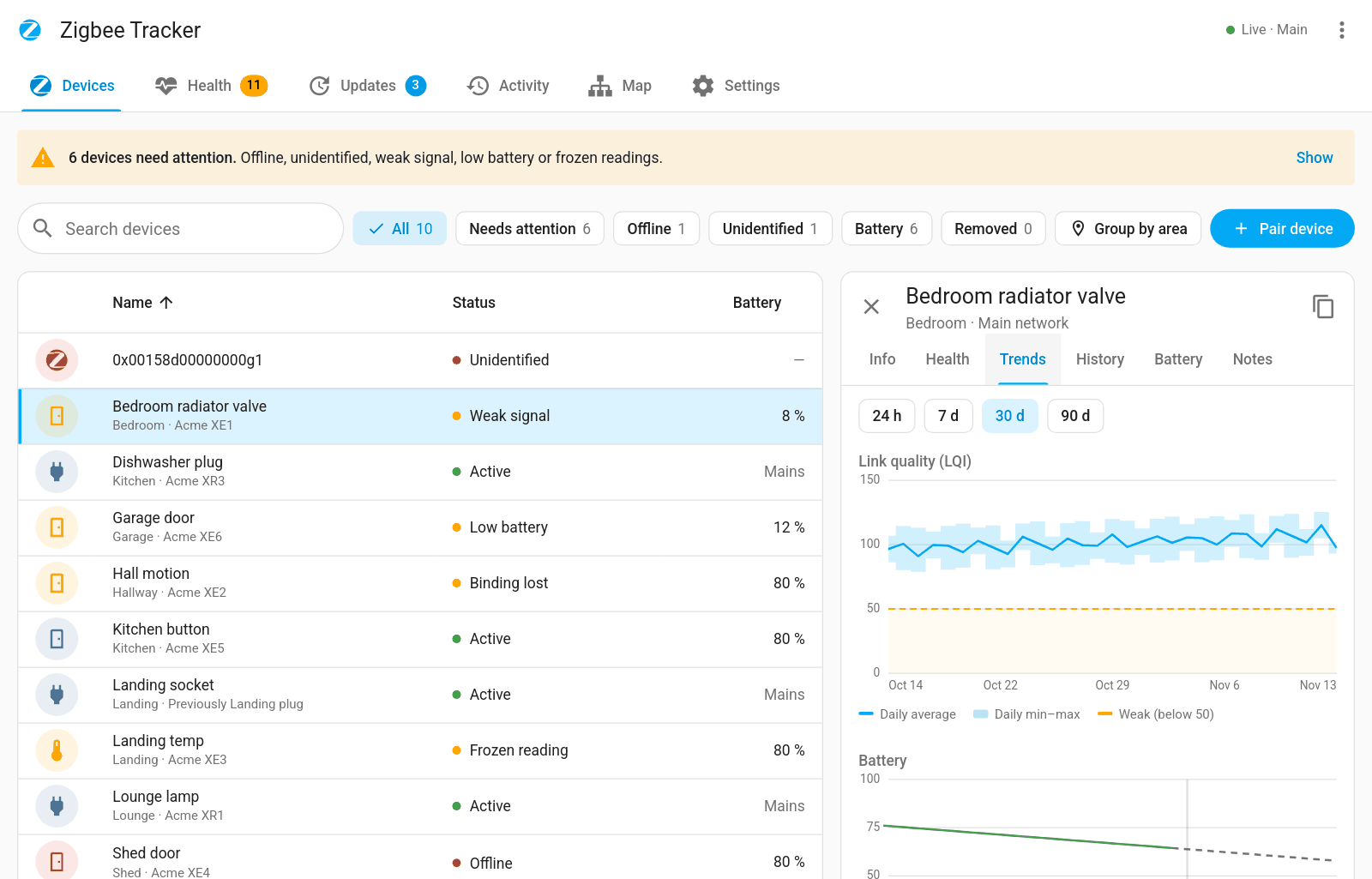
The Trends tab shows how a device's signal and battery have changed. Pick 24 h, 7 d, 30 d or 90 d.
- Link quality (LQI): the hourly average for 24 h and 7 d, or the daily average for 30 d and 90 d, over a shaded band from each day's lowest to highest reading. A line marks the weak level (below 50).
- Battery (battery devices only): the daily readings, a mark for each battery replacement, and a dashed projection to when it reaches 10 %. The 24 h range shows the last 7 days of battery, because devices report it about once a day.
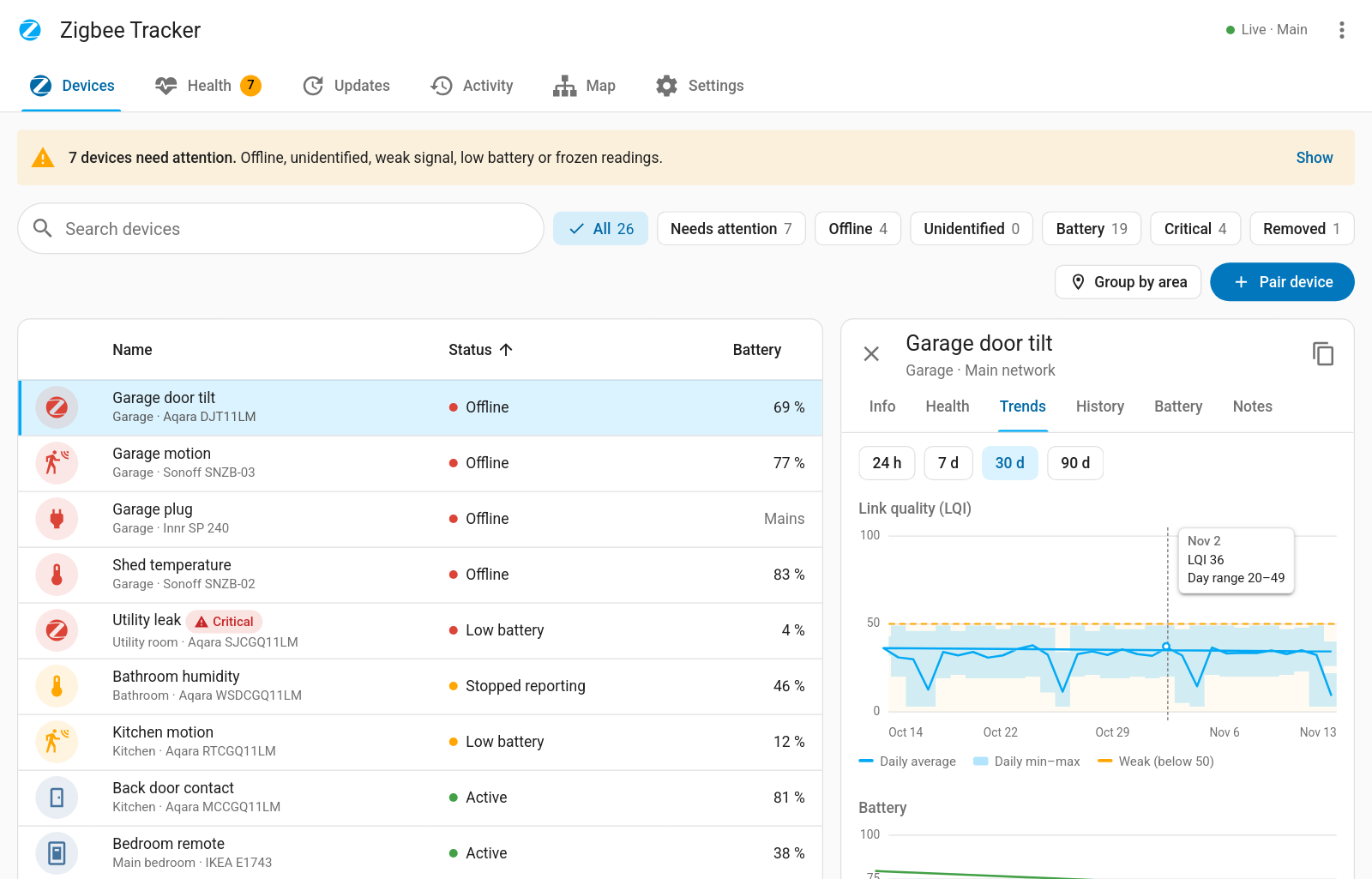
Point at a chart, or touch it on a phone, to see the date and value at that spot. This works on every chart in the sidebar, including the signal chart on the Health tab and the memory chart under Coordinators.
Under the charts are the average LQI for the range, the LQI trend (change per month, or Steady), and for battery devices the drain per month and the month it reaches 10 %. The projection uses the same estimate as the Battery tab, so it needs two weeks of falling readings since the last battery change.
The tracker links each Zigbee device to its device in Home Assistant. For a linked device, the area and the name you gave it in Home Assistant come from Home Assistant.
The tracker follows Home Assistant's device, area and entity registries as they change. Rename a device or change its area in Home Assistant, or pair a new one, and the tracker shows it within about 5 seconds. You don't need to restart the app.
A device you've only just paired can have its area set straight away, from Rename or set area or the pairing dialog.
For each device the tracker keeps:
-
Names. The current Zigbee2MQTT name, every earlier name with the date it changed, and the Home Assistant name if you renamed it there.
-
Hardware. Model, manufacturer, firmware version and date, power source, device type (router or end device).
-
Membership. First seen, last seen, joins, leaves and the date it was removed.
-
Availability. Online and offline changes, and outages used for the 30-day uptime.
-
Signal. Hourly averages of link quality (LQI), kept for 14 days, and a daily average, minimum and maximum, kept for 90 days.
-
Battery. One reading a day, kept for 400 days, plus your replacement records.
-
Bindings. The current bindings Zigbee2MQTT reports, and any that disappeared. A binding removed with Zigbee2MQTT's Unbind is logged as unbound rather than lost. See Binding lost.
-
Traffic. Hourly message counts, for the message rates, the chatty device check and the usual gap used by Expected reporting.
-
Reply times. For routers, the nightly ping time, kept for 30 nights.
-
Readings. For temperature, humidity, pressure, CO₂, VOC, PM2.5 and soil moisture: the last value and when it last changed, for the frozen-reading check.
-
Commands. How long the device took to answer each command, and which it missed. See Commands.
-
Reporting. The attribute reporting Zigbee2MQTT set up for it. See Reporting.
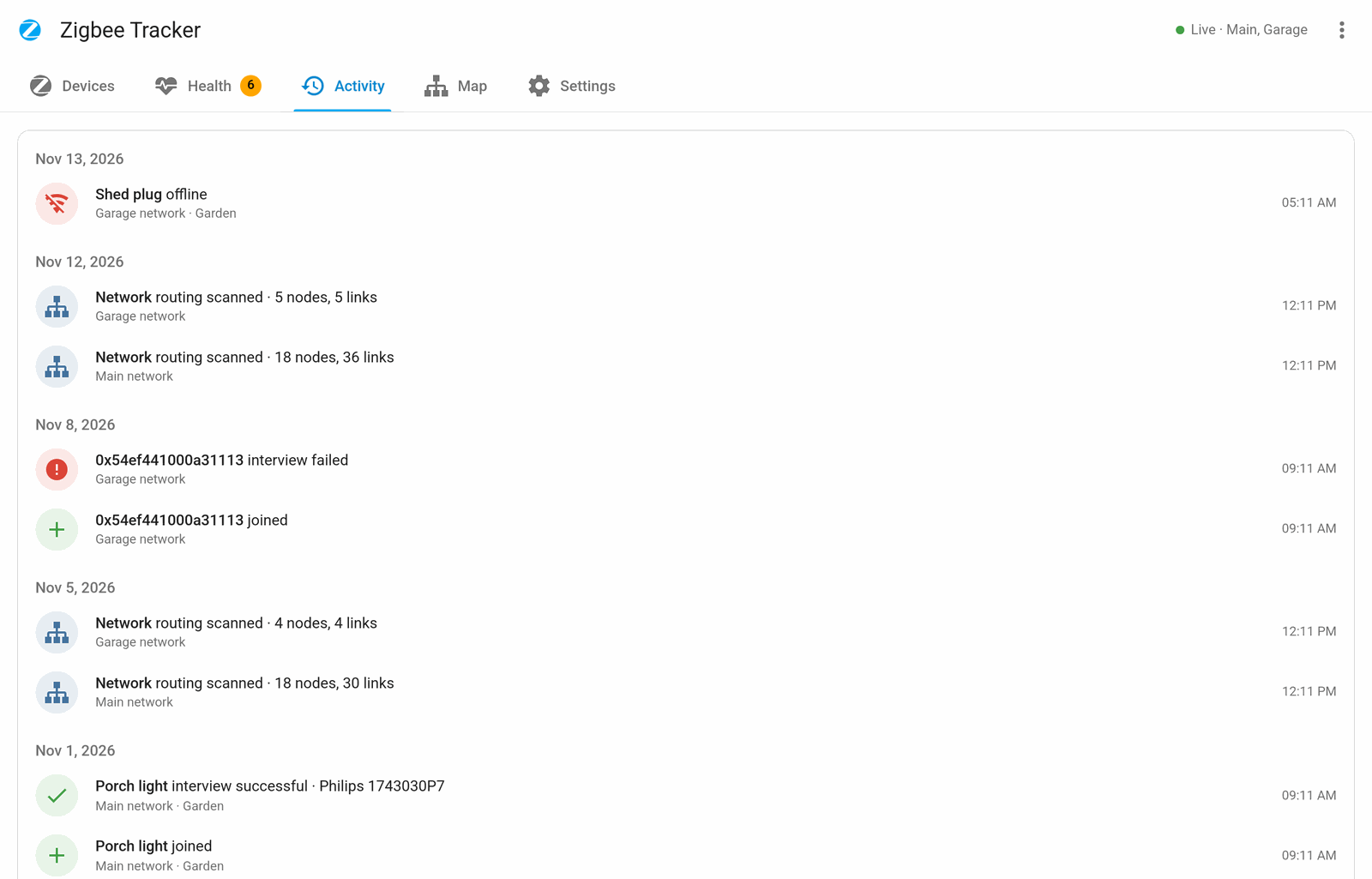
The Activity tab shows the same events across all devices, newest first, grouped by day. It keeps the latest 3000 events.
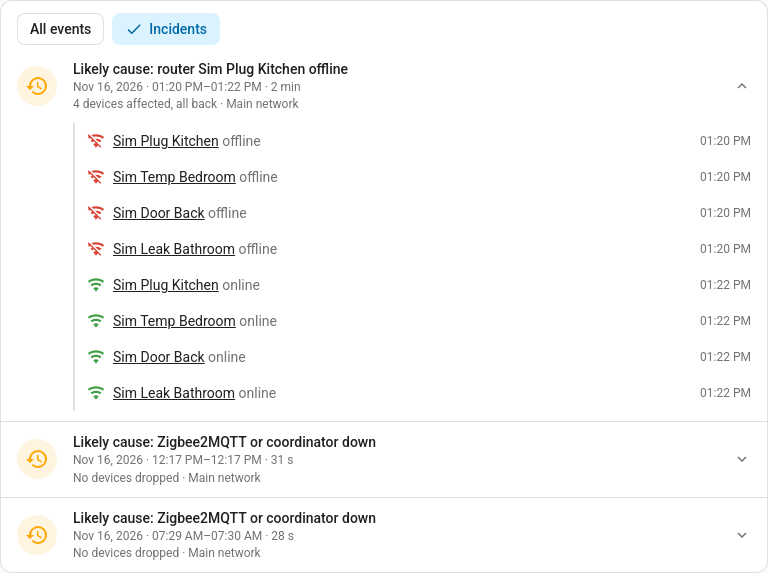
The Activity tab can show Incidents instead of All events. Your browser remembers the choice. An incident groups related problems on one network into one row, for example "Likely cause: router Garage plug offline · 23:10–23:40 · 14 devices affected, all back". Open a row to see its events and jump to the devices.
- Problem events are a device going offline, a device leaving, an interview failing, and Zigbee2MQTT going offline or restarting.
- A problem event starts an incident, or joins the open one on the same network if it comes within 10 minutes of that incident's last problem. Devices coming back are added to it later too.
- Only incidents with 3 or more devices, or with Zigbee2MQTT going offline or restarting, are shown. One device going offline on its own isn't an incident.
- An incident is Ongoing while one of its devices is still offline or Zigbee2MQTT is still down.
The likely cause is the first of these that fits:
| Likely cause | When |
|---|---|
| Zigbee2MQTT or coordinator down | Zigbee2MQTT went offline or restarted. |
| Router … offline | A router in the incident went down no later than devices that route through it (from the last routing scan), and at least one of them followed. |
| Network-wide drop (interference or coordinator) | 3 or more devices dropped within a minute of the start, through 2 or more different routers. |
| Cause unknown | None of the above. |
The last 50 incidents are kept. Incidents don't send notifications.
When Zigbee2MQTT or the coordinator firmware is upgraded, the tracker compares the network's week before with the week after: devices going offline and leaving, link quality, messages and router changes. The result is on the Health tab under Coordinators → More details. See Effect of an upgrade.
The same card lists changes to Zigbee2MQTT's own settings. See Zigbee2MQTT settings changes.
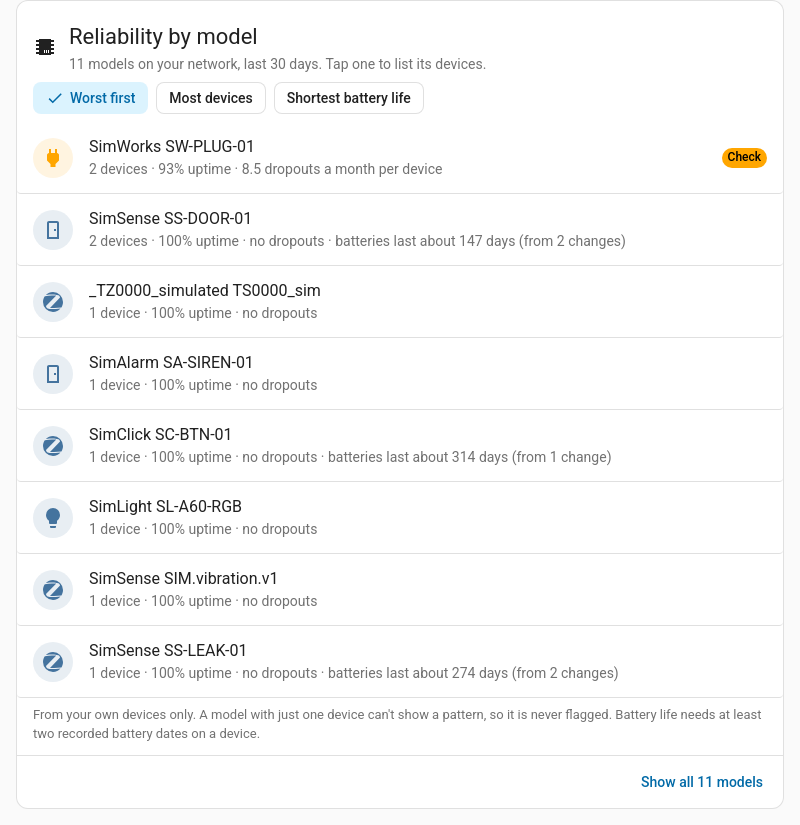
The Health tab's Reliability by model card groups your own devices by vendor and model, over the last 30 days. Each model shows:
- how many devices you have;
- uptime;
- dropouts a month;
- battery life, from devices with at least two recorded battery dates;
- failed interviews and re-pairs.
The worst models come first. Sort models also sorts by most devices or shortest battery life. Tap a model to list its devices. A model with just one device can't show a pattern, so it's never flagged.
The Notes tab has a free-text note (up to 2000 characters) and asset fields: purchase date, shop, price, warranty end date, location and serial number. Notes are a good place for "what is this, where is it, why was it removed?". They are included in the CSV export.
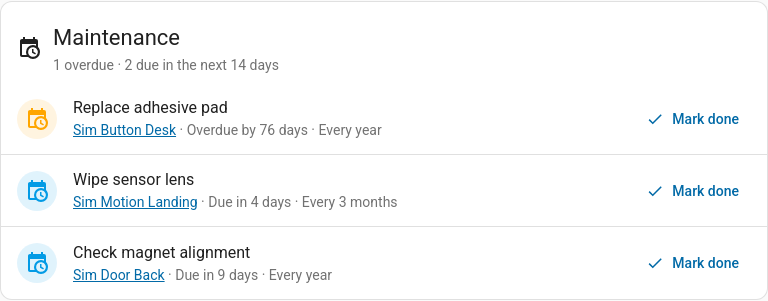
Maintenance tasks are recurring jobs for a device, such as "Test smoke alarm" every month or "Check door sensor magnet alignment" every year. Add them on the device's Notes tab: a title, how often (1 day to 10 years), when it was last done and an optional note. Smoke, leak, door, motion and radiator devices offer a few suggestions; any text works. A device can have up to 20 tasks.
- The next due date is the last done date plus the interval. A task that was never done counts from the day it was added.
- Mark done sets today and adds a "maintenance done" entry to the device's logbook.
- The Health tab's Maintenance card lists overdue tasks and those due in the next 14 days.
- An overdue task raises Maintenance overdue.
- When you replace a device, its tasks move to the new one with its notes.
With the integration, the tasks are also a to-do list and a calendar. See Maintenance to-do list.
Tasks are part of the device's history, so they are in backups.
The easiest way to swap a dead device for a new one is the replacement wizard. It moves the name, area, bindings and notes for you, and links the two histories.
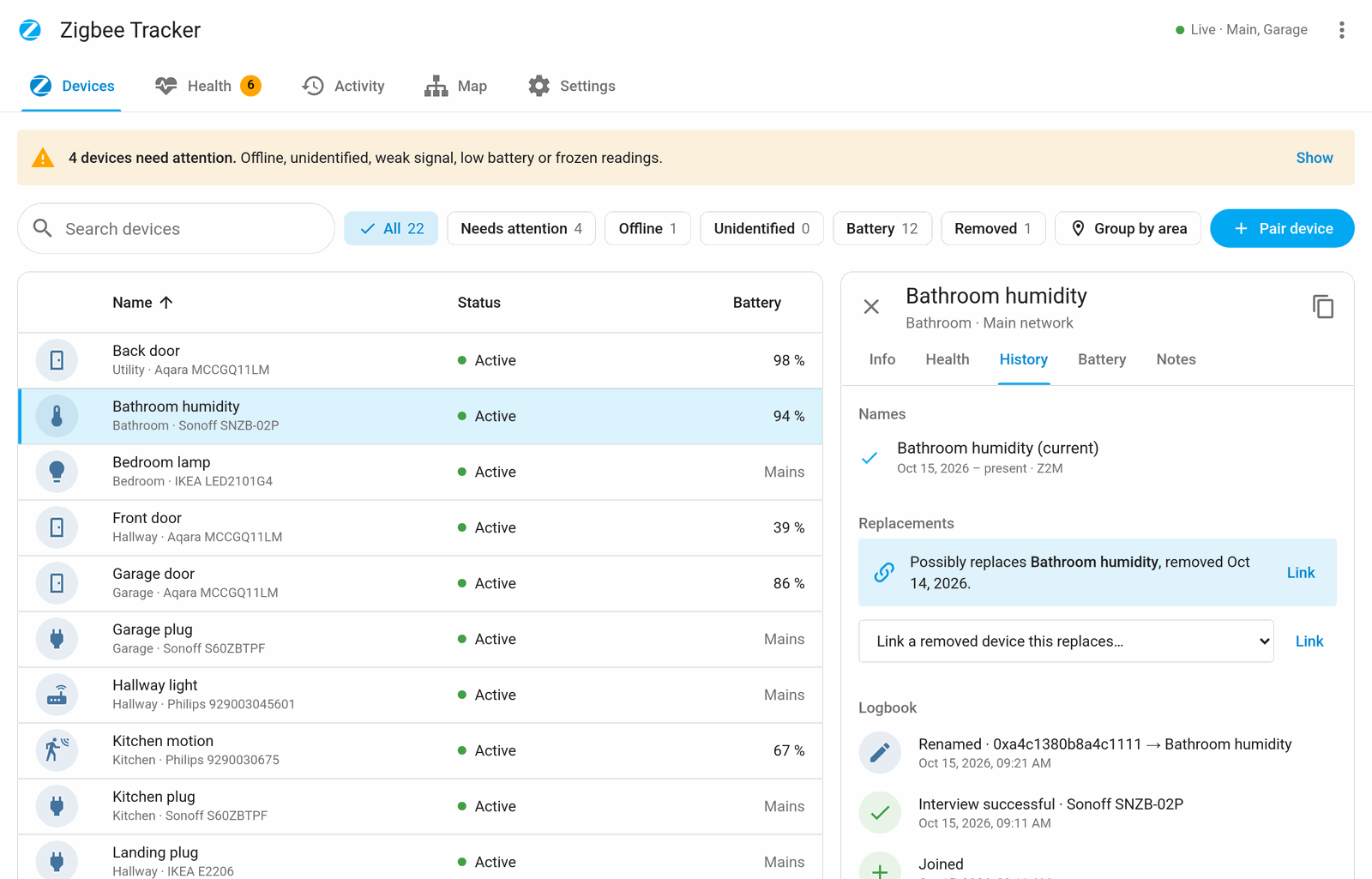
If you replace a device yourself and give the new one the same name, the tracker notices that a removed device had that name and shows Possibly replaces … with a Link button. Linking:
- shows the old device's history on the new one;
- copies the note and asset details across if the new device has none;
- adds a "linked" entry to both logbooks.
You can unlink them again from the new device.
A device that leaves stays in the tracker with status removed, along with its names, notes and history. That's how a device that rejoins later as 0x… can still be recognised: its IEEE address doesn't change, so it picks up its old record.