Repository navigation
Firmware Updates
The Updates tab lists every device that Zigbee2MQTT says has a firmware (OTA) update. From there you can check for updates, install them one device at a time, and let the tracker install them overnight.
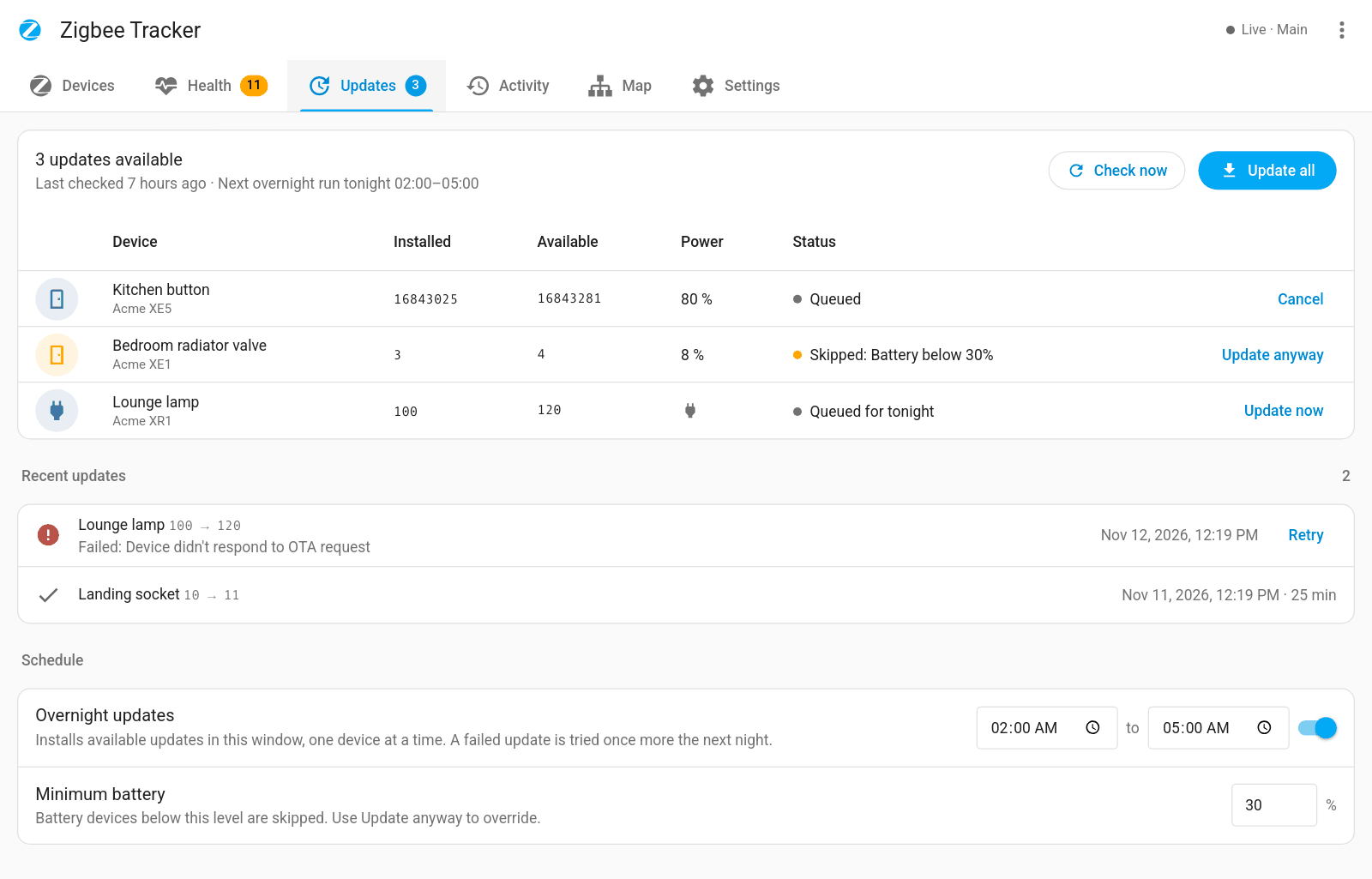
The top of the tab says how many updates are available, when the tracker last checked, and when the next overnight run is. Each device shows:
| Column | What it shows |
|---|---|
| Device | Its name and model. Click it to open the device. |
| Installed | The firmware version on the device now, and its build if Zigbee2MQTT knows it. |
| Available | The version Zigbee2MQTT can install. |
| Power | The battery level, or a plug for mains-powered devices. |
| Status | Where the update is up to, with a button for the next step. |
The status is one of these:
| Status | What it means |
|---|---|
| Ready | Nothing is scheduled. Update now installs it. |
| Queued for tonight | The overnight run will install it. Update now installs it straight away instead. |
| Next in tonight's run | The overnight run is going and will reach it soon. |
| Queued | Waiting for the update in front of it to finish. Cancel takes it out of the queue. |
| Updating | Installing, with the progress and time left when Zigbee2MQTT reports them. |
| Skipped | It wasn't started, with the reason, for example Battery below 30% or Device is offline. See Low batteries. |
| Failed | The update failed, and overnight updates are off. Retry tries again. |
| Failed: tries again tonight | The update failed. The overnight run tries it once more. |
| Failed twice: retry by hand | It failed again, so the overnight run leaves it alone. Retry tries again. |
Updates you start from Zigbee2MQTT's own interface show here too, and are recorded the same way.
Zigbee2MQTT checks for updates on its own when a device asks. Check now asks every device that supports updates, one at a time. Offline devices are skipped. Sleeping battery devices often don't answer, so a few of them may still show no update until they next wake.
To check one device, open it and choose Check for firmware update on its Info tab.
- Update now on a row installs that device's update.
- Update all installs every update on the list. It asks you first, and says which battery devices it will skip.
- Update on a device's Info tab installs that device's update, even if its battery is below the minimum.
All of them go through one queue. The tracker installs one device at a time, and waits 20 seconds between updates. If any device is already updating, including one you started in Zigbee2MQTT, the queue waits for it.
An update usually takes 10 to 60 minutes. The device may not respond while it updates. Keep it powered and in range of its router. Battery devices need to stay awake, so press a button on one if its update doesn't start.
Under Schedule on the Updates tab, turn on Overnight updates and choose a start and end time. Inside that window each night, the tracker installs the updates on the list, one device at a time. The window can cross midnight, for example 23:00 to 05:00.
This is the ota_window option, set from the sidebar. It's off by default. See Configuration.
The overnight run:
- tries each device at most once a night;
- skips devices that are offline, and battery devices below the minimum battery level;
- installs every update on the list, including any whose Firmware update problem you've ignored on the Health tab. Turn the overnight run off if you'd rather choose each one.
A failed update is tried once more by the next night's run. If that fails too, the device shows Failed twice: retry by hand and the overnight run stops trying. Press Retry to try again. Retry starts the count again, so a later failure gets one more overnight try.
When Zigbee2MQTT offers a newer version, the count starts again too.
An update that stops halfway, because the battery ran out, can leave the device needing to be paired again. So battery devices are skipped when:
- their battery is below Minimum battery (
ota_min_battery, default 30%); or - they report a low battery.
The skip applies to Update now, Update all and the overnight run. Skipped devices show Skipped: Battery below 30% (or the level you set) with an Update anyway button. Update anyway installs it for that one device, after a warning.
Recent updates lists finished updates, newest first: the device, the old and new versions, when it started and how long it took. A failed update shows the error from Zigbee2MQTT, and Retry while the update is still available. The tracker keeps the last 200.
Each result is also written to Home Assistant's logbook for the device, so it shows on the device's page in Home Assistant. For example: "firmware updated from 100 to 120 in 25 min", or "firmware update failed: …". This needs the device to be linked to a Home Assistant device. The tracker's own History tab for the device logs when each update started and any failure.
With the integration, the z2m_tracker.ota_update action installs one device's update, or every available update when you leave the device out. It goes through the same queue. Like the Update button on a device, it doesn't skip low batteries.