Repository navigation
Replacing a Device
When a device dies, the Replace… wizard moves its setup to the new one: name, area, bindings, notes and, if you want, its battery record. It removes the old device from Zigbee2MQTT and links the two histories.
Replace… is on the Info tab of a device that is:
- offline;
- Not heard from (silent);
- unidentified (its interview never finished); or
- removed.
It isn't offered for the coordinator, or for a device that has already been replaced.
Pair the new device first. See Pairing a new device. You don't need to name it: the wizard does that.
The wizard lists devices that joined in the last 7 days and still have their 0x… address as their name. Devices of the same model as the old one come first, marked Same model, then devices on the same network.
Turn on Show all devices to pick any other device. If nothing new has joined, Pair a device opens the pairing dialog.
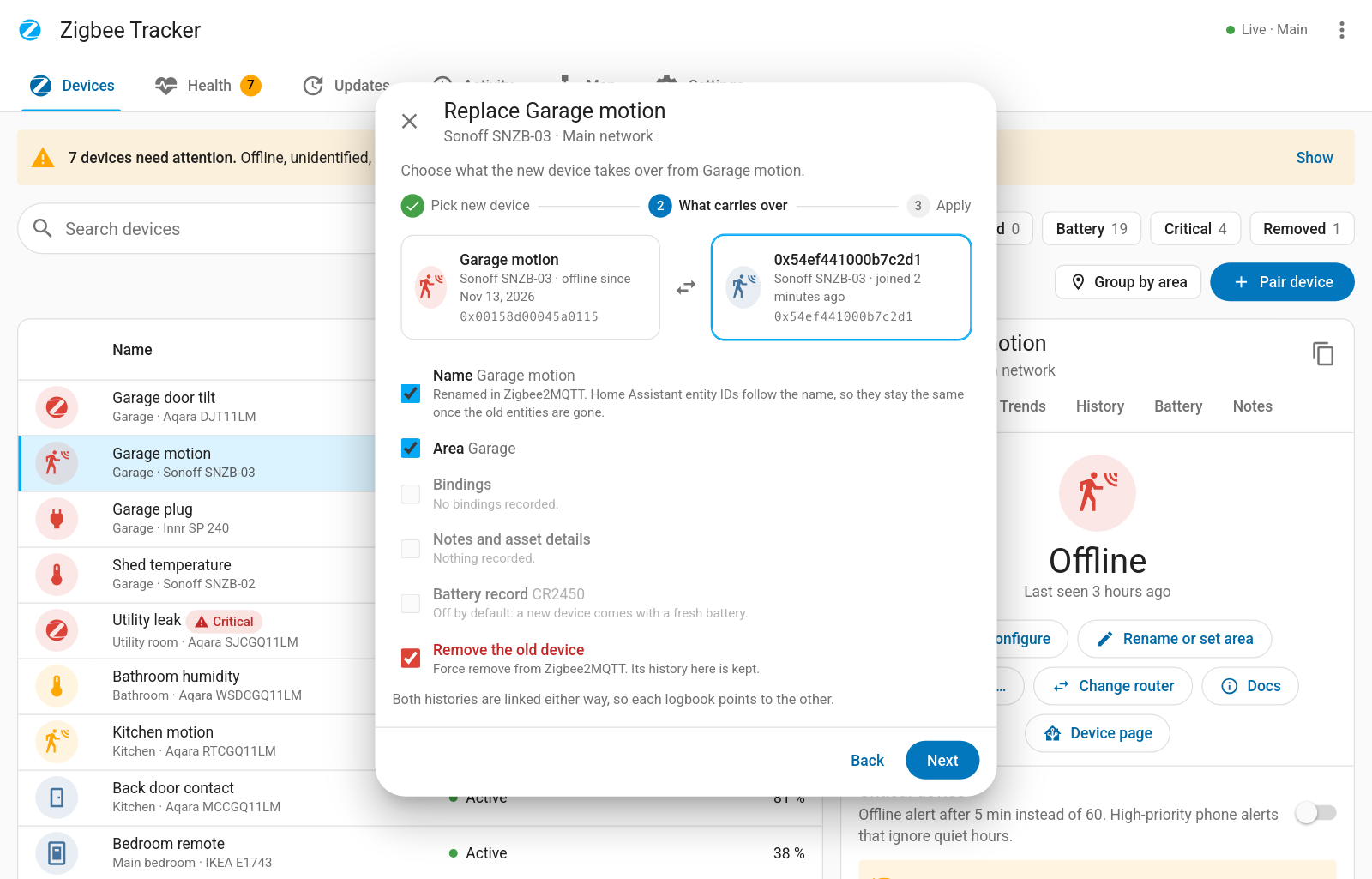
Tick what the new device takes over. Anything the old device doesn't have is greyed out.
| Item | What happens |
|---|---|
| Name | The new device is renamed to the old name in Zigbee2MQTT, with its Home Assistant entities. Entity IDs follow the name, so they stay the same once the old entities are gone. |
| Area | The new device gets the old device's area in Home Assistant. |
| Bindings | The old device's bindings to other devices and groups are re-created on the new one. Bindings to the coordinator are left out, because Zigbee2MQTT sets those up itself. Only possible when both devices are on the same network. |
| Notes and asset details | The note and asset fields are copied. The serial number isn't. If the new device already has a note, the old one is added below it. Asset fields the new device already has are kept. Maintenance tasks move with the notes. |
| Battery record | The battery type, count and replacement dates. Off by default, because a new device comes with a fresh battery. |
| Remove the old device | Force-removes the old device from Zigbee2MQTT. Its history in the tracker is kept. Starts ticked only when the old device is offline, and shows in red while it's ticked. Already done for a removed device. |
Zigbee2MQTT won't allow two devices with the same name. If you keep Name ticked but untick Remove the old device while the old one is still in Zigbee2MQTT, the wizard warns you that the rename will fail.
The two histories are linked whatever you choose. If the old device was a critical device, the new one is marked critical too.
The last step lists what will happen. If the new device runs on battery, press its button just before you choose Apply, or the bindings may fail.
Applying can take up to a minute. The wizard then shows a result for each item: Replaced when everything worked, or Partly done with the reason for each item that didn't. The rest is applied either way. Open new device takes you to it.
Setting the area needs the new device to be in Home Assistant already. If it isn't yet, set the area later with Rename or set area.
- The new device's History tab has a "replaced" entry that links to the old device. The old device's has a "replaced by" entry that links back. Once it's removed, its Info tab also says what replaced it.
- The entries also list what carried over.
- The old device keeps all its history in the tracker, and shows as removed once it's gone from Zigbee2MQTT. See Removed devices.
If you replaced a device yourself and gave the new one the same name, the tracker offers Possibly replaces … with a Link button instead. Linking joins the histories and copies the note and asset details, but doesn't rename, set the area or re-create bindings. See Replacements.