Quick start
Step-by-step tutorial to run your first test with the extension.
Create the file tests/test_hello.pks in your project:
create or replace package test_hello as

  -- %suite(Hello World)
  -- %rollback(manual)

  -- %test(Greeting returns Hello)
  procedure greeting_returns_hello;

end test_hello;
/

create or replace package body test_hello as

  function hello return varchar2 is
  begin
    return 'Hello World';
  end;

  procedure greeting_returns_hello is
  begin
    ut.expect(hello()).to_equal('Hello World');
  end;

end test_hello;
/
The parser is token-driven — there is no requirement for a blank line between
%suiteand the%test/procedures.
In addition to %suite and %test, the extension recognizes the following during discovery:
| Annotation | Effect |
|---|---|
-- %disabled |
Suite or test does not appear in the Test Explorer |
-- %throws(-20001) |
Test that expects exception 20001 (metadata) |
-- %tags(fast, critical) |
Test tags; filter execution with the utplsql.tags setting |
-- %displayname(Name) |
Display name shown in place of the %test description |
-- %beforeall / %beforeeach / %aftereach / %afterall
|
Suite lifecycle hooks (metadata) |
-- %suite(Hello World)

-- %test(Greeting returns Hello)
-- %displayname(Greeting)
-- %tags(fast, smoke)
procedure greeting_returns_hello;

-- %test(Disabled behavior temporarily)
-- %disabled
procedure disabled_test;
Case-insensitive. Annotations in the suite header (between %suite and the first
%test) apply to the suite; after %test, they apply to the test.

Use your preferred Oracle tool (SQLcl, SQL Developer, VSCode Oracle extension) to compile the package:

Click the Testing icon in the sidebar (flask/lab icon):

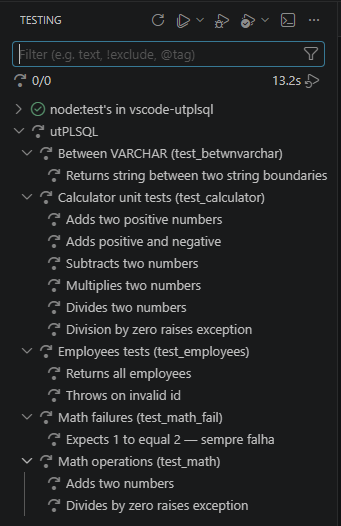
The suites appear in the tree:
You can run tests in several ways:
-
CodeLens — ▶ Run and Run with Coverage buttons above each
%suiteand%testin the editor - Gutter: ▶ icon next to each test or suite in the editor
- Run Tests button: in the Testing view toolbar
-
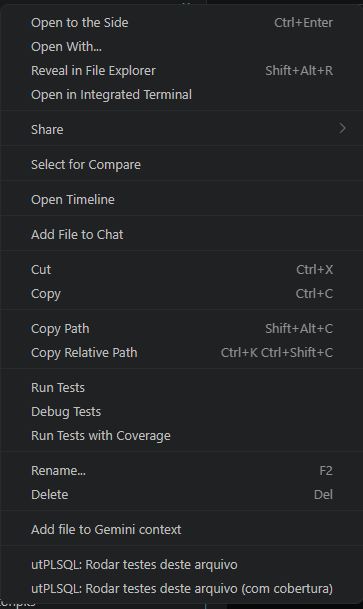
Right-click: on the
tests/folder or thetest_hello.pksfile → utPLSQL: Run tests... -
Palette:
Ctrl+Shift+P→utPLSQL: Run all tests
- Green ✅ — test passed
- Red ❌ — test failed (the utPLSQL failure message appears in the tooltip and output panel)
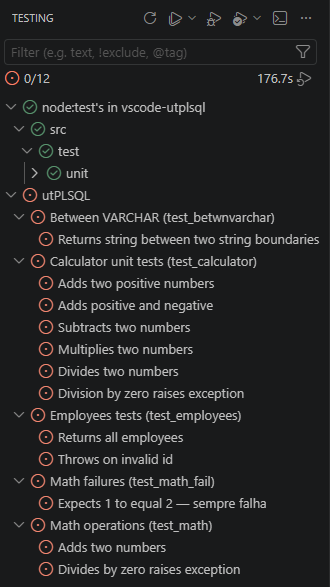
The test output (including the documentation reporter) appears in the Test View terminal. Click on a test to see the full log.

To view coverage, use the Run with Coverage profile (button next to Run Tests, or menu item with coverage). See Coverage.
Use the re-run shortcuts to speed up the TDD cycle:
| Shortcut | Description |
|---|---|
Ctrl+Shift+U L |
Rerun Last — repeats the last run (with/without coverage) |
Ctrl+Shift+U U |
Run at Cursor — runs the %test or %suite under the cursor |
Ctrl+Shift+U X |
Run Failed Only — re-runs only the tests that failed |
See Commands for the full list.
Consider a project with this structure:
my-project/
├── install/
│   └── hello.sql         ← production code
└── tests/
    └── test_hello.pks    ← tests
Recommended settings (.vscode/settings.json):
{
  "utplsql.sourcePath": "install"
  // connection via env var UTPLSQL_CONN
}