Getting Started (Steam Machine)
- First you need to switch to desktop mode.
Side menu (Steam button) -> Power -> Switch to Desktop.

- Download the game from the Game Site.
Be careful to download the Linux game build, not the Windows build, the Linux ARM64 build, or the dedicated server.

-
Extract the content of the Zip file.
The extracted content is the game folder. You can extract it to your Desktop or Downloads folder. -
Find
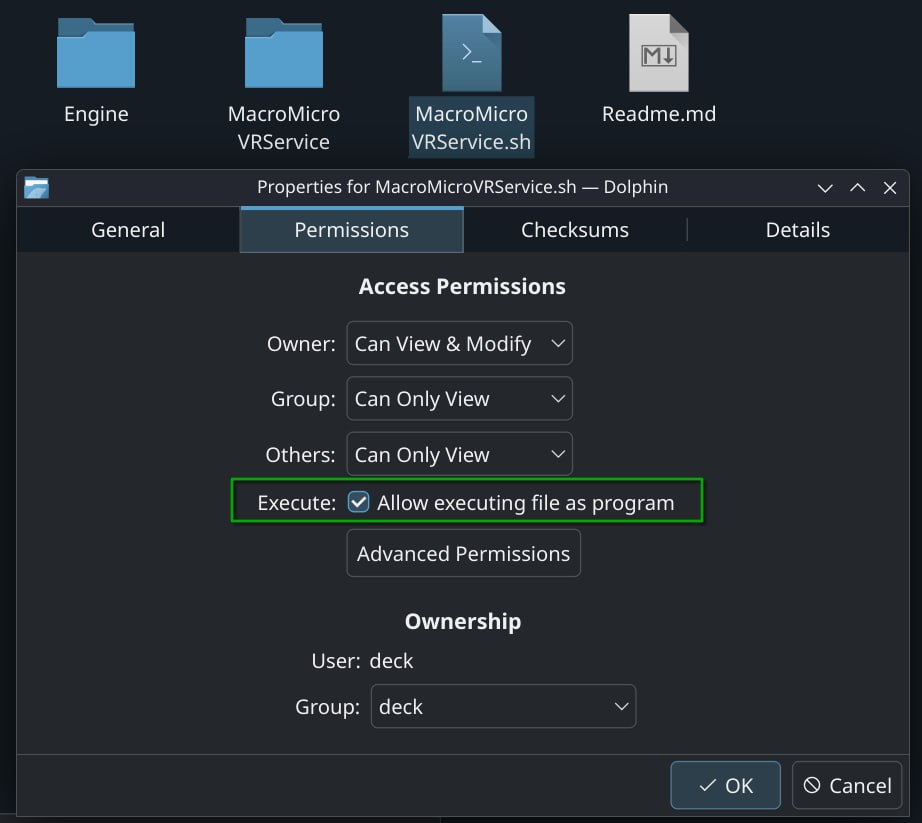
MacroMicroVRService.shin the game folder and enable "Is executable" in its properties.
Steam is not required to launch the game.
Double-click MacroMicroVRService.sh or type ./MacroMicroVRService.sh in the terminal to launch the game.
Still in desktop mode, you can add MacroMicroVRService.sh as a "Non-Steam Game" in the Steam app.
- Open your Steam Library.
- Click "Add a Game" in the bottom-left corner.
- Select "Add a Non-Steam Game..."
- Browse to the location of
MacroMicroVRService.shand add it.
You can now launch the game directly from your Steam Library in the Non-Steam section.

Return to Getting Started