Adding Movies and TV
How a title gets from "I'd like to watch that" to a file on disk.
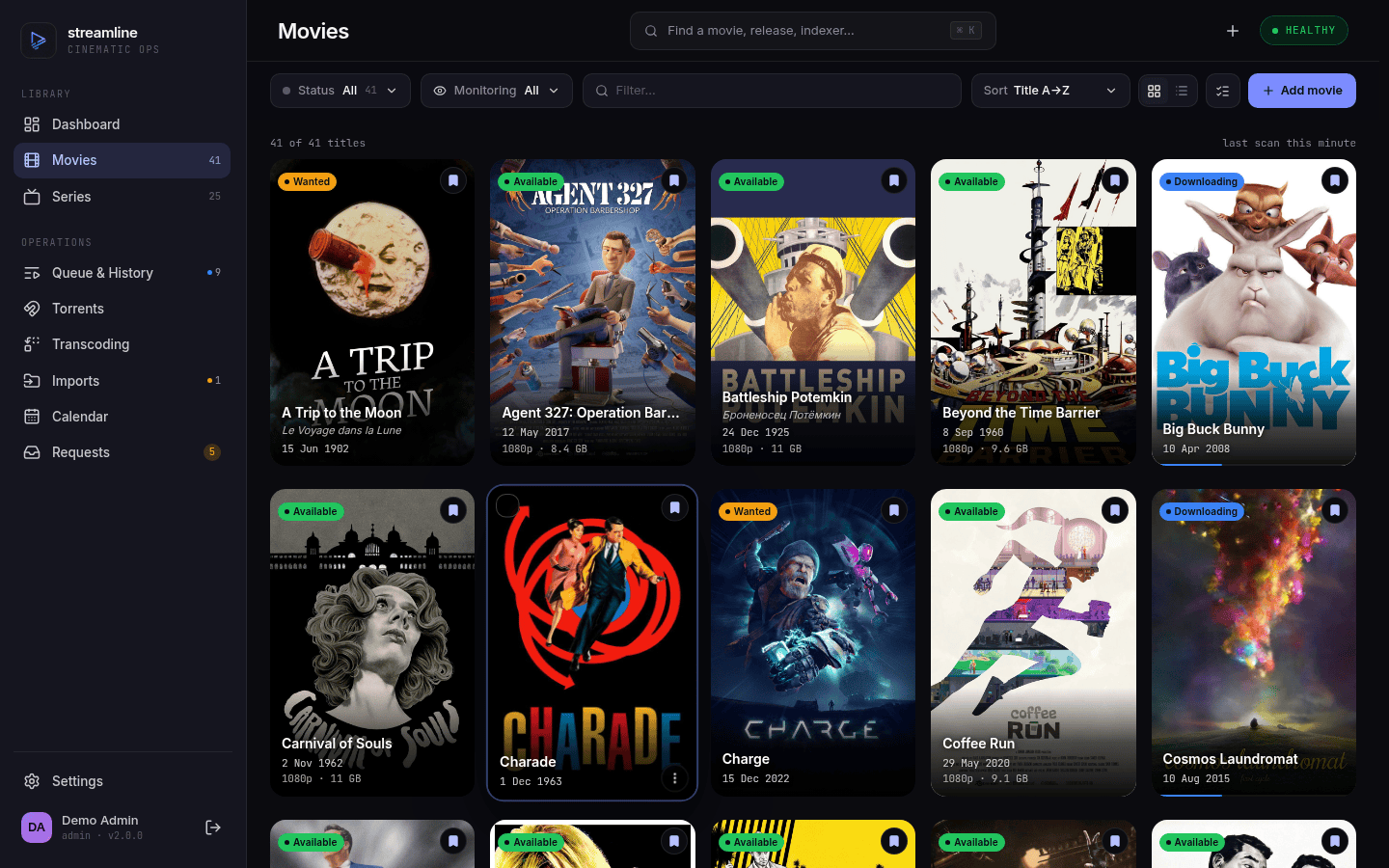 |
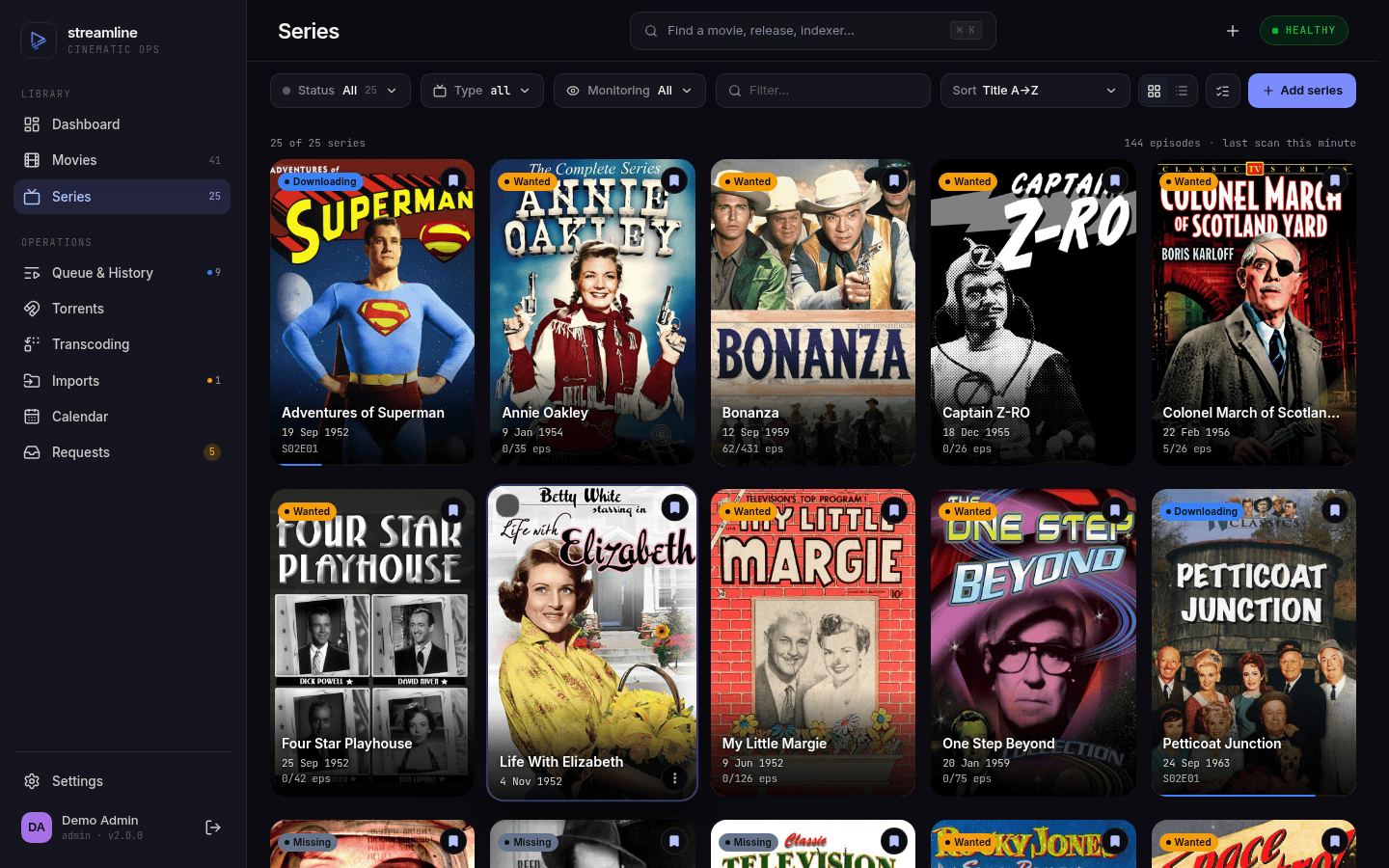 |
| Movies — poster grid with per-title status | Series — monitored and missing counts |
- Adding a movie
- Adding a TV show
- What the statuses mean
- How automatic grabbing works
- Searching manually
- Browsing by cast member
- Monitoring and unmonitoring
- Fixing a wrong match
- Renaming and deleting
Click the + button (or press it in the bottom bar on mobile) → Movie. Type a title. Results come from TMDB.
Pick the right one — check the year, posters help — and you'll be asked for two things:
- Quality profile — leave it on the default unless this particular film deserves different treatment
- Monitored — on by default. A monitored film is one Streamline actively hunts for
Confirm, and the film lands in your library as Wanted. Streamline searches on a schedule, not on the spot, so nothing happens instantly.
Tip
Impatient? Open the film and hit Search now to search right away instead of waiting for the next scheduled pass.
Same + button → Series. Results come from TVDB.
Shows have one extra decision, and it's the one worth reading carefully — which episodes to monitor:
| Option | Monitors |
|---|---|
| All episodes | Everything, past and future |
| Missing episodes | Only what you don't already have a file for |
| Existing episodes | Only episodes you already have — useful for upgrades, not acquisition |
| Future episodes | Nothing aired yet; only what airs from now on |
| Pilot only | Season 1 Episode 1, to try a show before committing |
Note
Specials (season 0) are not monitored by default. Most people don't want them, and they're the most poorly-named releases on any tracker. Turn them on globally at Settings → Series (library.monitor_specials), or per show from the show's page.
The Settings → Series page also holds the defaults applied to new shows and to seasons discovered later. Changing it doesn't retroactively touch shows already in your library — there's an explicit Apply to existing series action for that.
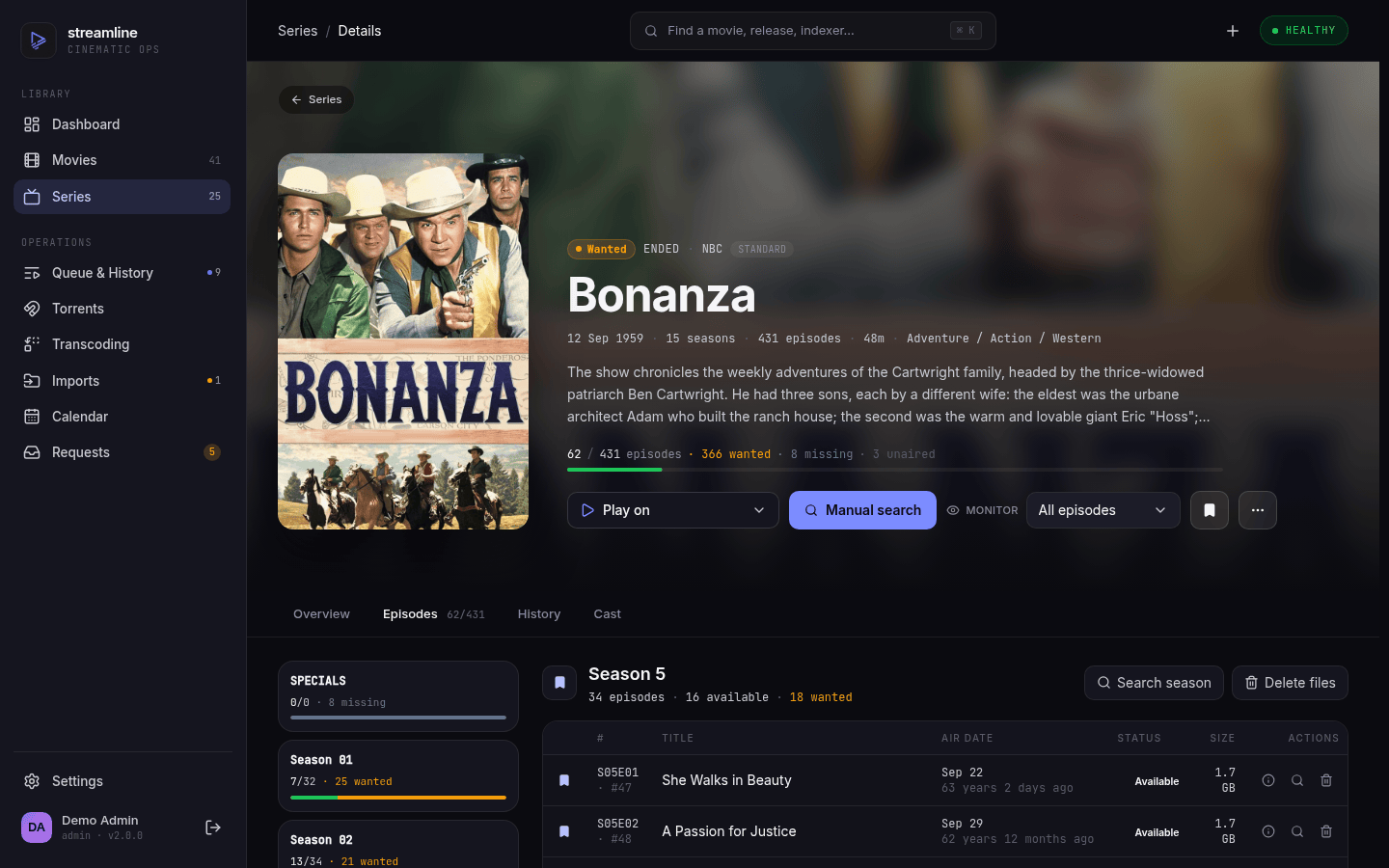
Once added, the show page shows every season and episode, what's on disk, what's missing, and what's still to air:
Movies carry one of five:
| Status | Meaning |
|---|---|
| Wanted | Monitored, no file yet, being searched for |
| Downloading | A release was grabbed and is in your download client |
| Importing | The download finished; the file is being verified and moved into your library |
| Available | Imported and sitting in your library |
| Failed | Grabs kept failing — see below |
Episodes have a sixth, Paused, for episodes deliberately held back, and Skipped for ones you've told Streamline to ignore.
A series card in the library shows the same states, read from its episodes: Downloading while any episode has a grab in flight, then Importing. Instead of the usual have/total eps, the card names what is landing — S03E04 for a single episode, S03 pack for a season, Full series for a complete pack — and shows a progress bar underneath. An import has no percentage to report, so its bar runs indeterminate.
Both library toolbars filter on Status and Monitoring independently — "wanted and unmonitored" is one view, not two. The series Status menu adds Missing, Downloading and Importing alongside Continuing/Ended; those three are read off the show's episodes rather than being series statuses of their own. A series is Continuing whenever it is still running — including one announced but not yet premiered — or Ended.
Cards and detail pages name a release day rather than a year once one is known (2 Feb 2024) — a film's theatrical release, a show's first air date. An existing library fills these in gradually: the value arrives with the next metadata refresh of each title, and until then the year is shown as before.
A film goes Failed after library.max_grab_failures (default 3) consecutive failed grab attempts. This is a circuit breaker, not a permanent verdict — it stops Streamline hammering a tracker for something that isn't working. Open the film and hit Search now to try again. A timeout reaching your indexer or download client doesn't count toward it: that says nothing about the release, so it is retried on the next pass instead of spending a strike.
Separately, when a search finds nothing acceptable, that title goes quiet for library.no_match_cooldown (default 6 hours) before being searched again. That's why a just-added obscure film may sit at Wanted for a while without visible activity.
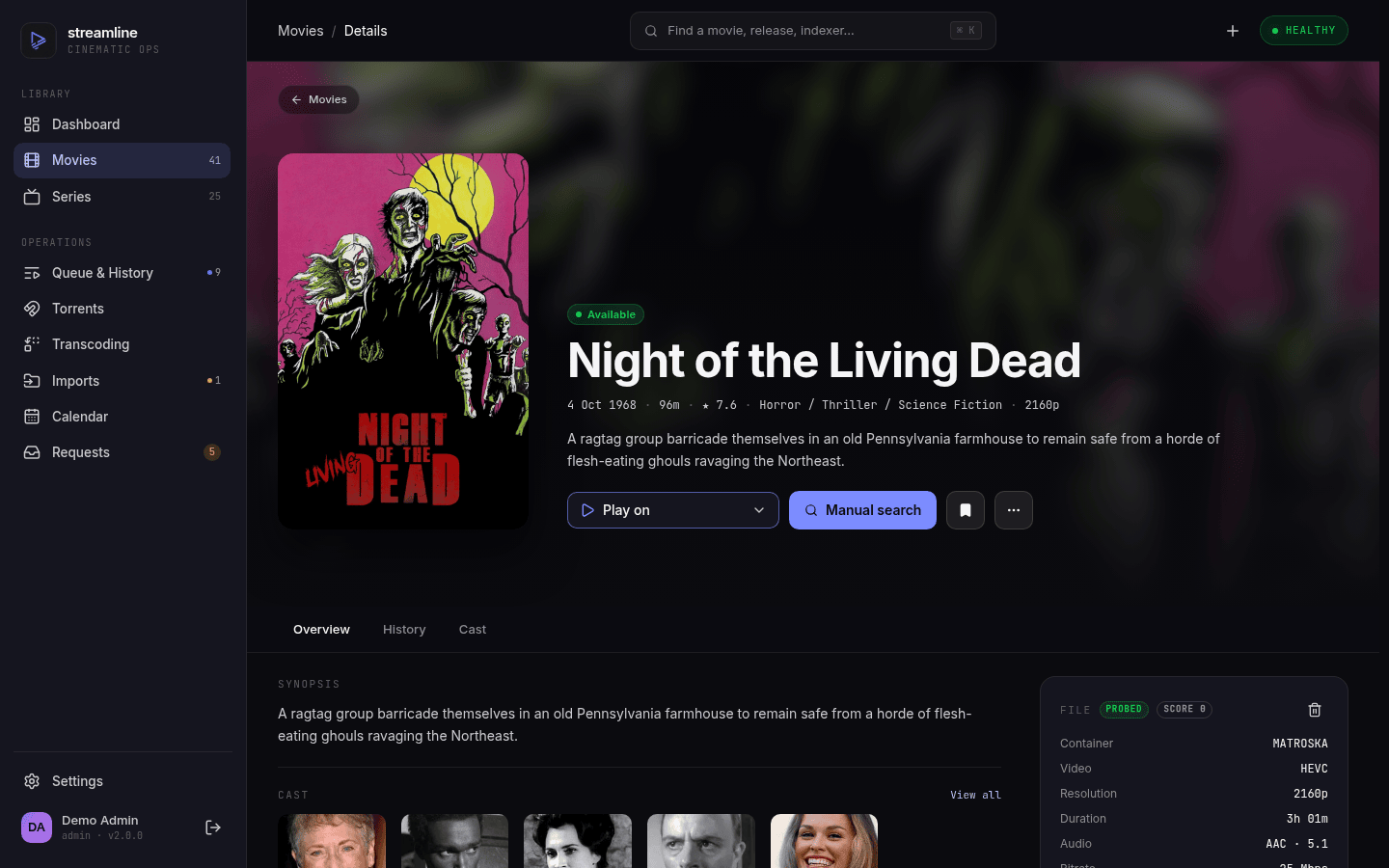
The detail page is where all of this comes together — cast, artwork, and once a file's in place, its ffprobe media info:
Two independent jobs hunt for things, and it helps to know which one is doing what.
RSS sync (every 15 minutes by default) reads the newest releases from your indexers and checks whether any match something you want. This is what catches new releases quickly — usually within minutes of them being posted.
Missing search (every 12 hours) takes the opposite approach: it walks through everything still marked Wanted and actively searches for it. This is what eventually finds older titles that will never appear in an RSS feed.
Both exist separately for movies and TV (movie_rss_sync, tv_rss_sync, movie_missing_search, tv_missing_search) and all four can be retimed, paused or run on demand from Settings → Schedules.
flowchart LR
  A[RSS sync] --> C{Passes quality bar?}
  B[Missing search] --> C
  C -->|no| D[Skipped]
  C -->|yes| E[Grab to download client]
  E --> F[Download monitor]
  F --> G[Import + rename]
  G --> H[Media server refresh]
When a release passes the quality bar, Streamline sends it to the highest-priority enabled download client, tagged streamline. When it finishes, the download monitor (every 30 seconds) notices, and the importer hardlinks it into your library under the naming template, then nudges your media server to rescan.
So the expected latency for a brand-new release is minutes, and for something obscure and old it can be hours — that's not a fault, it's the missing-search interval.
Automation not finding it? Open the title and click Search — this runs a live query against every enabled indexer and shows you what came back:
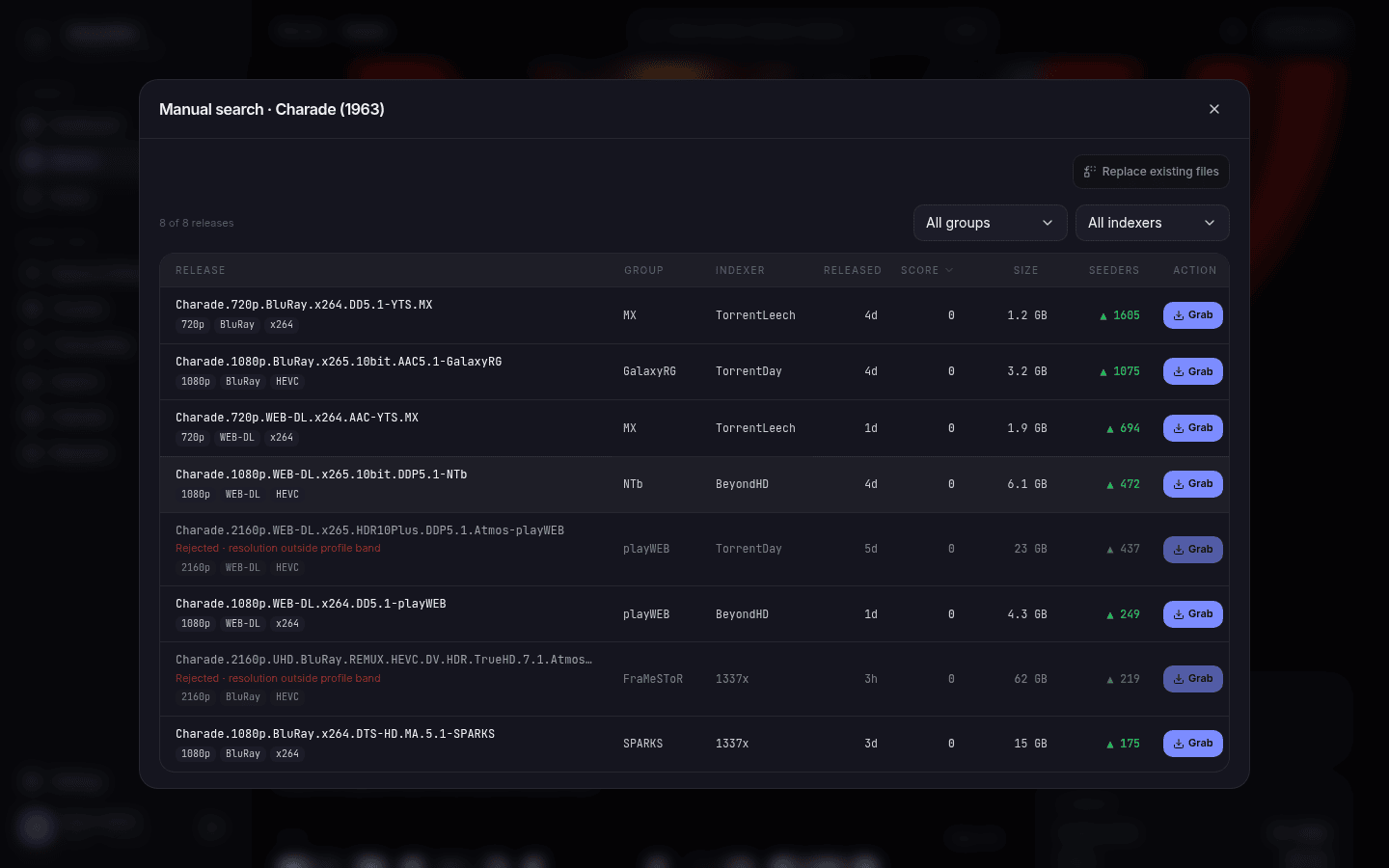
The results list gives you release name, size, seeders, indexer and detected quality, and you can filter by indexer or release group. Click a release to grab it directly, bypassing the quality profile entirely. That's the escape hatch for the case where you want this specific release and don't care what the rules say.
There's a Replace existing files toggle on the grab dialog. Off, Streamline refuses to import over a file that's already there. On, it overwrites. Use it when you're deliberately upgrading.
For TV you can search at three levels:
-
Whole series — complete-series and multi-season packs only (
COMPLETE,INTEGRALE,S01-S05) - A season — season packs of that season only. Complete/multi-season packs are hidden here (grabbing one imports every season it contains), and so are single episodes
- A single episode — that episode only; packs belong to the scopes above
Each scope filters the indexer's results down to what it asked for. Indexers behind Prowlarr routinely ignore the season and episode parameters and answer with the whole series, so without this an episode search comes back full of other episodes.
When an episode search hides packs that did cover the episode, it says so above the results ("4 season or complete pack(s) covering this episode were hidden"). That line is how you tell "nothing exists for this episode" apart from "it only exists inside a pack" — switch scope to the season or the whole series to grab one. On trackers that publish a show only as season packs, an empty episode search plus that line is the correct and complete answer.
An episode search also drops releases whose name carries no season and no episode at all — a tracker that lists a torrent under the bare show title tells you nothing about what is in it. Anime releases using absolute numbering (Show - 18) and daily shows using a date (Show 2011.09.25) are kept, since those never spell SxxExx.
The season and episode tabs both know the French spellings: Saison 04 counts as a season token, and a Complete / Complète tag attached to a named season (S05 Complete, Saison 04 Complète) is read as that season's pack rather than as a whole-series pack.
From the Episodes tab, the season header has its own Search season button, which opens the release search already scoped to the season you are looking at.
Every name in a title's Cast tab is a link. Click one and you get that person's page: every movie and series in your library they are credited on, each poster labelled with the character they play there.
Cast members also show up in search — the command palette (Ctrl/⌘+K), the phone search screen and the tablet search panel all list matching people under the title hits, with the number of library titles each appears in.
There is no people database: a person exists exactly as long as a title crediting them does. Someone who appears in nothing you have is not findable, and delete their only title and their page goes with it.
Monitoring is Streamline's on/off switch for automation. Unmonitored things are never searched for and never grabbed — they just sit in your library.
Unmonitor a film you've decided you don't want after all, and it stops appearing in searches without you having to delete it. For shows, monitoring cascades down the tree: unmonitor a season and its episodes go with it.
This is the right tool for "I have seasons 1-3 and don't want 4 onwards" — unmonitor season 4, and Streamline stops hunting for it.
Sometimes a title ends up pointing at the wrong entry — an import matched The Matrix to The Matrix Reloaded, or a series folder landed on the wrong show. Change match… in the actions menu repairs it without losing anything. Admin only.
Pick the correct title from the same TMDB/TVDB search the add flow uses, confirm, and the entry is repointed in place: it keeps its id, its files, its download history and any requests attached to it. Only the provider identity changes. Metadata is refreshed from the new entry and the files are renamed into the new title's folder.
For a series the season and episode list is rebuilt from the new show, and each file is re-attached to the episode with the same season and episode number. Files whose numbering has no counterpart in the new show are left on disk and listed back to you — a provider numbering seasons differently is not evidence the media is unwanted. Their database rows are dropped, so an orphan scan can re-adopt them once you have decided where they belong.
Re-identifying a series also re-infers its type (standard/anime/daily). That is the one case where an override you set by hand is deliberately discarded: it was about the old show.
Change series type… in the same menu sets that type by hand. It decides whether episode files match by season and episode or by absolute number, so a wrong inference mis-matches every file in the show — and anime released as a single continuous run is where it is usually wrong. The override survives a metadata refresh.
There is no undo, because none is needed — changing the match back is the same action in reverse, files and all.
Important
You cannot re-identify onto a title already in your library. tmdb_id and tvdb_id are unique, and merging two entries is a different operation than this one. Delete the wrong entry first.
Rename re-applies your naming template to files already on disk. Useful after you've changed library.movie_naming or library.series_naming, or after importing files under their original names. It's available per-title from the actions menu.
Delete removes the title from Streamline. You'll be asked whether to also delete the files on disk — the two are separate decisions, and Streamline will happily forget about a film while leaving the file exactly where it is.
Deleting a title also clears its cached posters and any related download records.
Next: Activity and Calendar — watching what's happening, and dealing with things that get stuck.