Firmware Backup Recovery
Use Management/Backup to update firmware, export or restore user data, restart the device, and reset selected data. Back up the device before a major update or reset.
| File | Use |
|---|---|
Signed .namo-ota package |
Normal dashboard update for an installed NAMO device |
factory image |
Initial USB installation or USB recovery |
Raw development .bin
|
Development and legacy workflows only; not the normal public update path |
Download public firmware from the project's GitHub Releases page. Do not install a package obtained from an untrusted mirror.
- Export a current backup.
- Confirm that the device has stable power and Wi-Fi.
- Check the current firmware, dashboard version, and available OTA space under Management/Backup.
- For a multi-device Site, update one device at a time and wait for the Site to return to a stable state before updating the next device.
- Keep all devices on compatible firmware versions. Rolling-upgrade combinations are not yet fully release-verified.
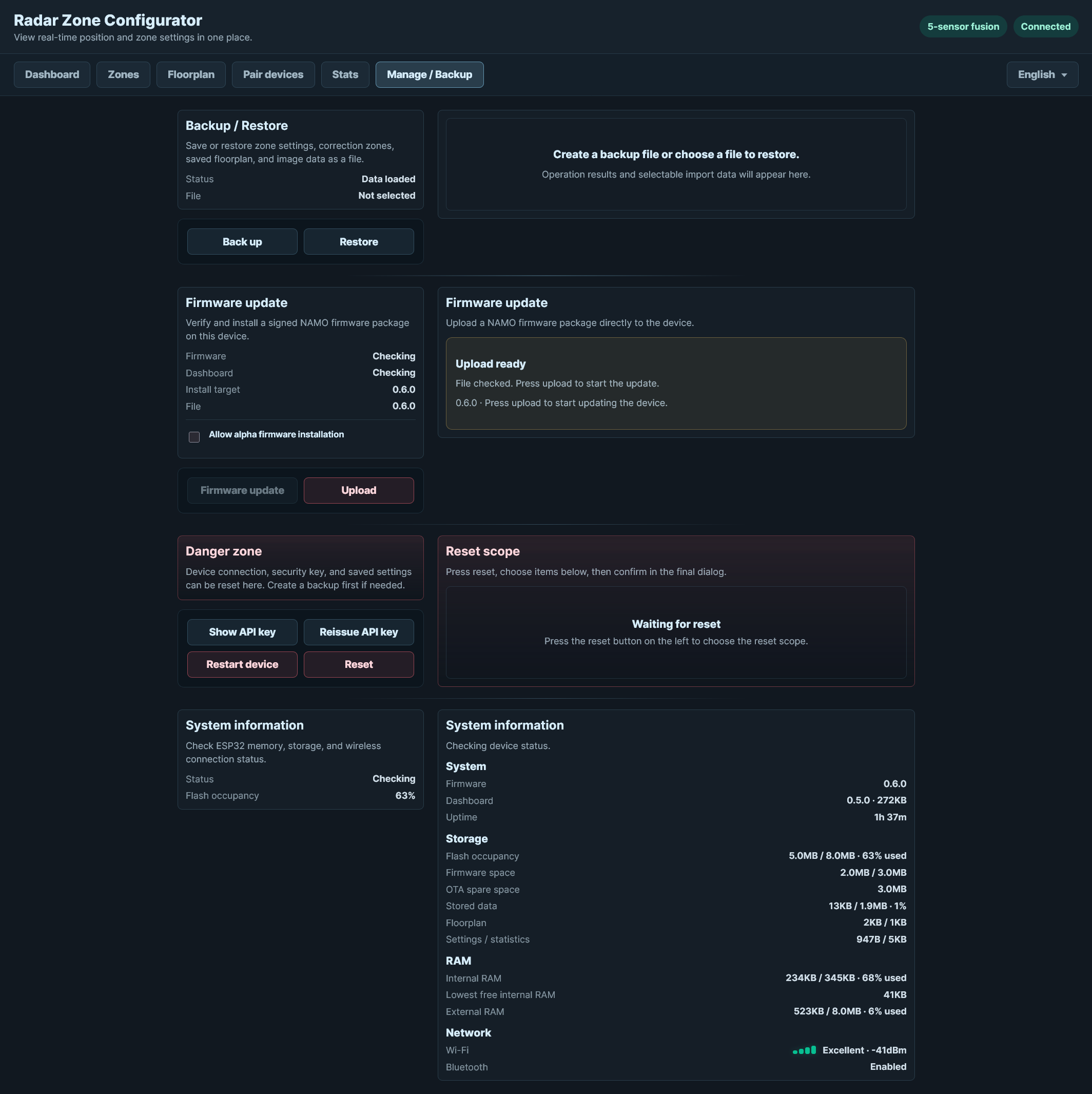
- Open Management/Backup.
- Under Firmware update, select Manual update.
- Choose the signed
.namo-otapackage. - Review the detected target version and file size.
- Select Upload.
- Do not close the browser or remove power during upload.
- The dashboard disconnects while the device reboots and then checks the new firmware.
- After reload, confirm the completion dialog and installed version.
A signed Release package does not require the alpha-firmware permission.
Alpha firmware is less tested and can cause unstable behavior, damaged settings, or repeated restarts.
- Open Management/Backup on the device being updated.
- Enable Allow alpha firmware installation.
- Read and confirm the warning.
- Install the signed alpha package within 10 minutes.
The permission is held in RAM, allows one alpha installation, expires after 10 minutes, and is cleared by reboot or successful use. Possessing an alpha package does not bypass this approval.
The package may still have been installed even when the browser loses the final response.
- Keep the device powered.
- Wait for it to finish rebooting.
- Open the dashboard by IP address.
- Check the firmware version under Management/Backup.
- Retry only if the old version is still installed and the device is stable.
Do not immediately upload the same package repeatedly during reboot.
Select Export backup under Management/Backup. The JSON backup can contain:
- device and environment settings;
- user detection areas and false-positive correction areas;
- floorplan document and image;
- statistics and heatmap data.
The backup includes a checksum so NAMO can detect manual changes or file corruption.
The backup does not preserve:
- saved Wi-Fi credentials;
- the Home Assistant Native API key;
- secure device-to-device credentials;
- the current multi-device role or live runtime state.
Store backup files securely. A floorplan can reveal the layout and usage of a private space.
- Open Management/Backup and select a backup file.
- Review validation errors and warnings.
- Choose which available sections to restore: settings, floorplan, and statistics.
- Confirm the restore and wait for every selected step to finish.
- Reload the dashboard and verify the floorplan, zones, and live detection.
Settings restore is selected by default. Floorplan and statistics are optional when present in the file.
Do not edit the JSON manually. A changed checksum blocks or warns about the import, and a structurally valid but incorrect floorplan can still place zones in the wrong coordinates.
For a connected Site, restore a shared floorplan only from the configuration source and wait for all devices to converge before making another shared change.
Restart device reboots the device without intentionally deleting saved data. Use it when a service needs a clean restart and the device is otherwise configured correctly.
Reset deletes only the categories selected in the final confirmation dialog.
| Reset category | Deleted data |
|---|---|
| Floorplan and placement | Floorplan image, room layout, furniture, and radar position |
| Detection settings | User areas, correction areas, excluded/reduced areas, environment, and general settings |
| Connected devices | Secure connections, alignment, fusion, automatic fallback, and shared Site information |
| Wi-Fi | Saved Wi-Fi credentials |
| Statistics | Statistics history |
Resetting settings or Wi-Fi can reboot the device. Wi-Fi reset requires running initial network setup again.
The Home Assistant API key is managed separately and is not removed by system reset.
Use the least destructive action that addresses the problem:
- Reload the dashboard once.
- Check power, Wi-Fi, and system information.
- Restart the affected device.
- Finish any pending pairing or removal operation.
- Restore a known-good backup if saved settings are damaged.
- Reset only the affected category.
- Use USB factory recovery only when the dashboard and normal OTA path are unavailable.
Use the factory image and ESPHome Web when a new device has no firmware or an installed device cannot use the dashboard update path.
- Disconnect external modules if their wiring may affect boot pins.
- Connect the XIAO ESP32S3 directly by a data-capable USB cable.
- Enter the bootloader if the browser cannot detect the serial port.
- Install the correct
factoryimage with ESPHome Web. - Run initial Wi-Fi setup again if saved settings were erased.
Review Getting Started for the complete USB installation flow.
- Do not reset every device because one member is offline.
- Prefer normal Site removal while both devices are online.
- Reset device-to-device connections only on a device with stale pairing state.
- After restarting or updating a role-holding device, wait for Site health and fusion to stabilize before changing membership.
- Backups do not reconstruct secure pairing; removed devices must be paired and aligned again.