Repository navigation
The Screen
/materials (or the Nexus Terminal) opens one screen. A rail on the left switches views, the top
bar says where you are, the bottom bar holds what is not applied yet.
- Top bar: the path to where you are (Material Nexus › Materials › Copper) and the search box, which finds a material by name from any view.
- Left rail: Overview, Materials (with the number of forms still to decide), Forms, and Scripts when your scripts already unify something. Under Advanced: Rule files and Presets. At the foot: Help (this wiki), Shortcuts, Settings. On a dedicated server the screen is read-only.
- Bottom bar: how many changes are not applied yet, by kind. View lists them, Discard all drops them, Review and apply opens the review. Nothing is written before Apply.
Side panels open on the right; Esc closes them, then the screen.
A colour never comes alone: each state has its shape.
| Mark | State |
|---|---|
| gold dot | To decide: several items, no choice yet |
| blue ring | Not applied yet: your choice, waiting for Review and apply |
| green tick | Unified: one item is kept |
| red cross | removed, disabled, or marked "not the same" |
| nothing | No duplicate: nothing to do |

- One sentence on where the pack stands, and what to do next: Start sorting (see Sort duplicates), Unify all suggestions (every suggestion becomes your choice, to review), See all forms (the grid of the Forms view).
- Three figures: forms to decide, forms unified (chosen by you / by the mod priority), items left alone. Each opens the material list filtered on it.
- Mod priority: ranked mods with ▲ ▼ ×, other mods with +. See Choosing Items.
- History: the last applies, reverts and restores. Restore on an older line puts the settings back as they were right after it.
- Apart from the rest, each behind a confirmation: Revert last apply and Reset everything to default (your choices and pack settings; the mod priority is kept).
Right after an apply, the Overview says what was applied, and to restart when items were created.
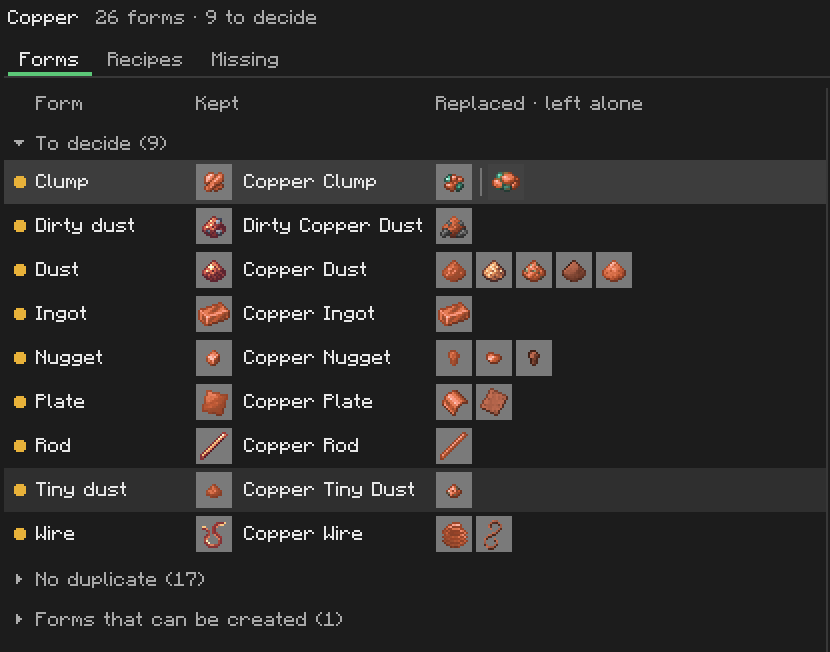
On the left, every material with the item that stands for it, filtered by All / To decide / Unified; the number is how many of its forms are to decide. On the right, the selected material, with three tabs.
One row per form, in groups that fold: To decide, Not applied yet, Unified, then No duplicate and Forms that can be created, folded by default. A row shows the kept item, then the replaced ones and, greyed, the ones left alone.
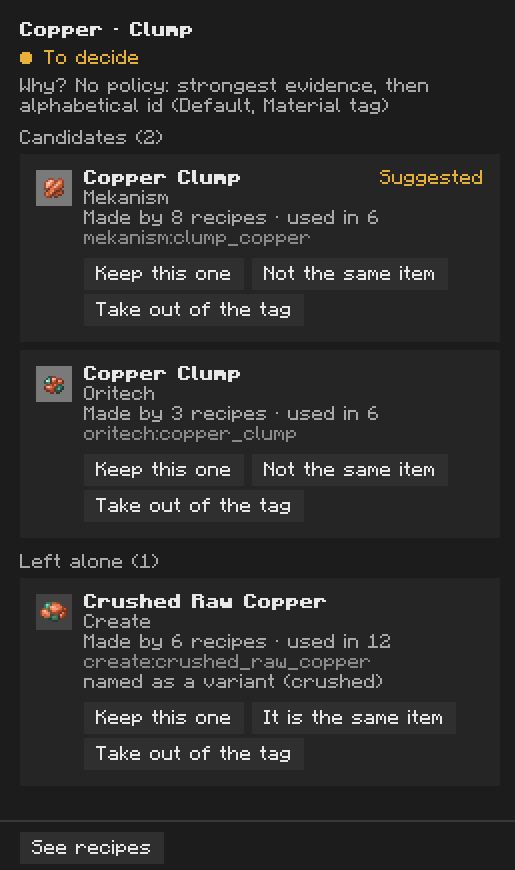
Select a row: the inspector on the right lists every item of that form as a card, with its name, its mod, how many recipes make and use it, and why it is kept or left alone. Each card has its actions as buttons:
- Keep this one: this item is kept for the form (not applied yet). Cancel this choice undoes it.
- Not the same item: never unified with the others.
- It is the same item: on an item left alone on a guess, makes it a candidate again (Choosing Items).
-
Take out of the tag: removes it from this form's tag (
c:ingots/tin) on Apply.
At the foot of the inspector: See recipes, and Back to default for a saved choice.
Faster, without the inspector: click an item in the table to keep it, right click for "not the same", Shift + right click to take it out of the tag. A form the material lacks has Create item when Material Nexus can create it (Created Items).
Header buttons: Unify material (accept the suggestions of this material), × Discard (n), ↺ Back to default (n).

Every loaded recipe making the selected form, grouped by what applying does to it: Rewritten, Disabled, Not handled yet, Rewritten once applied, Already make the kept item, Make a variant, left alone.
The recipe itself is drawn by your recipe viewer, JEI or EMI: in the inspector for the selected row, and next to the pointer when you hover another one. Machine names are the viewer's. For a recipe whose result changes, the replaced item is struck through next to the kept one. Open in JEI / EMI shows the item's recipes in the viewer. Without a viewer the list stays, without the drawing. A disabled recipe is no longer loaded by the game: this list is the only place it appears.
Standard conversions between this material's forms that no recipe provides (nugget to ingot, ingot to block, dust to ingot...). These are proposals only; nothing is created from them. Use Process Rules to add recipes.
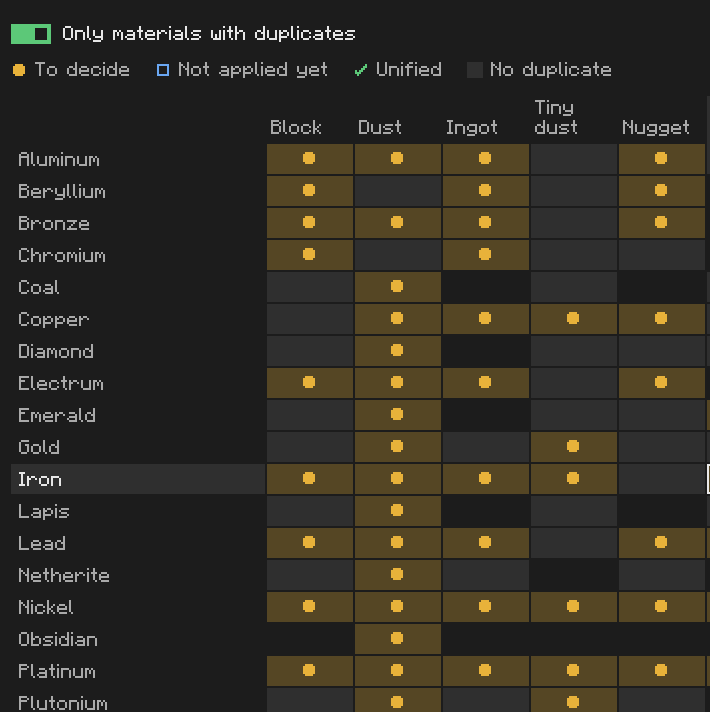
The whole pack as a grid: materials down, forms across, each cell with the mark of its state. Materials without duplicates are left out by default. Wheel scrolls the materials, Shift + wheel the forms. Click a material (or a cell) to open it; click a form's name to open the form.
A form has two tabs:
- Forms: the same table as a material, one row per material having that form.
- How it's made: how that form is made, for every material. See Process Rules.

Every form to decide, one at a time, its candidates as numbered cards with their mod and recipe counts. The suggestion is card 1. The queue on the side shows what is left.
| Key | |
|---|---|
| 1-9 | keep that item, go to the next form |
| Shift + 1-9 | mark that item as not the same |
| S or → | skip |
| B or ← | back |
| Esc | leave |
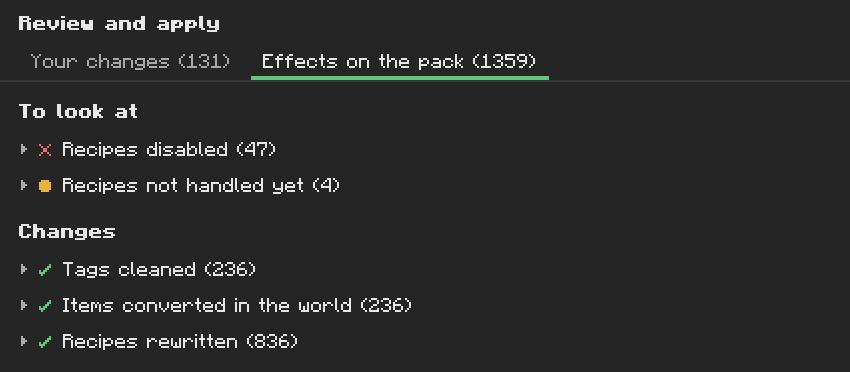
One side panel, two steps.
-
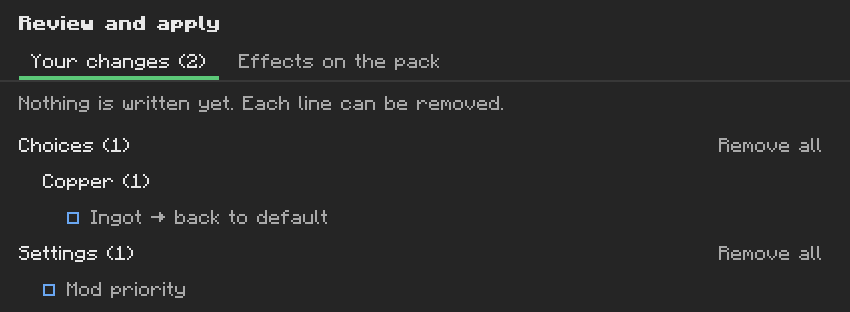
Your changes: what you asked for, by kind (choices, process rules, items to create, data edits, settings). Remove drops a line, Remove all a group.
-
Effects on the pack: what applying would do, worked out by the server: To look at (recipes disabled, recipes not handled, conflicts with your scripts), Changes (tags, recipes rewritten, items converted and created), Undone from the current pack. See Applying Changes.
Apply writes it and the game reloads its data; the screen says so and comes back when it is done.
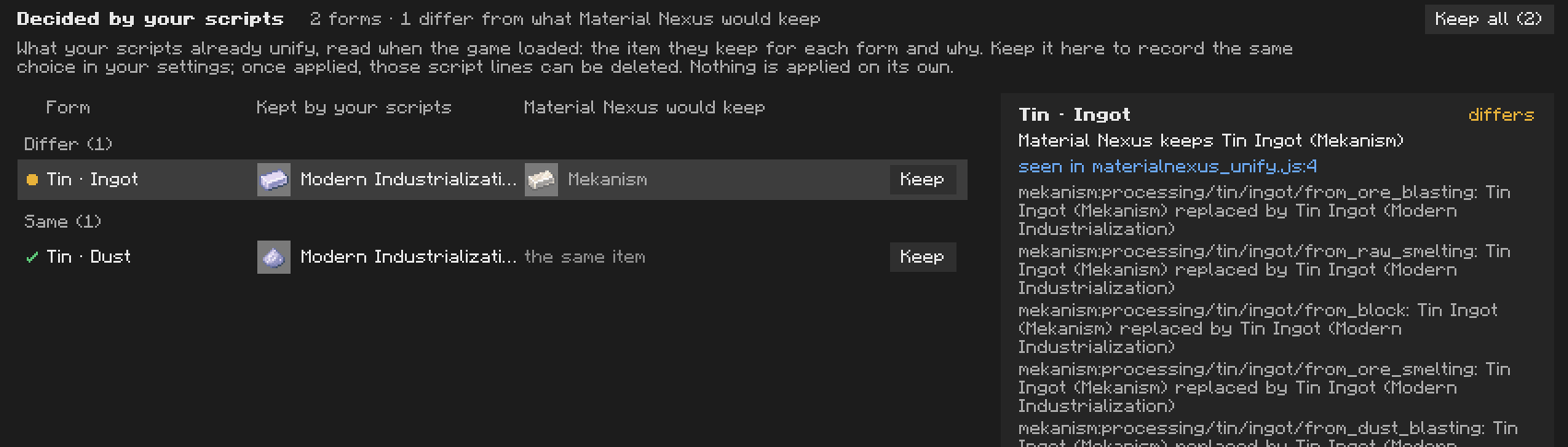
Only there when your scripts already unify something (see Modpacks and Multiplayer). One row per form: the item your scripts keep, the item Material Nexus keeps, and the state. recorded: your settings already say the same; same: Material Nexus keeps it too, but only by priority or default; differs: it keeps another item; undecided: your scripts set items aside without keeping one. The inspector gives the evidence: the script lines naming it, the recipe changed, the tag entry removed. Keep this choice makes the scripts' item a choice, Keep all does it for every same and differs row.
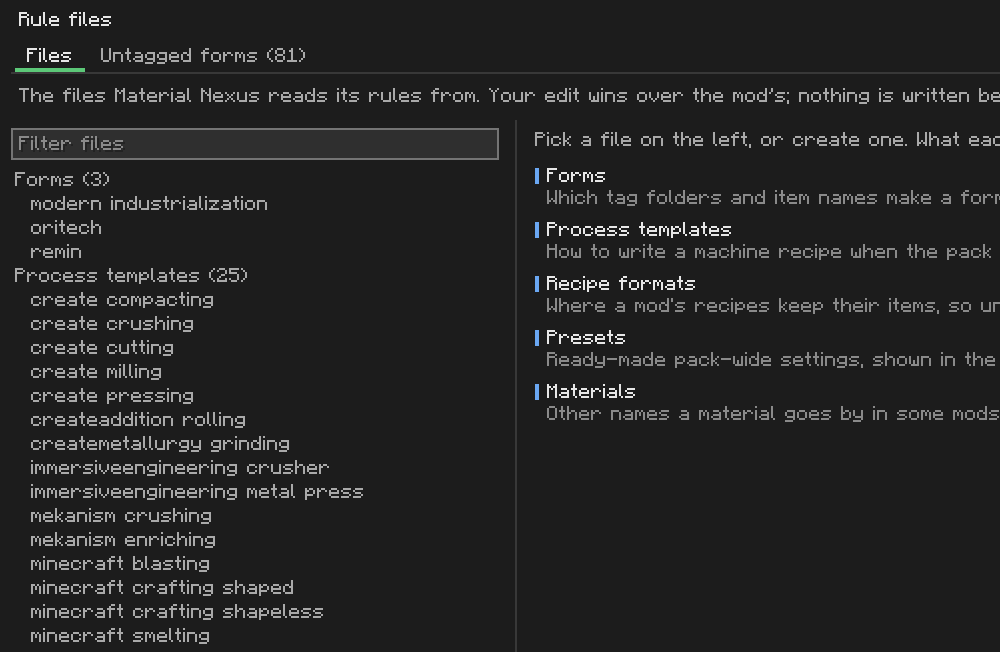
Under Advanced. The data files Material Nexus works from, editable in game. See Datapack Guide.
- Files: grouped by kind (forms, process templates, recipe formats, presets, materials), with what each kind does. Select one to edit its JSON; text that does not read as JSON cannot be kept, and the reason is written under the editor with its line. Keep this edit makes it a change to apply, Drop pending edit cancels, Back to original removes your version. New file creates one of the chosen kind.
-
Untagged forms: item names that look like a form of a known material but are in no tag
(
modern_industrialization:{material}_double_ingot), with the materials they match. Type the form and Declare. Below the list:-
Declare tag folder: a tag folder no form reads yet (
coils) becomes a form (coil). -
Add to its tag: an item id and a form (
tin/ingot) puts that item inc:ingots/tin. - Add missing tags (on/off): items known as a form by their name or an alias but missing its tag get it, where the pack already uses that tag.
-
Declare tag folder: a tag folder no form reads yet (

Under Advanced. Ready-made pack-wide settings, shown value by value next to yours. Use this preset only fills changes to review. See Choosing Items.
At the foot of the rail. Settings are yours only, on this computer, and change nothing in the pack: theme (Graphite, Workshop, Paper, Midnight), font (the game's or a smooth one), density of the lists, the technical id under item names, the folded groups open by default, reopening the screen where you left it. Shortcuts lists every mouse and key shortcut; each also has a button. Help opens this wiki.
Outside the screen, item tooltips say Material Nexus: becomes … on an alternative and Material Nexus: kept item on the kept one, once applied.