Super Admin
Only the super admin sees this page, under Host Controls in the sidebar.
This page controls anything that touches your network, your firewall, or outside accounts like Nexus Mods.
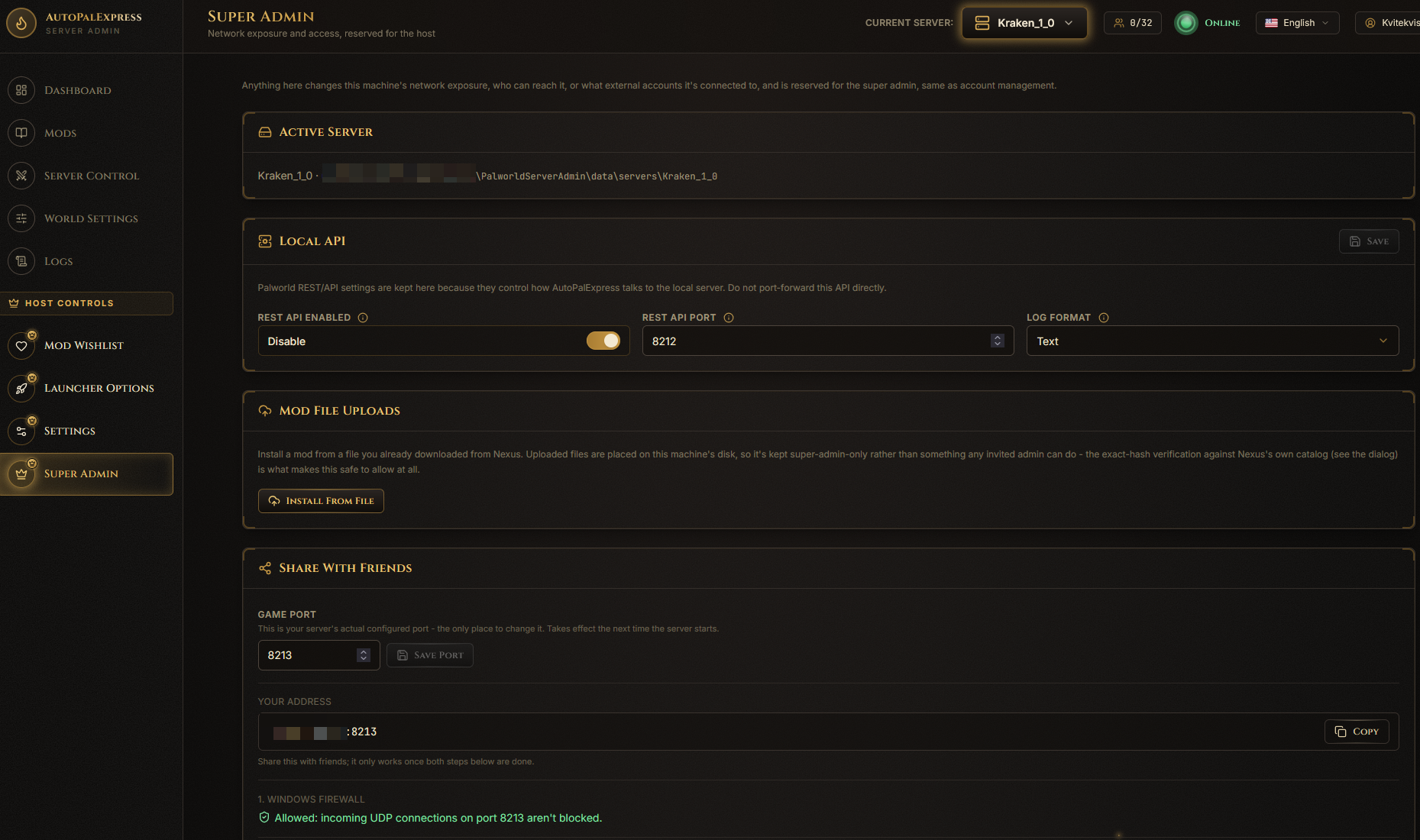
Look at the Active Server panel near the top - it shows the server's folder and its real game port.

Click Install From File in the Mod File Uploads panel, then choose the file. AutoPalExpress checks it against Nexus's own catalog before installing, so you know it's the real, unmodified file.

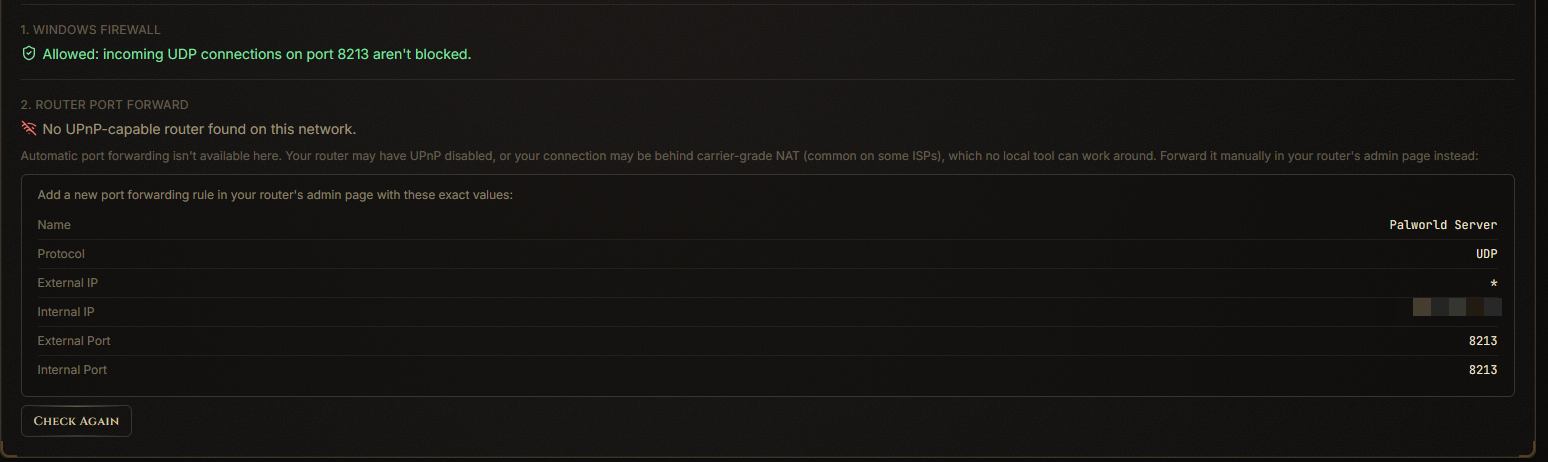
In the Port Forwarding panel, click Forward to let AutoPalExpress try to open the port automatically through your router (UPnP). If that doesn't work, the panel shows the exact values to enter manually in your router's settings.
Use the Remote Access panel to expose AutoPalExpress's own web page beyond your home network.
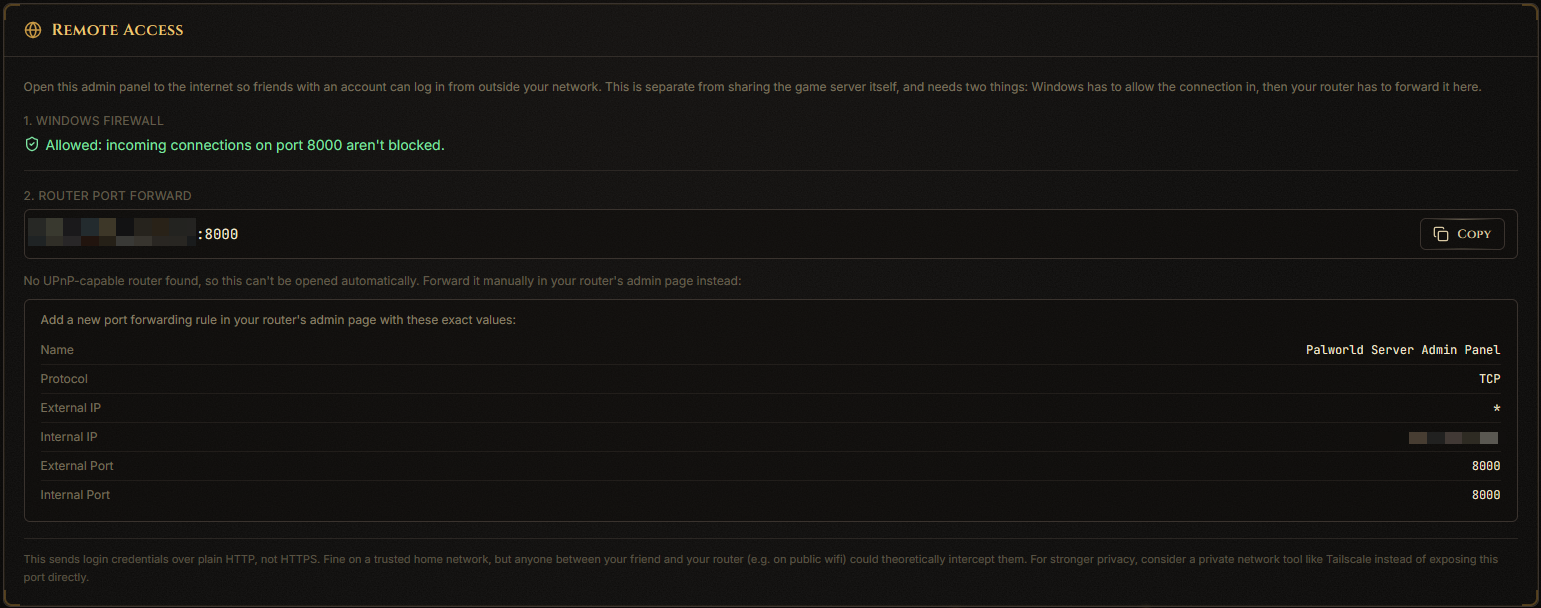
This uses plain HTTP by default. For anything beyond a small trusted group, consider Tailscale, ZeroTier, a VPN, or a reverse proxy with real HTTPS instead.
Click Run Diagnostics in the Diagnostics panel. It checks your server folder, ports, firewall, and REST API, then shows a report right on the page.

In the Nexus Integration panel, paste your Nexus API key and click Connect. This enables one-click direct installs on the Mods page and lets you approve Mod Wishlist requests.
