Repository navigation
Commands
Start a sentence with @, pick a command, write, and press ⏎: the command runs on what you wrote. Without @, your
keys go to the app as usual. With text selected, a command works on the selection instead (see
On the selected text). Once AI results are up, what you type is a follow-up and ⇧⏎ sends it:
the next question after @question (see Conversations), or a change such as "shorter" or "in
Japanese" after @improve (see Refining the results). ⏎ always inserts the selected result.
| Command | What it does | Goes to |
|---|---|---|
@improve |
Polishes what you wrote, plus rewrites in the styles you picked | Your AI provider |
@translate |
Translates into the languages you added, a line each | Your AI provider |
@question |
Answers a question, then follow-up questions as a conversation; the answers can be inserted or copied | Your AI provider |
@reply |
Writes three replies to the message you're answering: selected, copied, or a screenshot pasted with ⌃V | Your AI provider (a screenshot is read on this Mac; only its text is sent) |
@agent |
Hands a task to the coding agent you pick: Claude Code (in the background by default), Gemini CLI, Kiro CLI or your own command. In Google Chrome it takes the page along. It was @claude up to 0.6.3 |
That agent on your Mac |
@tasks |
Lists the background Claude Code tasks | This Mac |
@settings |
Opens the settings window | This Mac |
@open |
Finds files, folders and apps as you type, or opens a web address | This Mac |
@note |
Saves the text to Notes, to a folder of Markdown files (an Obsidian vault or any folder) or to Notion | Notes or a folder on this Mac, or Notion |
@reminder |
Adds a reminder, reading the time you wrote | Reminders on this Mac |
@py, @js
|
Runs a line of Python or JavaScript | This Mac |
@imessage |
Sends an iMessage | Messages on this Mac |
@reportissue |
Reports a problem: GitHub's new-issue page with your title and the details that help | Your browser (you submit it) |
Changed in 0.6.5:
-
@configand@doctorare gone: Settings → Assistant changes settings in a sentence and checks for problems (see Settings and Configuration → Assistant). Typed, they're unknown commands, and a custom command, a plugin or a script extension may take the names. - The built-in
@calculateis now the@calculatorplugin. - Text you insert often (a signature, an address, a meeting link) can be a command of your own: see Snippets.
- Translate as You Type has no command: hold Shift for a second. See Translate as You Type.
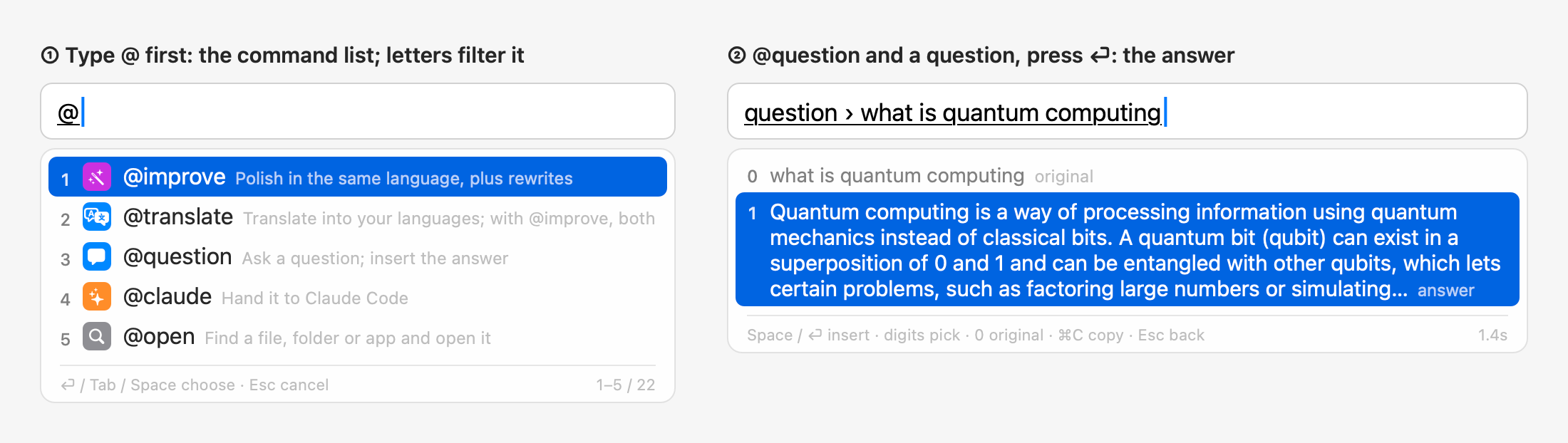
Typing @ at the start of a sentence opens the command list: the ones you used most lately first, 5 at a time,
scrolled with ↑↓, the wheel or the trackpad.
- Type letters to find one: a name typed in full first (
@replists your own@repbefore@reportissueand@reply), then names starting with them, then names containing them. - ⏎, Tab, Space or a digit 1–5 picks one of the rows shown. The text field then shows the command (
improve ›); write after it. 0 and 6–9 go in as typed. - If the letters match no command (
@john), the@is inserted as usual, so @-mentioning people in chat apps still works. - ← →, or a key that can't be part of a command's name (
.,:,/), closes the list and leaves what you typed (@,@im) as it is. In a text view the key then does what it always does (→ moves the caret); in a terminal ← → only close the list. - Holding right ⌥ in the list picks the command first and puts what you say after it.
@ typed right after a letter, a digit, ., _ or - is just text: bob@example.com, ssh user@host and
git@github.com:you/extensions.git type as usual, with no command list, in every app, terminals included. After a
space, at the start of a line or after a Chinese character it opens the list as before. What counts is the character
you typed into the field just before: after text the input method inserted (a result, a command inserted as typed with
⇧⏎), an arrow key, ⌫, ⏎, a click or another field, @ opens the list. In a field that reports its text, that
character must also be right before the caret, with nothing selected.
Your own @ commands as programs: a script in any language with @allinoneime. lines in its comments, a bundle (a
folder with extension.json), or a Raycast Script Command as it is. They're read from
~/.config/allinoneime/extensions, folders added under Settings → Custom Commands → Script Extensions, and folders
Spotlight finds holding Raycast scripts. From a folder Spotlight found, only its Raycast Script Commands are taken (not
its @allinoneime. scripts or bundles: it may be a second checkout or a backup); add the folder to use all of it. A
script or bundle that is byte for byte the same as one read before it is skipped quietly ("Skipped N identical
copies" in the settings). An added folder that is itself a bundle (it has an extension.json) loads as that bundle.
A bundle can also be installed from a Git repository: see Extension sources. The full protocol:
docs/extensions.md;
examples: Core/Examples/extensions.
- The name is the file name's letters and digits from the first letter, lowercased (
base64.py→@base64), or itsnamekey. Names clash in this order: built-in, plugin, custom command, bundle, single script, Raycast script; a bundle command may fall back to itsalias. A custom command, plugin or extension with a built-in command's name (agent,reply…) is hidden (Settings → Custom Commands marks a custom command "Same name as a built-in command: rename it to use it"). From 0.6.5,configanddoctorare free again, and a custom command you had namedreplyis now@myreply. - The command list shows its title and group, its icon (emoji, SF Symbol or image), and its status line if it has
one. Typing finds names, then words of titles and keywords. A digit right after letters continues a name when one
does (
@base6). - Arguments: the text after the command; with two or three, commas (
,, or a full-width comma) split it and the last takes the rest. A missing required one shows "Needs: …"; a dropdown takes a choice's title or value. -
input none: Tab or Space completes the name; the action key runs it.
output |
What you get |
|---|---|
insert |
1: all of it; 2–9: each line. ⏎, Space or a digit inserts, ⌘C copies |
show |
Lines shown as printed; nothing inserted; ⌘C copies all, ⏎ closes. Leave the field and it goes on in the background |
list |
Alfred Script Filter JSON, run again as you type (after queryDelay, 150 ms): ↑↓ pick (rows aren't numbered while typing: digits are text), the action key does the row's action (insert, open, copy, run a second step), Tab autocompletes, ⌘C copies text.copy. open takes http(s) addresses and files or folders that exist (file://, /…, ~/…), nothing opening would run (executables, scripts like .sh .py .command), and no other schemes |
silent |
Its last line near the cursor |
-
background true: it starts and the field is free; the menu bar panel lists it under "Background Commands"; a notification shows its summary and detail when it's done; clicking opens what it printed. Four at most, one command not twice. Running extensions stop when the input method quits. - Folders, scripts and bundles may be symbolic links.
- A bundle's
script(and a plugin's, inplugin.json) must be a file inside its folder, as written: a path that starts with/, a drive letter (C:x) or a backslash (\x,\\server\x), or climbs out with.., is refused (checked more strictly from 0.6.5; extensions and plugins that worked before still do). - From 0.6.5, a bundle command's other paths stay inside the bundle too, from the script's folder as written: an
iconimage, astatusprogram given as a path (./left.sh) and acurrentDirectoryPaththat isn't~/…or absolute. One that leads out (../icon.png,/usr/bin/pmset) is a bad value: the command doesn't load, and Settings says why. Astatusprogram named alone (date) is still looked for in the script's folder, then on the PATH. Your own single scripts and Raycast scripts are unchanged. - A bundle can also ship snippets (
snippetsinextension.json): texts to insert with the placeholders of a snippet, each with aname(and maybe analias). They run nothing, and a bundle may ship only snippets. One is turned off with"<bundle>/<name>"indisabledExtensions. -
confirm true: "Run X? ⏎ again". A non-zero exit shows its last line; ⏎ retries; Esc stops a run. - Nothing runs during secure input.
Settings → Custom Commands lists them; see Settings and Configuration.
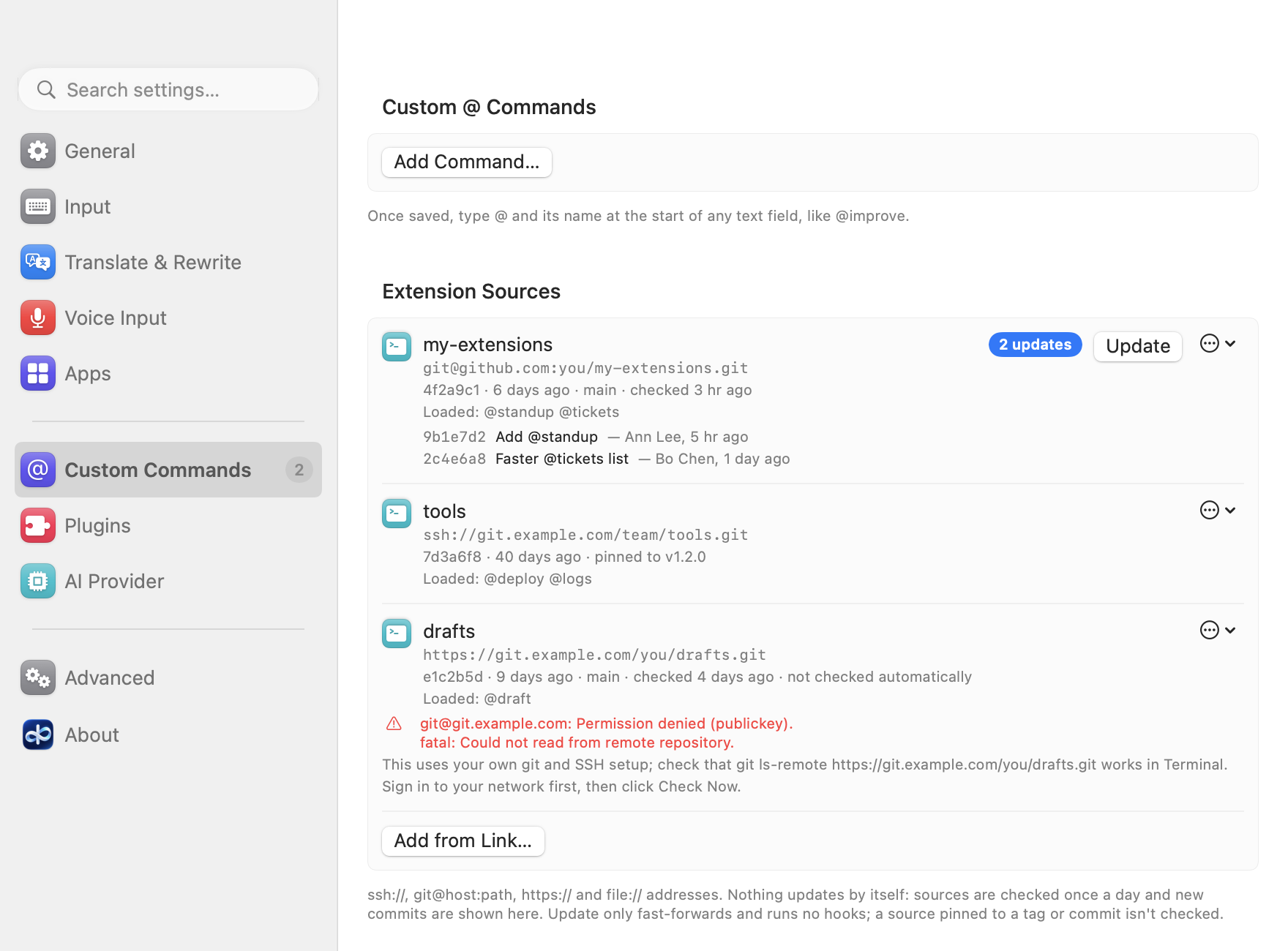
A bundle can come from a Git repository, yours or your team's, and stay up to date from there. Settings → Custom
Commands → Extension Sources → "Add from Link…" takes the repository's address: git@github.com:you/extensions.git,
ssh://…, https://…, or file://… for a repository on this Mac. Optionally: a branch, the bundle's folder in the
repository (found by its extension.json when there's one, picked from a list when there are several), and a tag or
commit to pin it to. http:// isn't taken, nor an https:// address with a user name, password or token in it: git's
credential helper keeps those. The bundle's folder is read as a folder of the repository (/x too); one that climbs
out of it with .., or from 0.6.5 one with a NUL character in it, loads nothing.
-
Your own git. It clones with
/usr/bin/git, as you, with your login shell's PATH and SSH agent: your keys,~/.ssh/config, credential helpers and your own ssh command sign in, so a private repository works as it does in Terminal. The app never asks for or keeps a password. git never waits for an answer (no terminal, no prompts, 60 s a call, hooks off), so an unknown host key or a password prompt fails at once. Without Xcode's Command Line Tools, it says to runxcode-select --install. -
Review first. The clone goes into a hidden staging folder under
~/Library/Application Support/AllInOneIME/Sources/. Before anything loads you see the bundle (title, name, version, author), each command (name, title, description, what it outputs) with the program it runs and what its status line runs, its preferences, the address and the commit, under "This source isn't signed: it will run programs from" and the address. Only Enable puts it in place and adds it to the extensions; Cancel deletes the staged clone. - Only reviewed code loads. A source folder in the load list that wasn't reviewed on this Mac (in a config copied from another Mac) isn't loaded. Each source's row says what it loads ("Loaded: @standup @tickets", or "Nothing loaded: …").
- Updates are yours to apply. About 30 s after the input method starts, then once a day, a source is fetched to see what's new; "Check Now" in its ⋯ menu does it at any time. The row shows "N updates" with the new commits (subject, author, date), the page gets a badge in the sidebar, and the menu bar panel says "Extension sources: N updates" (a click opens the page). Nothing changes until you click Update, which only fast-forwards and runs no hooks. After a force push (or more than 100 new commits) Update is refused: Re-clone… shows the review of the new history, and only Enable puts it in place; the reviewed version keeps working meanwhile.
-
Pins. The ⋯ menu has Pin to This Commit, Pin to… (a tag or commit) and Unpin. A pinned source isn't checked;
Unpin goes back to the branch's newest commit. "Check for Updates Automatically" in the same menu turns the daily
check off for one source (
autoCheck). -
Errors show git's own last lines (such as "Permission denied (publickey)."), then "This uses your own git and
SSH setup; check that
git ls-remote <url>works in Terminal", then your own reminder if you set one (authHintin the config, such as "Sign in to your network first, then click Check Now"). - Remove… moves the clone to the Trash and takes the source out of the config; the bundle's preferences (and its passwords in the keychain) are kept for next time.
-
From a terminal, with
~/Library/Input Methods/AllInOneIME.app/Contents/MacOS/AllInOneIME:--add-source <url> [--path P] [--branch B] [--pin REF]clones, prints the review and enables it (running it is the consent; it's also how a force-pushed source is reviewed again),--update-sourceschecks every reviewed source that isn't pinned and fast-forwards it, and--list-extensionslists the loaded commands and what was left out. A running input method picks the change up by itself.
A source has no signature: it runs what its repository holds, as you. Add only repositories you trust. The repository layout and the config keys are in docs/extensions.md.
| Key | What it does |
|---|---|
| ⏎ | Runs the command |
| Space, ⏎ / digits | Once the results are up: insert the highlighted / numbered one; 0 is the original. ⏎ inserts even with a follow-up half typed (it's dropped) |
| ⌘C | Copies the highlighted result (for @open, the path); the candidate panel stays open |
| ⌃V | In a command: appends the clipboard text instead of pasting it into the app; several lines become one, up to 2000 characters (@note keeps the line breaks and takes up to 20000). A screenshot on the clipboard is read on this Mac and its text is used (see Screenshots in a command). Works in any app |
| ⌘V | Like ⌃V, but some apps handle ⌘V themselves (terminals and Notes) and paste as usual; use ⌃V there |
| ⇧⏎ | With a follow-up typed after AI results: sends it (the next question of an @question conversation, or a refine). While a command is typed, or on AI results with nothing typed: inserts what you wrote as typed, without running it |
| Esc, ⌫ | Back to the sentence to keep editing. After a refine: back to the results before it. In an @question conversation, Esc clears the typed question, then goes back one round |
| Letters, once AI results are up | A follow-up: after @question the next question (see Conversations), after @improve or a prompt command an instruction such as shorter (see Refining the results); ⇧⏎ sends it. An action key other than ⏎ (⌥Space, say) sends it too. After @translate, letters continue the sentence, and ⏎ translates it again |
| ⌘⏎, ⌘1–⌘9 | In an @question conversation: shows where to continue it; ⌘1, ⌘2 … pick one (see Continuing elsewhere) |
| ⌘R | On a saved @question answer: asks it again for a fresh answer (see Recent questions). On @reply's replies: three more |
| Click a row | In the candidate panel: picks it, as its digit would (a word, a command in the list, a result, an @open file, a recipient, an extension's row); the row under the pointer is highlighted. The text field keeps the focus |
| ← → / ↑↓ | Picking pinyin or Hindi words, with the candidates side by side (the default): choose a candidate / turn the page (- = turn it too). With "Candidate layout" set to Vertical: ↑↓ choose |
| Hold right ⌥ | Talk, release to stop; see Voice Input |
| Tap Shift | The next input language, in their order (Settings → Input) |
| Hold Shift (1 s) | Turns Translate as You Type on or off; see Translate as You Type |
On an error (a timeout, say): Space retries, 0 inserts the original, Esc goes back.
Example: @i ⏎, type this is a blocker bug your team need fix it asap, ⏎.
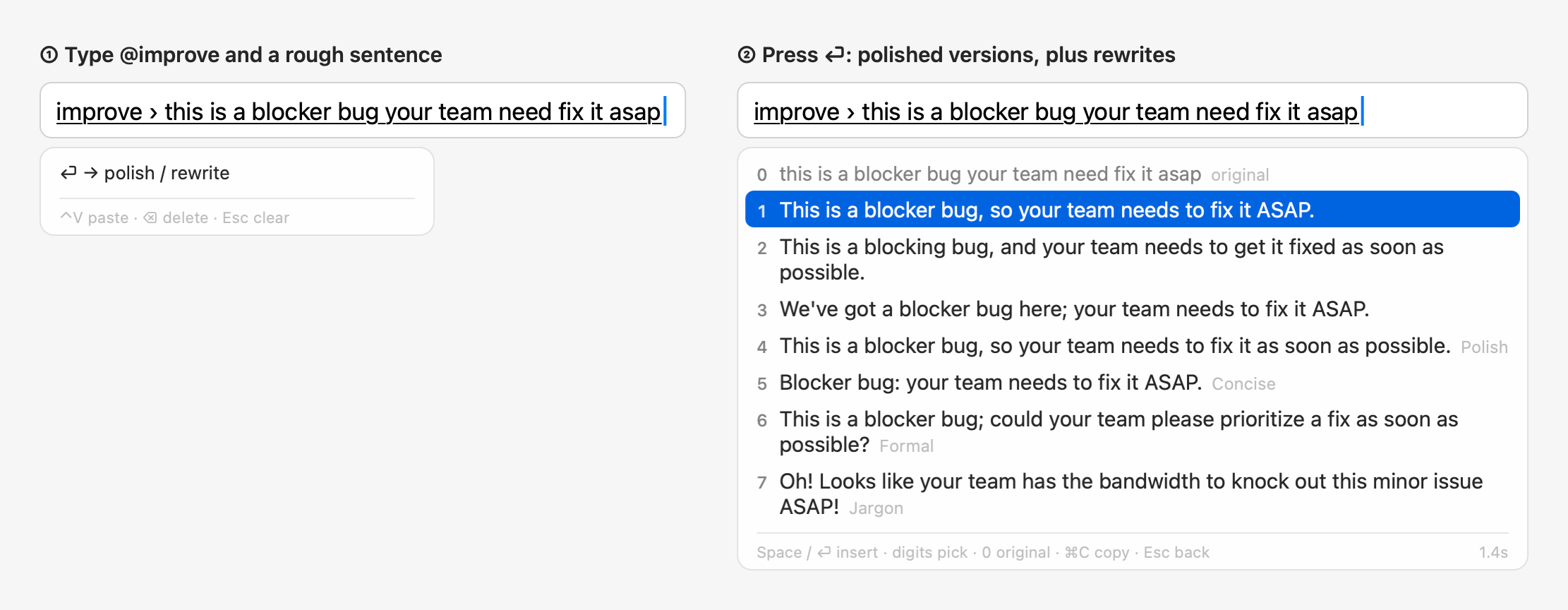
- 0: the original.
- 1–3: three polished versions in the language you wrote; 1 is the most idiomatic and is highlighted.
- 4 on: the rewrite styles you picked (Polish, Concise and Formal by default), also in the language you wrote; see Rewrite Styles and Jargon.
The language you wrote is told by its letters: Chinese, Korean (Hangul), Hindi (Devanagari), or for Latin letters English, or French when French is one of your input languages and the words are French.
@improve doesn't translate. With "@improve also translates" on in the settings, it works like @translate @improve.
Results appear as they're generated; lines that only change punctuation or repeat another line aren't shown.
Example: @t ⏎, type running 10 minutes late, start without me, ⏎.
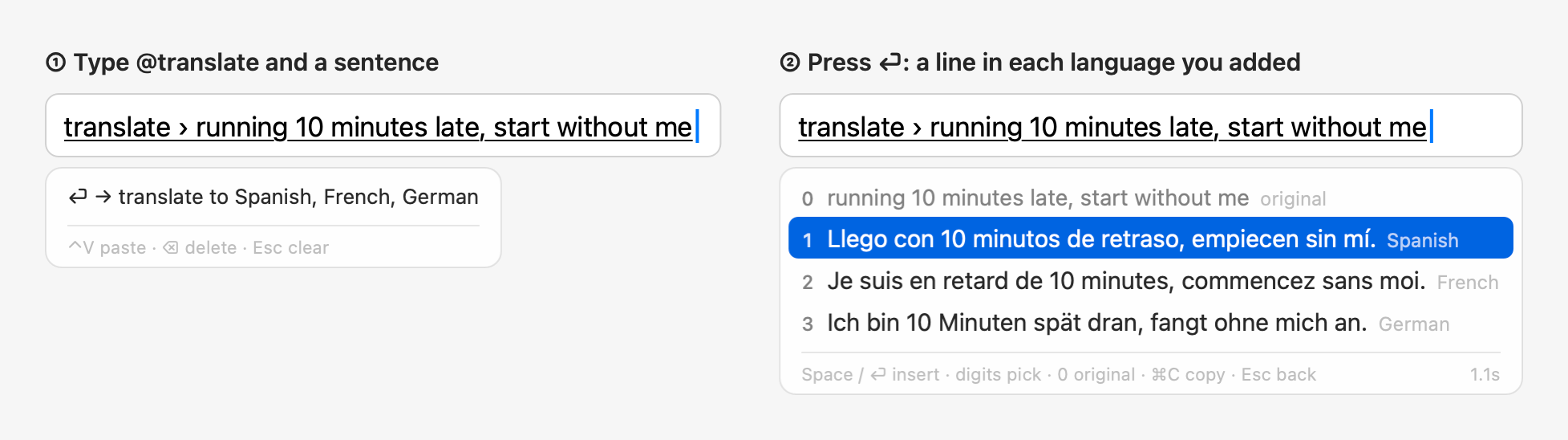
It writes a line in each language you added under "Translate" in the settings, in that order; with only one
language, three versions in it. The sentence's own language is skipped. A Korean, Hindi or French sentence is translated into each of them (English
and Chinese both, with those two). @translate @improve together (either
order) translates and rewrites in one request.
@translate has no refine: once its results are up, typing continues the sentence, and ⏎ translates it again.
Example: @q ⏎, type what is quantum computing, ⏎.
The answer appears as a candidate, in the language of the question: ⏎ or Space inserts it, ⌘C copies it. Answers keep their line breaks (code, steps); in a terminal they go in as a paste, so the shell doesn't run each line.
It can't check live information (the weather, news, prices, scores, anything "today"): asked for it, it says so and gives what general guidance it can, instead of making it up.
Once the answer is in, what you type is the next question (pinyin too), shown at the top of the panel as "question 2/5 › …"; ⇧⏎ asks it. The panel grows into the conversation: the earlier rounds dimmed as Q / A rows, the latest answer in full. It grows to about half the screen's height, then scrolls, the latest at the bottom; scrolled up with the wheel or the trackpad, it stays where it is while an answer comes in.
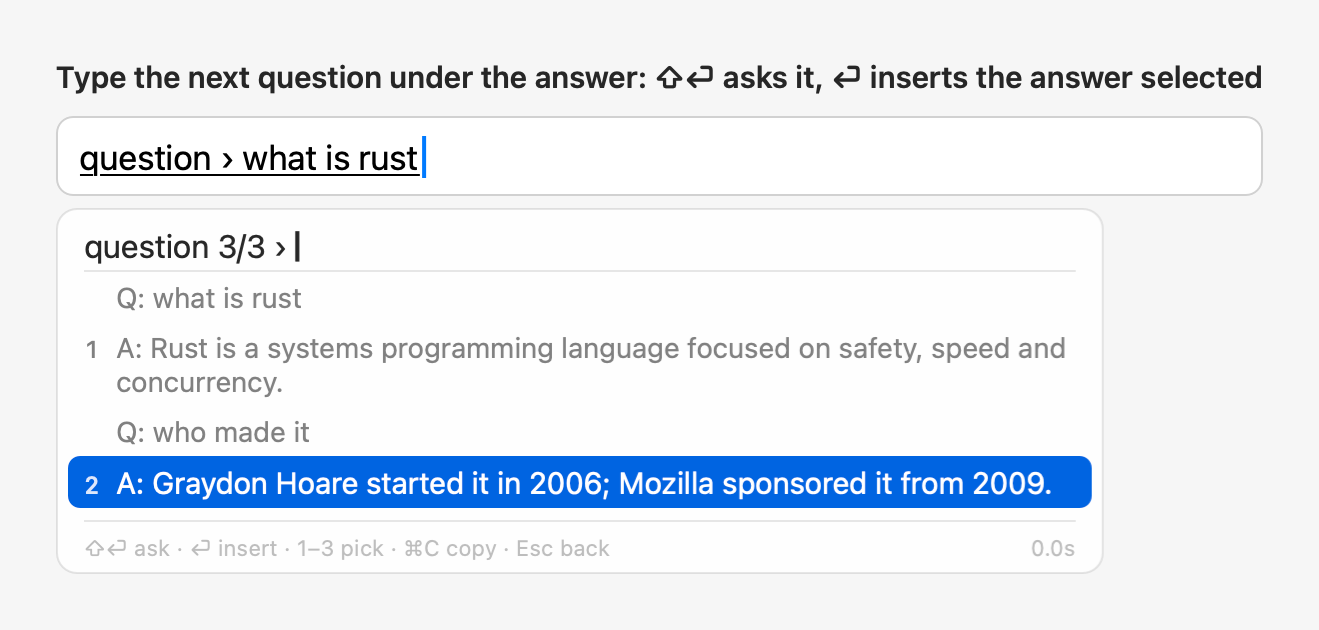
- Every round's answer can be inserted: its digit (1–5), ↑↓ then ⏎, or a click. The latest is selected; ⌘C copies the selected one. ⏎ inserts it even with a question half typed (the question is dropped). 0 no longer inserts the question.
- ⇧⏎ with nothing typed inserts what you typed as is (
@question …). - Esc clears the typed question, then goes back one round (the last question and answer dropped); at the first round it leaves as before.
- Each follow-up is sent as a normal conversation: the questions and answers so far, then the new question. The first question is sent exactly as before. Hiding sensitive information applies to every round.
- Apple Intelligence on this Mac has a small context (about 4K tokens, 8K on macOS 27). When the conversation doesn't fit, the oldest answers are shortened, then the oldest rounds left out (the last question is always sent whole), and the panel says "earlier rounds shortened". Cloud providers get the whole conversation.
- Footer: "⇧⏎ ask · ⏎ insert · 1–5 pick · ⌘C copy · Esc back".
- Up to 5 rounds:
questionRoundsinconfig.json, 2–10.
After the last round, the next question's line becomes "5 rounds in: continue in Claude or another AI", with the choices numbered ⌘1, ⌘2 …; ⌘⏎ shows them at any round (Esc hides them; while an answer is still coming in, ⌘⏎ does nothing). What you type then is the first message there, and only ⌘1, ⌘2 … send it: ⇧⏎ asks nothing more and opens nothing. The text is the conversation in Markdown, "Let's continue this discussion.", and what you typed. A first question about selected text takes that text along, quoted as a block of its own.
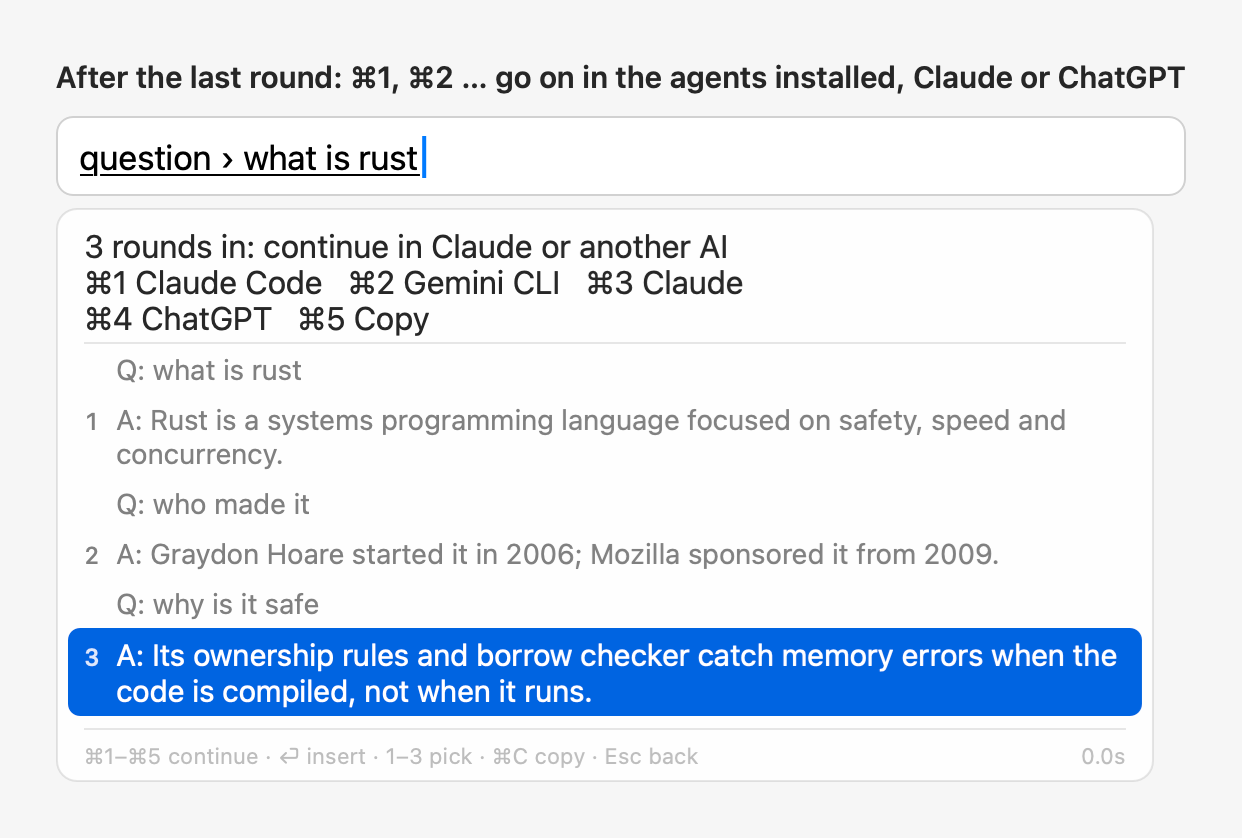
| Choice | What happens |
|---|---|
| A coding agent installed on this Mac, by its name | The one @agent hands to comes first (⌘1), then the others (Claude Code, Gemini CLI, Kiro CLI, your own command from Settings → Agent). Each opens an interactive session in Terminal, started as @agent starts it. One that isn't installed isn't shown |
| Claude, ChatGPT | The web page opens with the conversation filled in; a long one (over 6000 characters) goes on the clipboard instead, to paste |
| Gemini | Gemini on the web opens, with the conversation on the clipboard to paste |
| Copy | Puts the conversation on the clipboard, in Markdown (Q: / A:) |
Which ones, and in which order (the first is the default): Settings → General → "Continue a conversation in"
(questionContinueIn); with more than 5, ⌘6 … ⌘9 pick the rest. Nothing is sent before you pick one, and the
conversation goes, as shown, only to that service. Not during secure input or in an app with No AI (Copy still works).
@question with nothing typed after it lists your last 5 questions, newest first, with when they were asked ("3
hours ago"). Typing narrows them down: every word anywhere in the question, in any case (Chinese without spaces too).
- A digit, ↑↓ then ⏎, or a click shows the question's saved answer at once, without going online: Space or ⏎ inserts it, ⌘C copies it, ⌘R asks it again for a fresh answer (it was R up to 0.6.3), Esc goes back to the list.
- A conversation is saved whole, under its first question. Picking it shows all its rounds, and typing goes on with it (any letter, R too, starts the next question); ⌘R asks its latest question again, with the rounds before it.
- With no match, or nothing picked, ⏎ asks what you typed, as before. Once you've typed a filter, digits are text.
- A new answer to the same question, or a conversation that goes on, replaces the saved one. Questions saved by 0.6.3 load as one round.
- They're kept only on this Mac (see Privacy), 5 at most, unless you choose to sync them through iCloud (see Sync through iCloud); nothing is kept during secure input, and questions asked on selected text aren't kept.
- Settings → General → "Remember recent questions" (
rememberQuestions, on) turns it off and deletes them. Turned off through Settings → Assistant, they're kept, so undoing it puts back exactly what was. "Clear (N)" deletes them.
Example: select the message you're answering, type @reply politely decline, ⏎.
@reply (new in 0.6.5) writes three replies you could send to the message you're answering. Give it the message in
any of these ways, then press ⏎:
-
Select it in the field, then type
@reply. The reply you pick goes in after it, on a line of its own. -
Copy it, type
@replyand press ⌃V: the panel shows "Copied message · N characters", and the draft stays as it is. -
Take a screenshot to the clipboard (⌃⇧⌘4, or WeChat's own screenshot), type
@replyand press ⌃V: the panel shows "Screenshot · N lines (read on this Mac)". The screenshot is read on this Mac (Apple's Vision; the first time a little slower) and only its text is sent; the image goes nowhere and isn't kept. Lines on the left are the other party's and on the right yours, as chat apps show them; the times between messages are left out. Use it for WeChat, whose window can't be read any other way.
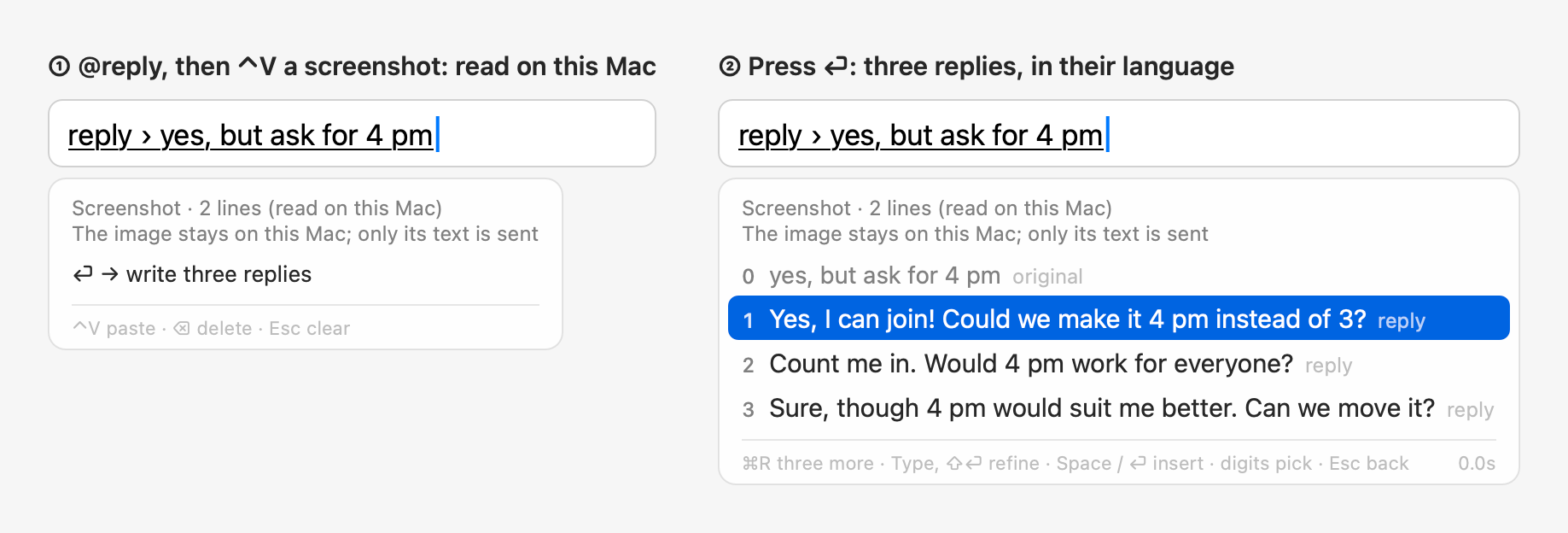
What you type after @reply says what to reply (@reply politely decline); with nothing typed, you get a sensible
answer.
- Language and tone. The replies are in the other party's language unless you ask for another, and in the app's tone: the first rewrite style of its profile (Settings → Apps), else casual in chat apps and formal in mail apps, where each reply is a whole email body. The text around the cursor goes along too.
-
Picking. ⏎ or a digit inserts a reply; ⌘R writes three more (Esc brings these back), and typing an instruction
refines them as for any AI result (see Refining the results). ⌫ with nothing typed after
@replyremoves what was pasted. -
In Google Chrome, with nothing selected or pasted, it takes the page along as
@agentdoes (see The page in Google Chrome). - With nothing to reply to and nothing typed, it says what it needs.
- Hiding sensitive information covers the screenshot's text too. During secure input the clipboard isn't read and nothing is sent.
- A custom command you had named
replyis now@myreply.
A screenshot pasted with ⌃V into any other command works too: @translate ⌃V translates it (into the caret),
@question what does this say ⌃V asks about it, and commands without AI get its text as if it had been copied (@note
keeps its lines). With text selected, @improve and @translate keep working on the selection, and a notice says the
screenshot wasn't used.
Example: @agent ⏎, type find out why the tests in ~/code/demo fail, ⏎.
@agent hands the task to the coding agent picked in Settings → Agent, installed on your Mac, with its own sign-in and
settings:
| Agent | What runs in Terminal |
|---|---|
| Claude Code (the default) |
claude -- <what you typed>; or in the background, see below |
| Gemini CLI | gemini -i <what you typed> |
| Kiro CLI | kiro-cli chat -- <what you typed> |
| Your own command | Its command (agentCommand), what you typed added as its last argument |
- Claude Code runs in the background by default: you get a notification when it's done or needs you; click it to open the session in Terminal and go on. Turn off "Runs in the background and notifies me" under Claude Code in Settings → Agent to open Terminal right away instead.
- The other agents open in Terminal with what you typed as their first message. What you typed always reaches the agent whole, however long.
- The agent asks you first, as usual, before changing files or running commands. When the agent picked isn't
installed,
@agentisn't offered; Settings → Agent shows which ones are. -
@agentwas@claudeup to 0.6.3.@claudeis no longer a command (a command of your own may use the name), and how often you used it carries over to@agentin the command list. - An
@questionconversation can go on in each agent installed; see Continuing elsewhere.
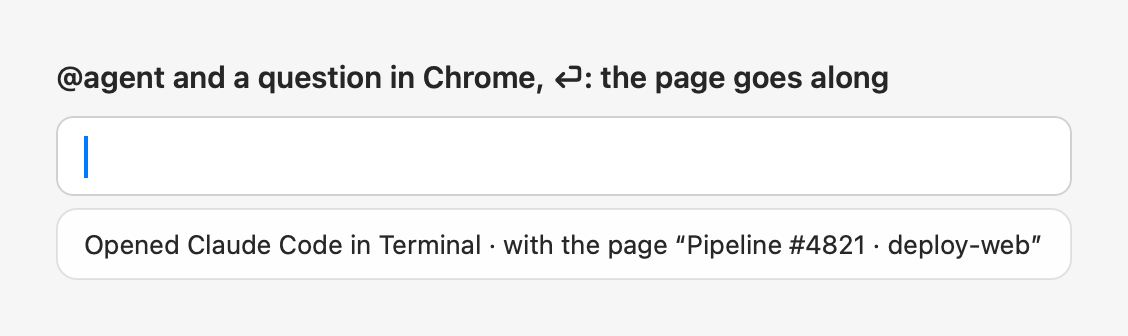
From 0.6.5, @agent in Google Chrome takes the page along, so you can ask about what's in front of you: @agent why is this blocked on a pipeline page, @agent why doesn't this work in a sign-in form's username field.
- After what you typed, the agent gets the address and title, the field you typed in (its label, whether it's marked invalid) with its form or section, ★ marking where you are, the selected text, and what's visible in the window. With the focus in the address bar, it gets the section under the mouse pointer.
- Never a password field, never the whole page. The agent judges whether the question is about that spot or the page, and can open the address in your browser for more.
- The page's text goes to the agent as read, marked as coming from the web (not as instructions from you).
- The notice says "with the page “…”".
- It needs Accessibility. Chrome builds its page tree for it only while
@agentis being written there, and its accessibility is turned back off after. - Settings → Agent → "@agent and @reply take the Chrome page along" (
agentPageContext, on) turns it off, for@replytoo. -
AllInOneIME --page-context(on~/Library/Input Methods/AllInOneIME.app/Contents/MacOS/AllInOneIME) prints what it would take along from the Chrome page in front.
@tasks lists Claude Code's background tasks (working, done, waiting for you) with their last replies; ⏎ opens one in
Terminal, ⌘C copies the reply. The menu bar panel lists them too.
Example: @o ⏎, type report.
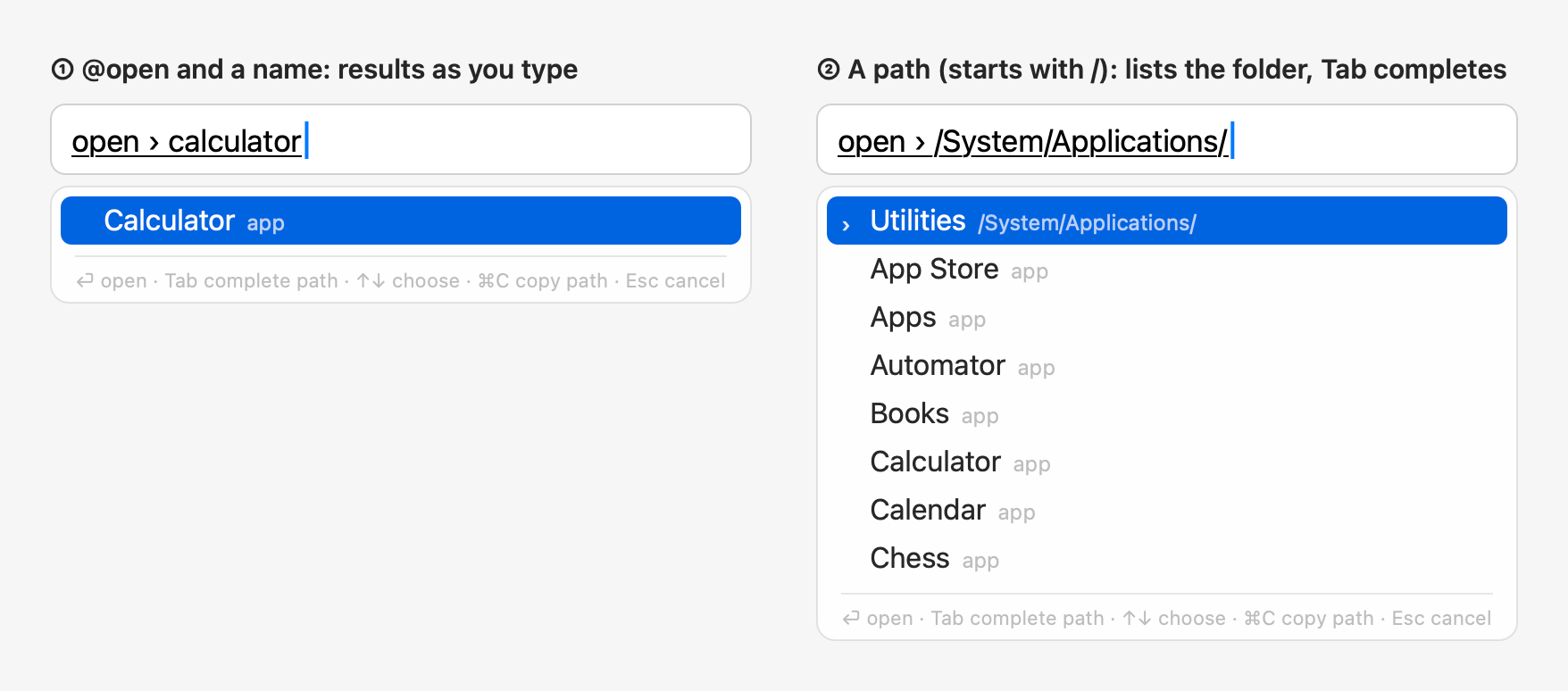
- Lists matching files, folders and apps as you type (Spotlight). Several keywords work, separated by spaces: each
must be in the path, at least one in the name; a standard folder's name counts for what's in it (
downloads pdf). - What you opened with
@opencomes first, then apps and the standard folders, then recently used files. When the names find hardly anything, the files in your home folder are searched by content too, marked "content". - A web address (
github.com,localhost:3000,https://…) opens in the default browser. - Text starting with
~/or/is a path: Tab completes it and goes into folders. - ⏎ opens, ⌘C copies the path. It searches only this Mac.
@note books to read: Project Hail Mary ⏎ saves a note; the first line is the title, and nothing is inserted. After
copying some text, ⌃V after @note (or ⌘V outside terminals) brings it in with its line breaks.
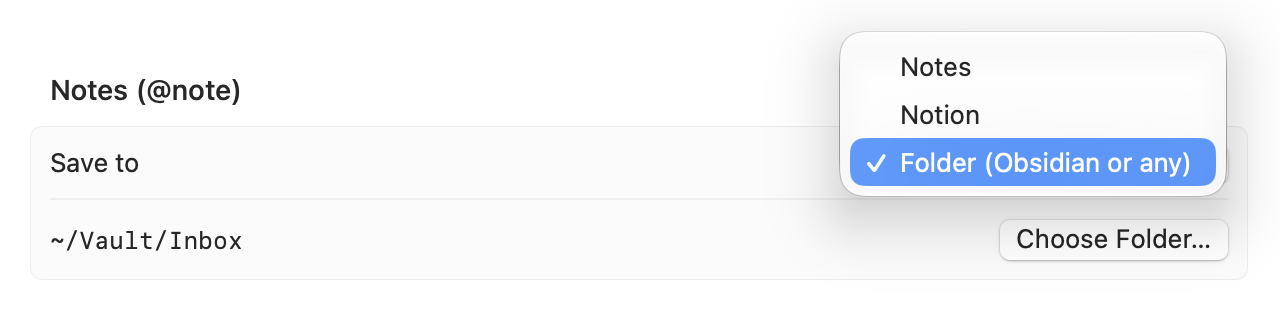
Where it goes is Settings → Plugins → Notes (@note) → Save to (new in 0.6.5; notes in the config):
- Notes (as before): a new note in Notes, in a folder named AllInOneIME (made when missing).
-
Folder (Obsidian or any): a new Markdown file per note in the folder you choose, named after its first line
(
/\:*?"<>|#^[]become-; a name that's taken gets " 2", " 3"). The file holdscreated:front matter, then the whole text as typed. A file is never written over, and a folder that isn't there (an unmounted drive, a moved vault) isn't made: the note comes back instead. In an Obsidian vault (a.obsidianfolder in it or above it) the notice says "Saved to Obsidian", and the menu bar panel opens the note in Obsidian. -
Notion: Create Integration… (New integration → Internal → copy the token), paste the token (kept in the
keychain), then in Notion open the page or database → ··· → Connections → add your integration, and paste its link.
Test checks both and shows "✓ “Inbox” (database)". A page gets a new child page, a database a new row (the first
line as its title); the rest of the note is its body, in one request. Offline or refused, nothing is kept to send
later: the note comes back. During secure input
@notedoesn't send to Notion.
The notice says where the note went ("Saved to Notion", "Saved to “Inbox”"), and the menu bar panel opens it there: in Notes, in Obsidian or the file's own app, or the Notion page.
@reminder call Bob tomorrow at 3pm ⏎ shows the time it read ("tomorrow 3:00 PM"); ⏎ or Space adds it to
Reminders, in a list named AllInOneIME, with an alarm at that time (all day with only a date). Esc goes back to fix it.
It reads times like tomorrow at 3pm, in 2 hours, in 3 days at 3pm, on the 15th, this weekend,
next month, end of the year.
- A time without am or pm (
at 5) is the next one, never between midnight and 6 a.m.; a time already past today is tomorrow. - Written to repeat (
standup every Monday at 9), it's added once. - Neither goes to the AI;
@noteto Notion sends the note to Notion, and only then. The first time, macOS asks whether AllInOneIME may control Notes or access Reminders. - If a save fails, the text comes back into the command (or onto the clipboard, if you've moved on), so nothing is lost.
The built-in @calculate is gone from 0.6.5: the calculator is now the @calculator plugin in the plugin library
(Settings → Plugins → Browse Library…). It works offline, with the same rules as before: @calculator 23*17 → 391;
+ - * / (also × ÷), ^ or **, parentheses, percent (100+10% is 110),
sqrt abs round floor ceil ln log exp sin cos tan min max pow and pi, e. Arithmetic is exact in decimal
(0.1+0.2 is 0.3).
Inside another command's sentence, write the expression without spaces
(@reply the total is @calculator 23*17 dollars) or quote it (@calculator "2 * pi").
@py 2**100, @py import math; math.sqrt(2), @js [1, 2, 3].map(x => x * 2): the value of the last expression, or what
it printed, is inserted. @py uses your Mac's python3 (not offered without it); @js uses macOS's
JavaScriptCore and can't read files, reach the network or run programs. Code runs in a separate process, stopped
after 10 seconds or with Esc. Write it on one line, with ; between statements.
They run only code you typed yourself: in pasted or dictated text, @py, @js and custom run commands stay
text, and a notice says so.
Type a name, a phone number or an email and pick the recipient (the ones you messaged lately come first), then write the message and press ⏎: the panel shows "Send to Alex (…): …", and ⏎ again sends it. Nothing is typed into the text field. The first time, macOS asks for access to Contacts and for control of Messages.
@reportissue the candidate panel stays up after ⌘Tab ⏎ shows, in the candidate panel, what the issue will hold
besides the title: the app and macOS versions, the Mac's architecture (arm64 or x86_64), the interface and input
languages, the language packs installed with their versions, the kind of AI provider (and the model, if it's a public
one; otherwise "custom"), the action key, whether hiding sensitive information is on, and how many custom commands,
plugins, extensions and apps with their own settings you have. Never their names, the text you typed (other than the
title), paths, keys, profile names or addresses.
⏎ again (or the action key, or a click on the row) opens GitHub's page for a new issue on MicroZ-LLC/AllInOneIME in your browser, filled in: the title, "What happened / What you expected" to fill in, and those details. Nothing is sent until you click Submit there, with your own GitHub account. Esc goes back to the title. A title isn't needed: you can write it on GitHub. The same page (without a title) opens from "Report an Issue…" in the input menu and in Settings → About.
Select some text in any app (a sentence in Notes, a paragraph in Mail), type @improve, @translate, @question or
another command that takes text, and press ⏎: the command works on the selection, and the result you pick replaces
exactly it.
- The selection stays as it is, still selected, while you type: the command is written in the candidate panel instead of the text field, its first line what you type (pinyin too) and the next "On the selection: “…” (N characters)".
- Text typed after the command is an instruction for
@improveand@translate(@translate ja,@improve more formal), answered as one rewrite that keeps the text's paragraphs; after@questionit's the question about the selection (@question what does this mean). - Esc, ⇧⏎, clicking elsewhere or secure input turning on leave the text as it was, with no
@improvetyped over it; changing the selection meanwhile cancels the command. -
@open,@agent,@tasks,@settings,@reminder,@imessage,@reportissue, terminal commands and script extensions don't use it: they take what you type, and the selection stays as it is. - Up to 5000 characters; never read during secure input or in a terminal. The selection is read through the text input system, or, where an app doesn't report it there, with the Accessibility permission if AllInOneIME already has it (it never asks for it). The log records only how it was read and its length.
- On by default; turn it off under Settings → General → "Use the selected text" (
useSelection) if it misbehaves in an app.
While the results of @improve, a prompt command (your own or a plugin's) or the rewrite of a selection are up, type
what to change (shorter, warmer, more formal, add a joke, in Japanese) and press ⇧⏎: the
AI gets the original request, the results shown and your instruction, and the new results stream in in their place, in
the same panel. ⏎ inserts the selected result instead, also with an instruction half typed (it's dropped). Refine as
often as you like; the panel's top line lists the steps ("Refined: shorter · more formal"), and you can pick a row at
any time as usual. After @question, what you type is the next question instead (see Conversations).
- Starting: a letter starts the instruction, shown at the top of the panel as "refine › …". With none typed, digits, Space and ⏎ pick as before, 0 the original, and ⇧⏎ inserts what you typed as is. Once it's started, Space, digits and punctuation are part of it; pinyin works, and a tap of Shift switches languages. Up to 200 characters.
- Only once the results are complete: while the first results still stream in, typing continues the sentence, as before.
- ⇧⏎ sends it (so does an action key other than ⏎). On selected text, the row you pick in the end still replaces exactly the selection, untouched until then. Footer: "⇧⏎ refine · ⏎ insert · …".
- Esc clears the instruction, then goes back one step to the results before the last refine, then to the sentence. ⌫ on an empty instruction steps back the same way.
- While a refine runs ("Refining: shorter…"), you can type the next instruction; ⇧⏎ sends it once the results are in. Esc stops the refine and brings back the results before it.
- When it fails (the network, no result, refused during secure input): the results stay as they were, and the instruction is back in the line, ready for ⇧⏎ to try again. The same refine of the same results comes from the cache.
-
Not refinable:
@translate(typing after its results continues the sentence, and ⏎ translates it again), program output (@py,@js, scripts),@open,@reminder,@imessage, and a sentence with commands inside it. - Up to 0.6.3, ⏎ sent the instruction; from 0.6.4, ⇧⏎ sends it and ⏎ always inserts.
- In an app with "No AI in this app" (Settings → Apps), nothing is sent. With hiding sensitive information on, the refine uses the same placeholders as the first request.
Commands that fetch something also work inside another command: @reply the total is @calculator 23*17 dollars,
@reply tell her @stock AAPL is up today. The inner ones run first and their output takes their place. Put an
argument with spaces in quotes: @question explain @py "sum(x * x for x in range(10))". A snippet works there too:
@question summarize this @zoom sends the link itself (see Snippets). Not inside @note, @reminder,
@agent, terminal commands or code: those get the text as written.
In the settings, under "Custom @ Commands", click "Add Command…": an AI instruction, a program, a program in
Terminal, a web page, or a text to insert (a snippet), under a name you pick. They're kept in
customCommands in config.json; a custom command of a type this version doesn't know is kept there as it is, and
its name stays taken. Details: the README.
For commands written as scripts, see Script extensions.
Plugins are ready-made commands such as @stock AAPL, @xe 100 USD EUR, @calculator 23*17 and @calendar +10
("Tue, Oct 27 · in 10 days"): "Browse Library…" under "Plugins" installs them from the signed
plugin library. Writing one:
docs/plugins.md; from 0.6.5 a script
plugin is called as run(input, {language}), language being "zh" or "en" as the input method's own interface
shows (config uiLanguage, else the system's). Plugins with run(input) work as before.
A snippet (new in 0.6.5) inserts text you saved, such as a signature, an address or a meeting link: @sig ⏎ puts it
in at once (Tab or Space only complete the name). No AI, no program. Create one in Settings → Custom Commands → Add
Command… → Insert text; in the config it's a custom command of the type snippet:
{ "name": "sig", "type": "snippet", "summary": "Email signature", "text": "Best,\nWei\n{cursor}" }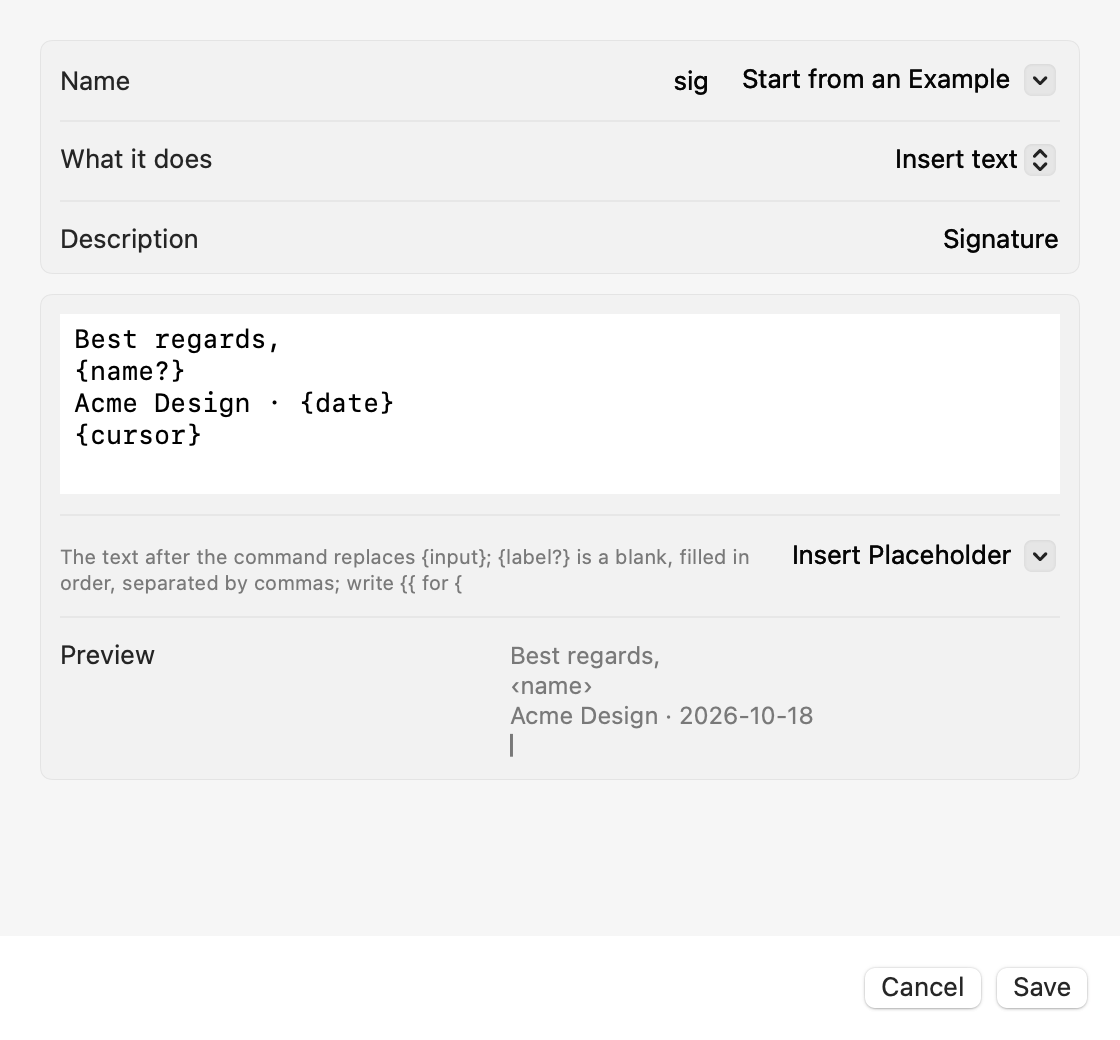
Its text can hold placeholders:
| Placeholder | Becomes |
|---|---|
{input} |
Everything you wrote after the name: @tag foo bar with #{input} inserts #foo bar
|
{name?} |
A blank, filled from what you wrote, separated by commas (ASCII or full-width), in order: Dear {name?}, see you {day?}. with @meet Bob, Friday. One left empty is named in a notice, and nothing goes in |
{clipboard} |
The clipboard's text (macOS may ask first) |
{selection} |
The text selected when you typed @ (it's replaced, as by any command on the selection) |
{date}, {time}
|
Today as 2026-10-17, the time as 14:05; {date:EEEE, MMM d} with a date pattern, in the interface language |
{cursor} |
Where the caret goes after it's in (once at most; not in a terminal) |
-
{{writes{, and the}}that closes it writes}({{input}}inserts{input}); any other}}or{…}stays as it is, so JSON or code in a snippet is fine:{"a":{"b":1}}goes in as written. - With no
{input}and no blanks, what you write after the name goes in after the snippet, after a space. - Write
@siginside another command's text to include it:@question summarize this @zoomsends the link itself. Only snippets with no{clipboard},{selection}or blanks work there; with{input}, it takes one word or a quoted phrase:@meet "Friday 3pm". - Plain text only (line breaks kept), at most 20,000 characters. Inserting one sends nothing, so snippets work during secure input and in apps set to No AI.
- Script extension bundles can ship snippets too (
snippetsinextension.json); see Script extensions. - Update every Mac that syncs through iCloud: 0.6.4 can't read the custom commands once one is a snippet, and if you then add, edit or delete a custom command on a 0.6.4 Mac, its list replaces the one in iCloud and the snippets are gone from your other Macs too. See Sync through iCloud.
⏎ by default; under "Action key" in the settings you can pick Tap ⌥, ⌥Space or Space instead. Whatever it is, commands also run on ⏎.