Repository navigation
CI and GitHub Actions
Run ShoutingToad automatically on every push and every week, and let the build fail when an SEO problem appears. The desktop app writes a ready-to-use GitHub Actions workflow for you, and the command line has the quality gates, regression checks, Markdown summary and health badge that any CI system can use. This page covers the CI workflow dialog, the generated workflow line by line, every gate option with real output, and how to use the same commands in GitLab, Jenkins and other CI systems.
A developer removes a canonical tag, a template change adds noindex to every product page, a new menu links to a page that no longer exists. These mistakes are easy to make and expensive to discover weeks later in Search Console. A crawl in CI catches them on the day they are made:
- On every push to your main branch: did this change break something?
- Weekly: did content editors, plugins or the server break something?
- With a baseline: fail only on new problems, so the build is not red forever because of old ones.
-
Click Reports → CI workflow (GitHub Actions)…. This item works even without a crawl.

-
The CI workflow window opens:

-
Site URL: the site the workflow will crawl. It is filled in with the start URL of the current crawl (or what is in the address bar). Change it to your production or staging URL.
-
Fail on: the priority at which the job fails. Click to choose High priority issues, Medium priority issues or Low priority issues:
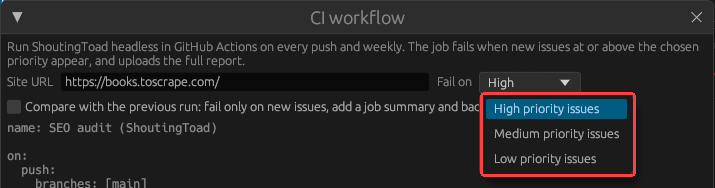
Only findings of type Issue count; warnings and opportunities never fail the job. Medium fails on high and medium issues; Low fails on any issue.
-
Compare with the previous run: fail only on new issues, add a job summary and badge: switches to the baseline workflow (see below). Recommended for any site that already has some issues.
-
The workflow: the YAML file, updated as you change the controls. Long lines are not wrapped: scroll sideways with the horizontal scrollbar under the text to read them.
-
Copy: copies the YAML to the clipboard.
-
Save as .github/workflows/seo-audit.yml…: opens your system's save dialog with the name
seo-audit.yml. Save it in your repository's.github/workflows/folder (create the folder if it does not exist).
-
-
With the checkbox ticked, the workflow keeps the previous crawl and compares with it:

-
Commit the file and push it. Open your repository's Actions tab on GitHub to watch the first run. Each run uploads the full report as an artifact named
seo-report(download it from the run's page).
This is the workflow for https://books.toscrape.com/ with Fail on set to High:
name: SEO audit (ShoutingToad)

on:
  push:
    branches: [main]
  schedule:
    - cron: "0 3 * * 1"
  workflow_dispatch:

jobs:
  seo-audit:
    runs-on: ubuntu-latest
    steps:
      - name: Download ShoutingToad
        run: |
          curl -fsSL -o shouting-toad.tar.gz \
            https://github.com/NDcompany/ShoutingToad/releases/latest/download/shouting-toad-x86_64-unknown-linux-gnu.tar.gz
          tar -xzf shouting-toad.tar.gz
          chmod +x shouting-toad

      - name: Crawl and audit
        run: |
          ./shouting-toad crawl "https://books.toscrape.com/" --max-urls 5000 --out seo-report --fail-on high

      - name: Upload report
        if: always()
        uses: actions/upload-artifact@v4
        with:
          name: seo-report
path: seo-report| Lines | What they do |
|---|---|
name: |
The name shown in the Actions tab. |
on: push: branches: [main] |
Run on every push to main. Change it if your default branch has another name (master, production). |
schedule: - cron: "0 3 * * 1" |
Also run every Monday at 03:00 UTC, so problems that do not come from code (content, plugins, server changes) are caught. |
workflow_dispatch: |
Adds a Run workflow button in the Actions tab for manual runs. |
runs-on: ubuntu-latest |
Runs on GitHub's Linux machines. |
| Download ShoutingToad | Downloads the latest Linux release of ShoutingToad from GitHub releases, unpacks it and makes it executable. To pin a version (recommended for reproducible results), replace latest/download with download/<tag> of the release you want. |
| Crawl and audit | Crawls the site (at most 5,000 URLs), writes all reports to seo-report and exits with code 2, which fails the job, when an issue at or above the chosen priority is found. |
| Upload report |
if: always() runs this step even when the crawl step failed, so you always get the report. The whole seo-report folder is uploaded as the seo-report artifact. |
Add any command-line option to the crawl line, for example --threads 2 --delay 300 for a small server, --exclude for URL patterns you do not want, or --rules for rule packs you keep in the repository.
The download and upload steps are the same; the crawl step is replaced by five steps:
      - name: Restore the previous crawl
        uses: actions/cache/restore@v4
        with:
          path: seo-baseline
          key: seo-baseline-${{ github.run_id }}
          restore-keys: seo-baseline-

      - name: Crawl, audit and compare with the previous crawl
        run: |
          ./shouting-toad crawl "https://books.toscrape.com/" --max-urls 5000 --out seo-report \
            --baseline seo-baseline/crawl.shoutingtoad --fail-on-new high \
            --summary-md seo-report/summary.md --badge seo-report/seo-badge.svg

      - name: Job summary
        if: always()
        run: cat seo-report/summary.md >> "$GITHUB_STEP_SUMMARY" || true

      - name: Keep this crawl as the next baseline
        if: success()
        run: mkdir -p seo-baseline && cp seo-report/crawl.shoutingtoad seo-baseline/

      - name: Save the baseline
        if: success()
        uses: actions/cache/save@v4
        with:
          path: seo-baseline
key: seo-baseline-${{ github.run_id }}| Step | What it does |
|---|---|
| Restore the previous crawl | Restores the seo-baseline folder from the GitHub Actions cache. There is never an exact match for this run's ID, so restore-keys picks the most recent cache whose key starts with seo-baseline-, which is the last successful run's crawl. On the first run there is nothing to restore. |
| Crawl, audit and compare | Crawls the site and compares it with seo-baseline/crawl.shoutingtoad. On the first run the file does not exist: ShoutingToad notes "baseline … does not exist yet; nothing to compare with" and the job passes. On later runs it fails (exit code 2) only when new issues at or above the chosen priority appear. It also writes the comparison reports, summary.md and seo-badge.svg. |
| Job summary | Appends the Markdown summary to the run's summary page ($GITHUB_STEP_SUMMARY), even when the gate failed. ` |
| Keep this crawl as the next baseline | Only when everything passed: copies the new crawl into seo-baseline. A failing run does not replace the baseline, so the new problem keeps failing until it is fixed. |
| Save the baseline | Saves seo-baseline to the cache under this run's ID, for the next run to restore. |
Good to know: GitHub deletes caches that have not been used for a while (7 days at the time of writing) and when a repository's cache storage is full. If that happens, the next run is treated as a first run again and passes. The weekly schedule keeps the cache in use.
These options work with crawl and list; compare takes --fail-on-new, --summary-md and --badge. All of them are in the command line reference.
| Option | Fails (exit code 2) when |
|---|---|
--fail-on high|medium|low |
Any finding of type Issue at this priority or higher exists. |
--fail-on-check <ID> |
That check (or rule pack rule) is triggered at all, whatever its type. Repeat it for several checks. |
--baseline <FILE> |
Never fails by itself: it compares with a previous crawl and writes comparison.html, comparison.csv, comparison_issue_urls.csv and url_changes.csv. A missing file is a first run. |
--fail-on-new high|medium|low |
With --baseline: a finding of type Issue at this priority or higher affects at least one URL it did not affect in the baseline. |
--summary-md <FILE> |
Never fails: writes the Markdown summary. |
--badge <FILE> |
Never fails: writes the health score badge. |
Which to choose:
-
--fail-onis simple but strict: the build stays red until every matching issue on the whole site is fixed. Good for a site that is already clean, or withhighonly. -
--fail-on-newwith--baselineis the practical choice for most sites: existing problems are reported but only new ones fail the build. -
--fail-on-checkguards the few things that must never happen, whatever their priority, for exampleresponse.internal_404or a check fornoindexon indexable pages. Combine it with the others. Get the IDs fromshouting-toad checksorissues.csv.
Note that "new" means new URLs for a check: if the site grows, new pages that have an existing problem (for example a template without a canonical) count as new. That is deliberate: the problem is spreading.
These three runs were made against https://books.toscrape.com/.
Run 1, the baseline. A first crawl of 50 URLs, with a summary and a badge:
$ shouting-toad crawl https://books.toscrape.com/ --max-urls 50 --out run1 --summary-md run1/summary.md --badge run1/seo-badge.svg
...
Crawled 51 URLs in 14.7s (3 URLs/s). Health score: 73/100
...
Reports written to run1
$ echo $?
0
Without a baseline the summary is short:
## ShoutingToad SEO check: https://books.toscrape.com/

**Health score:** 73/100 · **URLs:** 51 · **Issues:** 4

No baseline crawl to compare with yet. Keep this run's crawl.shoutingtoad and pass it with --baseline next time.
Run 2, nothing changed: the gate passes. The same crawl, compared with run 1:
$ shouting-toad crawl https://books.toscrape.com/ --max-urls 50 --out run2 --baseline run1/crawl.shoutingtoad --fail-on-new high --summary-md run2/summary.md --badge run2/seo-badge.svg
...
Crawled 51 URLs in 13.2s (4 URLs/s). Health score: 73/100
...
Reports written to run2
Compared with https://books.toscrape.com/: health 73 -> 73 (±0), 0 added, 0 removed, 0 changed URLs
  new: 0 issues, 0 warnings, 0 opportunities; fixed: 0 issues, 0 warnings, 0 opportunities
$ echo $?
0
Run 3, new pages with an existing problem: the gate fails. This time the crawl reaches 120 URLs, so 69 URLs are new and some of them have a high-priority issue:
$ shouting-toad crawl https://books.toscrape.com/ --max-urls 120 --out run3 --baseline run1/crawl.shoutingtoad --fail-on-new high --summary-md run3/summary.md --badge run3/seo-badge.svg --quiet
Crawled 121 URLs in 17.3s (7 URLs/s). Health score: 72/100
...
Reports written to run3
Compared with https://books.toscrape.com/: health 73 -> 72 (-1), 69 added, 0 removed, 0 changed URLs
  new: 2 issues, 12 warnings, 29 opportunities; fixed: 0 issues, 0 warnings, 0 opportunities
  NEW [Issue High] Security: Mixed Content (34 URLs, e.g. https://books.toscrape.com/catalogue/category/books/cultural_49/index.html)
Failing: new issues at or above the --fail-on-new threshold were found.
$ echo $?
2
There are two new issue types, but only the high-priority one fails the gate (the other, "Page Titles: Duplicate", is medium). The NEW lines list exactly what failed the gate, with an example URL.
The comparison.html written next to the reports shows the same comparison in a browser:
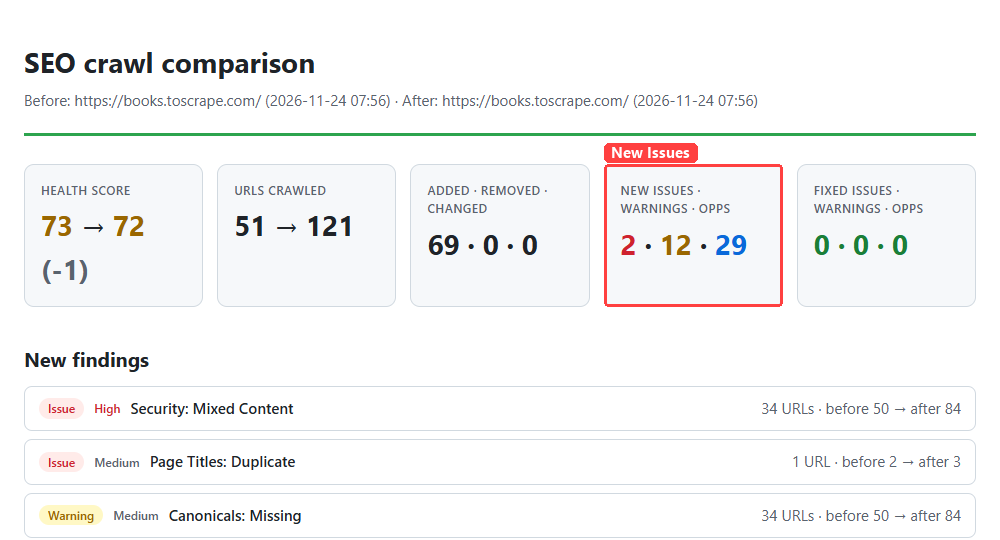
See Comparing crawls for everything in it.
--summary-md writes a short Markdown report made for a pull request comment or the GitHub job summary. This is the real summary of run 3 (shortened to the first rows of the table). On GitHub it renders like this:
ShoutingToad SEO check: https://books.toscrape.com/
Health score: 72/100 (was 73, -1) · URLs: 121 (was 51): 69 added, 0 removed, 0 changed
Issues Warnings Opportunities New 2 12 29 Fixed 0 0 0 Failed: 1 new issue type(s) at High priority or above.
Type Priority Finding URLs Example Issue High Security: Mixed Content 34 https://books.toscrape.com/catalogue/category/books/cultural_49/index.htmlIssue Medium Page Titles: Duplicate 1 https://books.toscrape.com/catalogue/page-2.htmlWarning Medium Canonicals: Missing 34 https://books.toscrape.com/catalogue/category/books/cultural_49/index.htmlWarning Medium Content: Near Duplicate 4 https://books.toscrape.com/catalogue/category/books/paranormal_24/index.html…and 18 more.
Generated by ShoutingToad v1.0.0. Full details in comparison.html.
What it contains:
- The health score and URL count, with the change since the baseline.
- New and fixed findings by type.
-
Passed or Failed with the
--fail-on-newlevel (only when you use--fail-on-new). - A New findings table and a Fixed findings table (when there are any), most important first, with an example URL for each. Each table shows up to 25 rows, then "…and N more."
- Without a baseline (first run), only the score, URL count and number of issue types, and a note to keep this run's
crawl.shoutingtoadand pass it with--baselinenext time.
To post it as a pull request comment, use any "comment from file" action or the GitHub CLI in a step after the crawl, for example gh pr comment "$PR_NUMBER" --body-file seo-report/summary.md.
--badge writes a small SVG badge with the health score, in the style of the badges you see in README files. This is the real badge from run 1:

The colour follows the score:
| Score | Colour |
|---|---|
| 90 to 100 | bright green |
| 80 to 89 | green |
| 70 to 79 | yellow-green |
| 60 to 69 | yellow |
| 50 to 59 | orange |
| below 50 | red |
The SVG has a title ("SEO health score: 73/100, audited by ShoutingToad") so screen readers and tooltips can read it.
To show it in a README, the SVG must be reachable at a stable address. Workflow artifacts are not, so either commit the file to the repository (by hand from the downloaded artifact, or with a step that commits seo-report/seo-badge.svg back), or publish it with GitHub Pages or another static host. Then embed it:
or, from a website:
<img src="https://example.com/seo-badge.svg" alt="SEO health score">ShoutingToad is a single program file (it brings its own TLS support, so it does not need OpenSSL), so it runs in any CI system that can download a file and run a command. The pattern is always the same:
- Download and unpack the Linux release (or use a Windows or macOS runner with the matching release).
- Restore the previous
crawl.shoutingtoadfrom the CI system's cache or artifact storage, if you want a baseline. - Run
shouting-toad crawl … --out seo-reportwith the gate options you want. Exit code 2 fails the job, 1 is an error. - Keep
seo-reportas an artifact, and on success storeseo-report/crawl.shoutingtoadas the next baseline.
An example .gitlab-ci.yml job (adapt the URL, branch rules and cache to your project):
seo-audit:
  image: ubuntu:24.04
  rules:
    - if: $CI_COMMIT_BRANCH == $CI_DEFAULT_BRANCH
    - if: $CI_PIPELINE_SOURCE == "schedule"
  cache:
    key: seo-baseline
    paths: [seo-baseline/]
  script:
    - apt-get update && apt-get install -y curl ca-certificates
    - curl -fsSL -o shouting-toad.tar.gz https://github.com/NDcompany/ShoutingToad/releases/latest/download/shouting-toad-x86_64-unknown-linux-gnu.tar.gz
    - tar -xzf shouting-toad.tar.gz && chmod +x shouting-toad
    - ./shouting-toad crawl "https://www.example.com/" --max-urls 5000 --out seo-report
        --baseline seo-baseline/crawl.shoutingtoad --fail-on-new high
        --summary-md seo-report/summary.md --badge seo-report/seo-badge.svg
    - mkdir -p seo-baseline && cp seo-report/crawl.shoutingtoad seo-baseline/
  artifacts:
    when: always
    paths: [seo-report/]
This example has not been run on GitLab by the authors of this guide: treat it as a starting point. The generated GitHub workflow uses GitHub's full ubuntu-latest image; if the program does not start in a minimal container image, try a fuller base image. The last script line runs only when the crawl passed, because GitLab stops the script at the first failing command, so a failing run does not replace the baseline. Add a pipeline schedule (CI/CD → Schedules) for the weekly run.
In a pipeline, a shell step does the same; the job fails when the command exits with 2:
stage('SEO audit') {
  steps {
    sh '''
      curl -fsSL -o shouting-toad.tar.gz https://github.com/NDcompany/ShoutingToad/releases/latest/download/shouting-toad-x86_64-unknown-linux-gnu.tar.gz
      tar -xzf shouting-toad.tar.gz && chmod +x shouting-toad
      ./shouting-toad crawl "https://www.example.com/" --max-urls 5000 --out seo-report --fail-on high
    '''
  }
  post {
    always { archiveArtifacts artifacts: 'seo-report/**' }
  }
}On Windows runners, call shouting-toad (which runs shouting-toad.com, the terminal build that ships next to shouting-toad.exe) from cmd or PowerShell steps: the step waits for it, shows its output and fails on exit code 2. Do not call shouting-toad.exe by its full path, because the shell does not wait for the desktop build. See Windows terminals.
-
Crawl staging, not production, when the goal is to catch problems before they go live: run the workflow after your staging deploy with the staging URL. Many staging sites block crawlers in robots.txt; add
--ignore-robotsfor your own staging server. -
Keep runs fast and stable:
--max-urlskeeps the time predictable;--no-ai-botsand--no-externalremove requests to the AI test and to other sites, whose answers can change from run to run. -
Guard the essentials with
--fail-on-checkfor problems that must never ship (404s on key pages,noindexon indexable pages), and uselistwith a file of your most important URLs for a quick check after each deploy (see List mode). -
Secrets: pass the CrUX key as
CRUX_API_KEYfrom a CI secret, never on the command line in the YAML (see Command line).
Command line · Comparing crawls · HTML audit report · Rule packs · Checks reference