Repository navigation
Quick Start
This page walks you through your first crawl, from the welcome screen to a saved crawl file. The example crawls https://books.toscrape.com/, a public practice site made for testing crawlers, so you can follow along exactly. It takes about five minutes.
If you have not installed ShoutingToad yet, see Installation.
Start ShoutingToad from the Start menu, the desktop shortcut, Applications (macOS) or your application menu (Linux). With no crawl loaded, the window shows the welcome screen.
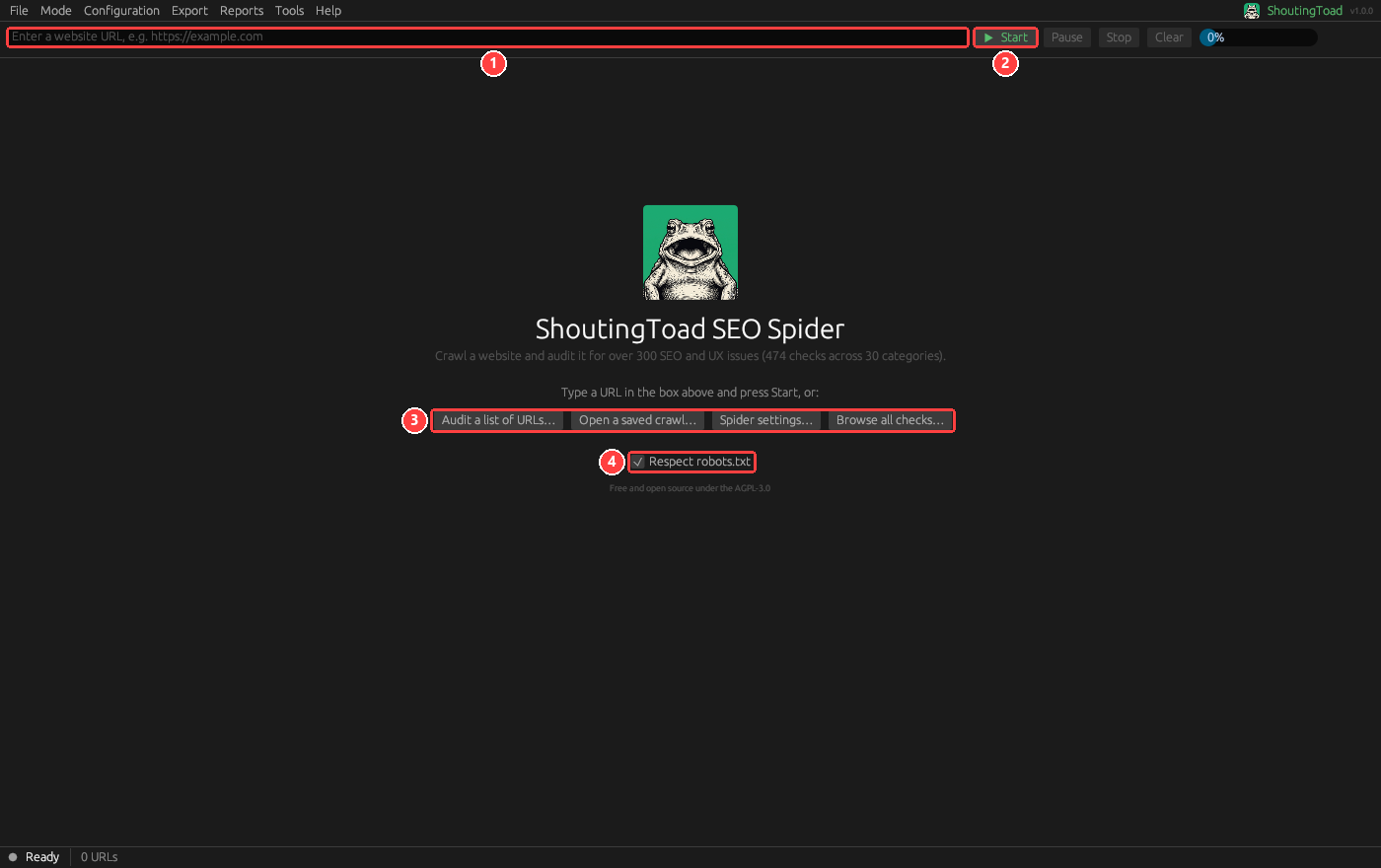
- The URL box. Type the address of the site you want to crawl here.
- Start begins the crawl.
- Shortcut buttons:
- Audit a list of URLs… opens List mode, for checking only the URLs you paste in.
-
Open a saved crawl… opens a
.shoutingtoadfile you saved earlier. - Spider settings… opens the crawl settings (limits, speed, user agent and more; see Spider settings).
- Browse all checks… lists all 474 checks with their explanations (see Checks reference).
- Respect robots.txt. Ticked by default: URLs that the site's robots.txt disallows are not fetched and are listed as blocked. Leave it ticked unless you own the site or have permission to audit it.
Click in the URL box and type https://books.toscrape.com/.

Good to know:
- You can leave out
https://. If you typebooks.toscrape.com, ShoutingToad addshttps://for you. Typehttp://explicitly for sites that only work over plain HTTP. - The crawl stays on the host you enter. Links to other sites are checked (to find broken external links) but not crawled further. Subdomains count as other sites unless you tick Treat subdomains as internal in Spider settings.
- Start from the page you want the crawl to begin at. Usually that is the home page.
If the address cannot be understood, the status bar at the bottom shows an error in red and nothing is crawled:

By default ShoutingToad crawls up to 100,000 URLs and 10 levels of clicks deep. For a quick test on a big site you can set a smaller limit first. Click Spider settings… (or Configuration → Spider settings…).

-
Max URLs: click the number and type a new value, for example
150, then press Enter. - Close the window with ×. Settings are kept for next time.
Every option in this window is explained in Spider settings. robots.txt and sitemap files do not count towards Max URLs, so a crawl limited to 150 URLs can show 151 in the status bar.
Click Start or press Enter in the URL box. The welcome screen is replaced by the results, which fill in while the crawl runs.

- Pause and Stop are now available, and Start and Clear are greyed out until the crawl ends.
- The progress bar shows URLs crawled as a share of the URLs found so far (crawled + queued). New links are discovered all the time, so the percentage can go down as well as up early in a crawl.
- The status bar shows Crawling, the number of URLs fetched, how many are still queued, the speed in URLs/s, the number of threads (parallel requests), the elapsed time and the number of checks.
- The Overview dashboard updates live: health score, counts, top findings, response codes, crawl depth and content types. See Overview dashboard.
- The Issues panel on the left fills up as problems are found. See Issues panel.
Notes from the crawler also appear briefly at the right of the status bar: for example problems reading robots.txt or a sitemap, "Rendering JavaScript with …" when JavaScript rendering starts, or a browser that failed to start. Errors are shown in red, other notes in green.
While crawling, the audit is refreshed every few seconds. On crawls over 8,000 URLs the live audit pauses (to keep the window responsive) and the Issues panel shows "Large crawl: the audit updates when the crawl finishes."
You can switch to the URLs tab at any time to watch URLs arrive in the table:

The "N of M URLs" counter next to the filter box goes up as pages are fetched. You can sort, filter and inspect URLs while the crawl is still running. See URL table.
-
Pause stops fetching new URLs but keeps everything found so far and the queue. The button changes to Resume and the status bar says Paused in amber.

-
Resume carries on from where the crawl paused.
-
Stop ends the crawl for good. The results so far are kept and fully audited, the status bar says Stopped and a message such as "Crawl stopped: 130 URLs audited against 474 checks" appears. You cannot continue a stopped crawl; clicking Start begins a new crawl from scratch.
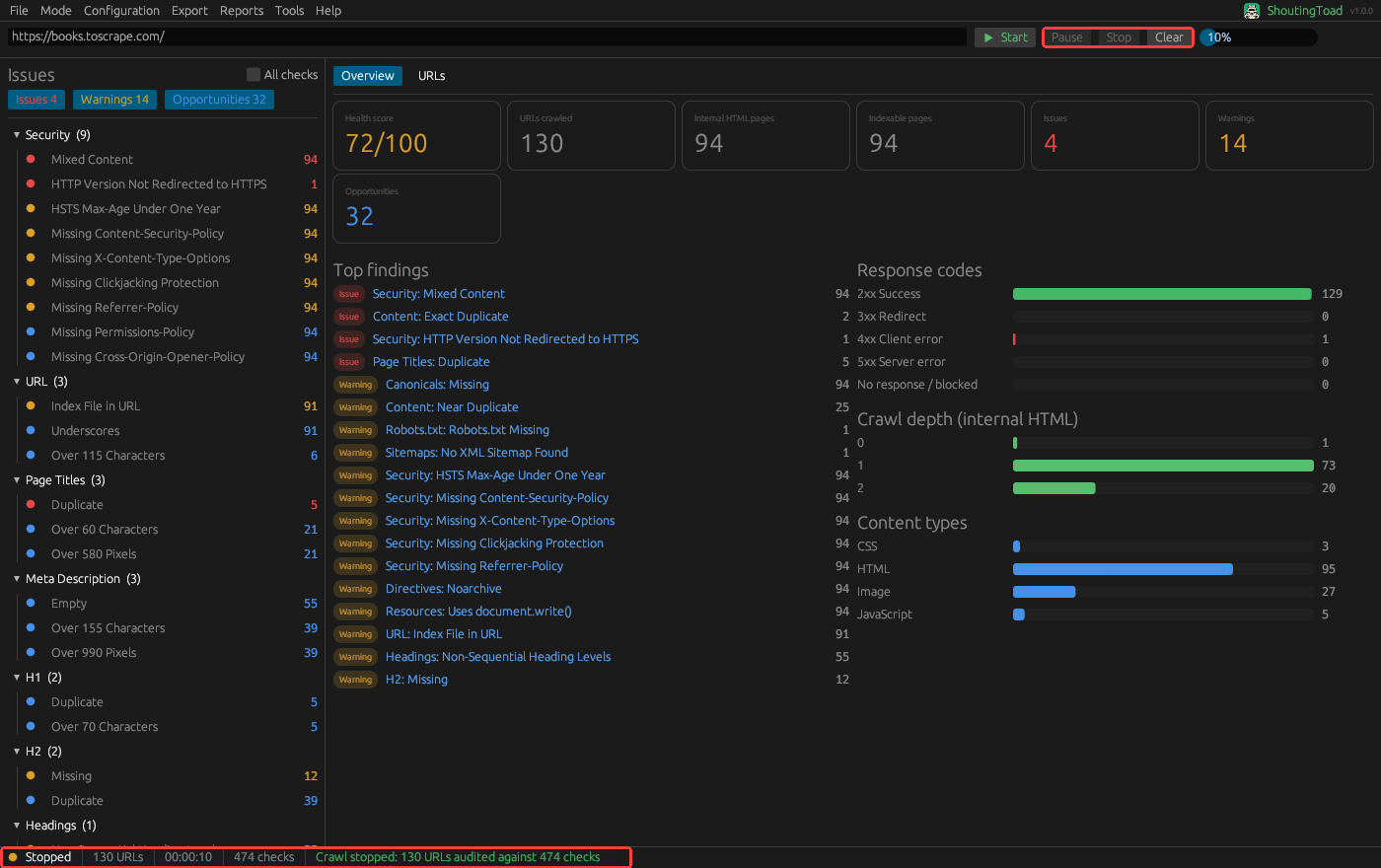
Stopping early is fine for a first look. The audit and every report work on whatever was crawled.
When there is nothing left to fetch, the crawl ends on its own.
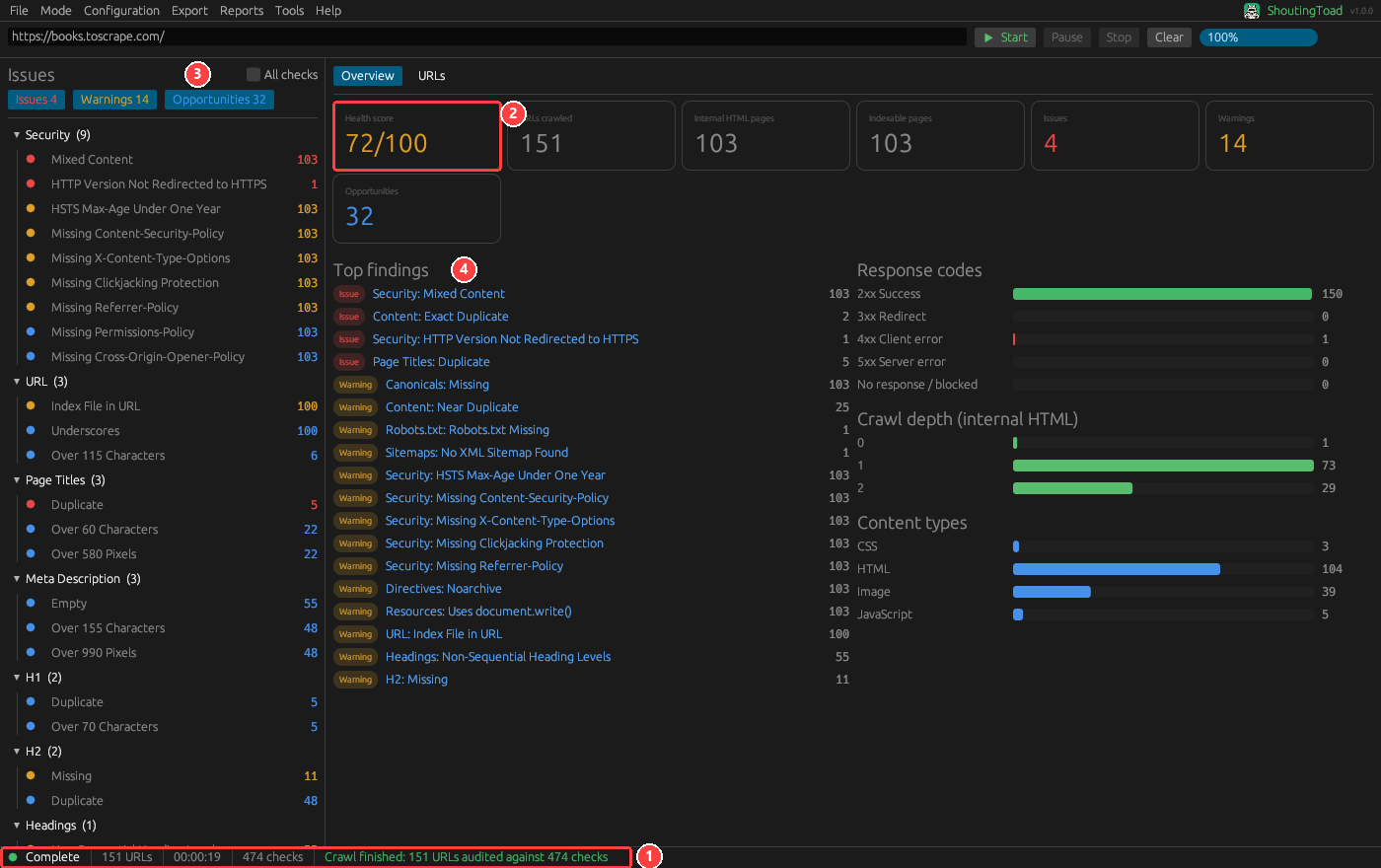
- The status bar says Complete and, for a few seconds, shows a green message such as "Crawl finished: 151 URLs audited against 474 checks". (After Stop it reads "Crawl stopped: …" instead.)
- The Health score summarises the site's state from 0 to 100 (green from 85, amber from 60, red below). How it is calculated is explained in Overview dashboard.
- The Issues panel lists every check that found something, grouped into categories.
- Top findings lists the most important problems first.
If Test AI crawler access after the crawl is ticked in Spider settings (the default), ShoutingToad makes up to about 90 extra requests at the end to see what AI crawlers can fetch; see AI search readiness. If a Chrome UX Report key is set, it then fetches Core Web Vitals field data; see Core Web Vitals.
A good order for reviewing a new crawl:
- Read the health score and the Issues / Warnings / Opportunities counts on the Overview. Issues are definite problems, Warnings are likely problems worth checking, Opportunities are improvements.
- Work through Top findings from the top. They are sorted by type (Issues first) and priority, then by how many URLs are affected. Click one to list the affected URLs together with an explanation and how to fix it.
- Check Response codes. Any 4xx or 5xx URLs are broken pages or links. On books.toscrape.com there is one 404: the site has no robots.txt file.
- Open the URLs tab to see every URL with its status, indexability, title, word count, depth, inlinks, response time, size and issue count.

- Click any URL to open the inspector at the bottom of the window with its details, issues, links, images, headers, Google snippet preview and structured data. See URL inspector.
What this practice site shows, for example: every page loads jQuery over plain http:// (Security: Mixed Content, an Issue on all 1,116 pages of the full crawl), 80 pages share a title with another page (Page Titles: Duplicate), no page has a canonical tag, and the site has no XML sitemap.
Crawls are not saved automatically. If you try to do something that would throw away a crawl you have not saved (close the window, File → New crawl, File → Open crawl…, Clear, Start a new crawl, or start a List mode audit), ShoutingToad asks first:

- Save… opens the save dialog. Once the file is saved, ShoutingToad carries on with what you asked for. If you cancel the save dialog, the prompt stays open so you can choose again.
- Don't save discards the crawl and carries on.
- Cancel keeps the crawl and does nothing.
The prompt appears only for crawls made since the last save. A crawl you have just opened from a file, or saved, does not trigger it.
To save at any time:
- Open the File menu.
- Click Save crawl….
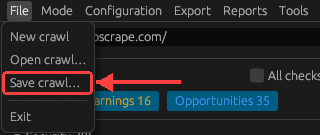
- Choose a folder and a name. The suggested name is based on the host, for example
books-toscrape-com.shoutingtoad.
The status bar confirms "Saved crawl to …". Reopen it later with File → Open crawl…, the Open a saved crawl… button on the welcome screen, or (Windows installer) by double-clicking the file. The audit is re-run when you open a crawl, so you always see the checks of your current version. Saved crawls are also what you need to compare two crawls or plan a site migration. More in Saving, opening and exporting.
- Reports → HTML audit report… creates a self-contained report you can send to a client or print to PDF. See HTML audit report.
- Export saves CSV files (all URLs, issues, inlinks, images and more) for Excel or Google Sheets. See Saving, opening and exporting.
-
Be polite to servers. The default is 6 threads with no delay between requests. For small or fragile sites, lower Threads or add a Delay between requests in Spider settings.
-
robots.txt. The Respect robots.txt checkbox is also on the welcome screen. If you untick it, a warning appears: "robots.txt is ignored: every URL the crawler finds will be fetched." Only do this on sites you own or are allowed to audit.

-
Your last URL is remembered. The URL box is pre-filled with the last site you crawled when you reopen the app.
-
JavaScript sites. If the site builds its content with JavaScript, turn on rendering in Spider settings to see what browsers and Google see. See JavaScript rendering.
The crawl found only one or two URLs. The start page may redirect to another host, block the crawler, or have no normal <a href> links (for example a JavaScript app). Open the URLs tab, click the start URL and check its Status and Outlinks in the inspector. Try JavaScript rendering for JavaScript sites. See also Troubleshooting and FAQ.
Why is the health score 0/100? If no internal page returned a normal HTML page (for example every request failed, or the site only returned errors), the score is 0.
Can I crawl a site that needs a login? Not with the desktop app's settings: ShoutingToad crawls what an anonymous visitor can reach.
- The interface: every part of the window explained.
- Overview dashboard, Issues panel, URL table, URL inspector.
- Spider settings: control what and how fast ShoutingToad crawls.