Repository navigation
Issues Panel
The Issues panel on the left of the window is the complete list of what ShoutingToad found. Every check that was triggered is listed under its category with the number of affected URLs. Click any check to see exactly which URLs it affects, why it matters and how to fix it.
The panel appears as soon as a crawl has data, and stays visible on both the Overview and URLs tabs. It fills up live during a crawl.
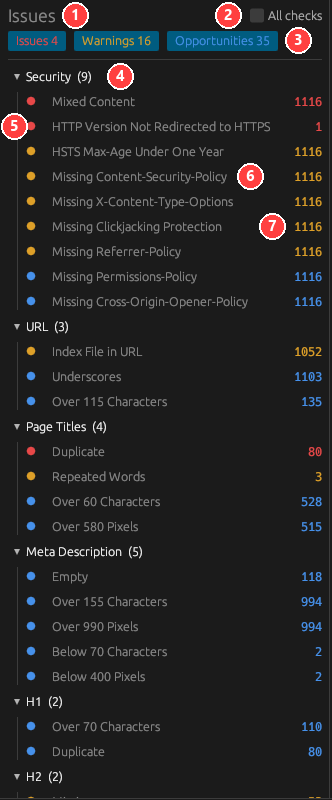
| # | Part | What it does |
|---|---|---|
| 1 | Issues heading | The panel title. |
| 2 | All checks | Tick to also list checks that passed (found nothing). Hover over it for a reminder. See Showing all checks. |
| 3 | Issues / Warnings / Opportunities toggles | Show or hide each type of finding. Each button shows how many checks of that type were triggered. See Filtering by type. |
| 4 | Category header | A group of related checks, such as Security, Page Titles or Images, with the number of triggered checks in brackets. Click it to collapse or expand the group. |
| 5 | Colour dot | The type of the check: red = Issue, amber = Warning, blue = Opportunity, dark grey = nothing found. |
| 6 | Check name | The name of the check. Hover to read its description; click to list the affected URLs. |
| 7 | Count | How many URLs the check found, in the colour of its type. |
Every one of the 474 built-in checks has a type and a priority.
| Type | Colour | Meaning | Examples |
|---|---|---|---|
| Issue | Red | Something is wrong and should be fixed. | Broken links, 5xx errors, duplicate titles, mixed content, missing alt attributes. |
| Warning | Amber | Probably a problem, or a problem in most cases. Check whether it applies to you. | Missing canonical, deep pages, missing security headers, noarchive. |
| Opportunity | Blue | Not wrong, but improving it can help SEO or UX. | No structured data, missing Open Graph tags, titles over 60 characters. |
| Priority | Meaning |
|---|---|
| High | Large impact on indexing, ranking or users. Fix first. |
| Medium | Noticeable impact. Fix soon. |
| Low | Small impact or good practice. Fix when convenient. |
Type and priority also decide how much each check lowers the health score.
- Categories always appear in the same order (Response Codes, Redirects, Security, URL, Page Titles, Meta Description, …, then categories from enabled rule packs). Only categories with something to show are listed.
- Inside each category, checks are sorted by type (Issues, then Warnings, then Opportunities), then priority (High, Medium, Low), then number of URLs (most first).
- Categories with findings start expanded. With All checks ticked, categories where nothing was found start collapsed.
Click Issues, Warnings or Opportunities to hide or show that type. A hidden type's button turns grey. For example, to concentrate on definite problems, turn off Warnings and Opportunities:
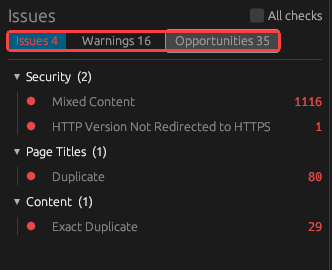
Click the buttons again to bring them back. The numbers on the buttons always show the totals, whatever is hidden. These toggles affect only the Issues panel, not the Overview or the reports.
Tick All checks to list every check, including those that found nothing. Checks with a count of 0 have a dark grey dot and grey text.

This is useful to confirm that something was tested and passed (for example that there are no broken internal links), or to browse what ShoutingToad checks. Untick it to go back to findings only. For a searchable list of every check with its full explanation, use Help → All 474 checks… (see Checks reference).
Click a category header (or its triangle) to collapse it, and again to expand it. This helps when a category with many findings, such as Security, pushes the rest of the list down.
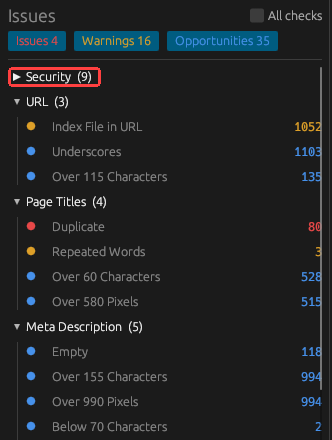
Hold the mouse over a check name to see a tooltip with:
- its type and priority, for example Issue · Medium priority;
- a description of what the check looks for and why it matters;
- How to fix: the recommended fix.
For example, hovering Page Titles → Duplicate shows:
Issue · Medium priority
Indexable pages share the same title, making them hard to tell apart in search results.
How to fix: Give every indexable page a unique title.
The same description and fix are shown on the card above the table when you click the check (below), in the inspector's Issues tab, and in the Checks reference. (The scripted screenshot tool used for this guide cannot trigger tooltips, so there is no screenshot of it here.)
Click a check name. The main area switches to the URLs tab and the table shows only the URLs that check found.
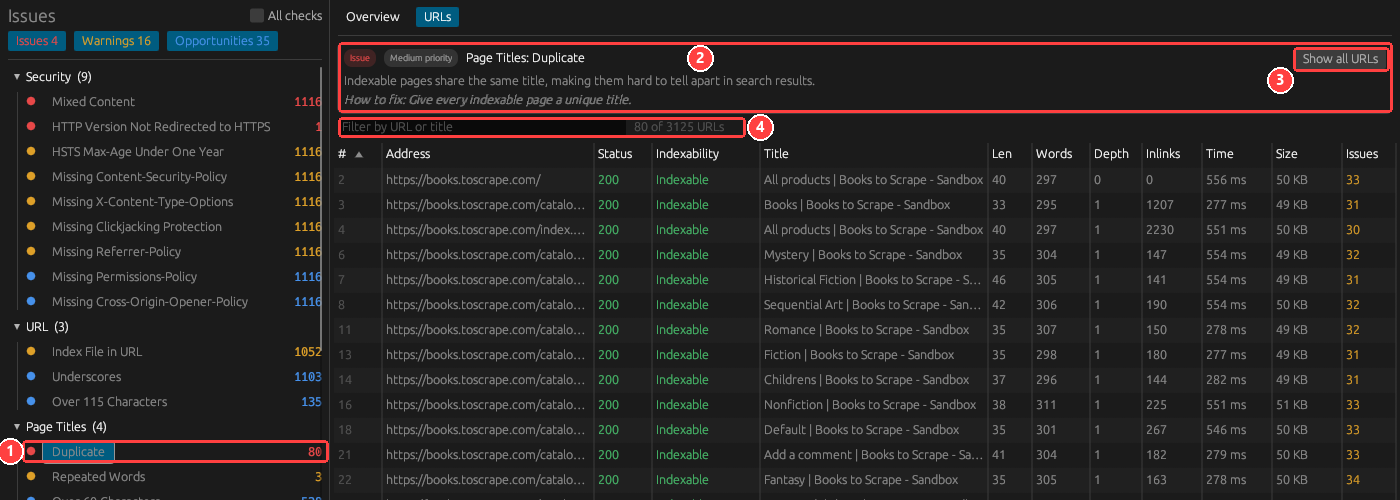
- The selected check is highlighted in the panel.
- A card above the table shows the type badge, the priority badge, the category and name, the description and, in italics, How to fix.
- Show all URLs removes the issue filter and shows every URL again.
- The filter box and the "N of M URLs" count still work: here 80 of 3,125 URLs have a duplicate title.
While an issue is selected, the quick filters (All, Internal, HTML…) are hidden and ignored, because the check already decides which URLs are relevant. You can still type in the filter box to narrow the list further, for example to see only duplicate titles in one section of the site:

Click any URL in the list to open it in the URL inspector, sort by any column, or export exactly this list with Export → Current table view….
Some checks report site-wide problems rather than individual pages (for example Robots.txt Missing or No XML Sitemap Found). Their count is 1 and the URL list contains a single URL that stands for the whole site.
Clicking a finding in Top findings on the Overview or an issue in the inspector's Issues tab selects the check in exactly the same way.
Drag the panel's right edge to make it wider (up to about 520 pixels) so long check names and counts fit, or narrower (down to about 250 pixels) to give the table more room.
The list is refreshed every few seconds while crawling. Counts go up as more URLs are found, and some site-wide checks (duplicates, orphan pages, sitemap comparisons) only become accurate once the crawl is complete. On crawls of more than 8,000 URLs the live refresh stops and the panel says "Large crawl: the audit updates when the crawl finishes.". Tools → Re-run audit runs every check again on the current data at any time when no crawl is running.
Checks from enabled rule packs appear in the panel like built-in checks, under the category names the pack defines. They have their own type, priority, description and fix.
- Start with red dots under the categories that matter most for you, then amber, then blue.
- A high count is not always the most urgent: one broken link from the home page can matter more than a missing Open Graph tag on every page. Use the priority in the tooltip.
- Large counts equal to the number of internal HTML pages (here 1,116) usually mean a site-wide template problem that one fix solves everywhere.
- URL table: work with the filtered URLs.
- URL inspector: see the issues of a single URL.
- Checks reference: every check explained.