Repository navigation
The Interface
This page is a guided tour of the ShoutingToad window: what every area shows, every menu and menu item, the buttons, the status bar, messages and themes. Each item links to the page that covers it in detail.
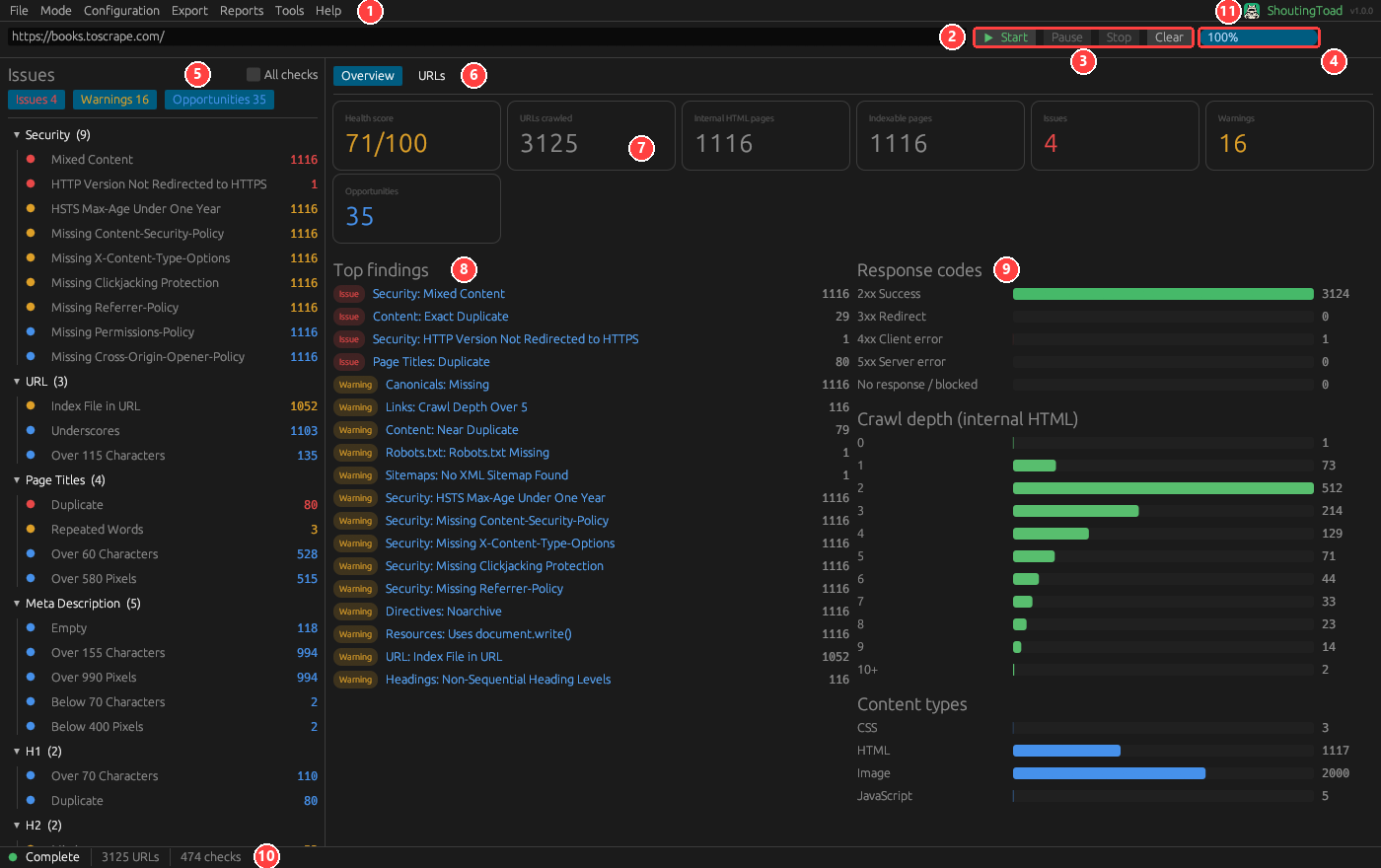
After a crawl (or after opening a saved crawl) the window looks like this. The screenshots use the books.toscrape.com demo crawl (3,125 URLs).
| # | Area | What it is for |
|---|---|---|
| 1 | Menu bar | File, Mode, Configuration, Export, Reports, Tools and Help. Every menu is described below. |
| 2 | URL box | The website address to crawl. Press Enter here to start. |
| 3 | Start / Pause / Stop / Clear | Control the crawl. See Crawl controls. |
| 4 | Progress bar | Share of discovered URLs already crawled. 100% when a crawl is complete or a saved crawl is open. |
| 5 | Issues panel | Every check that found something, grouped by category. Click one to list its URLs. See Issues panel. |
| 6 | Overview / URLs tabs | Switch the main area between the dashboard and the URL table. |
| 7 | Summary cards | Health score and counts. See Overview dashboard. |
| 8 | Top findings | The 18 most important findings, each clickable. |
| 9 | Charts | Response codes, crawl depth and content types. |
| 10 | Status bar | Crawl state, counts, speed, time and messages. See Status bar. |
| 11 | App name and version | ShoutingToad and the version number (here v1.0.0). |
The Issues panel and the two tabs appear only once there is data. With nothing loaded you see the welcome screen instead.
Click URLs to replace the dashboard with the URL table. A panel for inspecting the selected URL appears at the bottom.

| # | Area | What it is for |
|---|---|---|
| 1 | Quick filters | All, Internal, External, HTML, Images, CSS, JavaScript, Not 200, Indexable, Non-Indexable. |
| 2 | Filter box and count | Type part of a URL or title to filter. The grey text shows "N of M URLs". |
| 3 | Column headers | Click a header to sort; click again to reverse. |
| 4 | Selected row | Click a row to select it; it is highlighted and opens in the inspector. |
| 5 | Inspector tabs | Details, Issues, Inlinks, Outlinks, Images, HTTP Headers, SERP Snippet, Structured Data, Rendered and CWV. |
| 6 | Copy URL / Open in browser | Copy the selected URL to the clipboard, or open it in your default browser. |
| 7 | Inspector content | The data for the chosen tab. |
| 8 | Issues panel | Still available; clicking a check here filters the table. |
Full details: URL table and URL inspector.
- Drag the right edge of the Issues panel to make it wider or narrower (between about 250 and 520 pixels).
- Drag the top edge of the inspector up to give it more room (up to 600 pixels high), or down to see more table rows.
- Drag the borders between column headers in the URL table to resize the Indexability and Title columns. Address takes the remaining width.
- The window itself can be resized down to 960 × 620 pixels; it opens at 1400 × 880.
Good to know: when the window is too narrow for all the inspector tabs, Copy URL and Open in browser move to a row of their own under the tabs.
| Button | When it is available | What it does |
|---|---|---|
| ▶ Start | When no crawl is running | Starts a new crawl of the URL in the URL box (Spider mode). If the results on screen have not been saved, you are asked first (see The Unsaved crawl prompt). Pressing Enter in the URL box does the same. |
| Pause / Resume | While crawling | Pauses fetching; the label changes to Resume. Click again to continue. |
| Stop | While crawling or paused | Ends the crawl and audits what was found. A stopped crawl cannot be continued. |
| Clear | When results are shown and no crawl is running | Removes the results and returns to the welcome screen. Same as File → New crawl. Asks first if the crawl is unsaved. |
| Progress bar | Always | 0% before a crawl, crawled ÷ (crawled + queued) during a crawl, 100% when complete. |
Menu items that need a crawl (for example exports and reports) are greyed out until there is data.
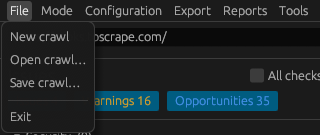
| Item | What it does |
|---|---|
| New crawl | Clears the current results and returns to the welcome screen (stops a running crawl first). Asks first if the crawl is unsaved. |
| Open crawl… | Opens a saved .shoutingtoad crawl (crawl files saved as .json are accepted too). The audit is re-run with the current checks. Asks first if the current crawl is unsaved. |
| Save crawl… | Saves the current crawl as a .shoutingtoad file. Available when there is data. |
| Exit | Closes ShoutingToad. Asks first if the crawl is unsaved (closing the window with × does the same). |
More: Saving, opening and exporting.
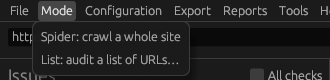
| Item | What it does |
|---|---|
| Spider: crawl a whole site | The normal mode: start from the URL box and follow links. This item only closes the menu; Spider mode is what the URL box and Start always use. |
| List: audit a list of URLs… | Opens the List mode window, where you paste URLs to audit without following links. See List mode. |
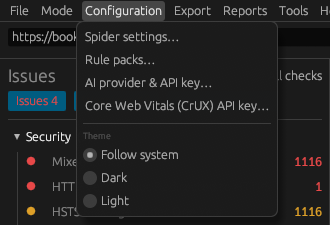
| Item | What it does |
|---|---|
| Spider settings… | Limits, threads, delay, timeout, robots.txt, sitemaps, external links, resources, subdomains, nofollow, AI crawler test, JavaScript rendering, user agent, include/exclude patterns and custom search/extraction. See Spider settings. |
| Rule packs… | Add, enable or disable extra checks written as TOML rule packs (Shopify, WordPress, Local SEO, E-commerce or your own). See Rule packs. |
| AI provider & API key… | Choose the AI provider (or offline rules) for the title and description writer. See AI title and description writer. |
| Core Web Vitals (CrUX) API key… | Enter a free Chrome UX Report API key to add real-user Core Web Vitals. See Core Web Vitals. |
| Theme: Follow system / Dark / Light | The colour theme. See Themes. |
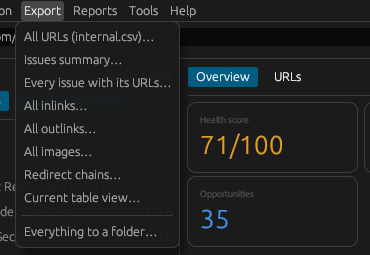
Each item asks where to save a CSV file:
| Item | File name suggested | Contents |
|---|---|---|
| All URLs (internal.csv)… | internal.csv |
One row per crawled URL with all its data. |
| Issues summary… | issues.csv |
One row per check that found something, with counts. |
| Every issue with its URLs… | issue_urls.csv |
One row per check and affected URL. |
| All inlinks… | inlinks.csv |
Every internal link: from, to, anchor text, follow. |
| All outlinks… | outlinks.csv |
Every link found on every page. |
| All images… | images.csv |
Every image reference with alt text. |
| Redirect chains… | redirects.csv |
Redirects and where they lead. |
| Current table view… | view.csv |
Only the rows currently shown in the URL table (after quick filter, issue and search), in the current sort order. |
| Everything to a folder… | (a folder) | Writes 11 files into a folder you pick: report.html, the seven CSV files above (not the table view), ai_bots.csv, accessibility.html and accessibility.csv. |
More: Saving, opening and exporting.
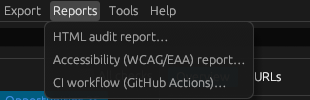
| Item | What it does |
|---|---|
| HTML audit report… | Opens the report window (client name, prepared by) and saves a self-contained HTML report. See HTML audit report. |
| Accessibility (WCAG/EAA) report… | Saves the accessibility starter report mapped to WCAG 2.2. See Accessibility and WCAG report. |
| CI workflow (GitHub Actions)… | Generates a ready-made GitHub Actions workflow that crawls your site on every deploy. Works even without a crawl loaded. See CI and GitHub Actions. |
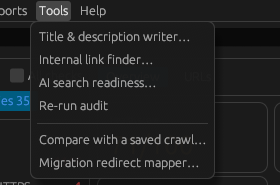
| Item | What it does |
|---|---|
| Title & description writer… | Suggests new titles and meta descriptions for pages that need them. See AI title and description writer. |
| Internal link finder… | Finds pages that mention another page's topic without linking to it. See Internal link finder. |
| AI search readiness… | Shows what AI crawlers can fetch and how quotable your content is. See AI search readiness. |
| Re-run audit | Runs all checks again on the current crawl (for example after enabling a rule pack). Not available while crawling. |
| Compare with a saved crawl… | Compares the open crawl with a saved one: new, fixed and persisting findings and changed URLs. See Comparing crawls. |
| Migration redirect mapper… | Proposes a redirect for every old URL when you move or redesign a site. See Site migration. |
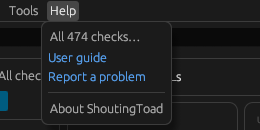
| Item | What it does |
|---|---|
| All 474 checks… | A searchable list of every check with its type, priority, explanation and fix. See Checks reference. The number includes checks from enabled rule packs. |
| User guide | Opens this user guide (the project wiki on GitHub) in your browser. |
| Report a problem | Opens the GitHub issues page, where you can report a bug. |
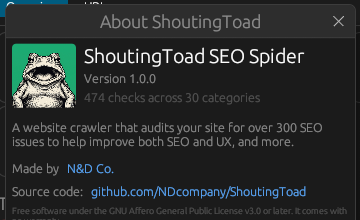
| About ShoutingToad | Version, number of checks and categories, maker, source code link and licence. |
The bar along the bottom of the window shows what ShoutingToad is doing. During a crawl:

| # | Item | Meaning |
|---|---|---|
| 1 | State dot and word | Ready (grey, nothing loaded), Crawling (green), Paused (amber), Complete (green), Stopped (amber). |
| 2 | N URLs | URLs fetched so far (or in the open crawl). |
| 3 | N queued | URLs found but not fetched yet (only while crawling or paused). |
| 4 | N URLs/s | Average speed since the crawl started (only while crawling or paused). |
| 5 | N threads | How many requests run in parallel (the Threads setting). |
| 6 | hh:mm:ss | Elapsed crawl time. |
| 7 | 474 checks | Number of checks the crawl is audited against (built-in plus enabled rule packs). |
Short messages appear at the right end of the status bar for about six seconds. Green means success, red means an error.


Examples you will see: "Crawl finished: N URLs audited against 474 checks", "Crawl stopped: N URLs audited against 474 checks" (after Stop), "Saved crawl to …", "Exported 11 files to …", "Opened … (N URLs)", and errors such as an invalid URL or a file that could not be saved.
Notes from the crawler are shown the same way while a crawl runs: problems reading robots.txt or a sitemap, "Rendering JavaScript with …" when JavaScript rendering starts, and a browser that could not be found or failed to start. Messages that report an error, a failure or a refusal are red; the others are green.
A crawl lives only in memory until you save it. When you are about to lose a crawl you have not saved, ShoutingToad stops and asks:

- Save…: choose where to save the crawl; afterwards ShoutingToad continues with what you asked for. (If you cancel the save dialog, the prompt stays.)
- Don't save: discard the crawl and continue.
- Cancel: keep the crawl and do nothing.
It appears before File → New crawl, File → Open crawl…, File → Exit or closing the window, Clear, Start (a new crawl) and starting a List mode audit, but only when the current crawl has not been saved since it finished. A crawl you have just opened from a file or saved does not trigger it.
Open Configuration and pick a theme under Theme:
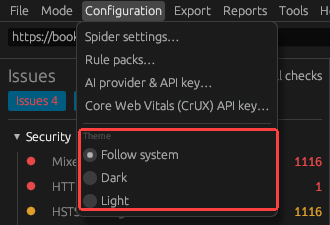
- Follow system (default): matches your operating system's light or dark setting.
- Dark: always dark (as in most screenshots in this guide).
- Light: always light.
The choice is remembered. The light theme looks like this:
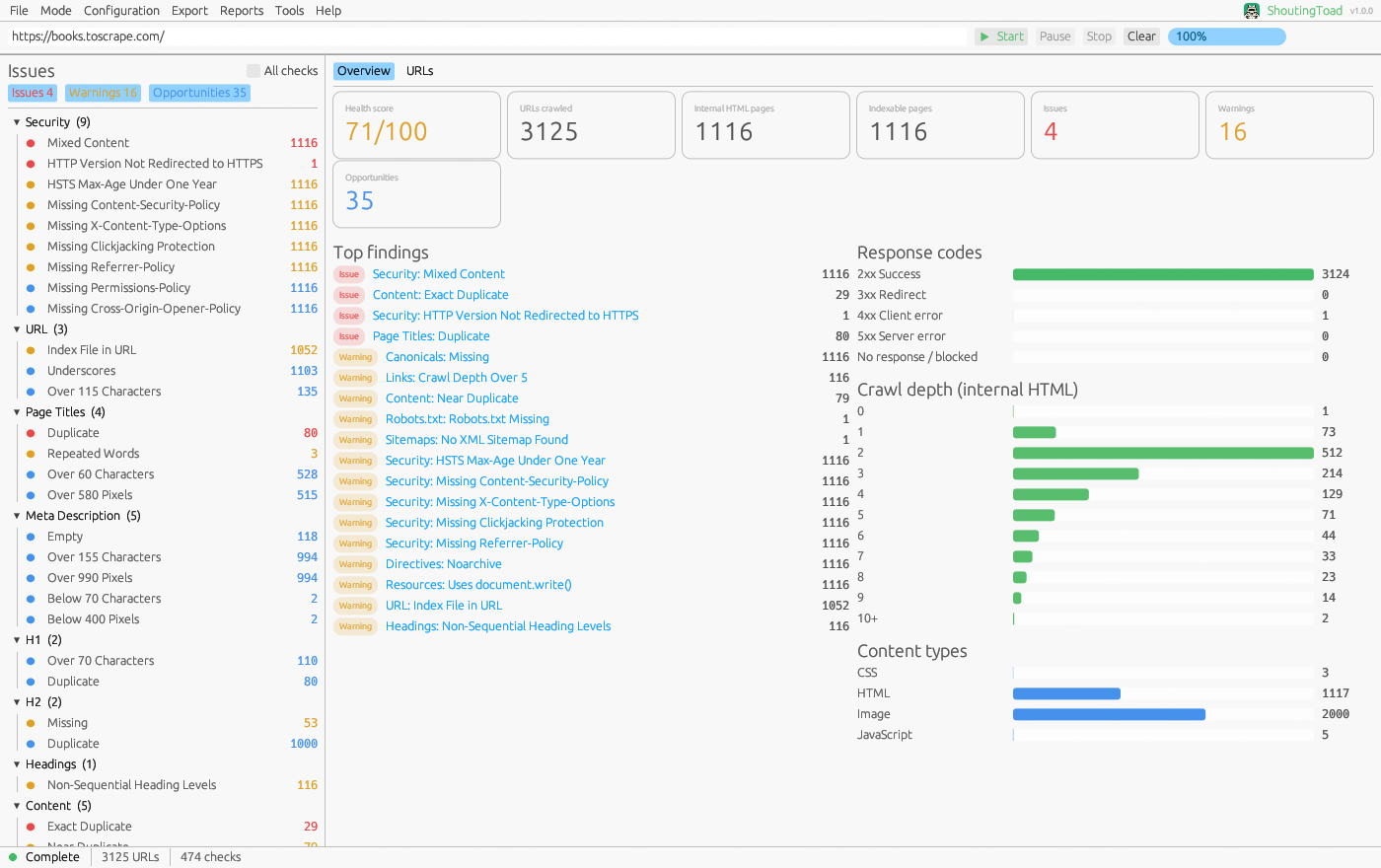

The SERP snippet preview always has a white background, like Google's results page, whichever theme you use.
- Enter in the URL box starts the crawl.
- Click a column header to sort the URL table; click again to reverse the order. A small triangle shows the sorted column and direction.
- Click a row to inspect it. Click a check in the Issues panel, a top finding on the Overview, or an issue in the inspector's Issues tab to list the affected URLs.
- Hover over a check in the Issues panel to see its type, priority, description and how to fix it. Hover over a shortened URL, anchor text or alt text in the inspector to read it in full. Hover over Respect robots.txt or All checks for an explanation.
- Scroll with the mouse wheel in the Issues panel, the table, the inspector and the Overview. The inspector also scrolls sideways when a table is wider than the panel (for example long URLs).
- Text fields support the usual shortcuts: Ctrl+A, Ctrl+C, Ctrl+V (Cmd on macOS).
- Drag panel edges and column borders to resize them (see Resizing the panels).
- Category headers in the Issues panel collapse and expand with a click.
ShoutingToad remembers your Spider settings, the theme, the last URL you crawled, the URL list in List mode, the report's client name and "prepared by" fields, and your rule pack list. It does not remember crawl results (save them with File → Save crawl…) and never stores API keys on disk.