Repository navigation
Comparing Crawls
Comparing two crawls of the same site shows you exactly what changed between them: which SEO problems are new, which ones you fixed, which ones are still there, and which URLs were added, removed or changed. Use it after every release, after a content clean-up, or once a month to catch regressions before they cost you traffic.
You can compare in the desktop app (Tools → Compare with a saved crawl…) or on the command line (shouting-toad compare). Both produce the same numbers and the same export files.
You need two crawls of the same site:
-
Before: a crawl you saved earlier as a
.shoutingtoadfile (File → Save crawl…, or thecrawl.shoutingtoadfile the command line writes next to its reports). See Saving, opening and exporting. - After: the crawl that is open in the app right now (you just ran it, or you opened a saved file).
The screenshots on this page compare a crawl of https://books.toscrape.com/ with 3125 URLs (after) against an earlier, smaller crawl of the same site with 1501 URLs (before).
Good to know: URLs are matched exactly, as the crawler normalised them.
https://example.com/pageandhttps://example.com/page/are two different URLs. If you crawled one site withwww.and the other without, almost every URL shows up as removed and added. Crawl both times with the same start URL and the same spider settings for a meaningful comparison. To compare an old site with a new site that uses different URLs, use the migration mapper instead.
-
Open or run the crawl you want to use as after. The menu item is greyed out until a crawl is open.
-
Click Tools in the menu bar, then Compare with a saved crawl….

-
A file dialog titled Saved crawl to compare with (before) opens. Pick the older
.shoutingtoadfile (older.jsoncrawl files are accepted too) and click Open. -
The window shows a spinner and Loading and auditing the saved crawl… while the saved crawl is loaded and all checks are run on it again. This takes a second or two for most sites. The saved crawl is audited with the current version of the checks, so both sides are judged by exactly the same rules.
If a crawl is still running, the window says Wait for the crawl to finish to compare. The comparison is calculated once the crawl stops. If you later re-crawl or re-run the audit, the comparison updates by itself.
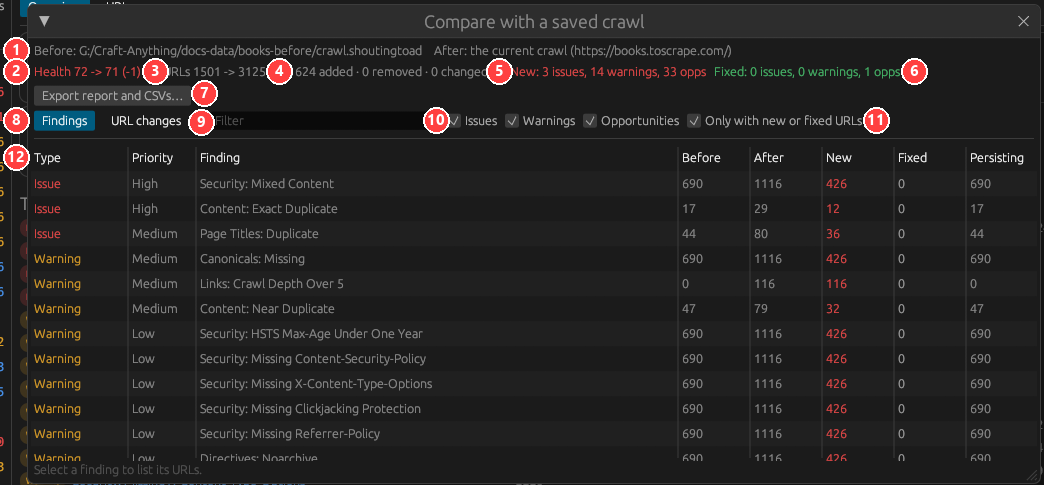
- Before / After: the path of the saved crawl file (before) and the start URL of the crawl currently open (after).
- Health X -> Y (±N): the health score of the before crawl, the after crawl, and the difference. It is red when the score went down and green when it stayed the same or went up.
- URLs X -> Y: the number of URLs in each crawl (all URLs, including images, CSS, JavaScript and external links that were checked).
- added · removed · changed: how many internal URLs are new, gone, or have a changed status, title, description, H1, canonical, meta robots or word count (see URL changes tab).
- New: N issues, N warnings, N opps (red): how many checks now affect at least one URL they did not affect before, split by type. This counts checks, not URLs: "3 issues" means three different issue checks got new URLs.
- Fixed: N issues, N warnings, N opps (green): how many checks no longer affect at least one URL they affected before.
- Export report and CSVs…: saves the HTML report and three CSV files to a folder (see Exporting the comparison).
- Findings / URL changes: switches between the two tabs.
- Filter: type to narrow the table. Each tab has its own filter box, so text typed on one tab doesn't affect the other. On the Findings tab it matches the check name and category; on the URL changes tab it matches the address, field name, and before/after values.
- Issues / Warnings / Opportunities (Findings tab) or Added / Removed / Changed (URL changes tab): tick or untick to show or hide those rows. All are ticked when you first open the window.
- Only with new or fixed URLs (Findings tab only): when ticked (the default), checks whose URLs are exactly the same in both crawls are hidden, so you only see what moved. Untick it to also see checks that persist unchanged.
- The table itself (explained below).
You can resize the window by dragging its bottom-right corner, collapse it with the triangle in the title bar, and close it with ×. To see the comparison again after closing the window, run Tools → Compare with a saved crawl… again (it takes a second or two).
Each row is one check that was triggered in either crawl. Rows are sorted by type (Issues first, then Warnings, then Opportunities), then priority (High first), then by the number of new URLs (largest first). So the most serious regressions are always at the top.
| Column | What it shows |
|---|---|
| Type | Issue (red), Warning (orange) or Opportunity (blue). See Checks reference for what the types mean. |
| Priority | High, Medium or Low. |
| Finding | The check, as "Category: Check name", for example Page Titles: Duplicate. |
| Before | How many URLs the check affected in the before crawl. |
| After | How many URLs the check affects in the after crawl. |
| New | URLs affected now that were not affected before (shown in red when above 0). This includes brand-new URLs that have the problem. |
| Fixed | URLs affected before that are no longer affected (green when above 0). This includes URLs that no longer exist in the after crawl: a page you deleted counts as "fixed" for every check it used to fail. |
| Persisting | URLs affected in both crawls. |
Before = Fixed + Persisting, and After = New + Persisting.
-
Click anywhere on a row in the table (on the text or between columns). The row is highlighted.
-
The bottom of the window shows the check name and three buttons: New (N), Fixed (N) and Persisting (N). Click one to list those URLs.
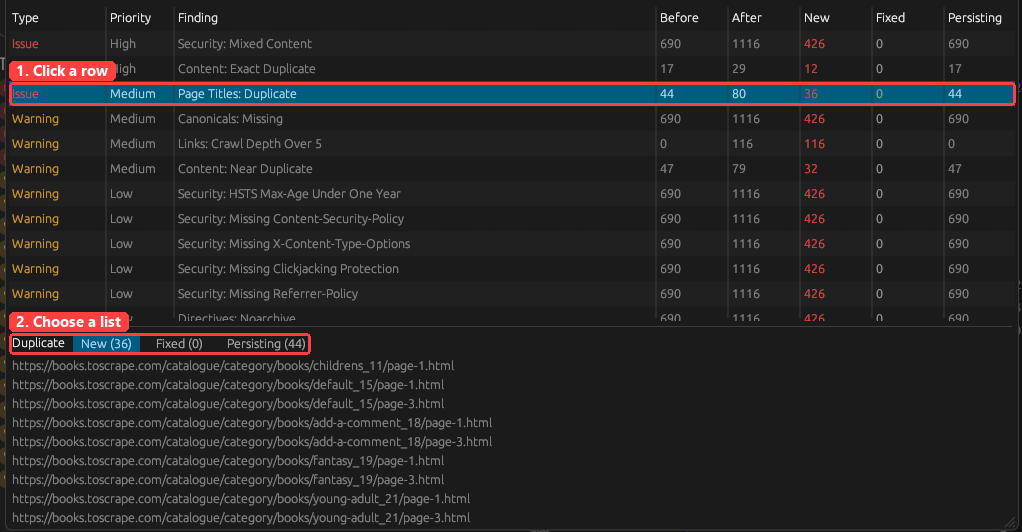
The New and Persisting lists show URLs from the after crawl; the Fixed list shows URLs from the before crawl (they may no longer exist). Until you select a row, the window says Select a finding to list its URLs.
Type part of a check name or category in Filter. In this example, typing inlink leaves only Links: Only One Followed Inlink:

Select the row and click Fixed (11) to see the eleven pages that now get more than one followed internal link:

Tips:
- Untick Warnings and Opportunities to focus on real issues only.
- Type a category such as
securityorcanonicalto review one area. - Untick Only with new or fixed URLs to see the full picture, including problems that have not moved at all.
Click URL changes to see every internal URL that was added, removed or changed, one row per changed field.
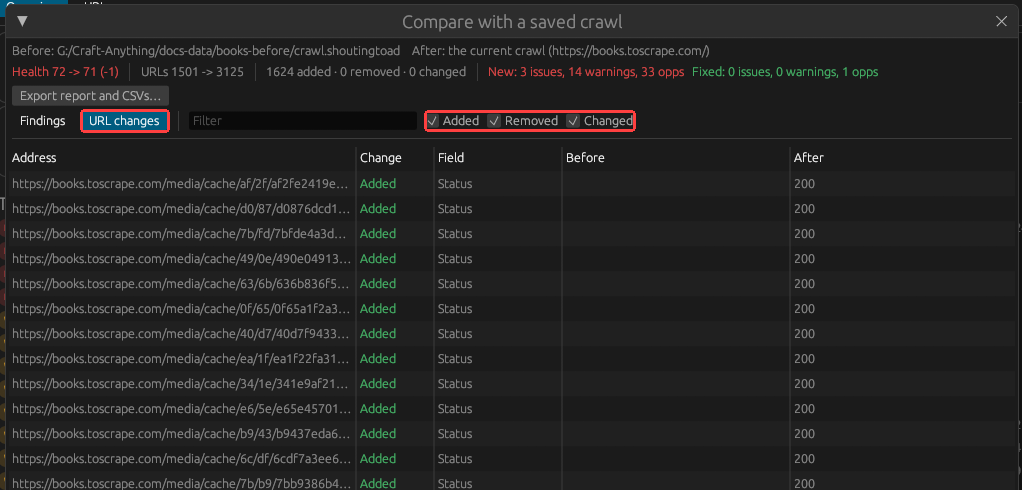
| Column | What it shows |
|---|---|
| Address | The URL. |
| Change | Added (green): only in the after crawl. Removed (red): only in the before crawl. Changed (orange): in both, but at least one field differs. |
| Field | Which field changed. Added and Removed URLs always have one row with the field Status. |
| Before | The old value (empty for added URLs). |
| After | The new value (empty for removed URLs). |
A URL counts as Changed when any of these differ:
| Field | When it counts as changed |
|---|---|
| Status | The HTTP status code is different (for example 200 → 404). A URL that did not answer shows No response. |
| Indexability | The indexability label changed (for example Indexable → Noindex or Canonicalised). |
| Title | The page title changed (leading/trailing spaces ignored). |
| Meta Description | The meta description changed. |
| H1 | The first H1 changed. |
| Canonical | The canonical URL changed. |
| Meta Robots | The meta robots directives changed. |
| Word Count | The word count changed by more than 10 words and more than 10%. Small changes (a date, a "latest posts" block) are ignored on purpose so they don't drown out real changes. |
Only internal URLs are listed here. External links and their status are not compared on this tab (but problems with them still show up on the Findings tab, for example broken external links).
Use the Added / Removed / Changed check boxes and Filter to narrow the list. Here the crawls are swapped (the bigger crawl is "before"), and the filter catalogue/page shows the listing pages that disappeared:

Why it matters: removed URLs that used to rank or have backlinks should redirect (301) to the closest equivalent page. A title or canonical that changed without anyone planning it is often a template bug. A status that went from 200 to 404 or 500 is something to fix today.
Click Export report and CSVs…, choose a folder, and the app writes four files there, then opens comparison.html in your browser and shows the message Exported the comparison to …. Existing files with the same names in that folder are overwritten.
| File | Contents |
|---|---|
comparison.html |
A self-contained report you can email or attach to a ticket (see below). |
comparison.csv |
One row per check: Issue ID, Category, Issue, Type, Priority, URLs Before, URLs After, New, Fixed, Persisting. |
comparison_issue_urls.csv |
One row per new or fixed (check, URL) pair: Change (New or Fixed), Issue ID, Category, Issue, Type, Priority, Address. Persisting URLs are not repeated here; they are in each crawl's own issue_urls.csv. |
url_changes.csv |
One row per changed field: Address, Change, Field, Before, After. Same data as the URL changes tab. |
The report starts with the two crawls' start URLs and finish times (for example 2026-11-24 06:40), then five cards: Health score (before → after, with the difference), URLs crawled, Added · Removed · Changed, New issues · warnings · opps and Fixed issues · warnings · opps.
Below that are New findings and Fixed findings. Each line shows the type, priority, the finding as "Category: Check name" (for example Security: Mixed Content), how many URLs and the before → after counts. Click a line to open it: you get the check's description, How to fix, and up to 50 URLs (the rest are in comparison_issue_urls.csv).

At the bottom, URL changes lists added, removed and changed URLs (up to 1000 rows; the full list is in url_changes.csv).

The report prints cleanly (open findings don't split across pages when printed).
shouting-toad compare BEFORE.shoutingtoad AFTER.shoutingtoad [--out DIR] [--fail-on-new LEVEL] [--summary-md FILE] [--badge FILE]
The first file is always the before crawl, the second the after crawl. Without --out, files go to a folder named shoutingtoad-comparison in the current directory.
Real example:
$ shouting-toad compare books-before/crawl.shoutingtoad books/crawl.shoutingtoad --out comparison
Compared with https://books.toscrape.com/: health 72 -> 71 (-1), 1624 added, 0 removed, 0 changed URLs
  new: 3 issues, 14 warnings, 33 opportunities; fixed: 0 issues, 0 warnings, 1 opportunities
Loaded in 0.1s, audited in 0.1s, compared in 0.00s, 0.3s in total
Reports written to comparison
It writes the same four files as the app's export: comparison.html, comparison.csv, comparison_issue_urls.csv and url_changes.csv. The first lines of comparison.csv from that run:
Issue ID,Category,Issue,Type,Priority,URLs Before,URLs After,New,Fixed,Persisting
security.mixed_content,Security,Mixed Content,Issue,High,690,1116,426,0,690
security.hsts_short,Security,HSTS Max-Age Under One Year,Warning,Low,690,1116,426,0,690
comparison_issue_urls.csv:
Change,Issue ID,Category,Issue,Type,Priority,Address
New,security.mixed_content,Security,Mixed Content,Issue,High,https://books.toscrape.com/catalogue/the-cat-in-the-hat-beginner-books-b-1_235/index.html
...
Fixed,links.single_inlink,Links,Only One Followed Inlink,Opportunity,Low,https://books.toscrape.com/catalogue/category/books/childrens_11/page-2.html
url_changes.csv:
Address,Change,Field,Before,After
https://books.toscrape.com/media/cache/af/2f/af2fe2419ea136f2cd567aa92082c3ae.jpg,Added,Status,,200
| Option | What it does |
|---|---|
--out DIR |
Folder for the four output files (created if needed). Default shoutingtoad-comparison. |
--fail-on-new LEVEL |
high, medium or low. Exit with code 2 if any Issue (not warning or opportunity) at that priority or higher has new URLs. The failing checks are printed as NEW [...] lines. |
--summary-md FILE |
Also write a Markdown summary (health, URL counts, a New/Fixed table and the top 25 new and fixed findings) for a pull request comment or $GITHUB_STEP_SUMMARY. |
--badge FILE |
Also write an SVG badge "SEO 71/100" coloured by the after crawl's health score. |
--baseline is not accepted by compare (it is for crawl and list): you get error: compare takes the baseline as its first file, not --baseline.
Example with a regression gate:
$ shouting-toad compare books-before/crawl.shoutingtoad books/crawl.shoutingtoad --out comparison-gate --fail-on-new high --summary-md comparison-gate/summary.md --badge comparison-gate/badge.svg
Compared with https://books.toscrape.com/: health 72 -> 71 (-1), 1624 added, 0 removed, 0 changed URLs
  new: 3 issues, 14 warnings, 33 opportunities; fixed: 0 issues, 0 warnings, 1 opportunities
  NEW [Issue High] Security: Mixed Content (426 URLs, e.g. https://books.toscrape.com/catalogue/the-cat-in-the-hat-beginner-books-b-1_235/index.html)
  NEW [Issue High] Content: Exact Duplicate (12 URLs, e.g. https://books.toscrape.com/catalogue/category/books/childrens_11/index.html)
Loaded in 0.1s, audited in 0.1s, compared in 0.01s, 0.3s in total
Reports written to comparison-gate
Failing: new issues at or above the --fail-on-new threshold were found.
$ echo $?
2
Exit codes: 0 compared (and no gate reached), 1 error (missing file, bad option), 2 --fail-on-new threshold reached.
shouting-toad crawl and shouting-toad list take --baseline previous.shoutingtoad: they crawl, then compare with the baseline and write the comparison files into the same --out folder as the normal reports. If the baseline file does not exist yet, the run prints a note and simply becomes the first baseline (the --summary-md file then says No baseline crawl to compare with yet. Keep this run's crawl.shoutingtoad and pass it with --baseline next time.). This is how the CI and GitHub Actions setup works. See Command line for every crawl option.
- Crawl the live site (or staging) before you deploy and save the crawl (
release-before.shoutingtoad). - Deploy.
- Crawl again with the same settings.
-
Tools → Compare with a saved crawl… and pick
release-before.shoutingtoad. - Untick Warnings and Opportunities, look at the New column for High and Medium issues. Then check URL changes for unexpected Removed URLs, changed Canonical, Meta Robots or Indexability, and status changes.
- Export the report and attach
comparison.htmlto the release ticket.
To automate this, run shouting-toad crawl https://staging.example.com --baseline last.shoutingtoad --fail-on-new high in your pipeline so the build fails when a release introduces new high-priority issues.
- Crawl the site on the first of every month and keep the files with a date in the name (
2026-10.shoutingtoad,2026-11.shoutingtoad). - Compare this month with last month:
shouting-toad compare 2026-10.shoutingtoad 2026-11.shoutingtoad --out 2026-11-vs-10. - Send
comparison.htmlto the team: the health score card shows the trend, Fixed findings shows the progress, New findings shows what to work on next. - Open
comparison.csvin a spreadsheet to track the URL counts per check over months.
After a clean-up sprint, the Fixed column and the Fixed findings section of the report give you a concrete list of what was fixed, with URL counts, which is easy to show to a client or manager.
Why is a deleted page counted as "fixed"? A check is "fixed" for a URL when the URL had the problem before and does not have it now. A URL that no longer exists cannot have the problem. Look at the URL changes tab (Removed) to see which pages are gone.
Why do I see hundreds of new findings after a small change? New pages bring their own problems. In the example above, 1624 URLs were added, and every new book page has the same template issues as the old ones (for example 426 new Mixed Content URLs). Compare the Persisting column: if a check already affected many URLs before, the new ones are the same template problem, not a new bug.
Can I compare two different sites? You can, but nearly every URL will be Added or Removed because URLs are matched exactly. For a redesign or domain move use the Site migration mapper.
Do I need the same app version for both crawls? No. The saved crawl is audited again with the current checks when you load it, so both crawls are judged by the same rules.
Next steps: Site migration · CI and GitHub Actions · Command line · Overview dashboard