Repository navigation
Spider Settings
The Spider settings dialog controls how ShoutingToad crawls: how many URLs it fetches, how deep and how fast it goes, which kinds of links and files it checks, which user agent it sends, whether it obeys robots.txt and whether it renders JavaScript. This page explains every field and checkbox, the default value, what it changes and what it means for your SEO audit.
Settings apply to the next crawl you start. A crawl that is already running keeps the settings it started with. The app remembers your settings between sessions. The command line does not read them: each CLI run starts from the defaults and you change them with flags (the flag for each setting is listed below).
-
Click Configuration in the menu bar, then Spider settings…. On the welcome screen (before you have crawled anything) you can also click the Spider settings… button.

-
The dialog opens. It is split into seven groups. Close it with the × in its title bar; there is no OK button because every change is kept as soon as you make it.

- Limits: how many URLs, how deep, how many at once, how fast, how long to wait.
- Crawl options: robots.txt, sitemaps, external links, resources, subdomains, nofollow, AI crawler test.
- JavaScript rendering: render pages in Chrome or Edge.
- User agent: the name the crawler sends to the server.
- Include / exclude: regular expressions that limit which internal URLs are crawled.
- Custom search & extraction: regular expressions run on every page's HTML.
- Reset to defaults.
The number fields are drag fields: drag left or right with the mouse to change the value, or click once, type a number and press Enter.
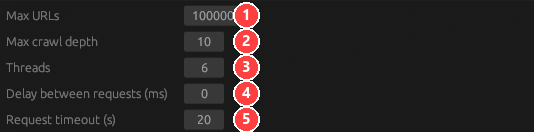
| # | Setting | Default | Range | CLI flag | What it does |
|---|---|---|---|---|---|
| 1 | Max URLs | 100000 | 1 to 5,000,000 | --max-urls N |
Stops queueing new URLs once this many have been discovered. Every URL counts: pages, images, CSS, JavaScript and external links. robots.txt and sitemap files do not count. |
| 2 | Max crawl depth | 10 | 0 to 100 | --max-depth N |
How many clicks away from the start URL the crawler follows links. The start URL is depth 0, pages it links to are depth 1, and so on. Links on a page at the maximum depth are not followed. With 0, only the start URL is crawled (plus its images, CSS and JavaScript if resources are checked). |
| 3 | Threads | 6 | 1 to 64 | --threads N |
How many requests run at the same time. More threads crawl faster but put more load on the server. |
| 4 | Delay between requests (ms) | 0 | 0 to 60,000 | --delay MS |
The minimum gap between the start of two requests, across all threads together. 500 ms means at most two requests per second, however many threads you use. |
| 5 | Request timeout (s) | 20 | 1 to 300 | --timeout SECS |
How long to wait for one response before giving up. The connection itself has to open within this time or 15 seconds, whichever is shorter. URLs that time out are reported as "No Response". |
- Max URLs protects you from endless URL spaces (calendars, faceted filters, session IDs in URLs). If a crawl stops at exactly your limit, the site has more URLs than you allowed. Raise the limit, or use Exclude to skip the URL patterns that multiply. Because images, CSS, JavaScript and external links count too, a page-heavy site can reach the limit sooner than you expect.
- Max crawl depth says something about your site, not only about the crawler. Pages that are many clicks from the home page get less internal link value and are crawled less often by search engines (ShoutingToad has a "Crawl Depth Over 5" check for this). If a crawl with depth 10 misses pages you know exist, they are deeper than 10 clicks, or only reachable through links the crawler cannot follow (forms, JavaScript without rendering, nofollow). The XML sitemap option below finds some of them.
- Pagination chains are a common reason for deep pages: on the demo site, category page 11 is reached only through 10 "next" links, so it is depth 11 and is not crawled with the default depth.
- Timeout: raise it for slow servers that time out under a normal crawl. A page that regularly needs more than a few seconds is a problem for users and search engines alike, so treat timeouts as findings, not only as a setting to change.
Every request costs the website something. Six threads with no delay is fine for most modern sites, but a small shared host can slow down for real visitors while you crawl it, and a firewall may start blocking you.
Here is the same site crawled for 10 seconds with the default settings and with polite settings:


The status bar at the bottom shows the live speed (URLs per second) and the number of threads while a crawl runs.
Good to know:
- If the server answers 429 Too Many Requests, ShoutingToad backs off automatically: it waits for the time in the server's
Retry-Afterheader (given in seconds or as a date; kept between 1 and 30 seconds, 5 if the header is missing), pauses all threads for that time and retries the URL up to two more times. - A
Crawl-delayline in robots.txt is not applied automatically. The audit reports it ("Crawl-Delay Set"), and you can copy its value into Delay between requests yourself (it is in seconds; the field is in milliseconds). - The delay also applies to the AI crawler test and to JavaScript rendering, so polite settings make those slower too.
Suggested starting points:
| Situation | Threads | Delay |
|---|---|---|
| Your own site on good hosting, or a staging server | 6 to 16 | 0 |
| A client's live site, or small shared hosting | 2 to 4 | 200 to 500 ms |
| A site you do not own (a competitor, a prospect) | 1 to 2 | 1000 ms or more |
| A server that answered 429 or 503 during a crawl | 1 to 2 | 1000 ms or more |

| # | Checkbox | Default | CLI flag | What it does |
|---|---|---|---|---|
| 1 | Respect robots.txt | On |
--ignore-robots turns it off |
Internal URLs that robots.txt disallows for the crawler's user agent are not fetched; they are listed with the status "Blocked by robots.txt". Off: robots.txt is still downloaded and audited, but every URL is fetched. |
| 2 | Crawl URLs found in XML sitemaps (finds orphan pages) | On |
--no-sitemaps turns it off |
After the link crawl, internal URLs that are listed in the XML sitemaps but were never reached through links are crawled too. |
| 3 | Check external links | On |
--no-external turns it off |
Links to other sites get a status check (a HEAD request, with a GET if the server rejects HEAD or answers with an error). External pages are never crawled further. |
| 4 | Check images, CSS and JavaScript | On |
--no-resources turns it off |
The images, stylesheets and scripts that pages use are fetched so their status, size and type can be audited. |
| 5 | Treat subdomains as internal | Off |
--subdomains turns it on |
Hosts that end in the start URL's domain (for example blog.example.com and shop.example.com when you start at example.com) are crawled as part of the site instead of being treated as external. |
| 6 | Follow nofollow links | Off | (GUI only) | Links with rel="nofollow", and links on pages with a nofollow robots meta tag, are followed. |
| 7 | Test AI crawler access after the crawl (up to about 90 extra requests) | On |
--no-ai-bots turns it off |
When the crawl finishes, the start page and the most-linked indexable pages are requested as each known AI crawler, to see which ones robots.txt or the server blocks. |
This option is also on the welcome screen, so you can see and change it before your first crawl. Hover over it to read what it does:

When you untick it, a warning appears under the checkbox:

Which robots.txt rules apply depends on the user agent: if the user agent contains googlebot, the Googlebot group is used; bingbot uses the Bingbot group; the default user agent uses a ShoutingToad group if there is one. Otherwise the first word of the user agent is used, and robots.txt falls back to the * group as usual.
When to untick it:
- You audit your own site (or a client's, with permission) and need to see pages that are blocked, for example a staging site that disallows everything, or a section you blocked by mistake.
- You want to compare what a blocked crawler sees with what is really there.
Do not untick it on sites you do not own or have permission to audit. robots.txt is how site owners tell crawlers what they may fetch.
SEO note: robots.txt blocks crawling, not indexing. A blocked URL that is linked from elsewhere can still appear in search results, without a description. Use noindex (which the crawler must be able to fetch to see) to keep a page out of the index. The audit's "Internal Blocked by Robots.txt" and "Internal Blocked Resource" checks show what your rules block.
The sitemaps themselves are always downloaded and audited in spider mode (ShoutingToad reads the Sitemap: lines in robots.txt, or tries /sitemap.xml if there are none, and follows sitemap index files up to 200 sitemap files). This checkbox decides whether URLs that appear only in a sitemap get crawled.
Leave it on to find orphan pages: pages in your sitemap that no internal link points to. Search engines find such pages through the sitemap, but they get no internal link value, so they often rank poorly. Sitemap-only URLs are crawled at depth 1 and still obey Max URLs, Include / exclude and robots.txt.
Turn it off when you want to see exactly what a visitor can reach by clicking, for example to test a new navigation.
Broken outbound links (404, 410, timeouts, DNS errors) hurt user experience and look neglected. Leave this on for a full audit. Turn it off to save time and requests on link-heavy sites, or when you only care about internal pages. External URLs count towards Max URLs.
Needed for every image, performance and resource check: broken images, large files, missing cache headers, files blocked by robots.txt, mixed content status and more. Turning it off makes the crawl much smaller and faster (a page often has dozens of resources), but those checks then have nothing to work with.
Tip: Include / exclude patterns do not apply to images, CSS and JavaScript. If you limit a crawl to one folder with Include, also untick this box, or the resources of the first pages can use up your Max URLs before the pages in that folder are reached.
By default only the start URL's host is internal. www. and the bare domain always count as the same site, and if the start URL redirects to its www (or non-www) twin, the crawler follows it.
Tick this when your site really spans several subdomains (www, blog, shop, help) and you want one audit with internal links between them. The "domain" is the start URL's host without www.. If you start at https://shop.example.com/, only hosts ending in shop.example.com become internal, not blog.example.com; start at https://example.com/ to include them all.
Search engines treat nofollow as a hint and generally do not pass link value through it. With the default (off), the crawler sees the site the way a crawler that respects nofollow would: pages reachable only through nofollow links are not discovered. Turn it on when you want a complete inventory of URLs, for example before a migration.
After the crawl, ShoutingToad requests up to five pages (the start page and the most-linked indexable pages) with the published user agent of each of 18 AI crawlers (search, user-triggered and training bots from OpenAI, Anthropic, Perplexity, Google, Apple, Meta, Common Crawl and others), checks each one against robots.txt and compares the result with a normal request. That is up to 18 × 5 = 90 extra requests. The results appear in AI search readiness, in the HTML audit report and in ai_bots.csv.
Turn it off on sites where a burst of extra requests with bot user agents could trigger a firewall, or when you do not need the AI results. It never runs in list mode.

| # | Control | Default | CLI flag | What it does |
|---|---|---|---|---|
| 1 | Render JavaScript with Chrome or Edge (slower: compares raw and rendered HTML, adds contrast and keyboard checks) | Off | --render |
Every internal HTML page that returns 200 is also opened in a real browser. ShoutingToad compares the raw HTML with the rendered page, follows links that exist only after JavaScript runs, records JavaScript errors and runs the colour contrast, visible focus and keyboard checks. |
| 2 | Browser | empty (detect automatically) | --chrome PATH |
The browser program to use. Leave it empty to find Chrome, Chromium or Edge automatically, or type the full path to a specific browser. |
| 3 | Tabs | 4 |
--render-tabs N (1 to 16) |
How many pages render at the same time. It is never more than Threads. |
| 4 | Status line | Shows "Using …" with the browser that will be used (green), or an error in red if no browser was found. |
The Browser and Tabs fields are greyed out until rendering is ticked. If rendering is on but no browser can be found, you get an error when you click Start, and the crawl runs without rendering. When the browser starts, the status bar shows "Rendering JavaScript with …" and the browser used.
Rendering makes a crawl much slower and uses a lot of memory, because each page is loaded like a real visitor would load it. Use it for sites built with JavaScript frameworks, and to check that important content and links do not depend on JavaScript (most AI crawlers do not run JavaScript). See JavaScript rendering for the results it produces.
The user agent is the name the crawler sends with every request. Servers, CDNs and firewalls can answer differently depending on it, and it decides which robots.txt group applies.
-
Click Presets to pick a common user agent:

-
The full user agent string appears in the text field below, where you can edit it or type your own (CLI:
--user-agent "…").
| Preset | When to use it |
|---|---|
| ShoutingToad (default) |
Mozilla/5.0 (compatible; ShoutingToad/1.0.0; +https://github.com/NDcompany/ShoutingToad). Honest and identifiable: site owners can see who is crawling and why. Use it unless you have a reason not to. |
| Googlebot Smartphone | See what Google's mobile crawler is served (Google uses mobile-first indexing) and test robots.txt rules for Googlebot. |
| Googlebot Desktop | The same for Google's desktop crawler. |
| Bingbot | See what Bing's crawler is served and test Bingbot robots.txt rules. |
| Chrome (desktop browser) | Look like a normal visitor, for servers that serve bots something different. |
Good to know:
- Some firewalls and CDNs check that a request claiming to be Googlebot or Bingbot really comes from Google's or Microsoft's IP addresses, and block or challenge it when it does not. If you get many 403 errors with a search engine preset, that is probably why.
- Comparing two crawls (one with the default user agent, one with Googlebot) is a quick way to detect cloaking or bot-specific redirects. See Comparing crawls.
- A long user agent does not fit in the text box: it scrolls inside it. Click the box and press End (or use the arrow keys) to see the rest.
Two regular expressions that decide which internal URLs are crawled. They are matched anywhere in the full URL (including https:// and the query string), so /blog/ matches every URL that contains /blog/.

| # | Field | Example | CLI flag | What it does |
|---|---|---|---|---|
| 1 | User agent | Googlebot Smartphone selected | --user-agent |
See User agent. |
| 2 | Only crawl URLs matching (include) | /catalogue/ |
--include REGEX |
When set, only internal URLs that match are queued. |
| 3 | Skip URLs matching (exclude) | \?sort=|/tag/ |
--exclude REGEX |
Internal URLs that match are not queued. Exclude wins over include. |
| 4 | Custom search | In stock |
(GUI only) | See Custom search & extraction. |
| 5 | Custom extraction | <p class="price_color">([^<]+)</p> |
(GUI only) | See Custom search & extraction. |
How the patterns are applied:
- They filter internal links, canonical, hreflang, pagination and AMP links, and sitemap-only URLs.
- The start URL is always crawled, even if it does not match.
- Redirect targets, external links, and images, CSS and JavaScript are not filtered.
- Use
|for "or". Escape characters that have a special meaning in regular expressions, such as?.+(, with a backslash:\?sort=matches the literal text?sort=.
Useful patterns:
| Goal | Field | Pattern |
|---|---|---|
| Audit only the blog | Include | /blog/ |
| Skip sorted and filtered listing pages | Exclude | [?&](sort|order|filter)= |
| Skip tag and author archives | Exclude | /(tag|author)/ |
| Skip all URLs with parameters | Exclude | \? |
| Only the English and German sections | Include | /(en|de)/ |
If a pattern is not a valid regular expression, the crawl does not start and the error is shown in the status bar:

SEO note: excluding URLs hides them from the audit, not from search engines. If excluded URLs are a problem (thousands of thin filter pages, for example), fix them on the site with canonicals, noindex or robots.txt rules, then crawl again without the exclude to check.
Two regular expressions that run on the raw HTML (not the rendered page) of every internal HTML page that was fetched:
- Custom search (placeholder "Count matches, e.g. GTM-[A-Z0-9]+"): counts how many times the pattern matches on each page. Use it to find pages with or without something: a tracking code, an old phone number, a discontinued product name, "out of stock" text.
- Custom extraction (placeholder "Extract group 1, e.g. "sku":\s*"([^"]+)""): pulls values out of each page. If the pattern has a group in brackets, the text in the first group is extracted; otherwise the whole match. Up to 10 values per page are kept. Use it to collect SKUs, prices, author names, publish dates or schema values.
The results appear in the Details tab of the URL inspector (as Custom search hits and Custom extraction, only for pages with a result) and in the Custom Search Hits and Custom Extraction columns of internal.csv (several extracted values are joined with |). Both fields are available in the desktop app only; the command line has no flags for them.
Reset to defaults puts every setting in this dialog back to the values in the tables above, including the user agent and the include, exclude, custom search and extraction fields. It does not change rule packs, the AI provider, the CrUX key or the theme.
- Crawl sites you own, or have permission to audit, with whatever settings you need. For anyone else's site, keep Respect robots.txt ticked, use the default user agent so the owner can identify you, and crawl slowly (1 to 2 threads, a delay of a second or more).
- Use Max URLs, Max crawl depth and Exclude to crawl only what you need.
- Watch the status bar. Many 429, 503 or timeout responses mean the server is struggling: click Stop, lower the threads, raise the delay and try later.
- Crawl staging and test servers rather than production when you test big changes.
- Turn off the AI crawler test on sites where a burst of bot-like requests could cause trouble.
The crawl found far fewer pages than the site has. Check Max crawl depth, Include / exclude and robots.txt (look for "Blocked by robots.txt" in the URL table). Sites that build their links with JavaScript need JavaScript rendering. Links behind forms or search boxes cannot be found by any crawler; the XML sitemap option helps there.
The crawl stopped at exactly my Max URLs. The site has more URLs. Raise the limit, or exclude the patterns that multiply (filters, sorting, calendars). Look at the URL table to see which URL patterns take up the most space.
I get 403 errors on every page. A firewall or CDN is blocking the crawler. Try the default user agent (search engine presets are often blocked when they do not come from the search engine's IP addresses), lower the threads and add a delay, or ask the site owner to allow the crawler.
Do I need to change settings for list mode? List mode uses the same settings, except that links are not followed and the AI crawler test does not run.
Quick start · List mode · JavaScript rendering · AI search readiness · Command line