Repository navigation
JavaScript Rendering
JavaScript rendering lets ShoutingToad load each page in a real browser, the way Google and your visitors see it, and compare that with the raw HTML your server sends. It shows you content, links, titles and canonicals that only exist after JavaScript runs, catches JavaScript errors and slow renders, and makes three extra accessibility checks possible (text contrast, visible keyboard focus and keyboard access to click handlers).
Rendering is off by default. Turn it on when a site is built with a JavaScript framework (React, Vue, Angular, Next.js, Nuxt and similar), when parts of the page are filled in by scripts, or when you need the accessibility checks that need a browser.
When a crawler requests a URL, the server answers with an HTML document: the raw HTML. A browser then runs the page's JavaScript, which can add text, links and images, change the title, or even rewrite the canonical and robots tags. The result is the rendered DOM.
Different crawlers see different versions:
| Who | What they read |
|---|---|
| Visitors' browsers | The rendered page. |
| Googlebot | The raw HTML first, then the rendered page later, when Google gets round to rendering it. Rendering can be delayed, and it can fail on slow or broken scripts. |
| Most AI crawlers (GPTBot, ClaudeBot, PerplexityBot and others) and many SEO tools | Only the raw HTML. They do not run JavaScript, so anything that appears only after JavaScript is invisible to them. |
So a page can look perfect in your browser and still be almost empty for an AI crawler, or show Google one canonical in the raw HTML and another after rendering. Without rendering, ShoutingToad audits the raw HTML only (like most crawlers). With rendering on, it audits the raw HTML and records what the rendered page looks like, so you can see both side by side.
The demo crawl used on this page is https://quotes.toscrape.com/js/, a practice site whose quotes are written into the page by JavaScript. Its raw HTML has about 12 words; the rendered page has about 254.
ShoutingToad does not download or bundle a browser. It uses a Chromium-based browser that is already installed on your computer and drives it in the background (headless, no window) over the Chrome DevTools Protocol.
It looks for a browser in this order:
- The path you type in the Browser box in Spider settings (or pass with
--chrome). If that file does not exist, rendering is off for the crawl and you see an error; it does not fall back to detection. - The
CHROME_PATHenvironment variable, if it points to an existing file. - The standard install locations, most preferred first:
| System | Browsers looked for (in this order) |
|---|---|
| Windows | Google Chrome, Chromium, Microsoft Edge, Brave, Chrome Beta, Chrome Canary, under Program Files, Program Files (x86) and your local app data folder |
| macOS | Google Chrome, Chromium, Microsoft Edge, Brave Browser, Google Chrome Canary, in /Applications and ~/Applications
|
| Linux |
google-chrome, google-chrome-stable, chromium, chromium-browser, microsoft-edge, microsoft-edge-stable, brave-browser on your PATH and in /usr/bin, /usr/local/bin, /snap/bin, then /opt/google/chrome/chrome
|
Microsoft Edge comes with Windows 10 and 11, so on most Windows computers rendering works without installing anything. On Linux, when the app runs as root (for example in a CI container) it adds --no-sandbox, which Chrome needs to start as root.
-
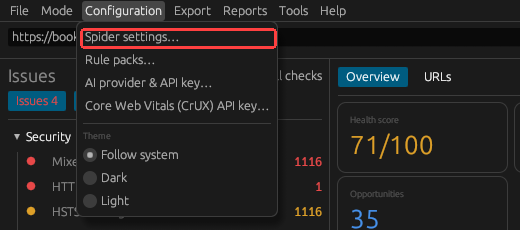
Click Configuration in the menu bar, then Spider settings….
-
In the Spider settings window, find the rendering section below the list of checkboxes.
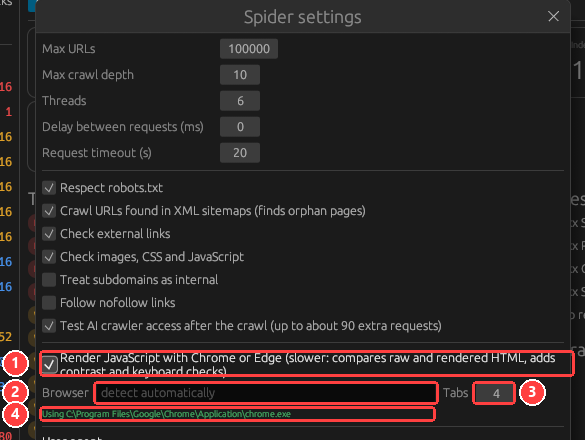
- Render JavaScript with Chrome or Edge (slower: compares raw and rendered HTML, adds contrast and keyboard checks): tick this to turn rendering on. The two controls below it are greyed out until you do.
- Browser: leave it empty (the hint says detect automatically) to use the detection described above. To use a specific browser, type the full path to its executable, for example a portable Chromium. Quotes around the path are ignored.
- Tabs: how many pages are rendered at the same time, from 1 to 16 (default 4). The number can never be higher than Threads at the top of the window: with 6 threads and 10 tabs, 6 tabs are used.
- The line under the box tells you which browser will be used, for example Using C:\Program Files\Google\Chrome\Application\chrome.exe in green. It updates as you type.
-
If the path in Browser is wrong, or no browser is installed, the line turns red and explains what is wrong, for example Browser not found at C:\Browsers\missing\chrome.exe. JavaScript rendering is off for this crawl.

When no browser can be found at all the message reads No Chrome, Chromium or Edge found on this computer, so JavaScript rendering is off for this crawl. Install one, or set its path (--chrome <path> or Spider settings). You see the same message as an error notice when you click Start with rendering on but no usable browser. The crawl still runs, just without rendering.
-
Close the window (the × in its title bar). Settings are kept for the next time you open the app, so rendering stays on until you untick it.
-
Enter the start URL and click Start.
-
When the browser is ready, a green notice in the status bar confirms which browser is used, for example Rendering JavaScript with C:\Program Files\Google\Chrome\Application\chrome.exe (4 tabs).

If the browser is found but cannot be started, an error notice explains why instead, for example … exited at start (…); JavaScript rendering is off. or … did not start within 30s; JavaScript rendering is off. The crawl then continues without rendering.
| Option | What it does | Default |
|---|---|---|
| Render JavaScript with Chrome or Edge | Renders every internal HTML page that answers 200 in the browser, compares it with the raw HTML, follows links that only exist after rendering, and runs the contrast, focus and keyboard probes. | Off |
| Browser | Path to the browser executable. Empty means detect automatically. | Empty |
| Tabs | Pages rendered at once (1-16, never more than Threads). | 4 |
Good to know: the render time limit is the same as Request timeout (s) in Spider settings (default 20 seconds, at least 5 seconds for rendering). Rendering also respects Delay between requests (ms), so a polite crawl stays polite.
| Option | What it does |
|---|---|
--render |
Render pages with the Chrome or Edge installed on this computer. |
--chrome <PATH> |
Use this browser executable. Also turns rendering on, so you do not need --render as well. |
--render-tabs <N> |
Browser tabs rendering at once (default 4, allowed 1-16, never more than --threads). |
A real run on the demo site (trimmed):
$ shouting-toad crawl https://quotes.toscrape.com/js/ --render --render-tabs 2 --max-urls 20 --no-ai-bots --out render
Crawling https://quotes.toscrape.com/js/ …
  note: Rendering JavaScript with C:\Program Files\Google\Chrome\Application\chrome.exe (2 tabs)

Crawled 21 URLs in 12.2s (2 URLs/s). Health score: 61/100
...
  [Warning     High  ] Rendering: Content Only Visible After JavaScript             4 URLs
...
Reports written to render
If the browser cannot be found, the command line prints warning: … with the same message as the app and crawls without rendering. See Command line for every other option.
- When the crawl starts, ShoutingToad starts the browser in the background with a fresh, empty profile (see Privacy) and opens the number of tabs you chose. Starting the browser can take a few seconds; a notice in the status bar says when it is ready, and the first rendered pages follow.
- Each internal HTML page is first fetched normally and parsed: this raw HTML stays the source of truth for every normal check.
- If the page answered 200, it is then opened in a browser tab, using the crawl's user agent (the one in Spider settings). The browser waits for the page to load (or for the DOM to be ready plus 5 seconds, because trackers and embeds can hold the load event back), then waits up to about 3 more seconds until the number of elements on the page stops changing, so client-side frameworks have time to finish.
- ShoutingToad takes a snapshot of the rendered DOM and compares it with the raw HTML: title, first H1, number of H1s, canonical, meta robots, word count, links, and the final URL after any JavaScript redirect. Uncaught exceptions and
console.error()messages are recorded (up to 20 per page). - In the same visit it measures text contrast, presses Tab up to 15 times to see whether focus is visible, and looks for mouse-only click handlers. These feed the accessibility checks.
- Links that only exist in the rendered page are added to the crawl queue, so pages linked only by JavaScript navigation are discovered too.
- When the crawl ends or you click Stop, the browser and every process it started are closed and its temporary profile is deleted.
Images are switched off in the rendering browser (they do not change the page structure and would waste bandwidth), and the browser window size is 1366 × 900 pixels.
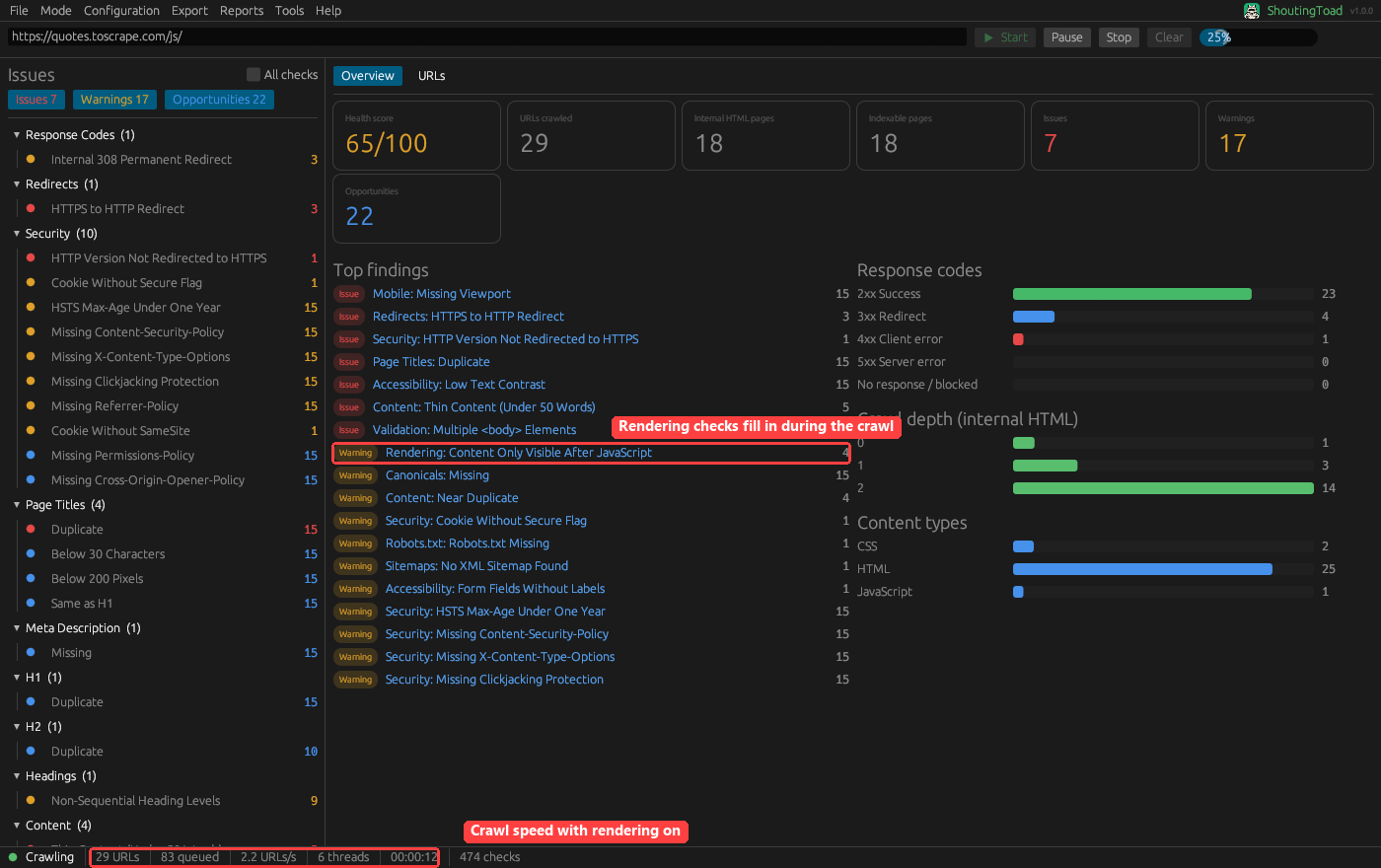
Findings from rendering appear in the Overview while the crawl is still running:
To see raw and rendered side by side for one page:
-
Click URLs (or any finding) and select a page in the table.
-
Click the Rendered tab in the inspector at the bottom of the window.
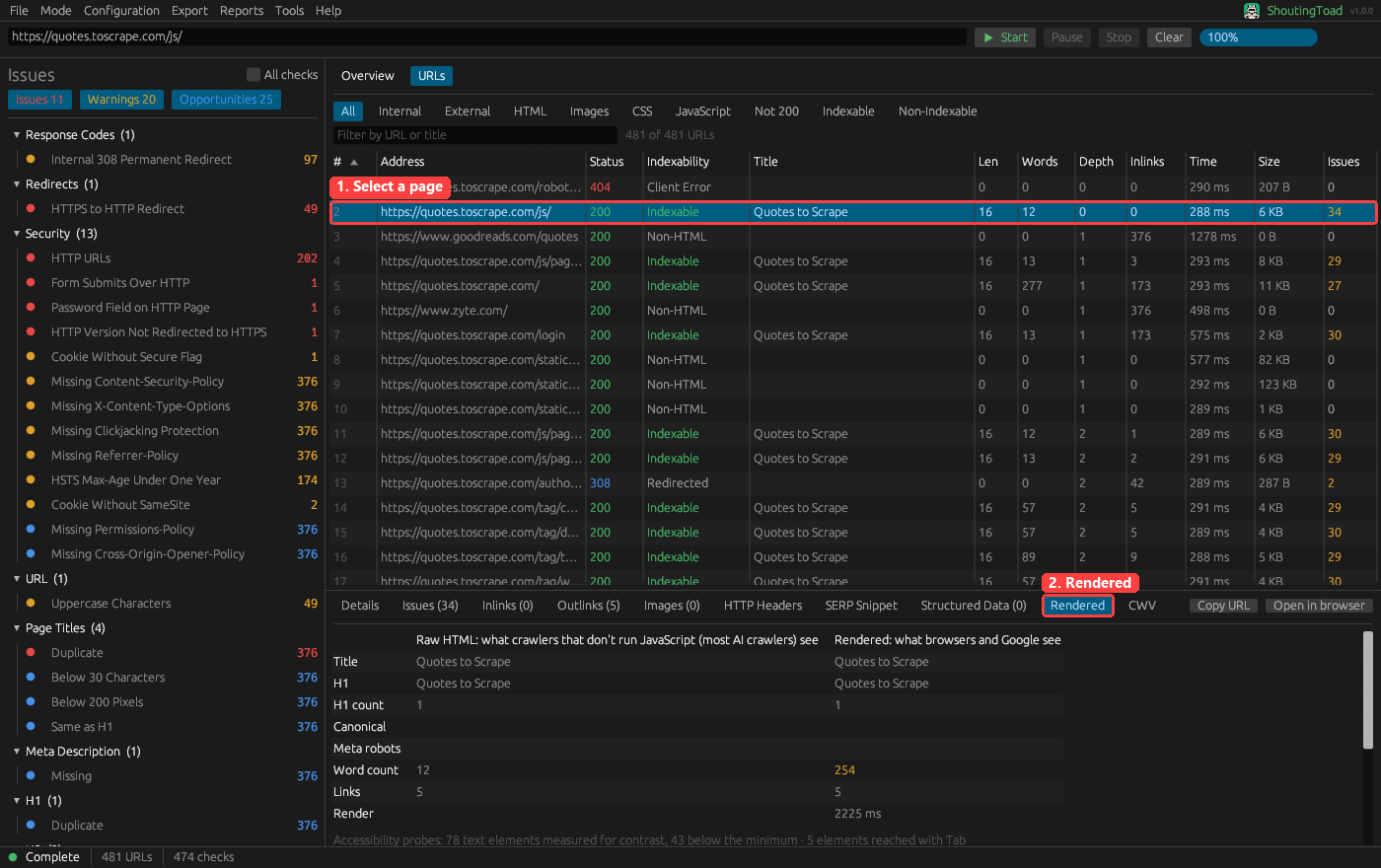
The inspector panel is short; scroll inside it to see everything. Here is the whole tab for https://quotes.toscrape.com/js/:
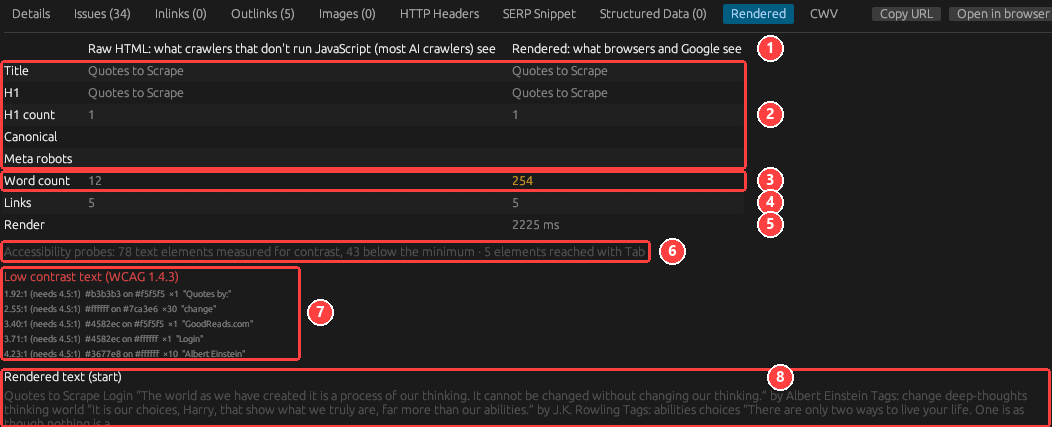
- Column headings. The middle column, Raw HTML: what crawlers that don't run JavaScript (most AI crawlers) see, comes from the server's response. The right column, Rendered: what browsers and Google see, comes from the browser.
- Title, H1, H1 count, Canonical, Meta robots: the page title, the first H1, how many H1 elements there are, the canonical URL and the meta robots directives, in both versions. Empty cells mean the tag is not there.
- Word count: the visible words in each version. Any value in the rendered column that differs from the raw value is shown in orange, as here: 12 words in the raw HTML, 254 after rendering. This is the clearest sign that the content depends on JavaScript.
- Links: links found in each version. When some links exist only after rendering, the rendered cell reads, for example, 4 (2 only after rendering).
- Render: how long the render took in milliseconds, with · timed out added when the page had not finished loading within the time limit.
- Accessibility probes: a summary of the browser measurements, for example 78 text elements measured for contrast, 43 below the minimum · 5 elements reached with Tab.
-
Low contrast text (WCAG 1.4.3): up to 10 colour combinations that fail, worst first. Each line reads
ratio (needs minimum) text colour on background colour ×count "sample text", for example2.55:1 (needs 4.5:1) #ffffff on #7ca3e6 ×30 "change": white text on light blue, 30 elements, needs 4.5:1. Two more lists appear here when they have entries: No visible keyboard focus (WCAG 2.4.7) and Click handlers not reachable by keyboard (WCAG 2.1.1), each listing up to 10 elements. - Rendered text (start): the first 400 characters of the rendered page's visible text, so you can check that the content you expect really appears.
Some rows and lists only appear when they apply:
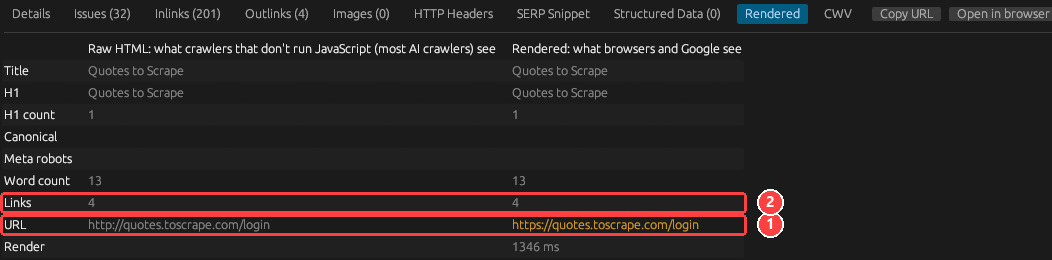
-
URL (orange): shown only when the browser ended on a different URL from the one requested (a JavaScript or meta refresh redirect,
pushState, or an upgrade to HTTPS). Here the browser openedhttp://quotes.toscrape.com/loginand ended onhttps://quotes.toscrape.com/login, because Chrome upgrades a site to HTTPS once it has seen its HSTS header. A change of scheme only is still treated as the same page, so the page is compared normally. -
Links: both versions have the same 4 links. Links are compared without their scheme, so
http://…in the raw HTML andhttps://…after the HTTPS upgrade count as the same link, and nothing is reported as "only after rendering".
One more list appears under the table when it applies: Links only in the rendered page (orange), the link targets that are in the rendered DOM but not in the raw HTML (up to 200 are stored per page). On a single-page application it typically shows menu and pagination links built by scripts. The quotes demo site builds its quotes with JavaScript but its links are plain HTML, so this list is empty there.
Two more things can appear at the top of the tab:
- A red error message when the page could not be rendered, for example Rendering timed out after 20s, Navigation failed: …, or The browser closed unexpectedly, so this page was not rendered.
-
JavaScript errors (red): every uncaught exception and
console.error()message the page logged.
If you open the tab for a crawl that was made without rendering, it says Not rendered. Turn on JavaScript rendering in Configuration > Spider settings, then crawl again.

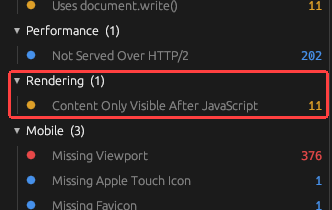
Rendering adds a Rendering category to the Issues panel. It only fills in for crawls made with rendering on; without rendering it shows Rendering (0). On the quotes crawl one check fires: Content Only Visible After JavaScript on the 11 /js/ pages, whose quotes are written by JavaScript.
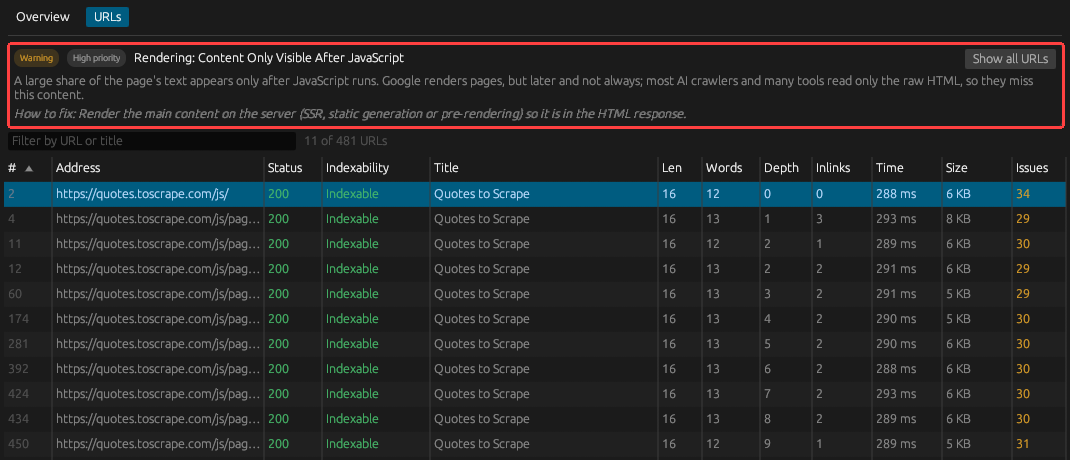
Click a check to see its description, how to fix it, and the affected URLs:
The comparison checks (the first six) only compare an internal page that answered 200 and rendered successfully. A render that ended on a different host or path (a meta refresh or JavaScript redirect) is a different page, so it is not compared; a change of only the query string or fragment, or of http to https, still counts as the same page.
| Check | Type / priority | What it means | How to fix |
|---|---|---|---|
Content Only Visible After JavaScript (render.content_js_only) |
Warning, High | At least 50 words, and at least a quarter of the rendered text, appear only after JavaScript runs. Google renders pages, but later and not always; most AI crawlers and many tools read only the raw HTML, so they miss this content. | Render the main content on the server (server-side rendering, static generation or pre-rendering) so it is in the HTML response. |
Internal Links Only in Rendered HTML (render.links_js_only) |
Warning, Medium | The rendered page has links to the same site that the raw HTML does not have. Links are compared without their scheme, so an http:// link that the browser shows as https:// (HSTS upgrade) is not counted. Crawlers that do not render cannot follow them, and Google discovers them later. |
Output navigation and internal links as plain <a href> elements in the HTML response. |
Title Changed by JavaScript (render.title_changed) |
Warning, Medium | The <title> after rendering differs from the raw HTML, so crawlers that do not render see a different title from Google. |
Serve the final title in the HTML response. |
H1 Changed by JavaScript (render.h1_changed) |
Warning, Low | The first H1 after rendering differs from the raw HTML (added, removed or rewritten). | Serve the final H1 in the HTML response. |
Canonical Changed by JavaScript (render.canonical_changed) |
Issue, High | The canonical URL after rendering differs from the raw HTML (added, removed or changed). Google may use either one; crawlers that do not render only see the raw one. | Put the correct canonical in the HTML response and do not change it with JavaScript. |
Meta Robots Changed by JavaScript (render.robots_changed) |
Issue, High | The meta robots directives after rendering differ from the raw HTML. Google applies the stricter of the two, so a noindex added or removed by JavaScript is unreliable. Order, spacing and letter case are ignored, so NOINDEX, follow equals follow,noindex. |
Serve the intended robots directives in the HTML response and do not change them with JavaScript. |
JavaScript Errors (render.js_errors) |
Warning, Medium | The page logged uncaught exceptions or console errors while rendering. Errors can stop content, links or tracking from loading. | Open the page with the browser's developer console open and fix the errors listed in the Rendered tab. |
Render Timeout (render.timeout) |
Warning, Medium | The page had not finished loading when the render time limit (Request timeout) ran out. Slow or never-ending requests delay rendering for Google too. ShoutingToad still reads whatever DOM there is. | Find the slow or hanging requests (scripts, APIs, third parties) and make the page finish loading quickly. |
Page Could Not Be Rendered (render.failed) |
Warning, Low | The browser could not render the page (navigation error or crash), so the rendered checks were skipped for it. | Open the page in a browser and check that it loads; read the error in the Rendered tab. |
The three browser-measured accessibility checks (Low Text Contrast, No Visible Keyboard Focus, Click Handlers Not Reachable by Keyboard) are in the Accessibility category and are explained on the Accessibility and WCAG report page. A related check that works without rendering, Content Invisible to AI Crawlers Without JavaScript (ai.js_only_content), estimates from the raw HTML alone when a page probably needs JavaScript; see AI search readiness.
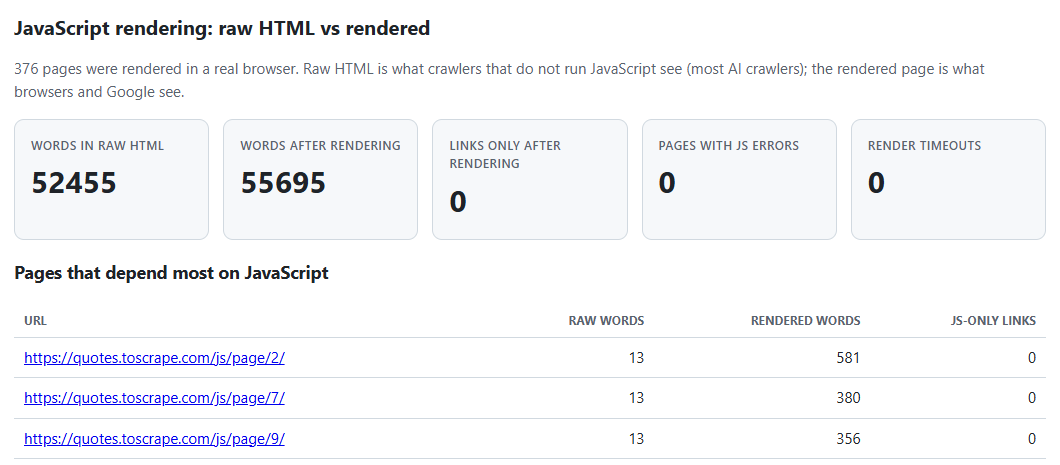
When rendering was on, the HTML audit report gets a JavaScript rendering: raw HTML vs rendered section: how many pages were rendered, totals for Words in raw HTML, Words after rendering, Links only after rendering, Pages with JS errors and Render timeouts, and a table of up to 25 Pages that depend most on JavaScript (raw words, rendered words, JS-only links), sorted by the number of words added by JavaScript.
internal.csv (Export → All URLs (internal.csv)…, and the command-line output) has three columns filled from rendering: Rendered Word Count, JS-only Links (links found only after rendering) and JS Errors (number of errors logged). They are empty for pages that were not rendered.
The rendered data is also saved in the .shoutingtoad crawl file, so the Rendered tab and the Rendering checks work again when you reopen the crawl later.
Rendering is much slower than plain crawling, because every page is loaded by a full browser, with its CSS, scripts and API calls (images excepted), and the browser waits for the page to settle. On the quotes demo site a 20-URL command-line crawl with 2 tabs ran at about 2 URLs per second, and the desktop crawl with 4 tabs at 2-3 URLs per second. A crawl without rendering is many times faster. It also uses more memory and CPU: each tab is a browser renderer process.
Tips:
- Crawl without rendering first. Find the structural problems quickly, then turn rendering on for a second crawl.
-
Limit the crawl with Max URLs or an Include pattern (for example only
/products/) in Spider settings, or audit a sample of templates with List mode. One rendered example of each template usually tells you what you need to know. - More tabs = faster, up to a point. Raise Tabs (and Threads, since tabs never exceed threads) on a powerful computer; lower them if your computer struggles or the site slows down. Remember that each tab loads the site's scripts and APIs, so rendering puts more load on the server than plain crawling.
- Timeouts: if many pages hit Render Timeout, the page is genuinely slow to finish loading (often a third-party script or a long-polling request). Raising Request timeout (s) gives the browser longer, but the real fix is on the site.
- Compare like with like. When you compare crawls, rendered and non-rendered crawls produce different Rendering and Accessibility results.
- The browser runs with a brand-new temporary profile in your system's temp folder (a folder named
shoutingtoad-chrome-…). It does not use your normal browser profile, so your bookmarks, history, cookies, saved passwords and logged-in sessions are not used and not touched. Pages are rendered as an anonymous first-time visitor. - Extensions, sync, translation, background networking, component updates, crash reporting and default apps are switched off for this browser instance.
- When the crawl ends (or you stop it, or close the app), the browser and all its helper processes are closed and the temporary profile folder is deleted. On Windows the browser runs inside a job object, so Windows closes it even if ShoutingToad crashes. Profiles left behind by a crash are cleaned up automatically the next time rendering starts (once they are more than an hour old).
- The DevTools connection is to
127.0.0.1only; nothing is exposed on your network. - Pages see the user agent from Spider settings, not your browser's own.
Do I need rendering to find content that depends on JavaScript? Not always. Without rendering, the AI Search check Content Invisible to AI Crawlers Without JavaScript flags pages whose raw HTML has fewer than 50 words but heavy scripts. Rendering confirms it and shows exactly what changes.
Rendering is on but nothing appears in the Rendered tab. The page was not an internal HTML page that answered 200, or the browser failed to start. Check the line under Browser in Spider settings.
Can I render with Firefox or Safari? No. Rendering uses the Chrome DevTools Protocol, which only Chromium-based browsers (Chrome, Chromium, Edge, Brave) support.
Does rendering change the normal checks? No. All normal checks still run on the raw HTML, as a non-rendering crawler would see it. Rendering adds the Rendering checks, the browser-measured accessibility checks, and links found only after rendering.
- Accessibility and WCAG report: the contrast, focus and keyboard checks rendering makes possible.
- AI search readiness: what AI crawlers can fetch and quote.
- Spider settings · URL inspector · Checks reference