Multiple servers
One BakaLoader window can run several servers. Each one is a profile with its own settings, its own world, its own ports and, if you want, its own copy of the install and its own mods.
There is one wrinkle worth knowing before anything else on this page. At launch BakaLoader opens a window for every profile with Autostart on, so two auto-starting realms means two windows, each sitting on one of them. It is still one application behind both, which is why an update waits for every server in every window rather than only the one in front of you.
The chips down the left of the sidebar are your servers. Click one to switch.

+ in the sidebar opens the new server form.
Realm name has to be unique. It is what the profile is called, not necessarily what the server advertises.
World defaults to a safe version of the name. Leave it and a new world is created with that name.
World seed only applies to a world that does not exist yet. A world's seed is fixed forever once it is created.
Three switches, all on by default.
Separate install (own mods) gives this server its own copy of the install so its mod set is independent. See below for what that actually means on disk.
Copy this server's mods to start seeds the new install with the mods the current server has. It turns itself off when Separate install is off, because there would be nothing to copy into.
Separate save folder (own worlds/backups) puts this server's worlds in <save folder>\servers\<name> instead of the shared one.
Ports are picked for you and the field note shows what they will be. Forge realm creates it.
A new profile never has Autostart on, so a server you just made never surprises you by starting on the next launch.
BakaLoader does not copy the whole 2 GB game. It builds a new folder and fills it selectively.
Every top level folder except BepInEx is a Windows directory junction pointing at the original: valheim_server_Data, MonoBleedingEdge and the rest. Those are the big read only game files and they are never duplicated.
Inside BepInEx, core and patchers are junctions too. plugins, config and everything else are real copies. cache always starts empty, because it is keyed to the plugin set.
The loose files in the root, including the exe itself, are hard linked if they are on the same drive, or copied if not.
So two servers with separate installs share the game and share nothing that matters: installing a mod on one never touches the other, and each has its own configs.
One honest exception, worth knowing before you remove anything. Because patchers is a junction and not a copy, there is only one of it behind all of your separate installs. A patcher mod sitting in there is there for every server, and removing a patcher mod on one server removes it for all of them. Plugins, configs and cache are real per server copies and behave the way you would expect. See Patcher mods.
With separate install off, the profile points straight at a shared install. That does mean shared mods and shared configs, and the collision check will tell you so.
Valheim uses the port you give it and the one above it. So game ports need to be at least 2 apart.
BakaLoader picks free ones for you: it starts at 2456 and walks up in steps of 2 until neither that port nor the one above it is used by another profile. RCON ports start at 25575 and walk up past anything already taken.
While you edit a profile, a live check warns about overlaps without blocking you:
"Game port 2456 overlaps 'Final Sunset' (uses 2456-2457). Space game ports at least 2 apart."
Two profiles on the same RCON port, two profiles pointing at the same install ("Shares its install (valheim_server.exe) with 'Final Sunset', so their mods and configs would collide. Give this realm its own install."), and two profiles pointing the same world name at the same save folder all get their own warning.
Right click a server chip.
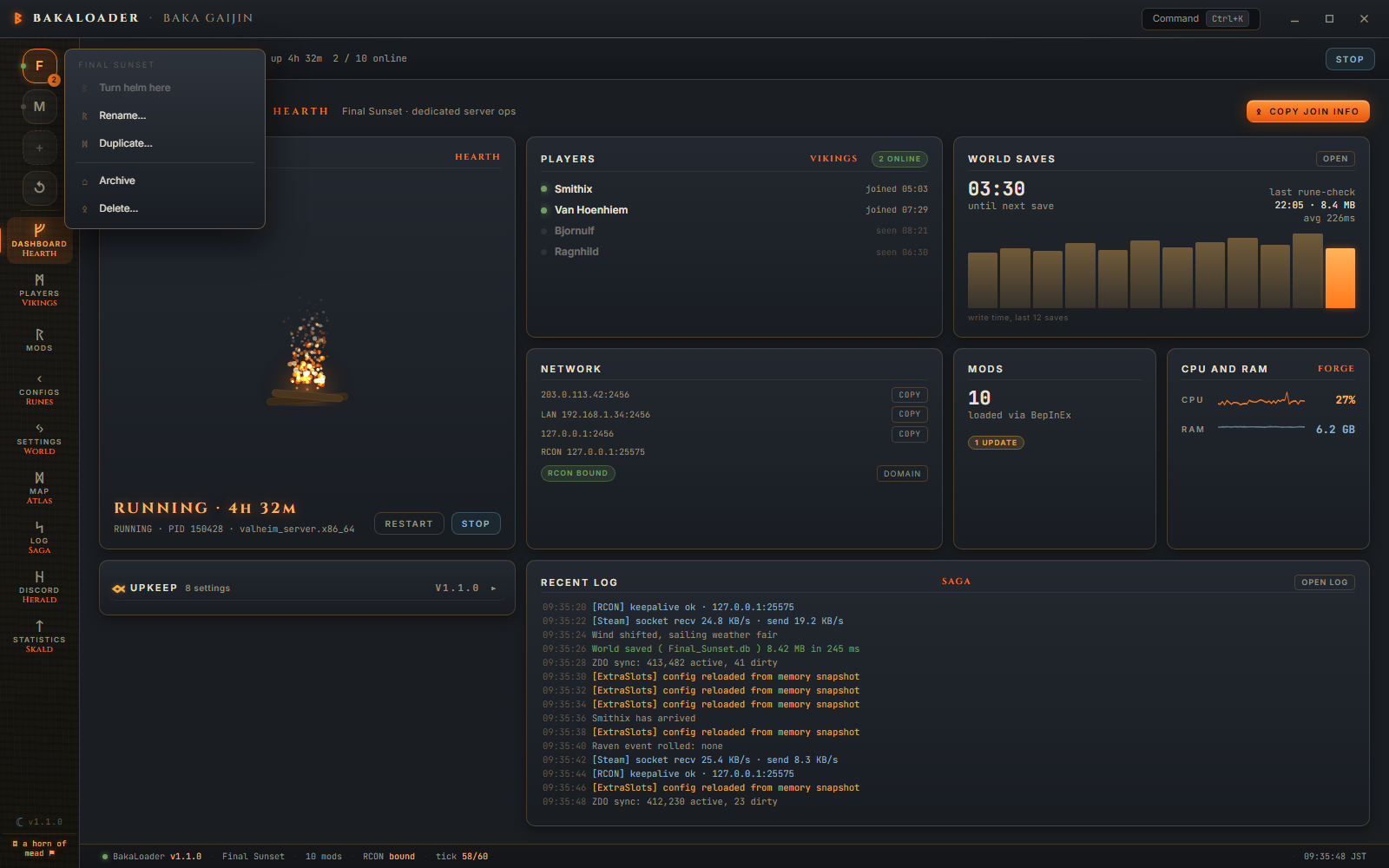
Turn helm here switches to it. Greyed for the one you are on.
Rename… renames the profile. Needs it stopped.
Duplicate… opens the new server form seeded from this one.
Archive hides it from the sidebar without deleting anything. Needs it stopped.
Delete… opens the delete dialog. Needs it stopped.

By default it removes only the saved settings, and says so: "By default this removes only the saved settings. The realm can be re-adopted later from its world files."
If the profile has isolated files, a red switch offers to take them too: "Also delete this realm's isolated worlds, backups & install", with an exact file count and size underneath.
A profile that shares its install has nothing isolated to remove, and the dialog says that instead.
BakaLoader refuses to delete the last remaining server. Archive it instead. It also refuses if another profile's worlds live in the same save folder, and it names the other profile.
When it does delete an isolated install, junctions are unlinked rather than followed, so the shared game files behind them are never touched even though they appear to live inside the folder being deleted.
The arrow under + opens the restore dialog.

Archived realms can be restored with one click, or deleted from here.
Past worlds on disk are worlds no profile currently owns. The note says what happens: "Worlds no realm currently owns. Bringing one back makes a fresh isolated server. The original files are left untouched."
Bring back asks for a new realm name, offers to copy the current server's mods into it, and reminds you that the world files are copied and the original stays put.
If there is nothing to restore you get a toast rather than an empty dialog: "Nothing to restore: no archived realms or past worlds found."
Nothing stops you. Start one, switch chips, start the other. The header strip and the chips both show which are up.
Practical notes from people who do it: give each its own ports and its own save folder, keep an eye on RAM because that is the resource Valheim actually eats, and remember that a server update is refused while a profile is running, and only one update at a time can run against one install folder.
If two profiles share an install folder, only one update can touch it at a time, and that is enforced.
Updating BakaLoader means closing BakaLoader, and every Valheim server it started is a child of that process, so an update while a world is up would take the world down with it.
Since 1.0.7 the question the update asks is whether any server anywhere in the app is busy, not just the server in the window you clicked from. Busy means more than Running: a server that is stopped with a relaunch already scheduled, a crash recovery waiting out its delay, a launch the guard has not answered yet and a held launch with a retry armed all count. A Valheim server update counts too, so a steamcmd run against any profile's install holds the app update as well.
Before 1.0.7 that check read only the sessions belonging to the window it was asked in. A second window whose own profile was stopped answered "nothing is running" while the first window had a live world, and the update went ahead on that answer.
When an update does run, every window is asked to close and the app exits fully, so the file swap starts from a stopped install. Each window shuts its own servers down the graceful way on its way out, world saved first, rather than leaving them to be killed when the process ends. Before 1.0.7 only the window you clicked in closed, the app stayed up because another window was still open, and the swap ran against files the app was still holding: the unlocked files were replaced, the locked exe was not, and what was left on disk was half one version and half the other.
You have Final Sunset running on 2456 and you want a second server for a fresh world.
Press +. Name it Proving Grounds. Leave the world blank so it takes the name. Leave all three switches on. The note says it will use ports 2458 and 25576. Press Forge realm.
BakaLoader builds an isolated install, junctions the game data, copies the plugins from Final Sunset, and makes ...\Valheim\servers\proving-grounds for its worlds.
Switch to the new chip. Open Settings, set a password, save. Press Start. Both servers are now up, on separate ports, with the same mod set and separate configs.
Update a mod on one and the other keeps the version it had.
Can I run servers with different exe names, like valheim_server2.exe? Yes. Each profile has its own Server Executable path and it does not care what the file is called. Give each its own game port and RCON port.
How many can one machine run? Valheim's dedicated server is light on CPU and heavy on RAM. A fresh world is around 2 GB. An old, heavily built world with ten players can be 10 to 12 GB. Count in RAM, not cores.
Do they share mods? Only if you turn off Separate install. With it on, each has its own plugins and configs. Patcher mods are the exception, because BepInEx\patchers is shared by junction.
Can I move a world between profiles? Copy the world files into the target profile's worlds_local with the server stopped, or use Bring back on a world no profile owns. See Worlds, backups and restore.
What happens to a running server when I switch chips? Nothing. Switching changes which one the screens are showing. It does not start or stop anything.
Why did BakaLoader open two windows? One per profile with Autostart on. Turn Autostart off in Advanced on the Settings screen for any realm you would rather start by hand.
The update says a server is still running and the one I am looking at is stopped. Check the other window. The update waits for every server in the app, and it also waits for a Valheim server update and for a relaunch that is scheduled but has not fired yet.