Repository navigation
Home
A portable speech studio for Windows, powered by its own WSL2 Linux distro. Generate speech, manage engines and voices, create subtitles, and edit audio in a desktop window. A Windows CLI and authenticated HTTP API are included.
Distro source: aivrar/portable-linux-in-a-box. This TTS app originated as a child of Portable Linux in a Box; the public V2 runtime is rebuilt from clean Ubuntu with the speech dependencies bundled.
19 speech engines plus Whisper: Kokoro, XTTS v2, F5-TTS, Chatterbox, Fish Speech, Bark, Dia, Higgs Audio, Qwen Omni, VibeVoice, SpeechT5, Parler-TTS, OuteTTS, VITS, Edge TTS, Voxtral, VoxCPM2, Sesame CSM, and Orpheus. See the engine catalog for voice cloning, languages, and hardware requirements.
Download the portable release · Follow the illustrated quickstart · Browse the complete manual
- Use Windows 10/11 x64 with WSL2 enabled. Python, .NET, WebView2, Linux dependencies, and Kokoro are bundled. A GPU is optional; GPU use needs the Windows NVIDIA driver.
- Download Download-TTSServer.exe and open it. Choose a local folder. It downloads the complete release, checks SHA256 hashes, extracts the app, and launches it. The download is about 6.3 GiB.
- Allow at least 35 GiB free for downloads and first setup. After verifying the app works, remove
.tts-downloadto reclaim download cache space. GitHub's automatic Source code ZIP contains source only. - For later starts, double-click TTSServer.exe in the app folder. Startup progress and errors appear in a window. First launch imports the bundled Linux image. WSL installation can require administrator approval and a reboot; the downloader does not enable Windows features.
- In Server, select Kokoro 82M, choose CPU or a GPU, and spawn a worker. In Testing, choose a built-in voice, enter text, and generate.
Kokoro works offline. Other engines install into this portable copy when selected and need internet for their downloads. Gated models require your Hugging Face access. Edge uses an online service; optional Whisper transcription weights download separately.
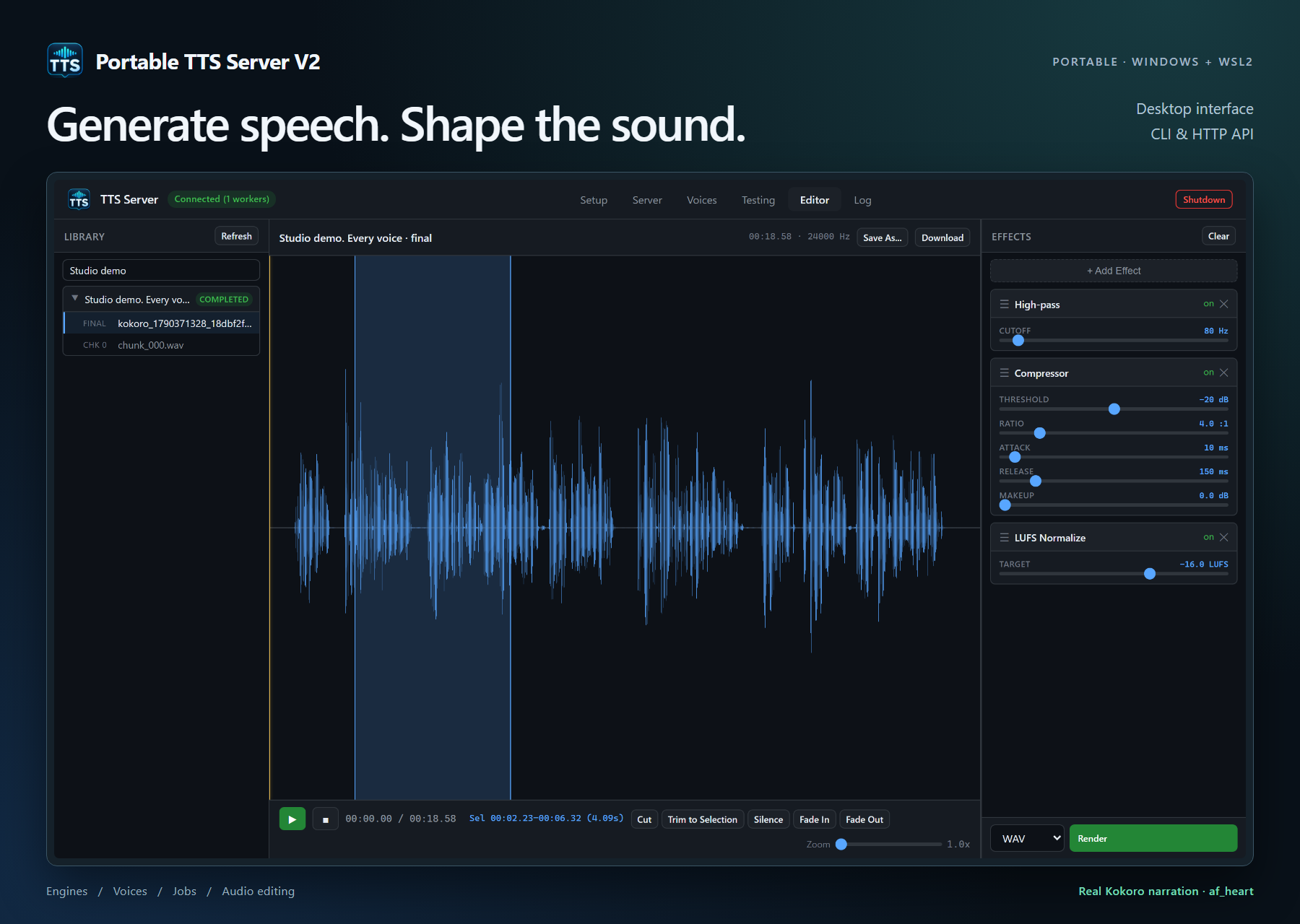
Follow the illustrated first narration for screenshots of generating speech, loading the waveform, applying effects, and saving an edit.
| Task | Pages |
|---|---|
| Install and start | Requirements · Start and stop · Storage and ports |
| Use the desktop | Overview · Setup · Server · Voices · Testing · Editor · Log and Shutdown |
| Choose an engine | Engine workflow · All 20 engines |
| Work with audio | Jobs and projects · Audio editing · Subtitles and Whisper |
| Automate | Windows CLI · HTTP API |
| Maintain or troubleshoot | Diagnostics · Troubleshooting · A to Z |
Run Stop-TTSServer.cmd first. When it confirms the disk is released, copy the entire app folder, including wsl/ext4.vhdx, voices, projects, and settings.
If WSL keeps the disk locked, use the transfer helper from the app folder:
.\Copy-TTSServer.ps1 -Destination 'D:\Portable-TTS-Server-V2'This preserves the original and transfers its Linux state without stopping unrelated WSL apps. See portable storage and transfer for space, startup, and snapshot cleanup instructions.
The eight app screenshots and repository hero show a real Kokoro workflow. GPU names and timings are examples from the capture session. See screenshot notes for captions and capture details.
Maintainers can read building a release and the source repository. The source manual also ships with the portable app for local reading.