-
Notifications
You must be signed in to change notification settings - Fork 1
en How to Create Meeting Notes Distiller Using MCP
Turn meeting transcripts into structured notes and action items. This guide creates the Meeting Notes Distiller prompt from Arthur's template catalog, sets up a blank MCP server, and links the prompt so any connected AI client can use it.
-
Go to Prompt Templates and search for Meeting Notes Distiller.
Open the Prompt Templates catalog.
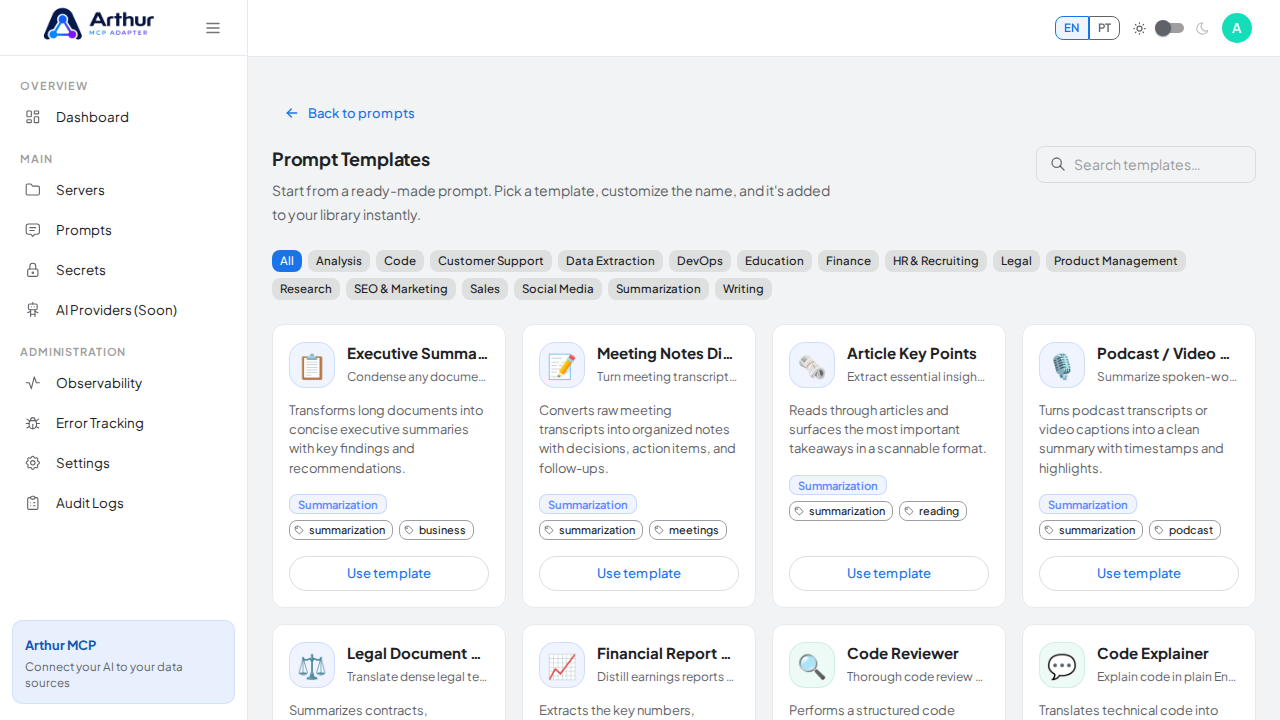
Search the catalog for the Meeting Notes Distiller template.
-
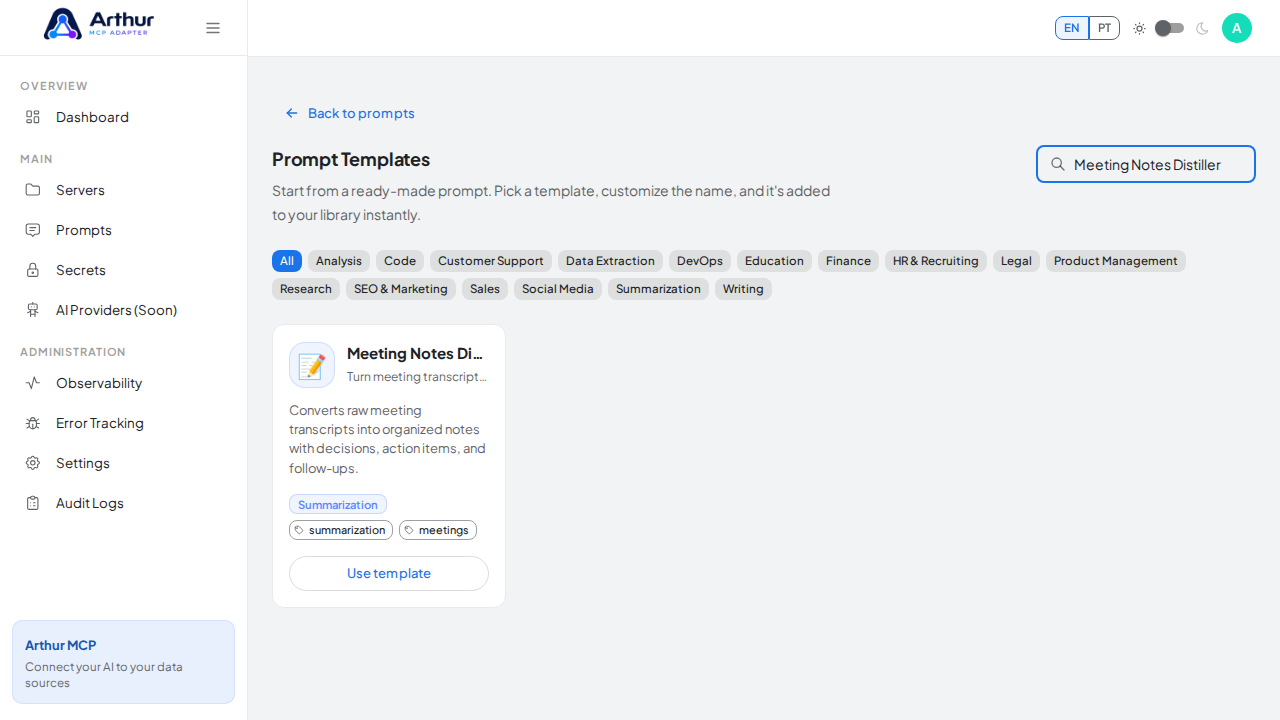
Click Use template on the Meeting Notes Distiller card and review the prefilled name, description, and content preview.
Open the Meeting Notes Distiller template with its prefilled name and content preview.
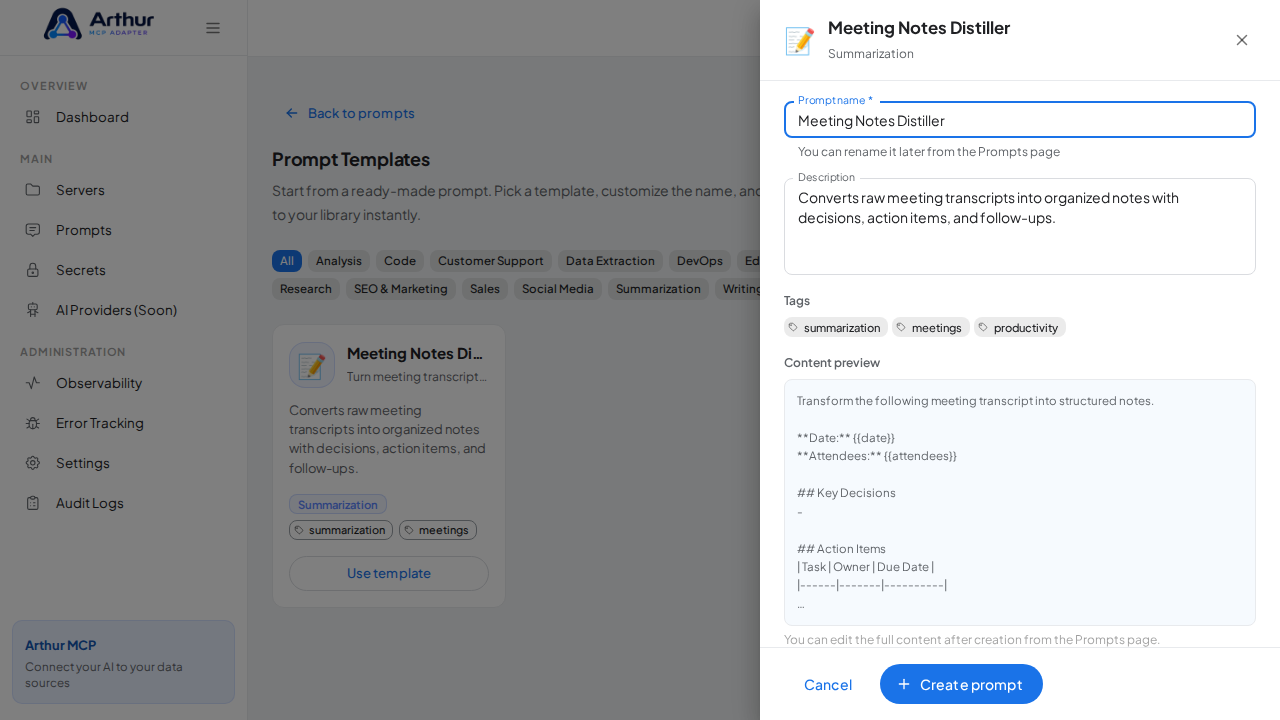
Create the Meeting Notes Distiller prompt in the shared library.
-
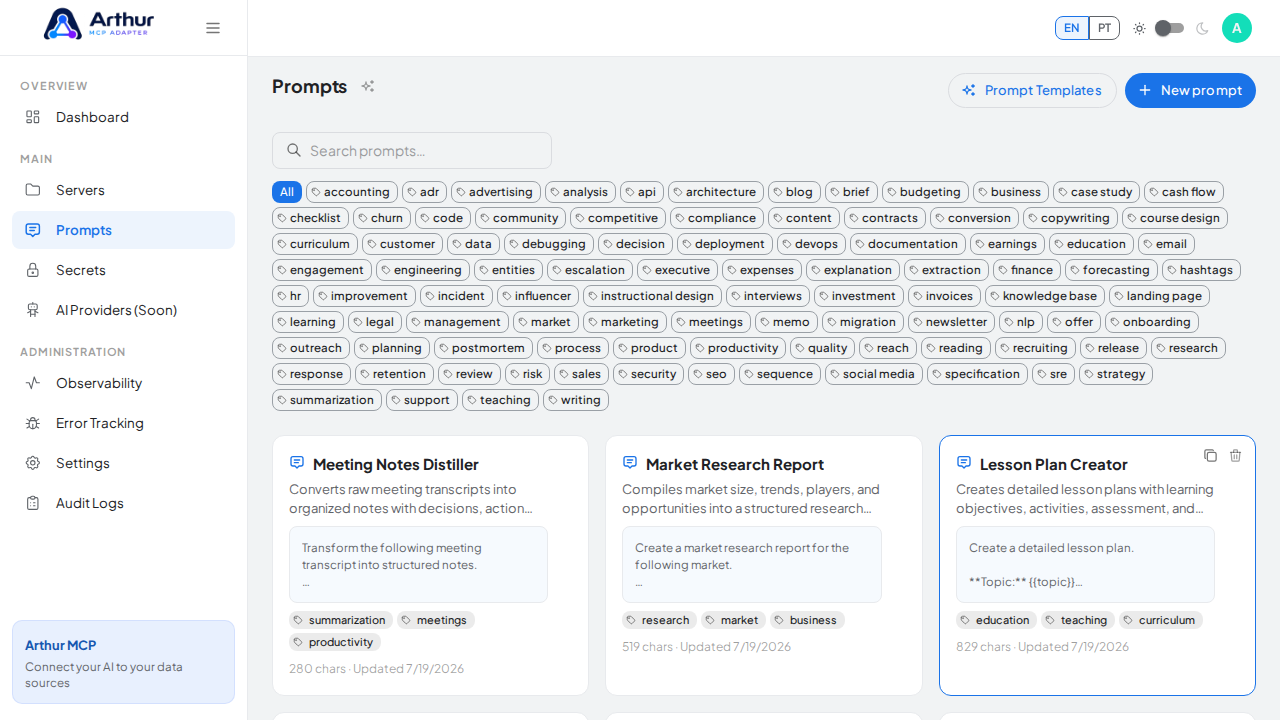
Click Create prompt — the prompt is added to your shared library.
Start creating the MCP server that will expose the prompt.
-
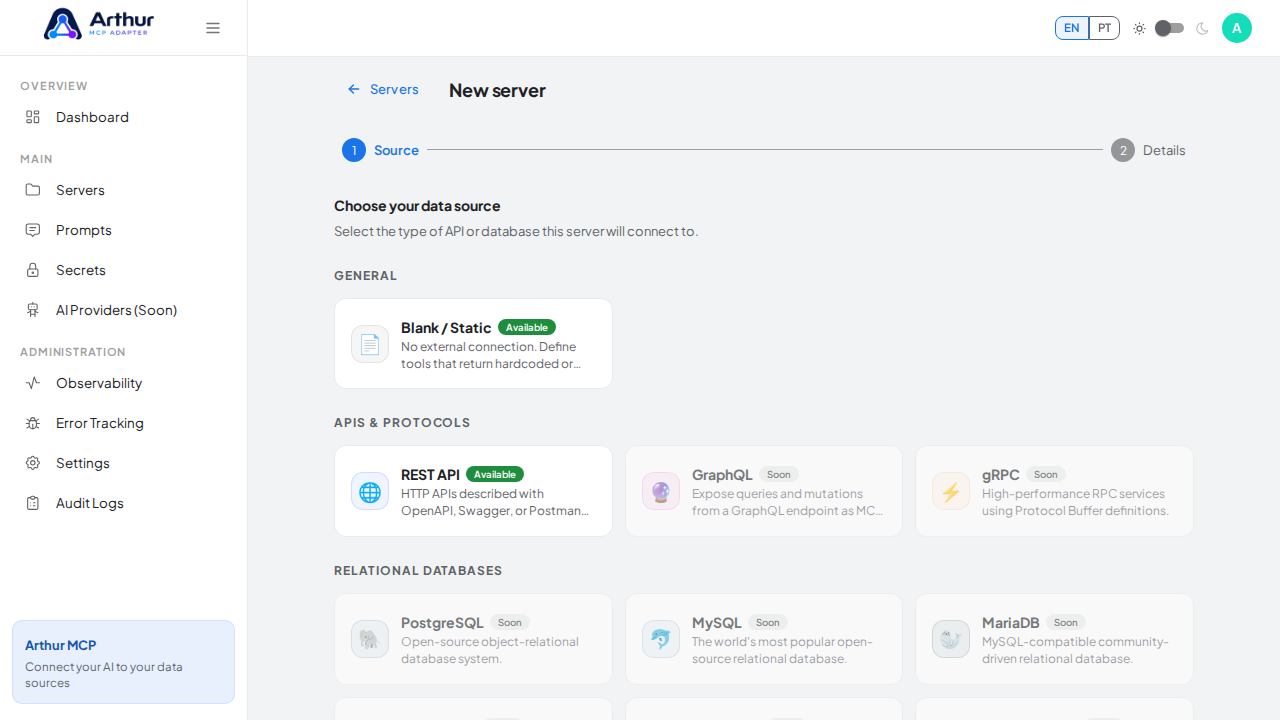
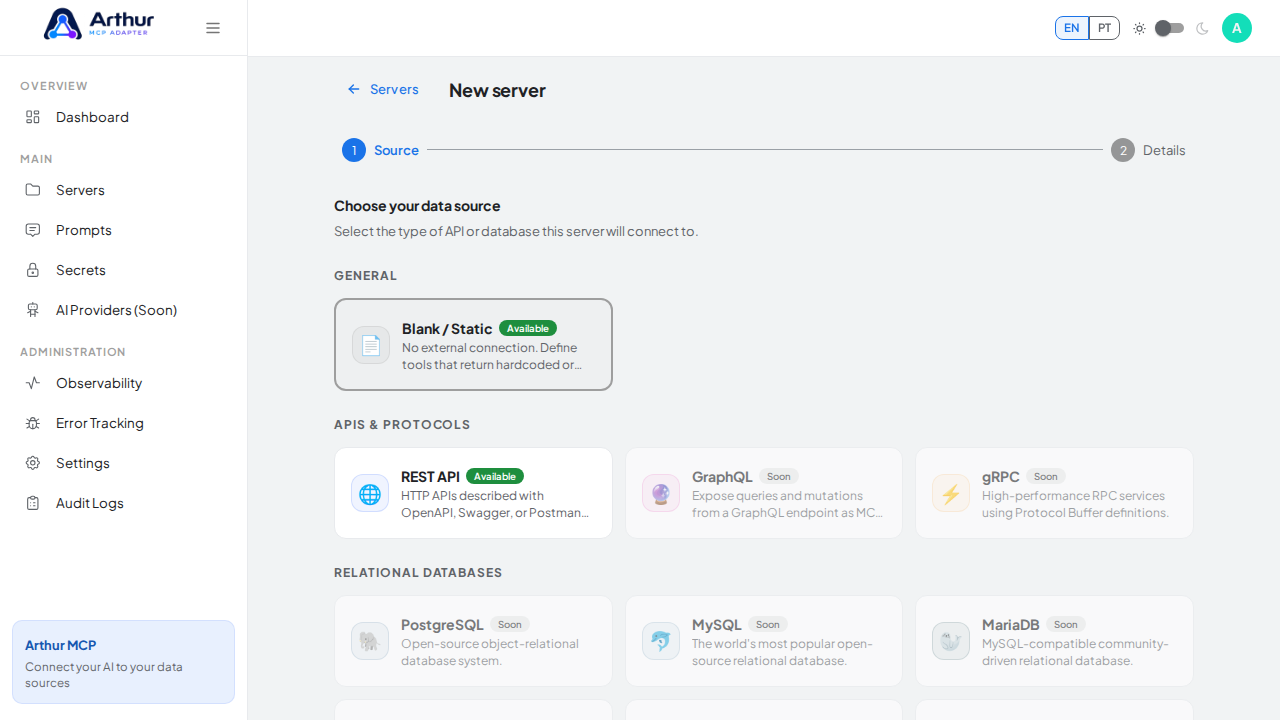
Go to New server, choose Blank / Static as the source, and click Next.
Choose the Blank / Static source — no external connection is needed for a prompt-only server.
Advance to the server details step.
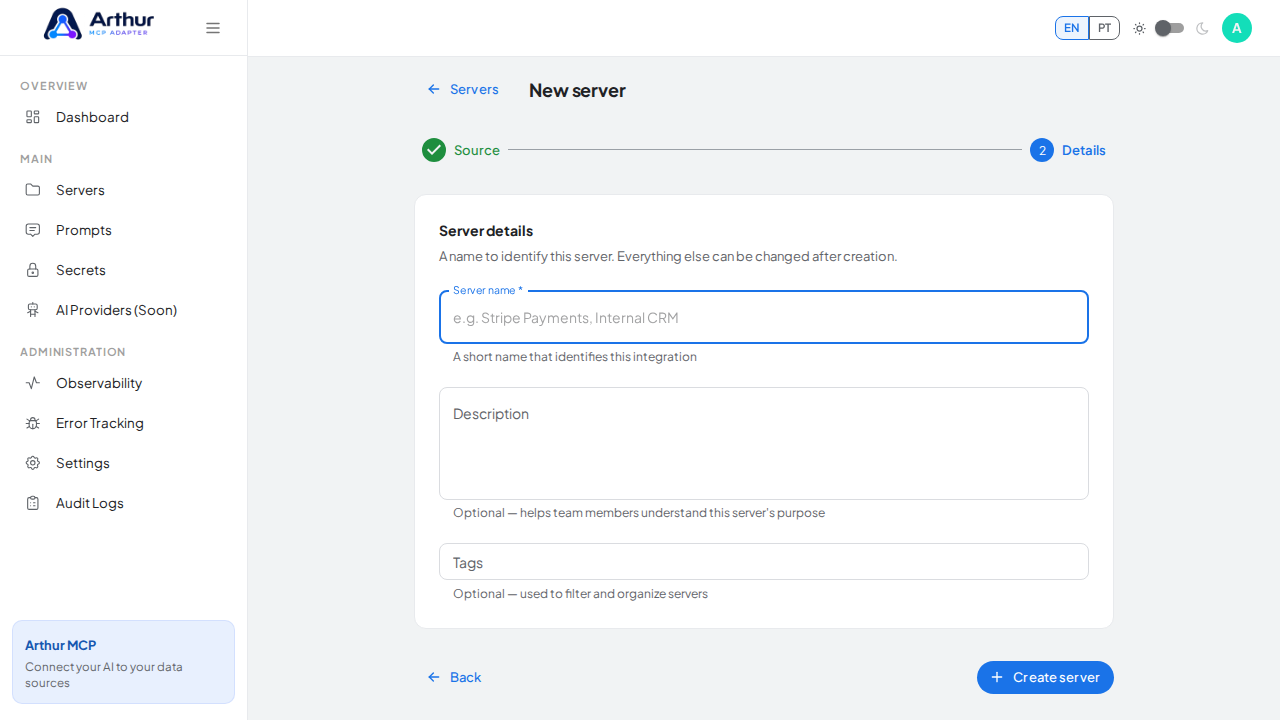
Name the server after the prompt it will expose.
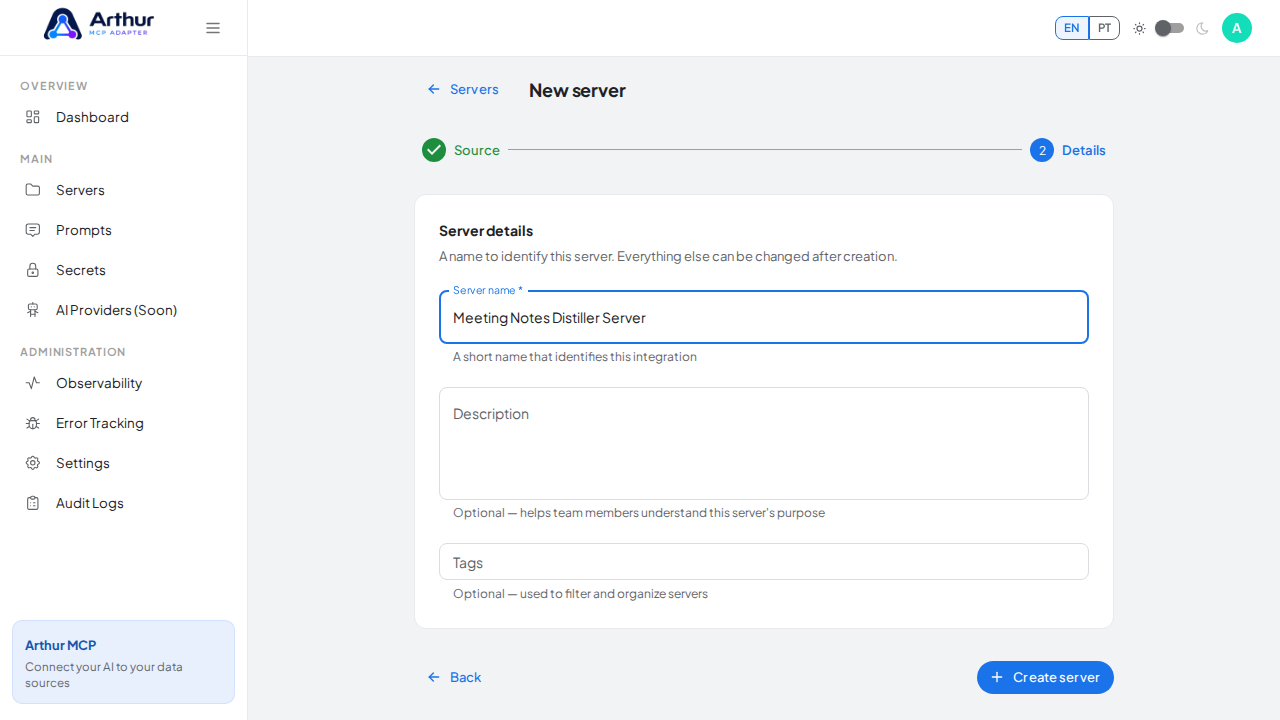
Create the blank MCP server.
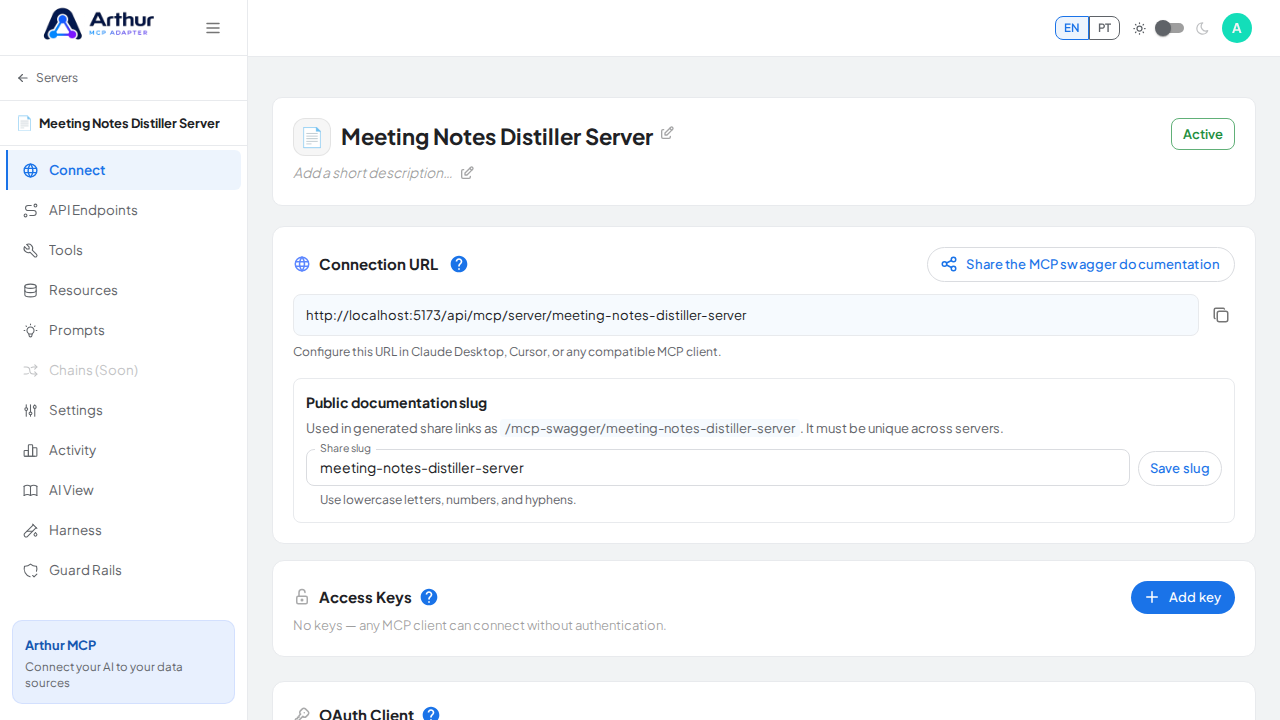
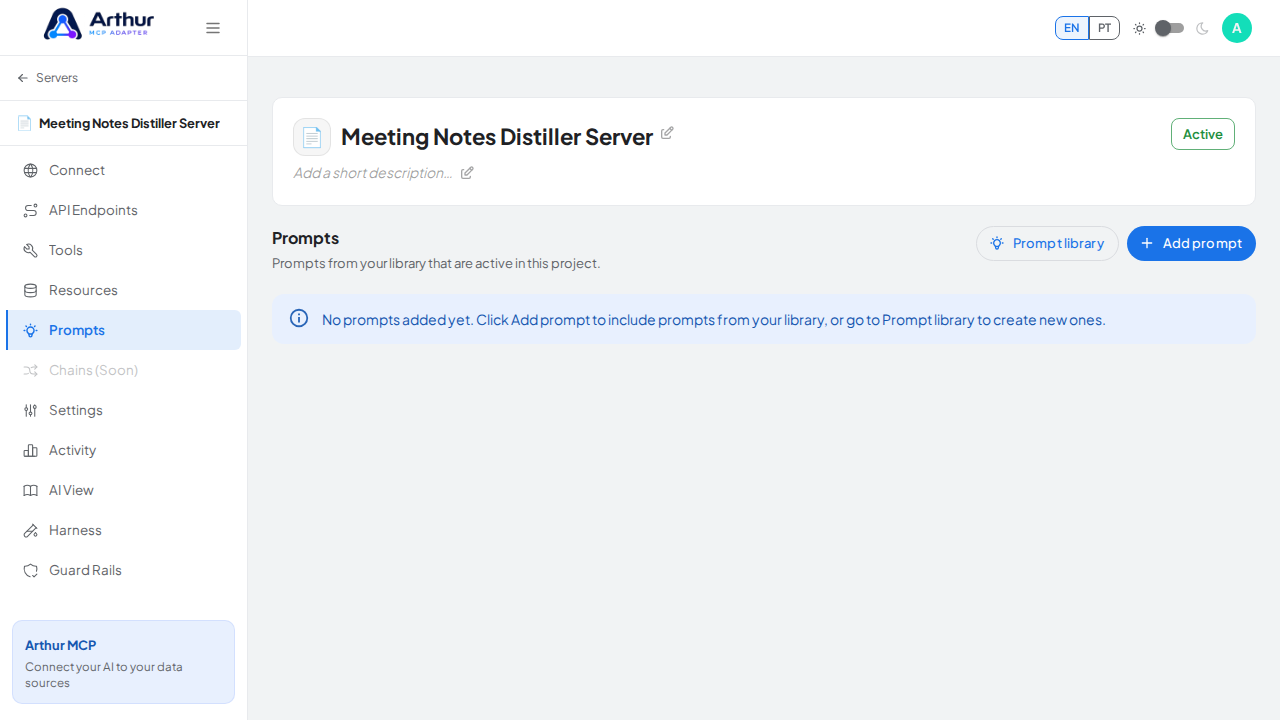
Open the server's Prompts tab.
-
Name the server (for example, Meeting Notes Distiller Server) and click Create server.
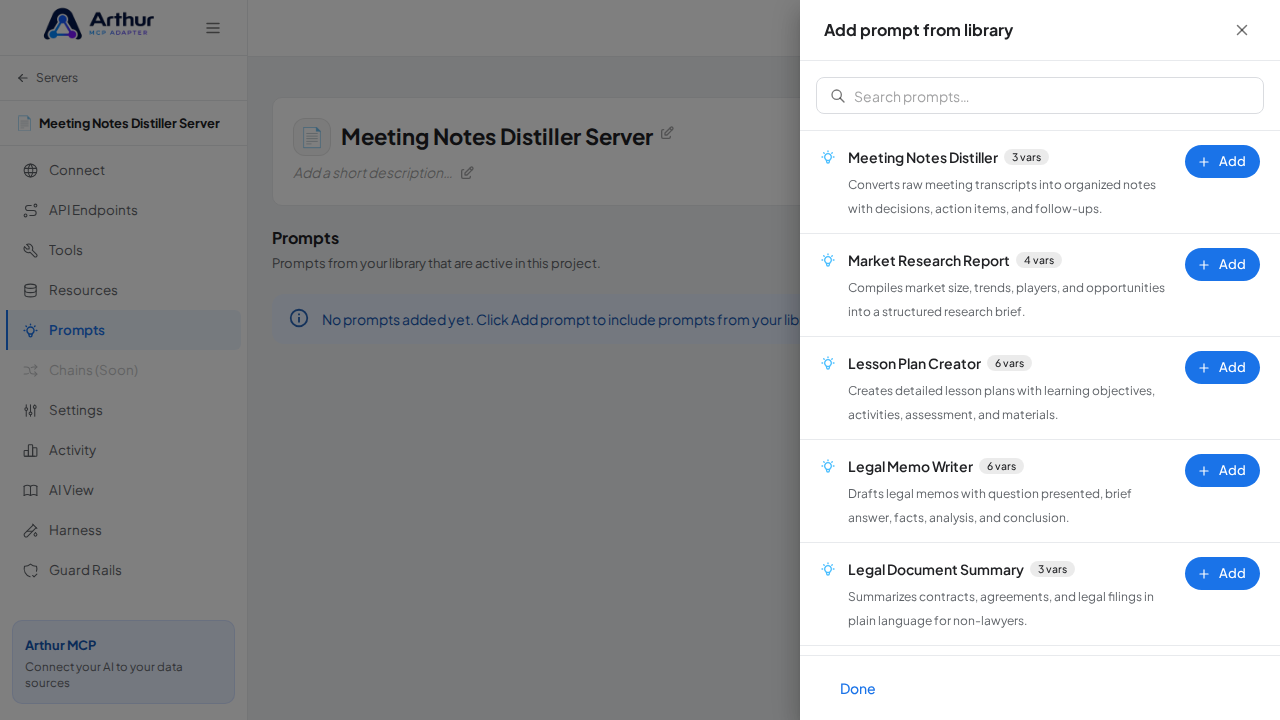
Open the prompt-library picker.
-
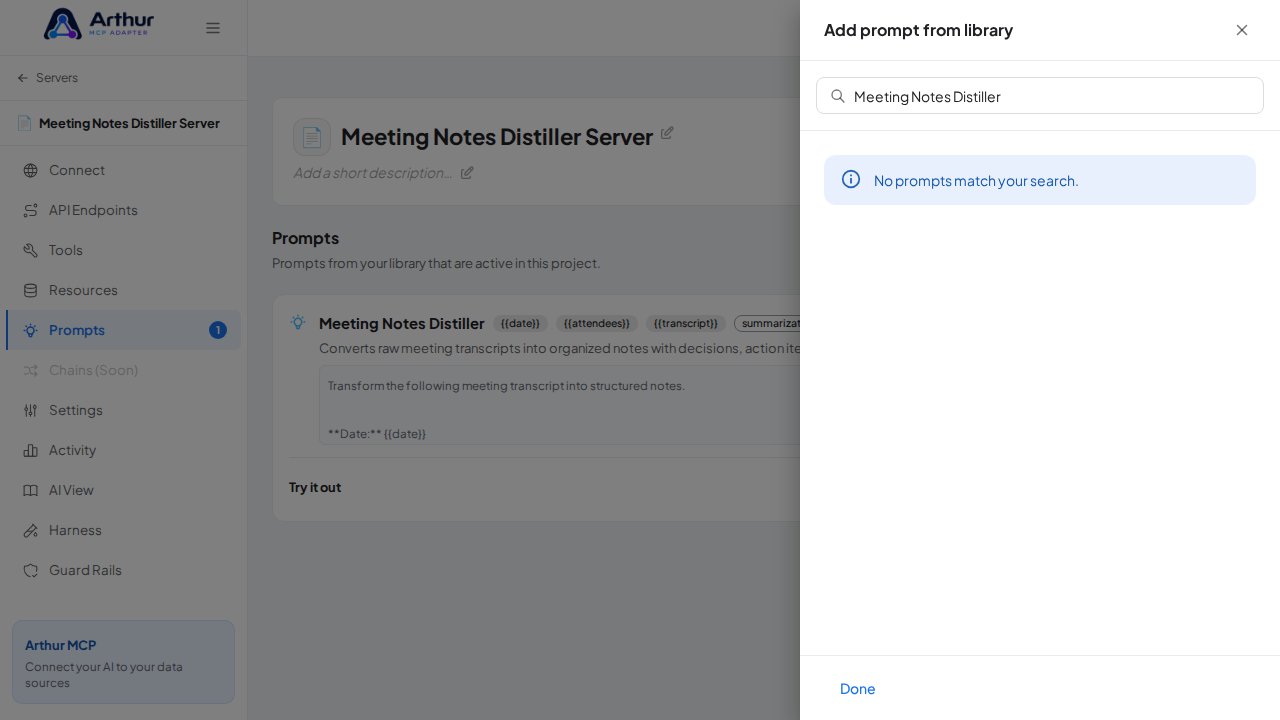
On the server's Prompts tab, click Add prompt, search for Meeting Notes Distiller, and click Add.
Search the library for the Meeting Notes Distiller prompt.
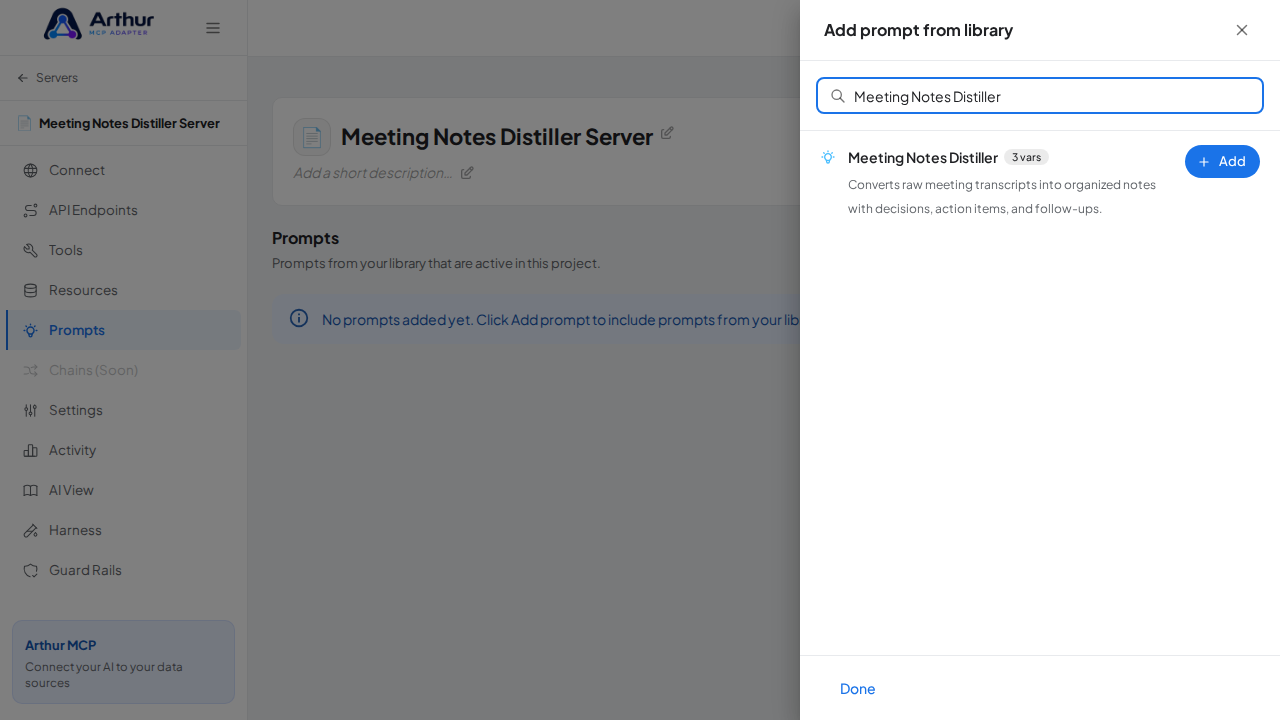
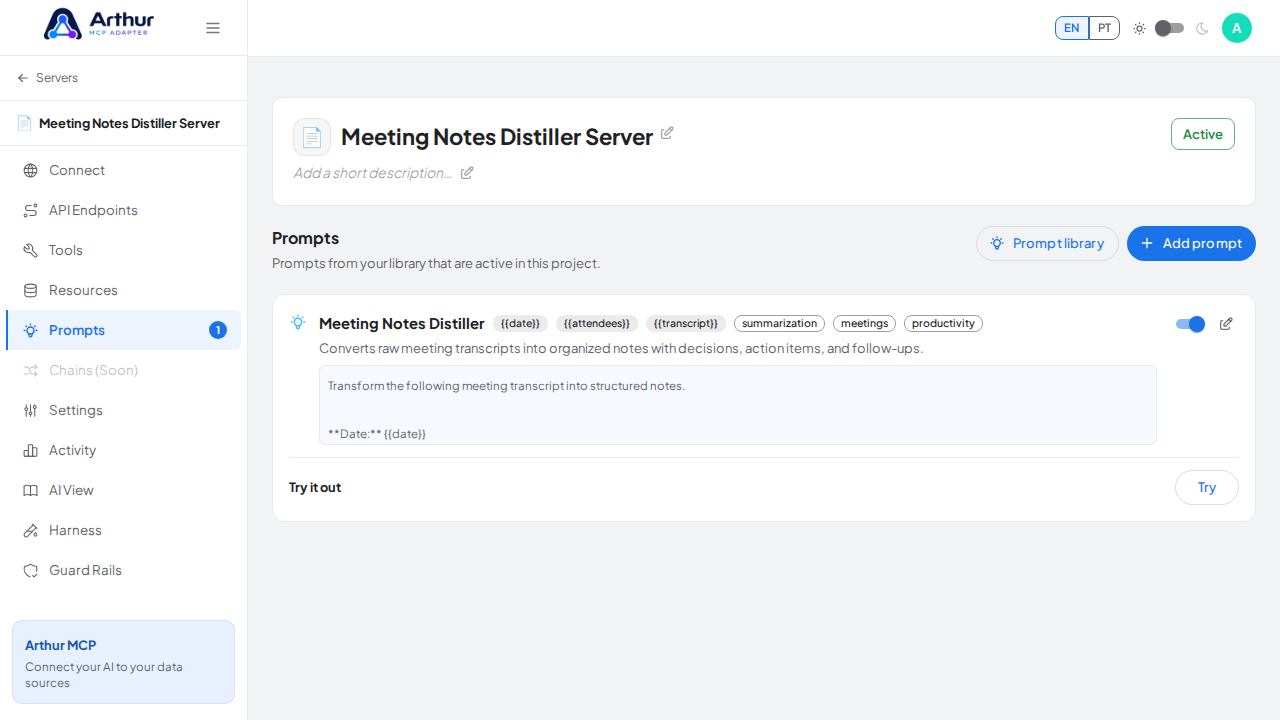
Link the Meeting Notes Distiller prompt to the server.
Close the picker and show the linked prompt on the Prompts tab.
-
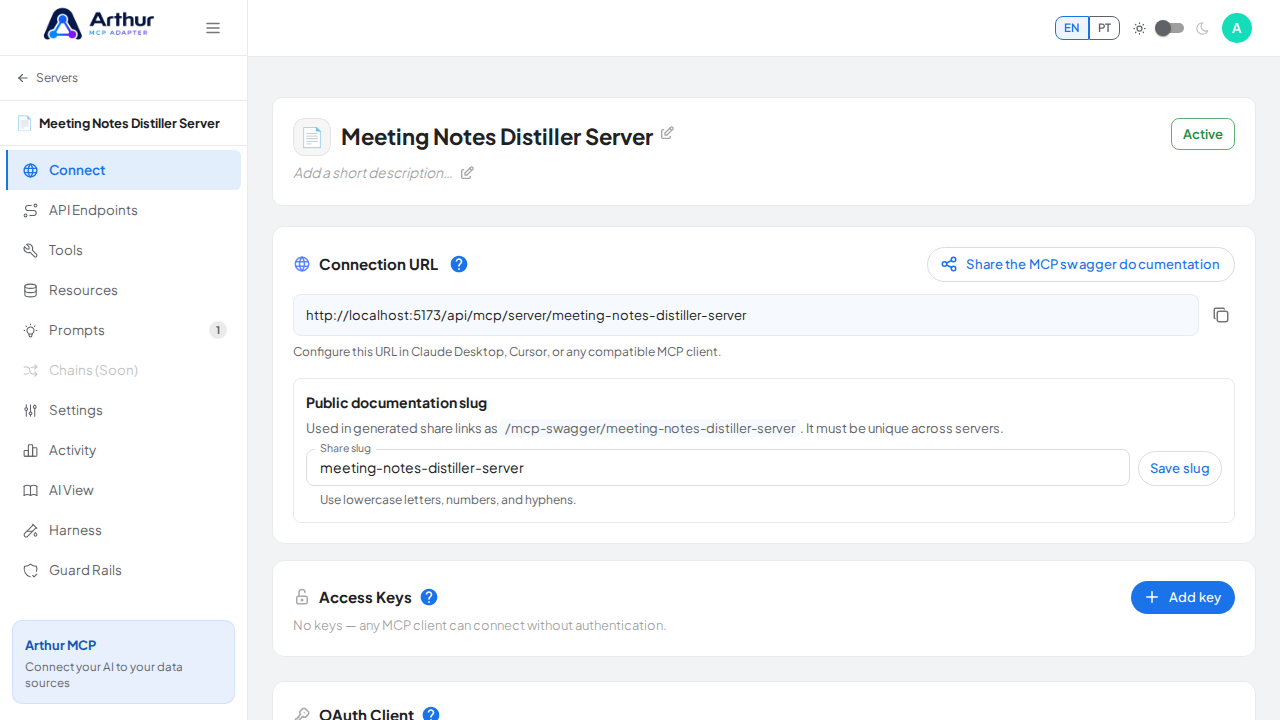
Open the server's Connect section and click Share the MCP swagger documentation — Arthur generates the public documentation link and QR code for this server.
Open the server's Connect section, where the MCP endpoint and its documentation live.
Open the MCP swagger documentation share panel.
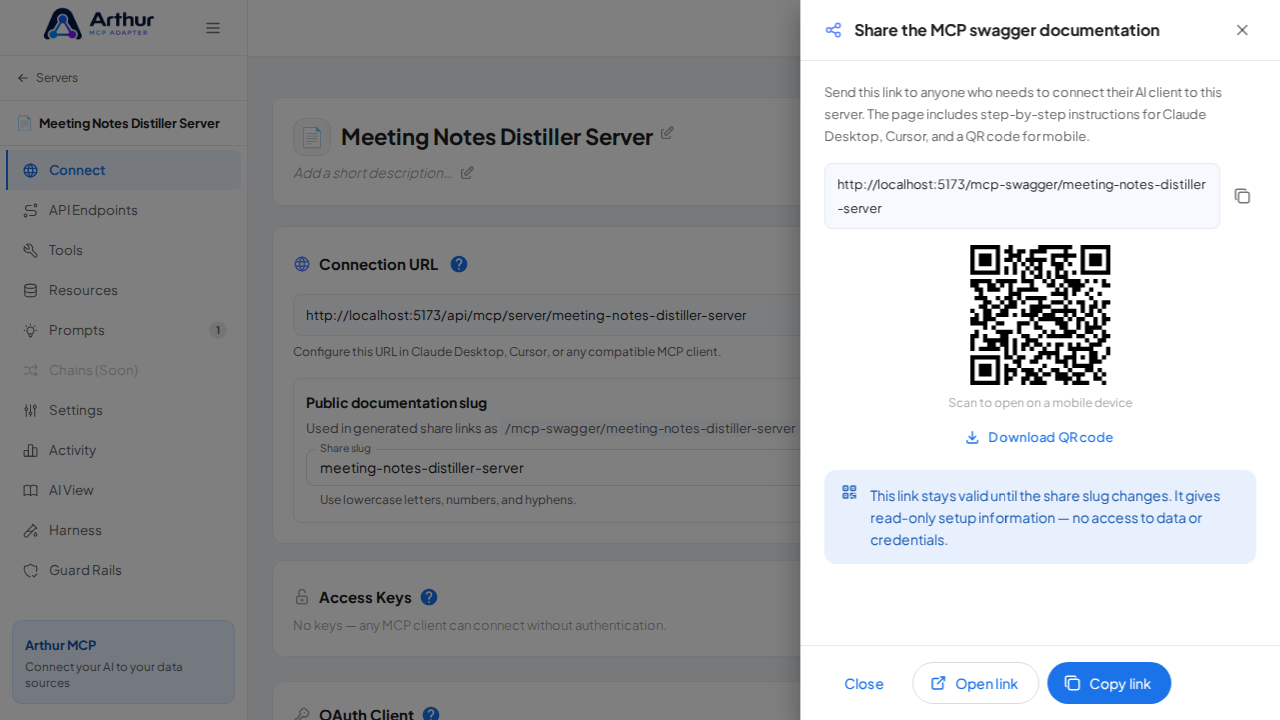
Show the generated swagger documentation link and QR code for this server.
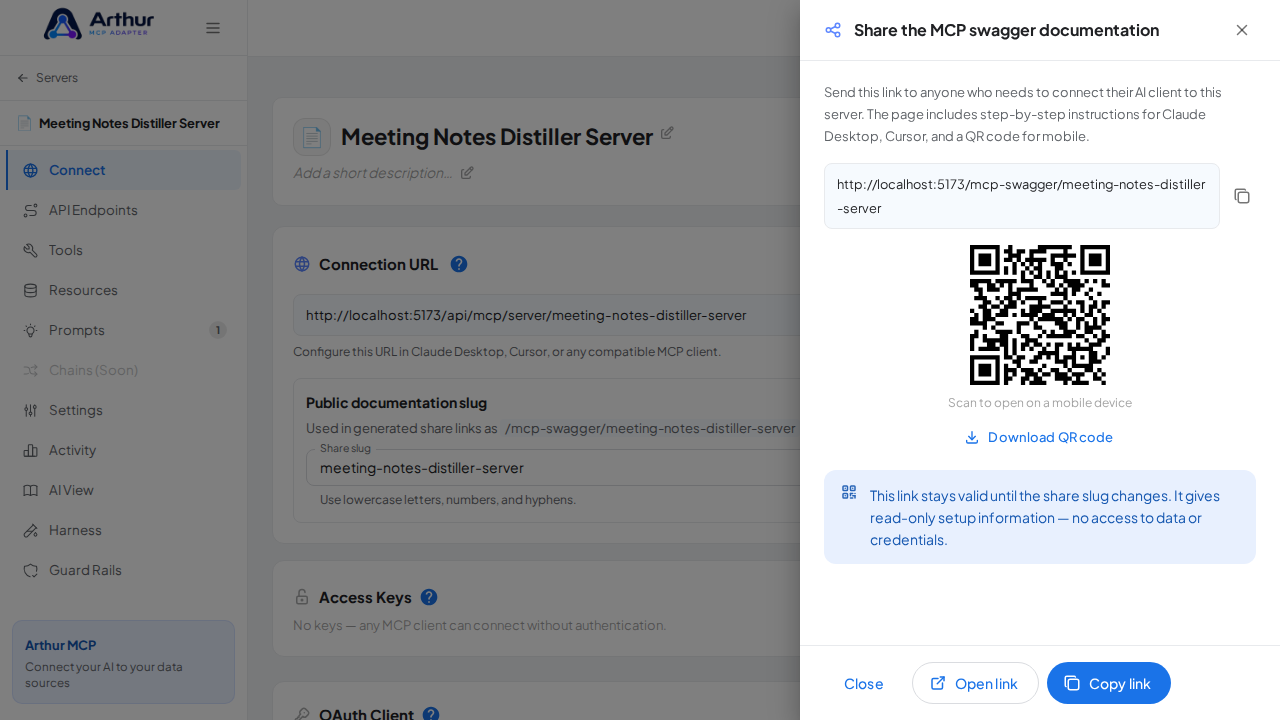
The Meeting Notes Distiller prompt appears on the server's Prompts tab, and the Connect section offers the server's MCP swagger documentation — a shareable page with setup instructions for any AI client. A connected client can now fetch the prompt through this server.
- Converts raw meeting transcripts into organized notes with decisions, action items, and follow-ups.
- Arguments detected from the template:
{{date}},{{attendees}},{{transcript}}— callers fill these in when invoking the prompt. - Editing the prompt in the shared library updates it on every server where it's linked.
Arthur MCP Wiki
Home · Getting Started · FAQ
⚙️ Features
Servers & Tools
Security & Access
Platform
Operations
Coming Soon
📚 Guides (46)
Connect AI Clients
Security & Access
- Configure API Credentials
- Configure Secrets
- Create a Custom Role
- Generate an Access Key
- Protect a Server with an Access Key
- Rotate the JWT Signing Secret
- Share a Server Publicly (and Revoke Access)
- Store and Reference a Secret
Harness & Limits
- Configure Execution Hooks
- Configure Input Constraints
- Configure Multi-Tenant Parameters
- Configure Output Filtering
- Configure Request Limit
- Configure Response Limits
- Configure Retry Policy
- Configure Timeout Settings
- Configure Tool Restrictions
- Set Global Request Headers
Platform & Operations
- Configure AI Providers
- Connect an Error Tracking Provider
- Enable Error Alerts
- Import the Grafana Dashboard
- Set Up Error Alerts
Tools, Resources & Prompts
- Add HTML Output to a Tool
- Add a Resource
- Build a Chain
- Create Prompts
- Create a Resource
- Create a Tool
- Create an HTML Template in a Resource
- Create and Link a Prompt
- Return an HTML Template from a Tool
- Test a Tool
- Use AI-Assisted Tool Generation
Servers & Import
🔌 API Integrations (230)
AI (28)
- AI/ML API
- Anthropic (Claude)
- Chatwith
- Clarifai
- Cohere
- CustomGPT.ai
- Dialogflow
- Eden
- ElevenLabs
- Gladia
- Groq
- HOL Registry Broker
- Hugging Face
- Imagga
- Irisnet
- MessengerX.io
- Mistral AI
- NLP Cloud
- OpenAI
- Perplexity AI
- Perspective
- Replicate
- Roboflow Universe
- Stability AI
- Summarize Text with AI
- Together AI
- Unplugg
- WolframAlpha
Animals (19)
Anime (14)
Anti-Malware (10)
Art & Design (23)
Books (16)
Business (27)
Calendar (14)
Cloud Storage & File Sharing (10)
Communication (9)
Continuous Integration (5)
Data (15)
Database (3)
Development (8)
E-commerce (5)
Government & Legal (1)
Music & Media (5)
Testing (2)
✨ Prompt Templates (90)
Analysis (6)
Code (9)
Customer Support (6)
Data Extraction (6)
DevOps (5)
Education (5)
Finance (5)
HR & Recruiting (5)
Legal (4)
Product Management (5)
Research (5)
Sales (5)
SEO & Marketing (5)
Social Media (5)
Summarization (6)
💡 Concepts (37)
Connect AI Clients
Security & Access
- Do I Have Swagger Documentation for My MCP Routes?
- How Do Access Keys Work?
- Should I Have a Separate Access Key per AI Client?
- What Are Access Keys For?
- What Are Secrets For?
- What Is API Credentials For?
- What Is API Credentials?
- What Is the "Share the MCP Swagger Documentation" Feature?
- What Do I Do with the QR Code on the Share Page?
Harness & Limits
- What Are Multi-Tenant Parameters For?
- What Are Response Limits For?
- What Is Execution Hooks For?
- What Is Execution Hooks?
- What Is Input Constraints For?
- What Is Input Constraints?
- What Is Output Filtering For?
- What Is Output Filtering?
- What Is Request Limit For?
- What Is Request Limit?
- What Is Retry Policy For?
- What Is Retry Policy?
- What Is Timeout Settings For?
- What Is Timeout Settings?
- What Is Tool Restrictions For?
- What Is Tool Restrictions?
Platform & Operations
Tools, Resources & Prompts
Servers & Import
Início · Primeiros Passos · FAQ
⚙️ Funcionalidades
Servidores & Ferramentas
- Gerenciamento de Servidores MCP
- Galeria de Templates de API REST
- Ferramentas Dinâmicas
- Cadeias
- Recursos
- Prompts
Segurança & Acesso
Plataforma
Operações
Em Breve
📚 Guias (46)
Conectar Clientes de IA
Segurança & Acesso
- Armazenar e Referenciar um Segredo
- Configurar Credenciais da API
- Configurar Secrets?
- Criar um Papel Personalizado
- Gerar uma Access Key?
- Rotacionar o Segredo de Assinatura JWT
Harness & Limites
- Configurar Execution Hooks?
- Configurar Input Constraints?
- Configurar Limites de Resposta
- Configurar Output Filtering?
- Configurar Parâmetros Multi-Tenant
- Configurar Request Limit?
- Configurar Retry Policy?
- Configurar Timeout Settings?
- Configurar Tool Restrictions?
- Definir Cabeçalhos Globais de Requisição
Plataforma & Operações
- Conectar um Provedor de Rastreamento de Erros
- Configurar AI Providers?
- Configurar Alertas de Erro
- Habilitar os Error Alerts?
- Importar o Dashboard do Grafana
Ferramentas, Recursos & Prompts
- Adicionar Saída HTML a uma Ferramenta
- Adicionar um Recurso
- Construir uma Cadeia
- Criar Meus Prompts?
- Criar e Vincular um Prompt
- Criar um Resource?
- Eu Crio um Template de HTML em um Resource?
- Criar uma Tool?
- Retornar um Template HTML em uma Tool?
- Testar uma Ferramenta
- Usar Geração de Ferramentas Assistida por IA
Servidores & Importação
- Compartilhar um Servidor Publicamente (e Revogar o Acesso)
- Deixar Meu Servidor Disponível Apenas em Alguns Dias e Horários?
- Criar um Servidor a partir de um Template
- Criar um Slug
- Gerenciar o Slug do Seu Servidor
- Importar uma Coleção do Postman
- Importar uma Especificação OpenAPI
- Pausar e Reativar um Servidor
- Proteger um Servidor com uma Chave de Acesso
- Reimportar uma Especificação de API Atualizada
🔌 Integrações de API (230)
AI (28)
- AI/ML API
- Anthropic (Claude)
- Chatwith
- Clarifai
- Cohere
- CustomGPT.ai
- Dialogflow
- Eden
- ElevenLabs
- Gladia
- Groq
- HOL Registry Broker
- Hugging Face
- Imagga
- Irisnet
- MessengerX.io
- Mistral AI
- NLP Cloud
- OpenAI
- Perplexity AI
- Perspective
- Replicate
- Roboflow Universe
- Stability AI
- Summarize Text with AI
- Together AI
- Unplugg
- WolframAlpha
Animals (19)
Anime (14)
Anti-Malware (10)
Art & Design (23)
Books (16)
Business (27)
Calendar (14)
Cloud Storage & File Sharing (10)
Communication (9)
Continuous Integration (5)
Data (15)
Database (3)
Development (8)
E-commerce (5)
Government & Legal (1)
Music & Media (5)
Testing (2)
✨ Templates de Prompt (90)
Analysis (6)
Code (9)
Customer Support (6)
Data Extraction (6)
DevOps (5)
Education (5)
Finance (5)
HR & Recruiting (5)
Legal (4)
Product Management (5)
Research (5)
Sales (5)
SEO & Marketing (5)
Social Media (5)
Summarization (6)
💡 Conceitos (37)
Conectar Clientes de IA
Segurança & Acesso
- Como Funcionam as Access Keys?
- Tenho uma Documentação de Swagger para as Minhas Rotas MCP?
- O que É API Credentials?
- O que É a Funcionalidade "Share the MCP Swagger Documentation"?
- Para que Serve API Credentials?
- O que Eu Faço com o QR Code do Share the MCP Swagger Documentation?
- Para que Servem as Access Keys?
- Para que Servem as Secrets?
- Devo Ter uma Access Key para Cada Cliente de IA que Eu Integrar?
Harness & Limites
- O que É Execution Hooks?
- O que É Input Constraints?
- O que É Output Filtering?
- O que É Request Limit?
- O que É Retry Policy?
- O que É Timeout Settings?
- O que É Tool Restrictions?
- Para que Serve Execution Hooks?
- Para que Serve Input Constraints?
- Para que Serve Output Filtering?
- Para que Serve Retry Policy?
- Para que Serve Timeout Settings?
- Para que Serve Tool Restrictions?
- Para que Serve o Request Limit?
- Para que Servem os Multi-Tenant Parameters?
- Para que Servem os Response Limits?
Plataforma & Operações
- Para que Serve a Aba de Activity Log?
- Para que Servem AI Providers?
- Para que Servem os Error Alerts?
Ferramentas, Recursos & Prompts
Servidores & Importação