Account and Service Setup

Use this page to understand Groq account entries, service subentries, explicit action targets, model discovery, and reauthentication.
- Account entry
- Multiple accounts
- Service entries
- Action targets
- Model discovery
- Reauthentication
- Related pages
Add a Groq account from Settings -> Devices and services -> Add integration -> Groq.
The setup flow asks for:
- Name: a friendly label for the Groq account, API key, or billing project.
- Groq API key: the key used by services created under this account.
The API key is stored by Home Assistant and redacted from diagnostics.
| Step | Screenshot |
|---|---|
| Add the Groq integration. |  |
| Enter the account name and Groq API key. |  |
Add another Groq account when you want to separate:
- API keys
- Groq projects
- billing or rate-limit pools
- production and testing services
Services use the API key from their parent Groq account.
After adding an account, open the Groq integration page and choose one of the service-specific buttons:
- Add Text Generation
- Add Speech-to-Text
- Add Text-to-Speech
- Add Image Recognition
Each service has a friendly name. Home Assistant uses that name for generated entities and for selecting explicit action targets.
| Service type | Home Assistant surface | Main guide |
|---|---|---|
| Text Generation | Conversation entity, AI Task entity, groq.generate_text, groq.generate_structured
|
Text Generation |
| Speech-to-Text | STT entity for voice pipelines, groq.transcribe_audio
|
Speech-to-Text |
| Text-to-Speech | TTS entity for tts.speak, output format, sample rate, speed, audio processing, Long TTS |
Text-to-Speech |
| Image Recognition |
groq.analyze_image, groq.extract_text_from_image
|
Image Recognition |
| Step | Screenshot |
|---|---|
| Open the Groq integration page and use the service buttons at the top of the page. |  |
| Complete the service setup form. |  |
Groq response actions require explicit targets so automations keep using the intended account or configured service as you add more Groq entries.
| Action type | Required target | Examples |
|---|---|---|
| Service-level actions | service_id |
groq.generate_text, groq.generate_structured, groq.analyze_image, groq.extract_text_from_image, groq.transcribe_audio
|
| Account-level actions | config_entry_id |
groq.clear_cache, groq.list_models
|
Home Assistant's action selector stores the stable service target. YAML also accepts the friendly service name when it uniquely matches one configured Groq service of that type. If multiple services have the same name, rename them or use the action selector so the stored target is unambiguous.
During service setup, the integration asks Groq for active models available to the selected API key and filters them by service type.
Built-in model lists are used as a fallback when discovery is unavailable. A successful Groq model refresh replaces stale built-in metadata, so newly visible models can appear and removed models stop passing runtime validation.
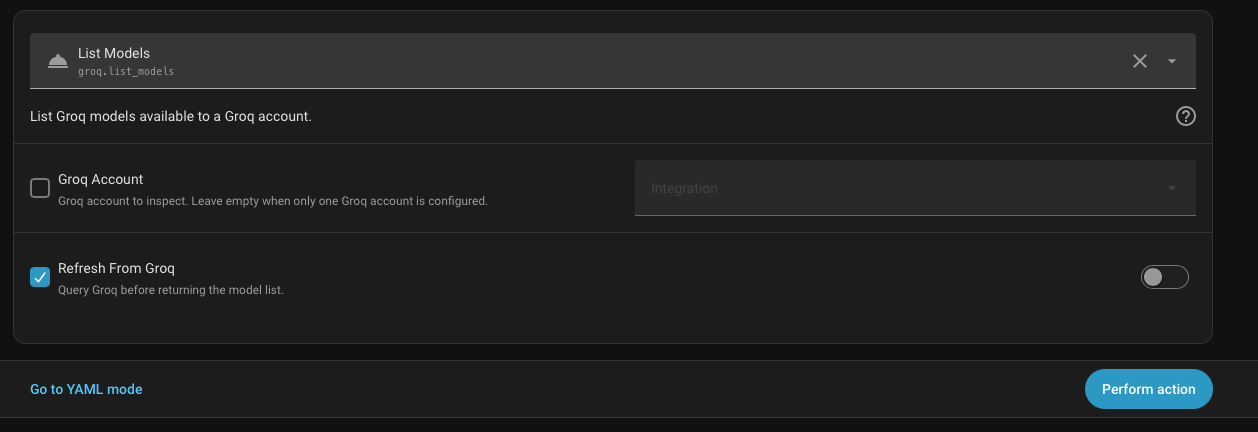
Use groq.list_models from Developer Tools -> Actions when you need to inspect model data for a configured account. Select the Groq account with config_entry_id; enable refresh when you want Home Assistant to ask Groq for a fresh model list.
If Groq reports that credentials are invalid, Home Assistant starts a reauthentication flow. Enter a new API key to keep existing services attached to the same account entry.
