Installation
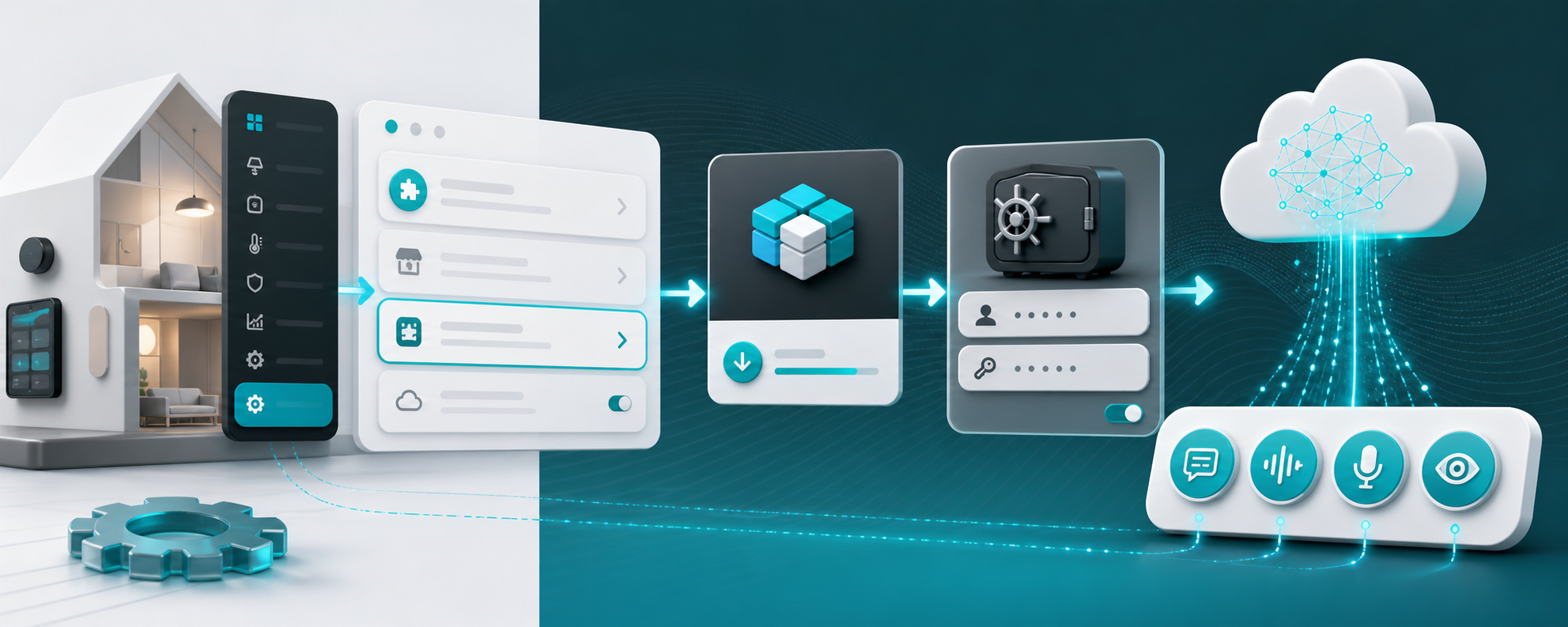
Use this page for first install, updates, initial account setup, and the screenshots needed to document the setup flow.
- Quick start
- Requirements and compatibility
- Installation
- Initial setup
- Updating
- Removing the integration
- Related pages
- Install Groq through HACS, or copy
custom_components/groqmanually. - Restart Home Assistant.
- Add the Groq integration from Settings -> Devices and services -> Add integration.
- Enter a friendly account name and a Groq API key from the Groq Console.
- Open the Groq integration page and add at least one named service entry.
- Home Assistant
2026.6.0or newer. - A Groq API key from the Groq Console.
- Network access from Home Assistant to
https://api.groq.com. -
ffmpegon the Home Assistant host only if you enable Text-to-Speech audio normalization, Long TTS, or processed playback conversion.
| Step | Screenshot |
|---|---|
| 1. In Home Assistant, open HACS -> Integrations, search for Groq, open the Groq repository entry, and download it. |  |
| 2. Restart Home Assistant when HACS prompts you. |  |
| 3. Go to Settings -> Devices and services -> Add integration and select Groq. |  |
Groq is available in the default HACS repository list. You only need to add https://github.com/barneyonline/ha-groq as a custom repository if you are testing an unreleased branch or HACS cannot find the default entry.
- Download or clone the repository.
- Copy
custom_components/groqinto your Home Assistantcustom_componentsdirectory.
<homeassistant_config_dir>/
  custom_components/
    groq/
      __init__.py
      manifest.json
      ...
- Restart Home Assistant.
- Go to Settings -> Devices and services -> Add integration -> Groq.
- Enter a friendly account name and your Groq API key.
The first setup flow creates a Groq account entry. Service-specific behavior is added afterwards from the integration page.
| Step | Screenshot |
|---|---|
| 1. Enter a friendly Groq account name and API key. |  |
| 2. Open the created Groq integration entry and use the service buttons at the top of the page. |  |
| 3. Choose the service button you want to add: Text Generation, Speech-to-Text, Text-to-Speech, or Image Recognition. |  |
Use Account and Service Setup for service names, multiple accounts, model discovery, and reauthentication.
When installed through HACS, update the integration from HACS and restart Home Assistant.
For manual installs, replace the custom_components/groq directory with the updated version and restart Home Assistant.
After updating, review your service entries if release notes mention model, capability, action target, or option changes.
- Go to Settings -> Devices and services -> Integrations.
- Locate Groq and delete the integration entry to remove the account and service entries.
- If installed through HACS, remove the HACS repository entry after deleting the integration from Home Assistant.