Repository navigation
The Main Window
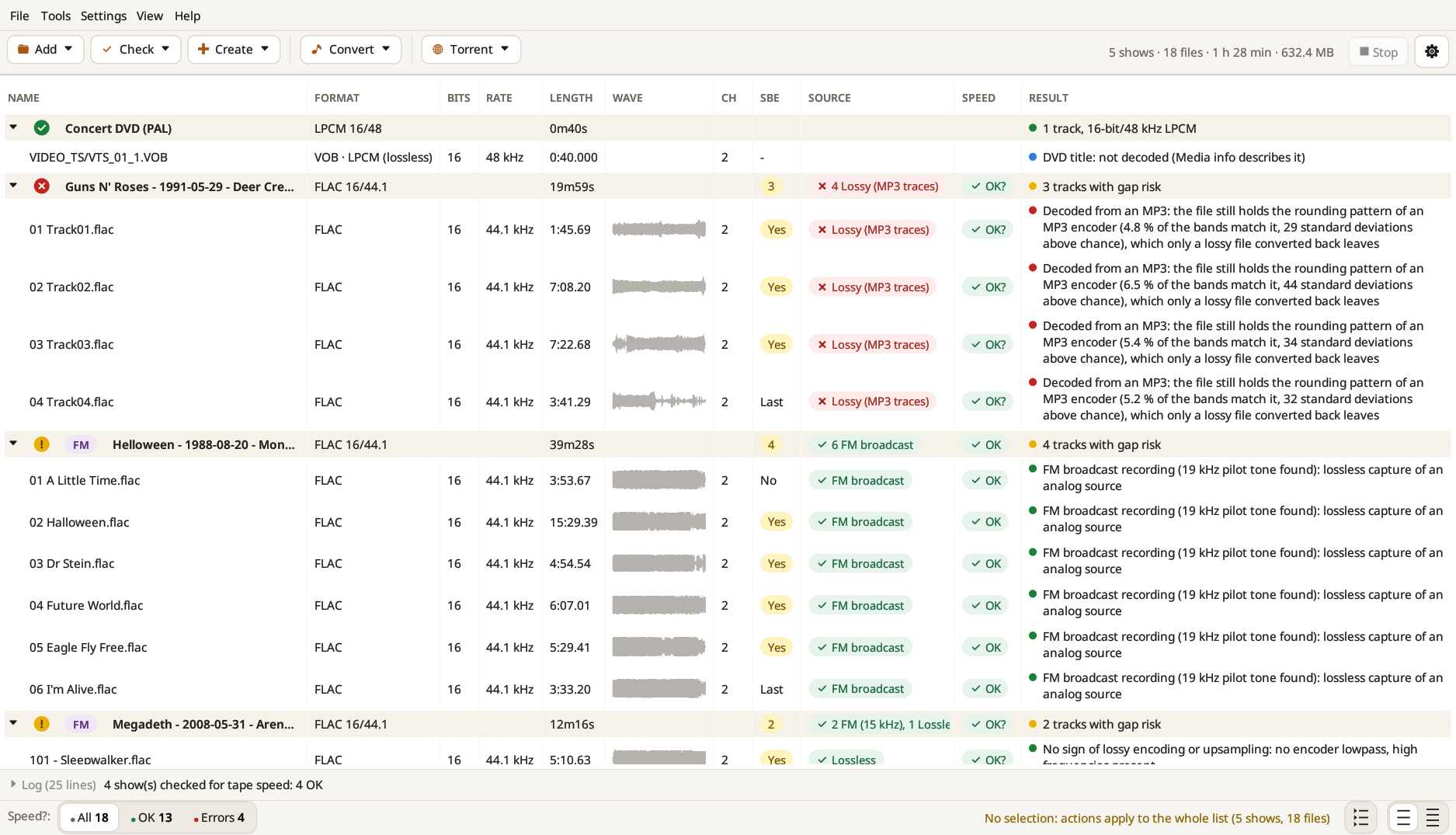
Each show gets one line, which you can unfold to see its tracks. A DVD is listed the same way, one row per title. The toolbar sums up the whole list on the right: shows, files, total length and size.
| Column | What it shows |
|---|---|
| Name | The show folder, then each file in it |
| Format | Codec and resolution (e.g. FLAC 16/44.1, VOB · LPCM) |
| Bits, Rate, Length, Ch | Bit depth, sample rate, exact length and number of channels |
| Wave | A small outline of the track's loudness: fades, silences, level jumps |
| SBE | Sector boundary errors: whether a track ends on a CD sector boundary |
| Source | The verdict of the Lossless? analysis; click it for the full report |
| Speed | The result of the Speed? estimate; click it for the full report |
| Result | The outcome of the last check you ran |
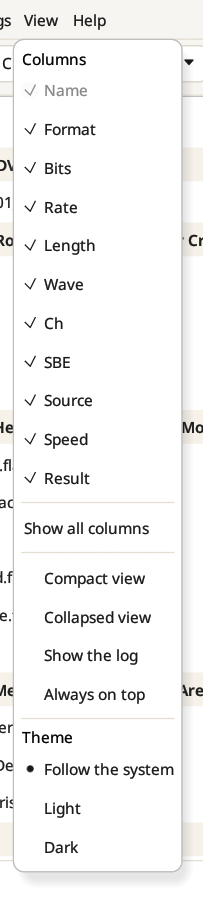
Any column but Name can be hidden from the View menu or by right-clicking a column header.
The show line sums up the whole folder: overall format, total length, a count of the Lossless? verdicts ("6 FM broadcast", "4 Lossy (MP3 traces)") and the overall result ("All 26 checksums OK", "13 tracks, CD-ready, FFP-ready"). Results are colored: green when everything is fine, yellow for something worth a look, red for a problem.
- The mark before the name gives the worst result of the show at a glance. While a task runs, it becomes a ring that fills up as the show's files are done.
- The recording source, when the folder name or the info file says it, appears as a badge before the name: SBD, AUD, MTX (matrix), FM, Pre-FM or DAT. Hover over it to see where it was read: the folder name, or the "Source:" and "Lineage:" lines of the info file.
- The Wave column fills in once Lossless?, Speed? or a spectrogram has read the file; nothing is decoded just to draw it.
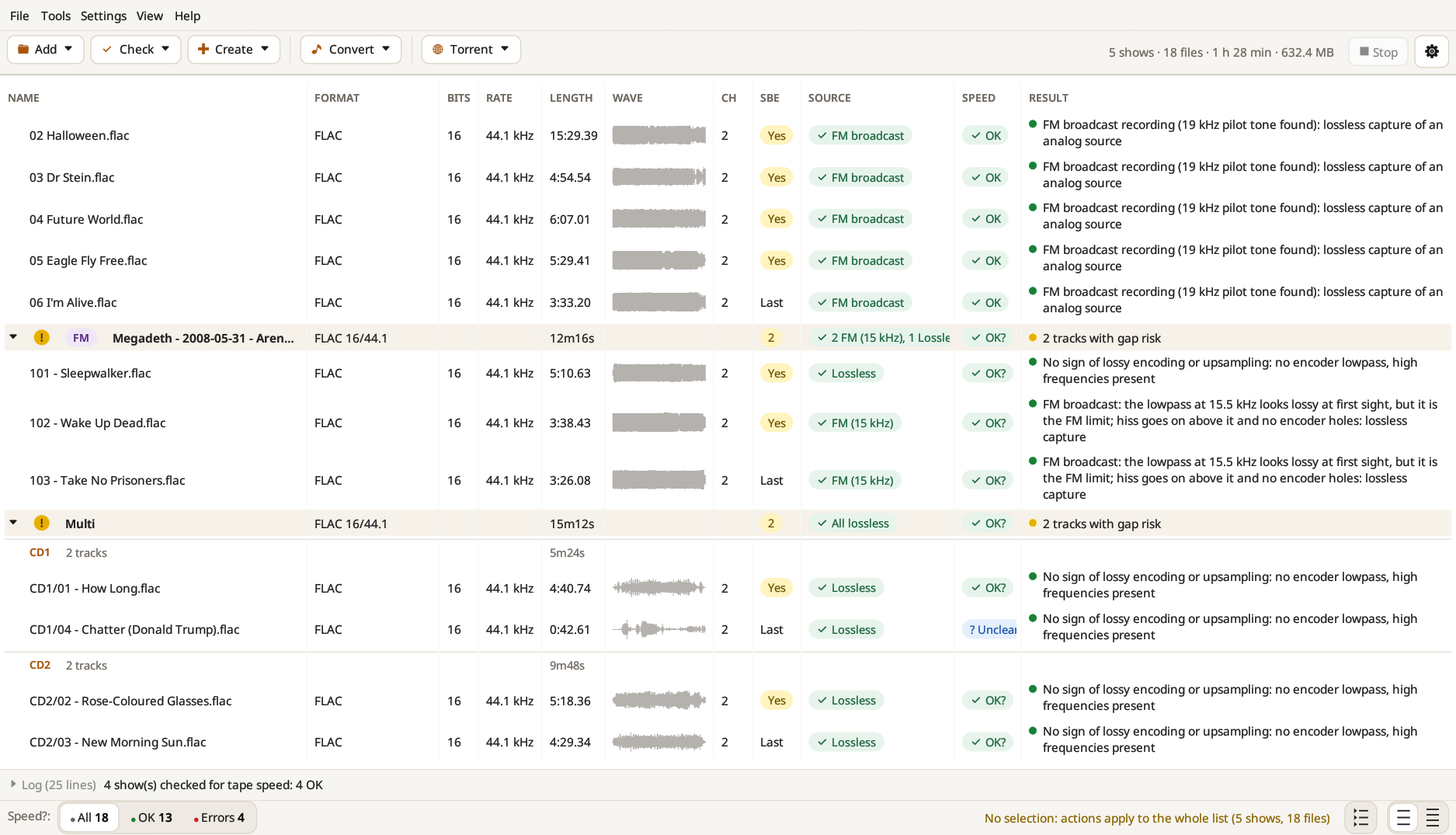
A show on several discs (CD1, CD2… folders, also "Disc 2", "Set B", "Side A") has a row before each disc, with its number of tracks and its length. Click it to select the whole disc.
While a task runs, the status bar shows how far it has gone: a progress bar by the work done (long tracks count for more than short ones), how much audio has been processed out of how much, and the time left once it can be told.
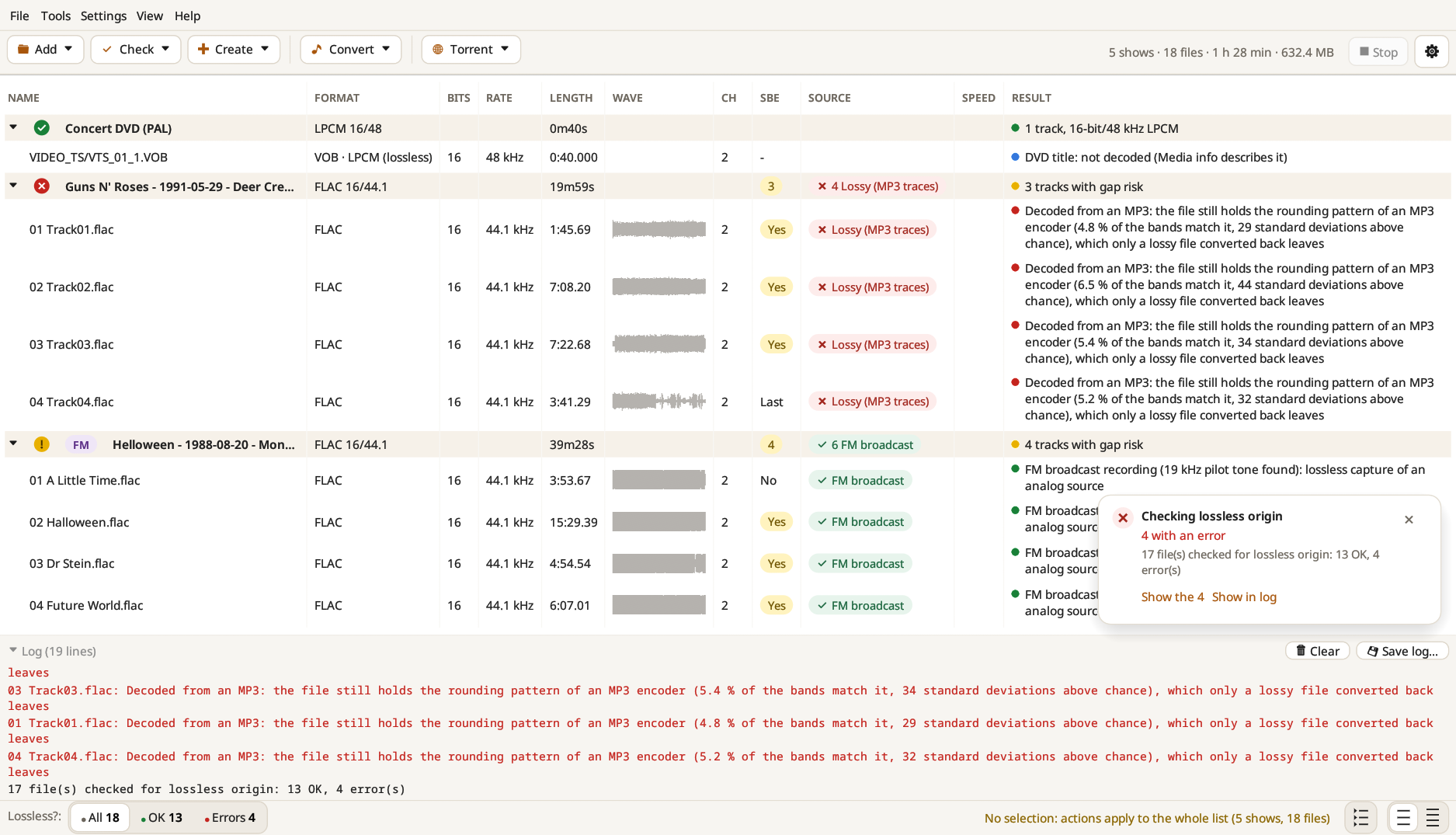
When a task has given results, the buttons on the left of the status bar filter the list: All, OK, To check or Errors, with their counts. While a filter is on, actions apply to the files shown only. The buttons on the right switch between comfortable and compact rows, and fold every show to a single line (Collapsed view).
With nothing selected, an action applies to the whole list (or to the files shown, with a filter), as the status bar reminds you; select shows, discs or tracks to work on those only.
A notification in the bottom-right corner tells you how it went, with links to the files to check, to the folder of the new files, or to the log. It closes by itself after a few seconds, unless something went wrong. A task that took more than a minute ends instead with a band above the list, which stays until you close it or start something else, with a Share card… button (see Share card).
The Log panel at the bottom keeps the details of everything that was done. It is folded to its last line, and unfolds by itself on an error; Clear empties it and Save log… writes it to a file. A long job can be interrupted with Stop (or Escape).
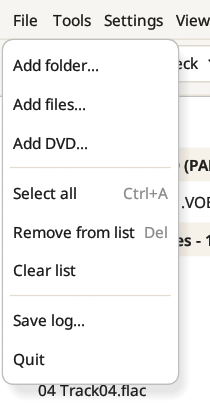
All actions live in five toolbar menus: Add, Check, Create, Convert and Torrent. The menu bar above them holds the same actions and the rest:
| File | Tools | View | Help |
|---|---|---|---|
 |
 |
 |
 |
- File: add folders, files or a DVD, Select all (Ctrl+A), Remove from list (Del), Clear list, Save log… and Quit.
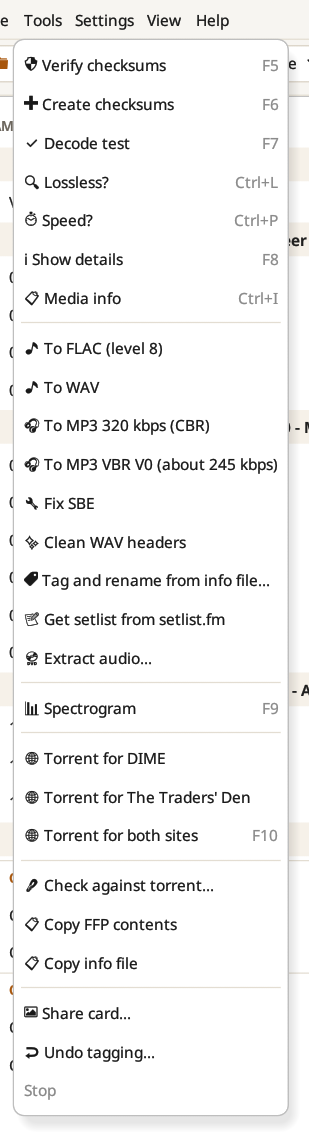
- Tools: every action of the toolbar menus in one place, plus Share card…, Undo tagging… and Stop.
- View: the columns, compact and collapsed views, the log, Always on top, and the theme (follow the system, light or dark). The accent colour is in Settings.
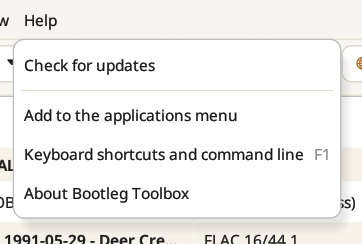
- Help: Check for updates, Add to the applications menu (Linux), Keyboard shortcuts and command line (F1) and About.
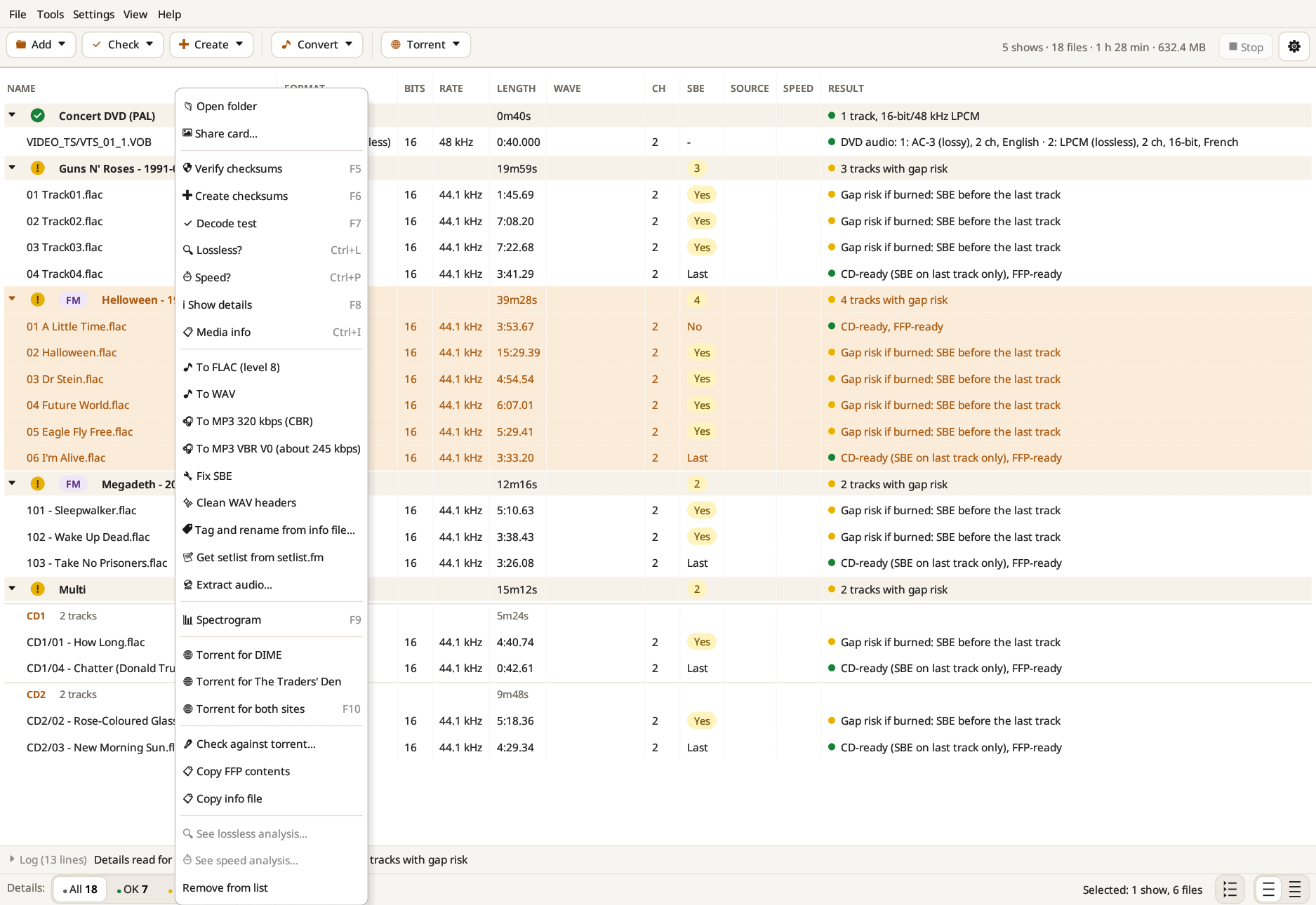
Right-click a show or a track for the actions that apply to it: Open folder, Share card…, every check, conversion and torrent, See lossless analysis… and See speed analysis… for the last reports, and Remove from list.