File locking
Files opened through an NcDavTray drive get locked on the server while they are being edited, without anything being configured. This page explains where that comes from, because it is not something NcDavTray implements.
Tip
TL;DR — A NcDavTray mount is a network drive, so an application opens the file on the server. Office applications send a WebDAV LOCK before editing, and another user then sees the familiar locked by another user warning. A sync folder works differently by definition: the application opens a local copy, and a local file open reaches no server. Since Nextcloud 34 the files_lock app is shipped and enabled by default, which extends locking to files no Office application ever touches.
- Where the lock comes from
- Network drive versus sync folder
- What files_lock adds
- A known limitation
- Using both
Not from NcDavTray. What NcDavTray does is map a WebDAV UNC path to a drive letter and keep it mapped — it holds no local copy, synchronises nothing, and sends no LOCK of its own.
The locking is done by the application you open the file with. Word, Excel, LibreOffice and others have issued a WebDAV LOCK before editing for as long as they have supported WebDAV shares, the same way they do on a SharePoint or a company file server. From their point of view Z:\report.odt is a file on a network share, and that is exactly what it is.
So the chain is short and there is nothing in it to switch on:
flowchart LR
    A["Office opens<br>a document on Z:"] --> B["Windows WebDAV<br>redirector"]
    B --> C["LOCK request<br>to Nextcloud"]
    C --> D["Other users get<br>the locked warning"]
    A -.-> E["NcDavTray is not<br>in this path"]
- Locking is automatic and per application — nothing to configure in NcDavTray.
- Closing the file releases the lock.
- An application that does not lock over WebDAV does not start doing so because of the drive. That is what
files_lockis for.
The difference is not a feature list, it is which file gets opened:
| Network drive (NcDavTray) | Sync folder | |
|---|---|---|
| The application opens | the file on the server, over WebDAV | a local copy on your disk |
A LOCK reaches the server |
yes, the application sends it as part of opening | no — opening a local file involves no server |
| Available without a connection | no | yes, that is the point of syncing |
| Disk space needed | none for the files | as much as the files take |
Important
This is why the same document behaves differently depending on how you reached it. Nothing is broken in either case: a sync client's job is to give you a local file, and a local file open is a local event. If you want other people to see a lock, open the document from the drive.
files_lock moves locking from "whatever the application decides to do" to something the server enforces:
- Files that no Office application would lock get locked too when they are opened over the drive.
- The server answers other users with HTTP
423 Lockedinstead of leaving it to the client. - Clients that offer a manual lock / unlock entry get a lock the server knows about.
Note
Since Nextcloud 34 files_lock is a shipped app and enabled by default, so on a current server there is nothing to install. On Nextcloud 33 and older it is a separate install from the App Store. If you are unsure which applies, the Apps page of your server settles it.
Warning
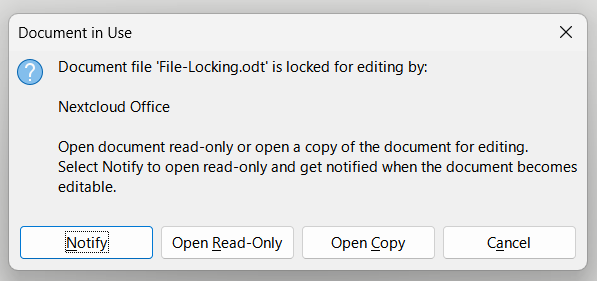
The user who created a lock can bypass it: they can still edit, rename, move or delete the file, and Nextcloud Office does not respect the lock either (files_lock#228, still open). Locking is therefore effective between users but does not protect a file from the person who locked it — including from a second device of that same person.
A sync client and a WebDAV drive answer different needs, and running both is the normal arrangement:
- A sync folder for what you want on the plane, and for large files you touch all day.
- An NcDavTray drive for shared documents several people edit, and for everything you do not want a second copy of.
Both work against the same account at the same time.
