The tray
NcDavTray lives entirely in the notification area. There is no main window — the settings window is opened from a menu and closed again, and everything you need to see day to day is in the icons themselves.
Tip
TL;DR — There is always one application icon (the manager), plus one icon per mount if you leave those switched on. A mount icon shows its drive letter: round = account, square = share link, green = online, amber = working or waiting, red = offline. Left-click any icon for a status balloon, right-click for its menu.
- Two kinds of icon
- Reading a mount icon
- The manager menu
- A mount's own menu
- Turning the mount icons off
flowchart TD
    A["Application icon<br>(always present)"] --> B[Add account / share link]
    A --> C[Settings]
    A --> D[Connect all]
    A --> E[About]
    A --> F[Exit]
    G["Mount icon<br>(one per mount)"] --> H[Connect / Disconnect]
    G --> I[Open in Explorer]
    G --> J[Settings for this mount]
    G --> K[Remove this mount]
The application icon is always there, even with nothing configured at all — otherwise an empty tray would leave no way back into the program. Its menu starts with a coloured line naming which copy this is: Installed in blue, Portable in green. That is not decoration; it decides what the program may do with itself, since only an installed copy can uninstall and only a portable one can install.
A mount icon belongs to one mount and offers only what applies to that one.

Note
Settings sits on the application icon and not in a mount's menu. A mount's menu can remove that very mount — and with it the menu the click came out of.
The icon draws the mount's drive letter on a badge. Both properties carry meaning:
| Shape | Meaning |
|---|---|
| ⭕ Round | an account mount |
| 🔲 Rounded square | a public share link |
| Colour | Meaning |
|---|---|
| 🟢 Green | online — mapped and reachable |
| 🟡 Amber | connecting, or waiting for a free connection slot |
| 🔴 Red | offline, in maintenance, or the mapping failed |
| the mount has no usable drive letter |
The shape matching the kind is deliberate: a duplicate of an account is an account, reaches the same folders and is configured on the same page, so it has no business looking unlike the original.

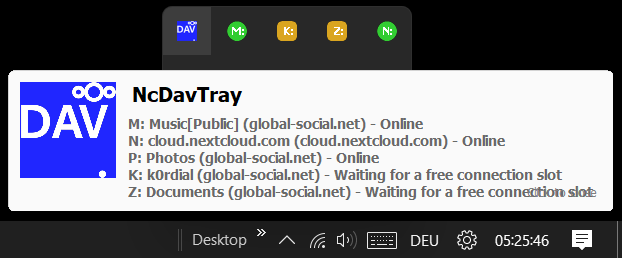
Left-click a mount icon for a balloon with server, drive, subpath and state. Left-click the application icon for the overview: one line per configured mount, disabled ones included. That overview is the reason the application icon is worth keeping — it is the only place that can answer what is connected right now regardless of what the mounts do with their own icons.
One balloon comes without being clicked for: a moment after every start, naming the version that is running — see Updates.
| Entry | Effect |
|---|---|
| Installed / Portable | which copy this is — a label, not a button |
| Add share link… | add a public link |
| Add account… | add a Nextcloud account |
| Settings | open the settings window |
| Connect all | connect every enabled mount; greyed out when nothing is configured |
| About | version, project link, the [[update check |
| Exit | unmap everything cleanly and quit |


| Entry | Effect |
|---|---|
| Connect | map this mount |
| Disconnect | unmap it and stop reconnecting until you say otherwise |
| Open in Explorer | open the mapped drive |
| Settings | edit this mount |
| Remove | delete this mount from the list |

Important
Disconnect is a decision, not a hiccup. It stops the watchdog for that mount, so it stays down until you connect it again. That is different from Offline, where the server is unreachable and NcDavTray keeps trying by itself.
With many mounts the tray gets crowded. In the settings window you can switch the per-mount icons off entirely — the application icon stays, and its balloon still lists every mount with its status.
You then reach a single mount through Settings → Shares tab, which offers the same actions as the icon's menu. Nothing becomes unreachable; it takes one click more.
Tip
Switching the icons off is also the quickest way to get an overview when something is wrong: one balloon with every mount and its state beats hovering over six icons in a row.
