Windows Server
NcDavTray runs on Windows Server 2016, 2019 and 2022, but not on a fresh installation of one. Windows Server ships without the WebDAV redirector, so the first attempt ends with the WebClient service missing — there is nothing to start, and no drive can be mapped.
Tip
TL;DR — Two things have to be added before NcDavTray can work: Desktop Experience when the server is installed, and the WebDAV Redirector feature through Server Manager → Manage → Add Roles and Features → Features. Reboot, then start the WebClient service from the WebClient tuning tab and set it to Automatic.
On Windows 10 and 11 the WebClient service is part of the system and only needs to be running. On Windows Server it is not installed at all. Two separate things are involved, and the first is decided before the server is ever used:
| Desktop Experience | chosen during the Windows Server installation. Without it there is no desktop shell, which NcDavTray needs — it is a tray application |
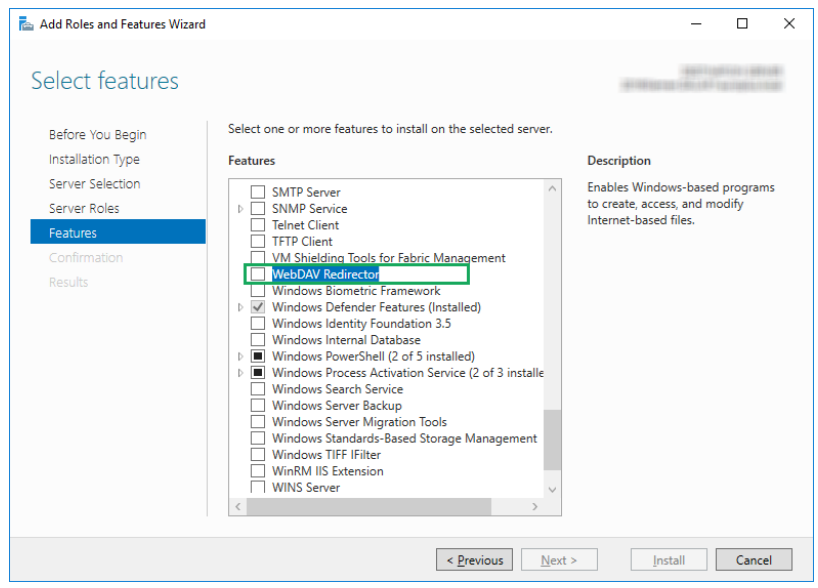
| WebDAV Redirector | a feature that has to be added afterwards. This is the one that brings the WebClient service with it |
- Open Server Manager.
- Go to Manage → Add Roles and Features.
- Click through to the Features page.
- Tick WebDAV Redirector.
- Next, then Install.
- The window may be closed while the feature installs; the wizard can be closed when it has finished.
- Reboot the server.
Important
The reboot is not optional. The feature installs without one, but the WebClient service only becomes usable afterwards.
Open the settings window, go to the WebClient tuning tab and do two things there:
- start the WebClient service
- set its startup type to Automatic
Manual is enough as well when a start trigger is configured for the service. The tab tells you which case you are in: if it shows a Trigger info button, a trigger is active; if it does not, there is none, and Automatic is the setting that keeps the drives working after a restart.
From here everything is the same as on a desktop Windows. Continue with Mounts, and see WebClient service for what else that tab can do.
Note
This procedure came out of issue #2, reported for Windows Server 2022 and confirmed there as the fix.
