Installation
NcDavTray ships as a ZIP with no setup program, no service and no system-wide component. You unpack it, run one file, and answer one question.
Tip
TL;DR — Download the ZIP from Releases, unpack it into your user profile, run Installer.cmd and press 1 for the installed mode or 2 for a portable copy. Then open the tray icon and add your first mount.
A recent Windows, and nothing else:
| Windows 10, 11 or Windows Server | with Windows PowerShell 5.1 — part of Windows, nothing to install. On Windows Server the WebDAV Redirector feature has to be added first, see Windows Server |
| WebClient service | the Windows WebDAV mini-redirector, startup type Manual or Automatic. See WebClient service if it is disabled |
Both are parts of Windows itself. Nothing has to be downloaded for them, and at worst a setting has to be changed.
What you want to mount decides the rest:
| A public share link | the pasted /s/<token> link and nothing more. No account of yours is involved; if the link is password-protected you are asked for that password when it connects |
| A Nextcloud account | server, user name, and an app password created in Nextcloud under Profile → Security. Your login password will not do |
Either way the server has to answer over HTTPS on the standard port — plain HTTP is not supported, and neither is a non-standard port.
Administrator rights are needed for exactly two optional things: changing the WebClient service or its tuning values, and running the cache watcher. Everything else runs as your normal user.
flowchart TD
    A[Installer.cmd] --> B{Which mode?}
    B -- "1" --> C["Installed<br>%LOCALAPPDATA%\NcDavTray"]
    B -- "2" --> D["Portable<br>a folder you pick"]
    C --> E["Config in the registry<br>HKCU\Software\NcDavTray"]
    D --> F["Config in a JSON file<br>next to the script"]
    E --> G["Password via DPAPI<br>bound to this Windows user"]
    F --> H["Password in an encrypted file<br>AES-256, your passphrase"]
Installed is what you want on your own machine. The app lives in your user profile, can start with Windows, gets Start Menu and Desktop shortcuts, and stores its passwords through DPAPI — bound to your Windows account, so a copied file is worthless to anybody else.
Portable is what you want on a USB stick or a machine that is not yours. Everything travels together: script, language packs, configuration and passwords. The passwords cannot use DPAPI, since that is tied to one user on one machine, so they go into a file encrypted with AES-256-CBC behind a passphrase you choose at export time. See Security and privacy for the details of both.
Note
The two are not exclusive. One installed copy and any number of portable ones can run at the same time, even against different Nextcloud accounts.
- Download the ZIP from the Releases page.
- Unpack it into your user profile — the Downloads folder is fine,
C:\Program Filesis not. - Run
Installer.cmdand choose:
==============================================
  NcDavTray - Installer
==============================================
  1) Install to AppData (installed mode)
  2) Portable (current folder by default or choose another)
  0) Exit
==============================================
Option 1 copies the app to %LOCALAPPDATA%\NcDavTray, offers auto-start and shortcuts, and starts it. If a copy is already running it is stopped first and restarted afterwards, with your configuration untouched.
Option 2 opens a folder picker. Picking the folder the installer is already in makes that folder the portable copy; picking any other folder creates a complete portable package below it.
Then the tray icon appears, still without a mount. From here, continue with Mounts.
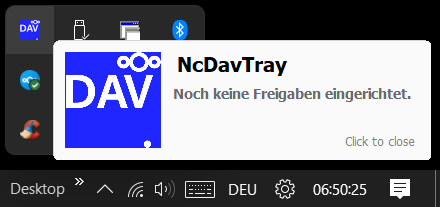
Taken on a German system. The balloon reads No shares configured yet.
Important
After the installed mode is set up, the unpacked folder you ran the installer from has done its job and can be deleted. The installer leaves it on purpose before it finishes, so nothing holds the folder open.
| Installed | Portable | |
|---|---|---|
| Program | %LOCALAPPDATA%\NcDavTray\NDT.ps1 |
the folder you picked |
| Language packs | %LOCALAPPDATA%\NcDavTray\i18n\ |
i18n\ next to the script |
| Settings and mounts | HKCU\Software\NcDavTray |
NDT_config.json next to the script |
| Passwords |
HKCU\Software\NcDavTray\Accounts, each value a DPAPI blob |
NDT_secret.dat, AES-256 |
Nothing is written outside your user profile, and nothing needs an installer to be removed.
The About box can check whether a newer release exists, and it can do that automatically at startup if you switch it on. See Updates for what that check does and does not do.
Updating itself is the installation you already know:
| What to do | |
|---|---|
| Installed | Download the new ZIP, run Installer.cmd → 1. The running copy is stopped, replaced and started again; mounts, passwords and settings survive |
| Portable | Run Installer.cmd → 2 and point it at your existing portable folder. Your NDT_config.json and NDT_secret.dat are not touched |
Installed: open the settings window from the tray and choose Uninstall. Before anything is removed you are offered two ways to keep your configuration — an export to JSON and an export to a portable copy — so an uninstall is never a one-way door. Afterwards the installation folder and the registry key are gone.
Portable: exit the app and delete the folder. There is nothing else.
Caution
Uninstalling removes the stored passwords with the registry key. Take one of the two exports the uninstaller offers if you want the configuration back later. Mind what each one is for: the JSON export carries the DPAPI blobs, which only this Windows user on this machine can decrypt — it restores this installation and is useless anywhere else. The portable export is the one that travels, because its passwords are re-encrypted with a passphrase you choose.
