Mounts
A mount is one drive letter pointing at one place in Nextcloud. NcDavTray keeps a list of them, connects the ones that are enabled, and watches them for as long as it runs. Everything you configure is a property of a mount — except the language and the check interval, which belong to the installation as a whole.
Tip
TL;DR — Right-click the tray icon → Settings → Shares tab. Add ▾ offers Add account… for a Nextcloud account and Add share link… for a public link. Give it a drive letter, optionally a subfolder and a label, and save. Duplicate clones a mount so the same account can appear under a second letter — but read Server identities first, because Windows limits how many logins one host can carry.
- The two kinds
- The Shares tab
- What a mount consists of
- Status vocabulary
- Disabling instead of deleting
- Several mounts of the same account
flowchart LR
    A[Add ▾] --> B["Add account…<br>server, then the browser login"]
    A --> C["Add share link…<br>a pasted /s/token link"]
    B --> D["Kind: account<br>round tray badge"]
    C --> E["Kind: share<br>square tray badge"]
    D --> F[a drive letter]
    E --> F
An account mount is your Nextcloud account: server, user name and an app password. It reaches everything that account can reach, and you can point it at any subfolder. You enter the server, and Log in with browser brings the other two back from it — Accounts and app passwords is the page for that half of it.
A share link mount is a public link somebody sent you — the kind that ends in /s/<token>. No account, no password of yours; if the link is password-protected you are asked for that password when it connects. Only https on the standard port is accepted, because that is all a mount's server field can express.
Note
The password of an account belongs to the server/user pair, not to the mount. Two mounts of the same account share one stored password, so changing it once changes it for both. A share token, by contrast, is used once and stores its password with the mount itself.
The Shares tab of the settings window is the one place where the whole configuration is visible. It lists every mount, enabled or not, with its status, and holds every action:
| Button | What it does |
|---|---|
| Add ▾ | opens the menu with Add account… and Add share link… |
| Edit… | changes an existing mount |
| Duplicate… | clones a mount — same target, new drive letter |
| Remove | deletes the mount from the list. Removing the last one of an account also offers to withdraw its app password on the server |
| Connect / Disconnect | maps or unmaps the selected mount |
| Open | opens the mapped drive in Explorer |

The tab holds no state of its own: after every action it asks the configuration again. That is why it is also the only way back to a mount you disconnected — a disabled mount has no tray icon of its own to right-click.
Below the list sit the settings that belong to the installation rather than to a mount: the language, the check interval, and the buttons for installing, uninstalling, exporting and importing.
| Field | Meaning |
|---|---|
| Server | the host, e.g. cloud.example.com, and the installation path if the Nextcloud does not sit at the root of the domain, e.g. cloud.example.com/nextcloud — no scheme, no port, always HTTPS |
| User (account) | your Nextcloud user ID — the browser login brings it back with the password |
| App password (account) | fetched by the browser login, or created by hand under Settings → Security → Devices & sessions. See Accounts and app passwords |
| Token (share) | taken from the pasted link automatically |
| Subfolder | optional; pick it with the built-in folder browser instead of typing it |
| Drive letter | the next free one is preselected |
| Label | what Explorer shows next to the drive; suggested from the subfolder or user name |
| Enabled | whether NcDavTray connects it at all |
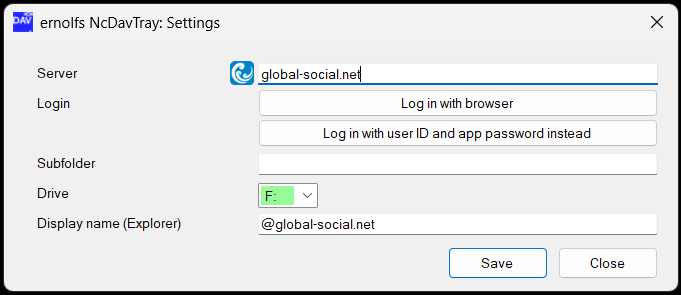
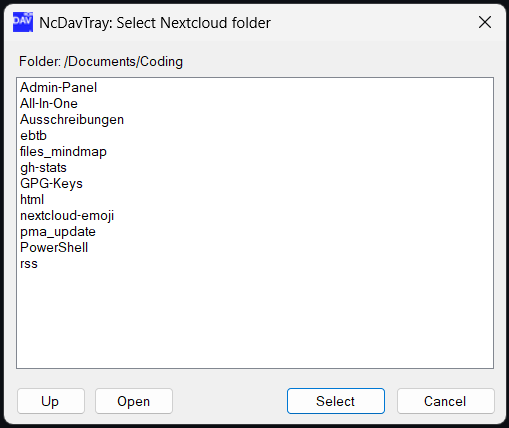
Each mount also carries an internal Id that survives every edit. That is what ties a row in the list to its tray icon and its runtime state — the drive letter cannot do that job, because it is one of the things you may change.
The share list, the balloon and the tray tooltip all use the same words:
| Status | Meaning |
|---|---|
| Online | mapped and reachable |
| Connecting… | the mapping is being set up |
| Disconnected | you disconnected it — no automatic reconnect |
| Offline | the server did not answer; NcDavTray keeps trying |
| Maintenance | the server answered, and said it is in maintenance mode |
| Mapping failed | Windows refused the mapping, with a number saying why — see Troubleshooting |
| No drive letter | the mount has no usable letter configured |
| Waiting for a free connection slot | blocked by another mount's login — see Server identities |
Important
Offline and Maintenance are not errors and need no action. NcDavTray unmaps the drive cleanly, turns the icon red, and remounts by itself as soon as the server answers again. That watchdog behaviour is the reason the application exists.
A mount you disable keeps everything — target, letter, label, password — but is not connected and gets no tray icon. That is the right tool for a drive you only need occasionally, and for testing whether a mount is what blocks another one.
Re-enable it in the Shares tab. It will not come back on its own.
Use Duplicate… when you want the same account under two letters, for instance the root on Z: and one project folder on Y:. The clone starts as a copy and you change what should differ.
Warning
This is exactly where Windows gets in the way. It keeps one login per server identity, and NcDavTray can offer at most two identities per host. A third login against the same server sits in Waiting for a free connection slot rather than connecting — mounts that sign in the same way share one place, and share links without a password all sign in the same way. Server identities explains what counts as an identity, which mounts share one, and what to do when you need more.
