Repository navigation
How Apps Are Installed
When you install an APK, Mac.apk turns it into a Mac app. This page covers what that means, where things go, and why installed apps take the space they do.
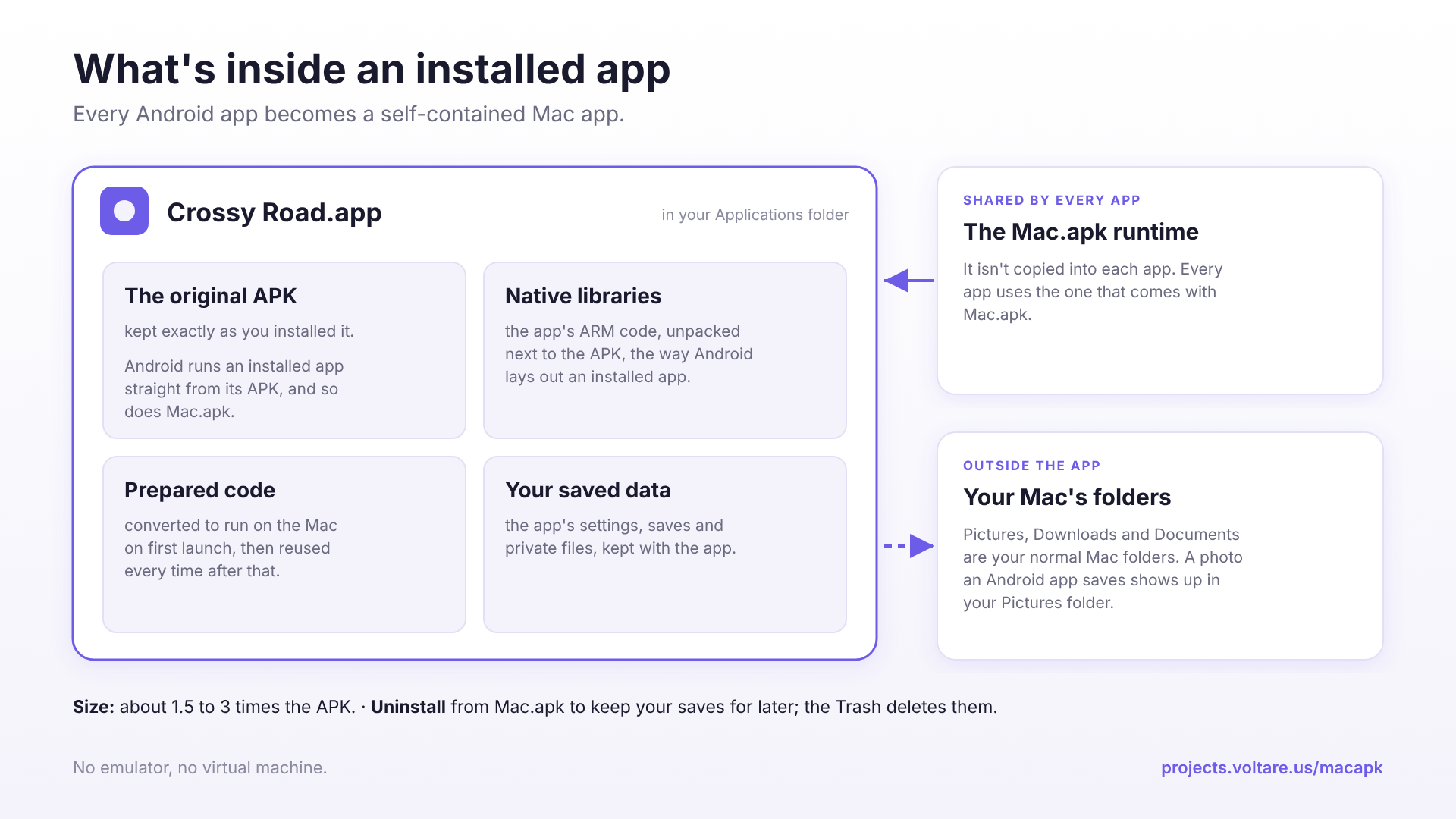
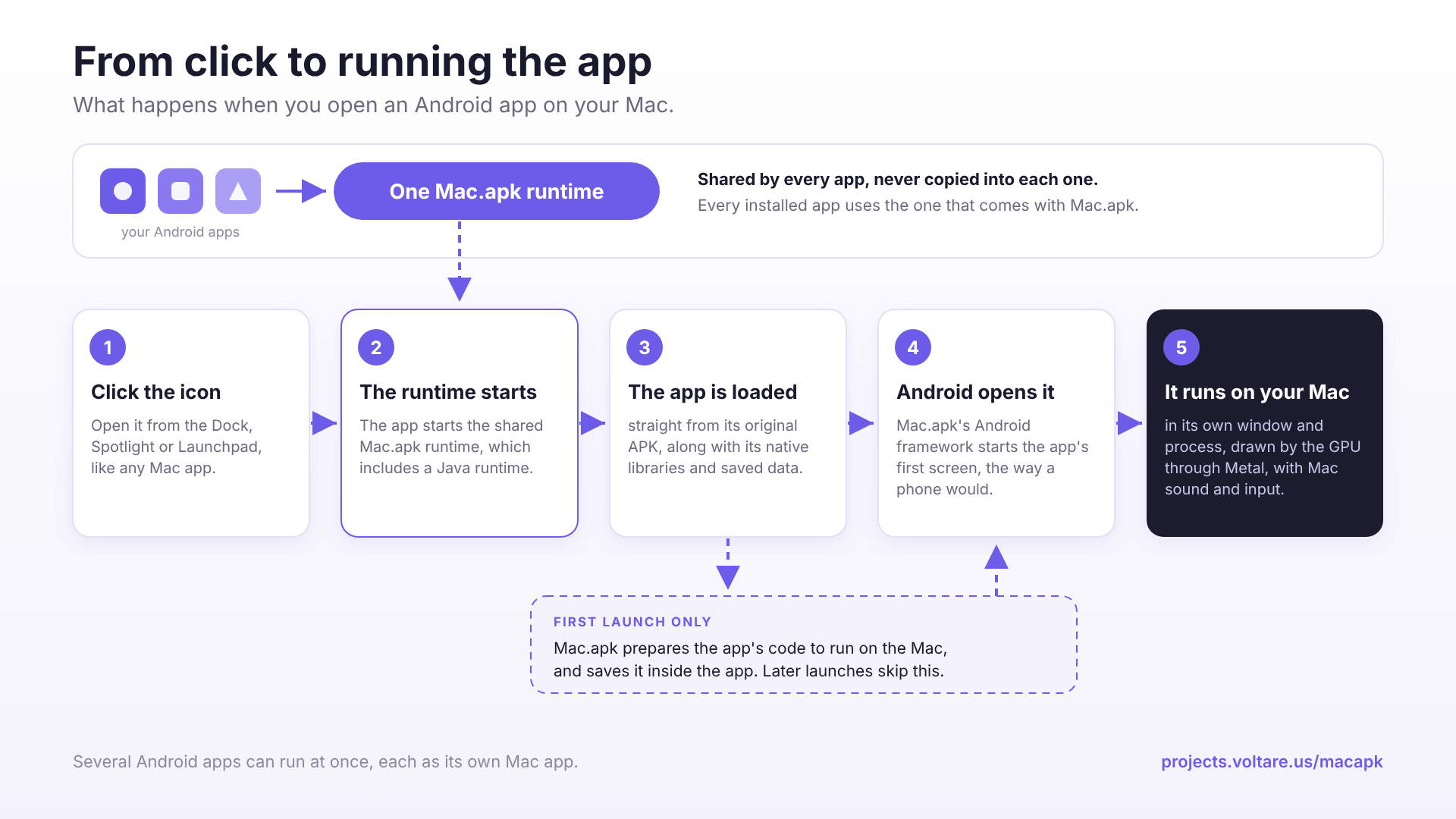
Each Android app gets its own entry in your Applications folder, with its own name and icon. "Crossy Road" becomes a Mac app called Crossy Road. You can open it from the Dock, Spotlight or Launchpad, pin it, and switch to it with ⌘Tab like anything else. You don't need to open Mac.apk first.
Everything that belongs to the app lives inside its .app bundle:
- The original APK, kept exactly as you installed it. Android reads an installed app straight from its APK, and so does Mac.apk.
- The app's native libraries, unpacked next to the APK, the way Android lays out an installed app.
- The app's prepared code. The first time the app runs, Mac.apk converts its code to run on the Mac and keeps the result (more in How Mac.apk Works).
- Your saved data: the app's settings, saves and private files.
Your shared folders (Pictures, Downloads and so on) are the exception. Those are your normal Mac folders, shared by every app. See Files and Privacy.
Preparing the app's code is the slow part, up to a minute for a large app. It happens once per app, and once more after you update Mac.apk. Later launches are fast.
Because the APK, its libraries and its prepared code all sit together, an installed app usually takes one and a half to three times the size of its APK. A big 3D game can run a few hundred megabytes over. Uninstalling from the Mac.apk window gets all of it back.
The Android runtime itself isn't copied into each app. Every installed app uses the one that comes with Mac.apk, which is why you install the runtime once in Installation. Updating Mac.apk updates that runtime, not your apps: each app keeps its own version and saves, and runs on the new runtime the next time it opens. To update an app itself, see Managing Apps.
Keeping everything in one bundle means nothing is scattered around your home folder, and it's what lets Mac.apk set your saves aside when you uninstall and put them back if you reinstall. The catch is that dragging the app to the Trash deletes its saves along with it. Managing Apps covers how to uninstall safely.