Repository navigation
6. Scheduling Tasks
NOTE: If you are using a Pi style SBC and have no internet access into the installation location that the LAN port can connect to, you will need to add a realtime clock module or your scheduling won't be reliable unless you manually set the clock every time the server starts up. Even in that case, accuracy will still be questionable because computer time drifts.
The task scheduler in Mission Control allows you to schedule Command Scripts or Timelines to run at specific times on specific days of the week. If you are using switching controller LCC Slaves where you need to control all 16 switches in one shot at specific times of the day, this is the tool that you need. If you're controlling a bunch of RGB LEDs, you'd use scene scripts, but you'd still use this to send the scenes at specific times.
Before you start creating scheduled tasks, keep in mind that the Mission Control scheduler always plays catch-up and will run any scheduled tasks that it may have missed during a power outage. If you don't want your LCC Slaves to run the tasks, just make sure that they're powered off at the time you start up your server after a power outage.
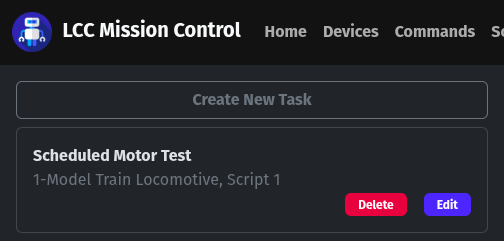
- Click on Schedule in the menu bar and then click on the Create New Task button.
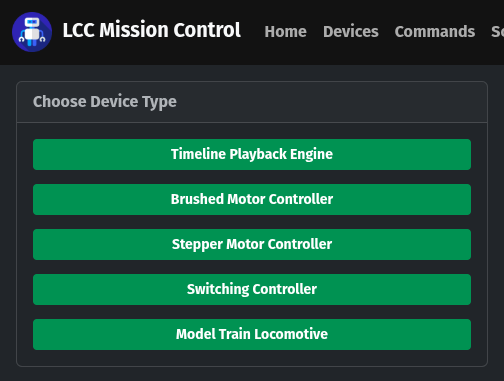
- Click the button for the Device Type (note the additional device type for running Timelines).
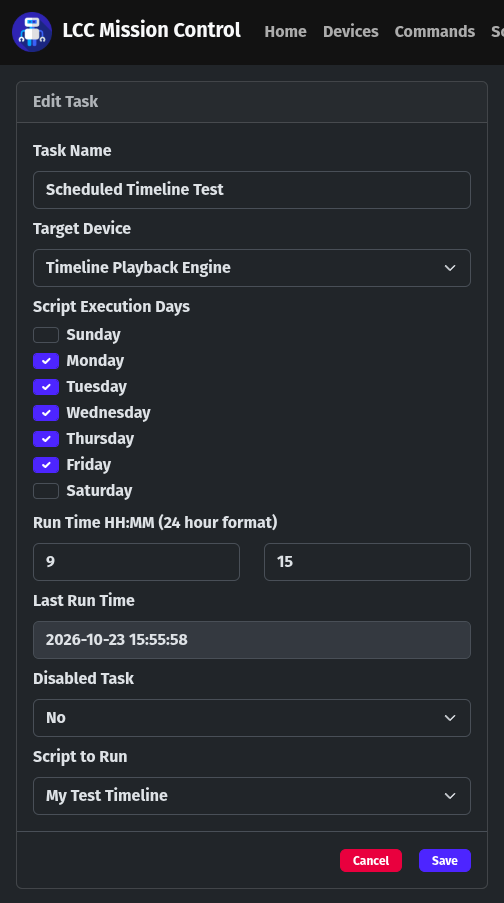
- Fill in the parameters for the task and then click the Save button.
- Give the task a name
- Select the target device
- Choose the days to run the task
- Set the time to run the task
- Choose whether or not the task is currently disabled
- Select the command script or timeline script to run
- Click the Save button
One thing to keep in mind about scheduled timeline playback. If your current timeline shows an asterisk before the script name, this means that there are unsaved changes. This will prevent the scheduled timeline from playing. The scheduled task will still show that it ran the task, but the timeline did not play because it would have discarded all of your unsaved changes.
NOTE: Every time you save a task the last run time will be reset by 24 hours before the time you click the Save button. This is intentional for testing/debugging purposes. If you don't want the target device to run the script again, just turn it off before clicking the save button so it will miss all of the commands.