Repository navigation
Debug Stick
Change a block's shape, connections or facing without replacing it. Available since 1.6.0 on servers that enable it; the client mod is optional.
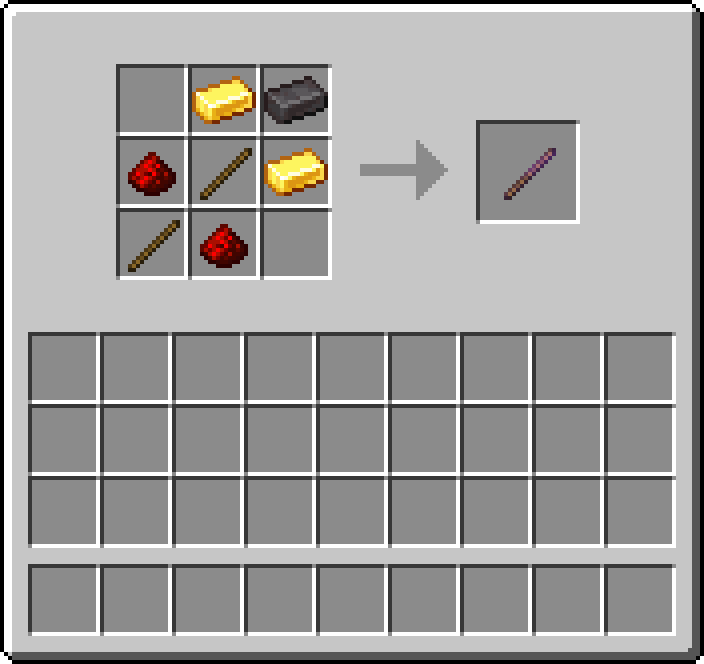
Use a crafting table with 2 Gold Ingots, 1 Netherite Ingot, 2 Redstone Dust and 2 Sticks, arranged as shown. You get 1 Debug Stick.
| Action | Result |
|---|---|
| Left-click | Select the next property |
| Sneak + left-click | Select the previous property |
| Right-click | Change the selected property to its next value |
| Sneak + right-click | Change it to its previous value |
Read the property name and value in Minecraft's message above the hotbar. Allow a brief pause between left-clicks.
For a glass pane, left-click until you select east, then right-click to switch between false and true. Left-click again to choose west or another property. Right-click changes the value of the property you have selected.
A plain stone block has no properties to change. Try a glass pane, stair or fence instead. The stick remembers your selected property for each block type.
First right-click the block with honeycomb. You can then edit it with the Debug Stick while keeping the lock, unless the server has disabled that option. Your latest edit becomes its saved state.
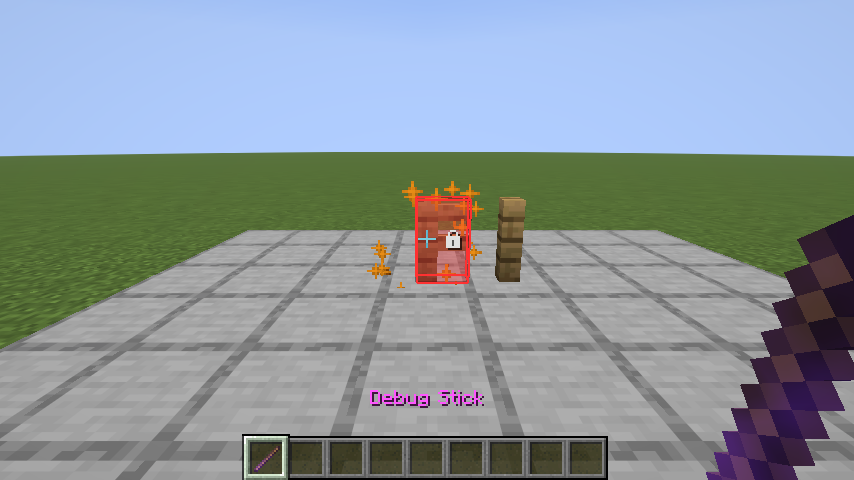
The padlock beside the crosshair marks the lock. The red highlight appears only when you enable the Lock Overlay.
Read Block Locking for honeycomb and axe controls.
Your normal building permissions, spawn protection and claims still apply. Adventure and Spectator modes cannot use these tools to edit blocks. A server may restrict blocks, properties or crafting the stick; ask staff if it behaves differently from this guide.