Repository navigation
Lock Overlay
Highlight nearby locked blocks in your chosen colour, even through walls. Chomagerie must be installed on both your client and the server.
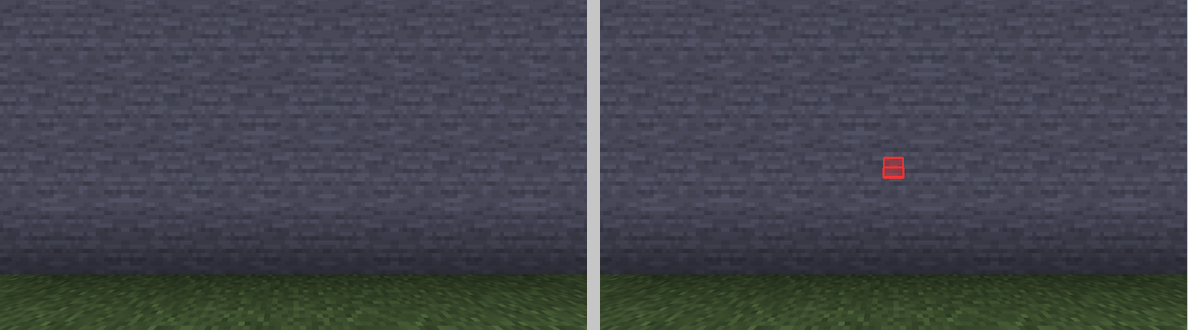
The wall hides a locked stair. On the left, the overlay is off. On the right, its red shape is visible through the wall.
Press H to turn the overlay on or off. You can rebind it in Options → Controls → Chomagerie.
Press K → Locks to choose:
| Setting | Default | What it does |
|---|---|---|
| Show locks | Off | Highlight nearby locked blocks |
| Distance | 32 blocks | Choose a range from 8 to 128 blocks |
| Highlight colour | Red (#FF3030) |
Change the outline and fill colour |
| Lock indicator | On | Show a small padlock for the locked block under your crosshair |
Your settings are saved. You do not need to hold a tool or be an operator. The highlight follows the block's shape, including panes, fences and stairs.
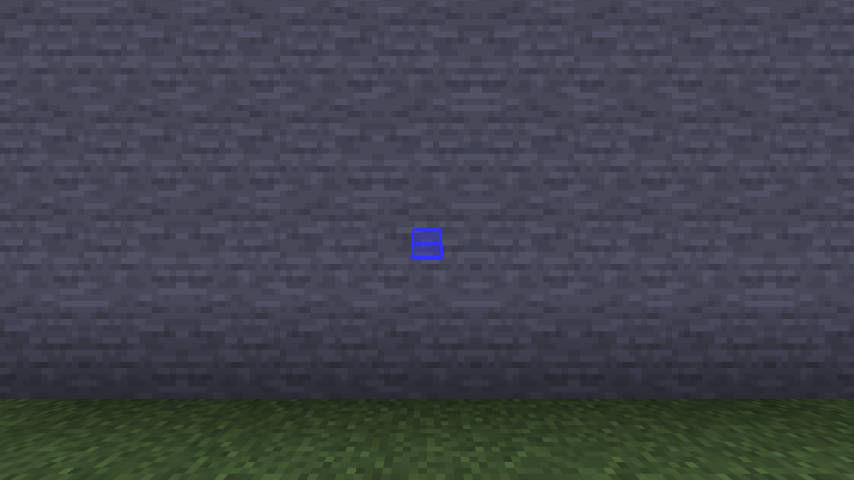
The same scene with a blue highlight colour.
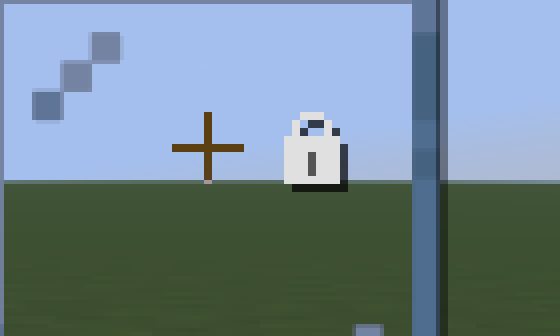
This view is enlarged 4× so you can spot the padlock. It stays small in game.
The padlock works even when the area overlay is off. It appears for the locked block you are looking at within interaction range, and hides with F1, in menus and in third-person view. Turn it off in K → Locks → Lock indicator if you prefer.
Minecraft still shows Debug Stick property messages above the hotbar.
Only loaded nearby chunks are included. Changing dimension or leaving the server clears the display. Very dense builds may appear progressively; try a shorter range for smoother viewing.
The overlay helps you see locks. It does not change blocks or grant building permissions. Use honeycomb and an axe to lock and unlock them.