Repository navigation
Recording
To record with ZoomArc, choose a display or a window on the recorder screen, optionally pick a camera and microphone, and click Record. After a 3-second countdown ZoomArc hides itself, records at 60 fps, and opens the editor with automatic zooms when you stop.
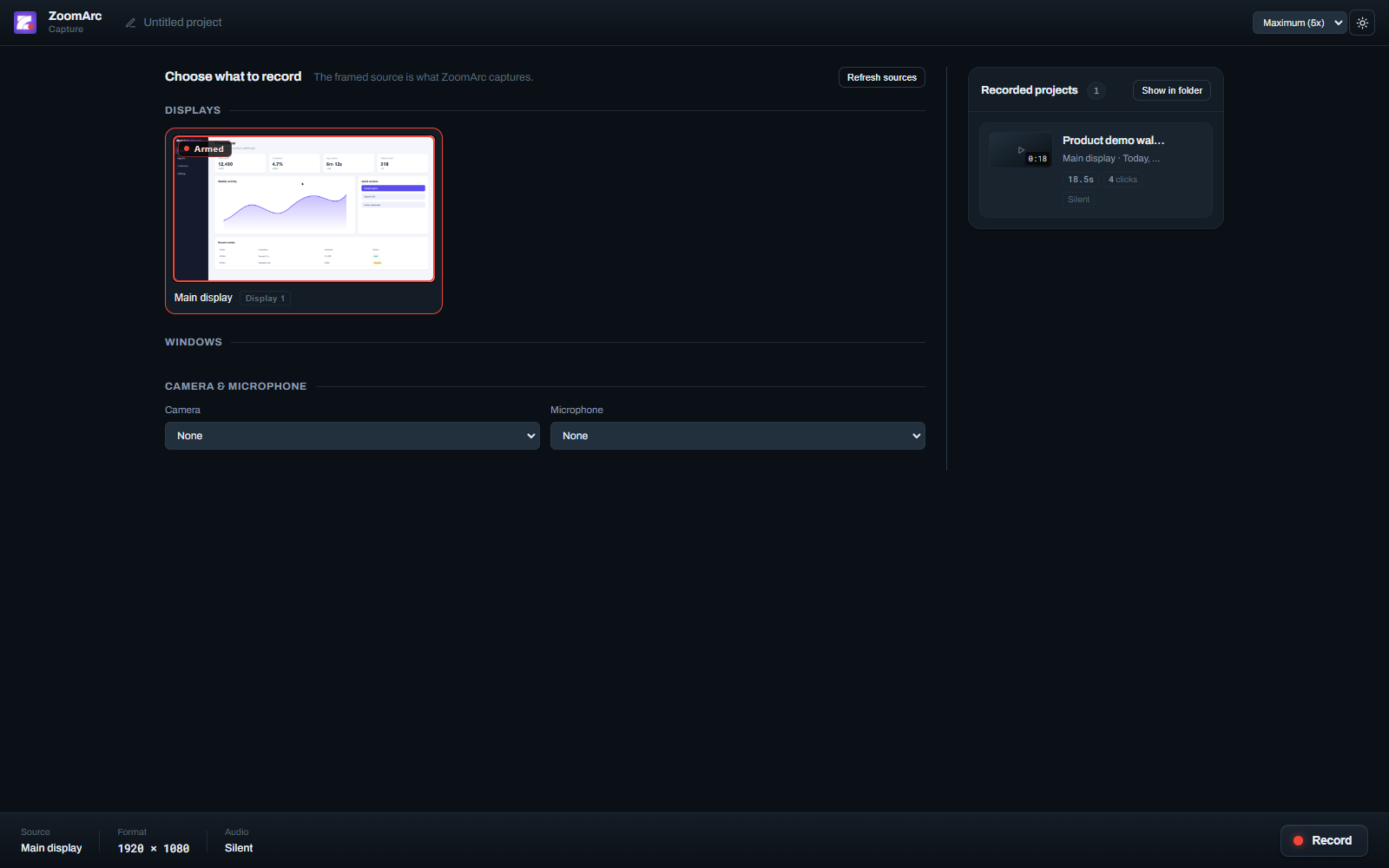
- Displays — record an entire monitor. Every connected monitor is listed with a live preview (the main display first), including monitors driven by a different GPU on hybrid laptops.
- Windows — record a single application window. If you move the window while recording, ZoomArc tracks its position so the cursor stays correctly placed.
The selected source is marked Armed. The bottom bar shows the source, the capture resolution and whether audio is on.
- Camera — records your webcam as a separate track, shown as a movable, resizable bubble in the editor. Choose Native (highest), 1080p or 720p.
- Microphone — records your voice; it's synced to the first video frame and saved into the video as AAC audio.
The quality menu (top right) sets the recording bitrate: Standard, High (2.5×) or Maximum (5×) (default). Higher quality gives sharper text and a cleaner source for export, at the cost of larger files.
Click Record. After the countdown:
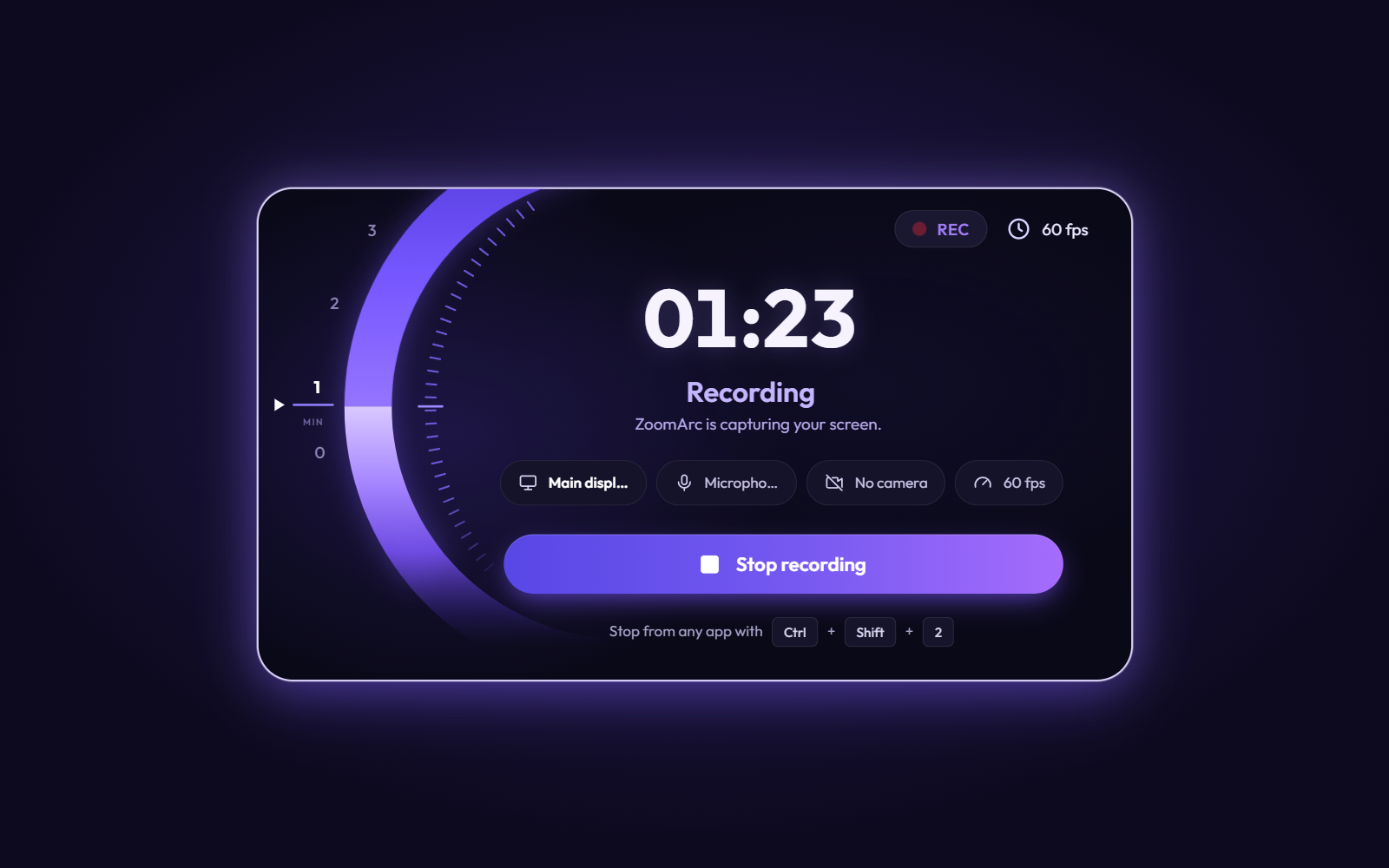
- The timer shows elapsed time; the minute dial on the left counts recorded minutes and turns with the seconds.
- The chips show exactly what's being captured: source, mic, camera and 60 fps.
- ZoomArc's own window minimizes so it's never in the shot.
- Click Stop recording, or
- press Ctrl+Shift+2 from any app (global hotkey).
The take is saved and opens in the Editor, with zoom segments already placed around your clicks.
| Capture API | Windows Graphics Capture, with the system cursor excluded from the pixels |
| Encoding | Hardware H.264 via Media Foundation, written straight to MP4 (GPU → encoder, no copies through the app) |
| Frame rate | True 60 fps on 60/120/144 Hz displays; a still screen produces fewer frames (variable frame rate) |
| Cursor | Sampled 2,000×/second on its own thread, on the same clock as the frames — see Auto-Zoom and Cursor Engine |
| GPU | Captures on the GPU that drives the recorded monitor (avoids slow cross-GPU copies on hybrid laptops) |
- Close notifications and hide private tabs before recording.
- Move the mouse deliberately and pause briefly before clicks — auto-zoom will frame each action cleanly.
- Use a 1920×1080 display or window for the sharpest 1080p exports.
- Record a window instead of the full screen to keep the focus on one app.