Repository navigation
Getting Started
This page shows the complete import cycle with the smallest product template: download it, fill it, upload it to your Selldone shop and check the result. The same cycle applies to the other templates.
- A Selldone shop and access to its dashboard.
- Microsoft Excel, LibreOffice Calc, Google Sheets or another app that can save
.xlsxfiles. - Product images available at public URLs (the Image and Images columns take URLs).
Download products-import-no-variants-small.xlsx.
It has eleven columns and three sample rows, for example:
| Category | Title | Title En | Image | Brand | SKU | Price | Currency | Type | Quantity | Image Contain |
|---|---|---|---|---|---|---|---|---|---|---|
| cat1 | Sample Product 1 | HR1388 | https://...jpg |
PHILIPS | 120 | USD | PHYSICAL | 10 | 1 |
- Keep the header row exactly as it is. Delete or overwrite the sample rows.
- One row per product. Use a valid Type such as
PHYSICAL. - Put prices as plain numbers (
49.99, not$49.99) and the currency as a code (USD,EUR,GBP). - Leave Product ID empty (or omit the column) to create new products.
- Values in Category should match your existing categories; otherwise the category is created automatically.
Need more columns, such as Status, Spec, Content Body (Html) or variants? Use the full reference in Product Import.
Save as .xlsx. Keep a backup copy in case you need to re-import.
- Open your Selldone shop dashboard.
- Navigate to the Products section.
- Use the Drag & Drop feature to upload your Excel file.
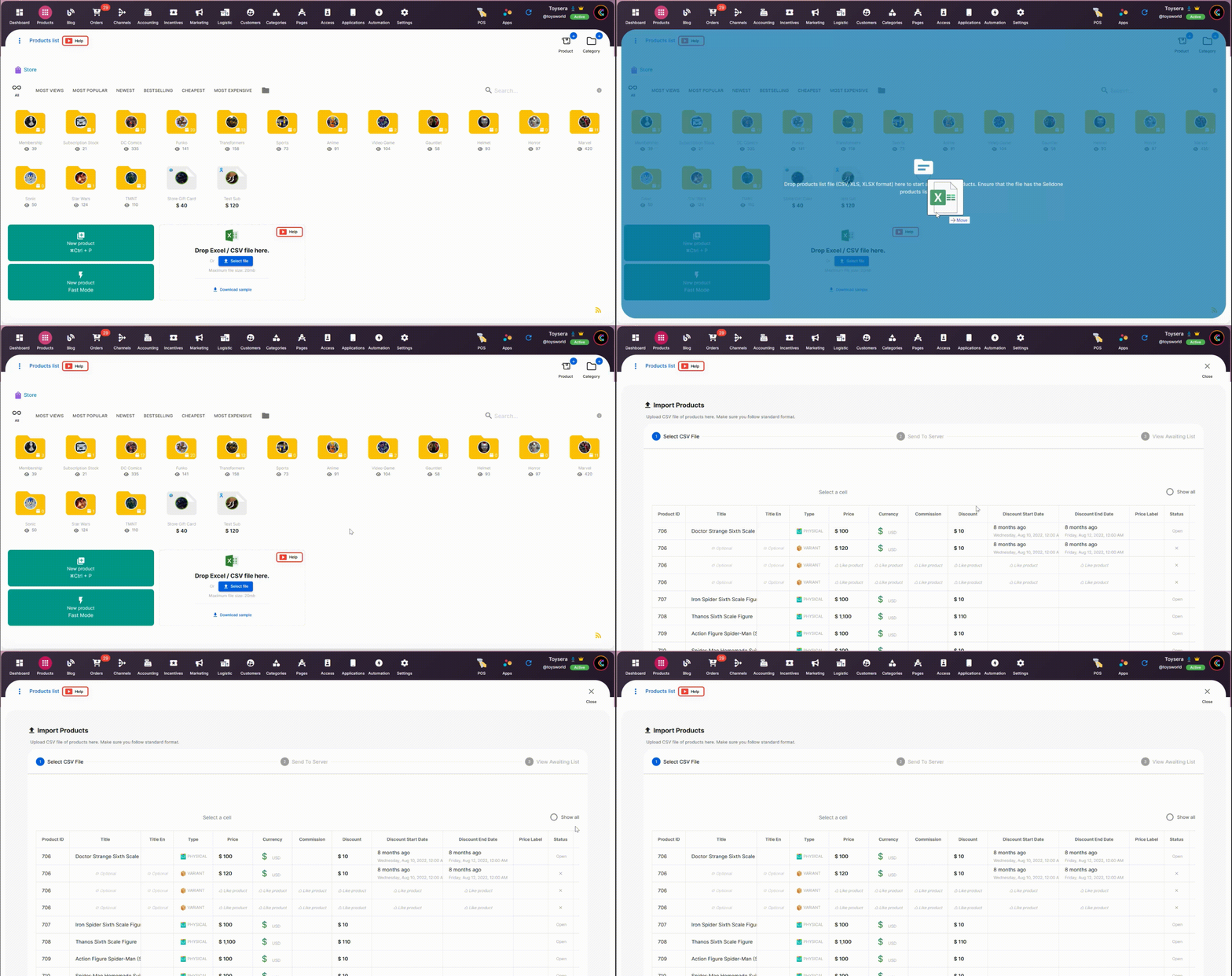
After uploading, review the imported data for accuracy and confirm the import. Check a few products in your storefront, including images, prices and categories.
- Start small: import a handful of rows first to get familiar with the process.
- Validate data formats: dates, numbers and JSON fields must be correctly formatted to prevent import errors.
- Update later: if you provide a Product ID (and Variant ID for variants) in a later file, the import updates those items instead of creating new ones.
- Product Import: every column explained.
- Converting Existing Files: reuse a Shopify export or another spreadsheet.
- Inventory Update: update stock and prices in bulk.
- FAQ