Getting Started
Once installed, Al-Quran Quote just works. Here is everything you can do straight away.
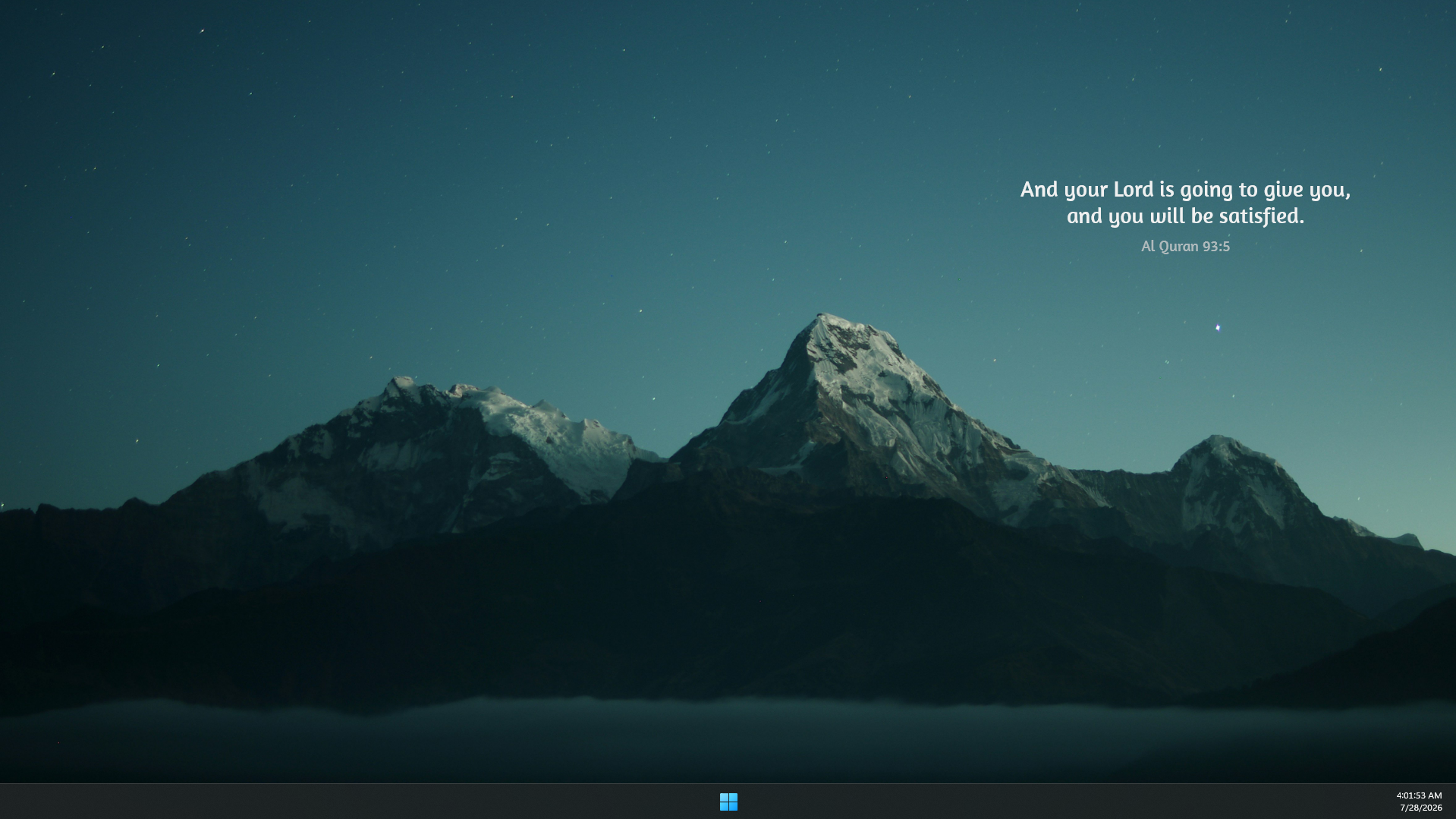
The panel shows two things:
- The verse - the translation text, in the middle.
- The reference - a small line underneath, for example Al Quran 2:255.
The panel is semi-transparent by design, so it blends nicely with your wallpaper.
There are three ways a new verse appears:
- Automatically - by default it changes every 30 minutes. You can make this faster, slower, or turn it off entirely.
- On demand - click the small arrow (chevron) next to the reference to jump to the next verse right away.
- From settings - the settings panel has a Change verse button that does the same thing (useful if you hide the arrow).
- Offline (the default): verses come from a list built into the skin. No internet is used.
- Online: the skin can instead fetch a fresh random verse from the internet each time.
You choose which in the settings panel. See Verses & Content for details.
Look for the small settings icon (three little sliders) in the corner of the panel. Click it and the settings window opens next to the verse. This is where you change fonts, colours, size, timing, the language, and more.
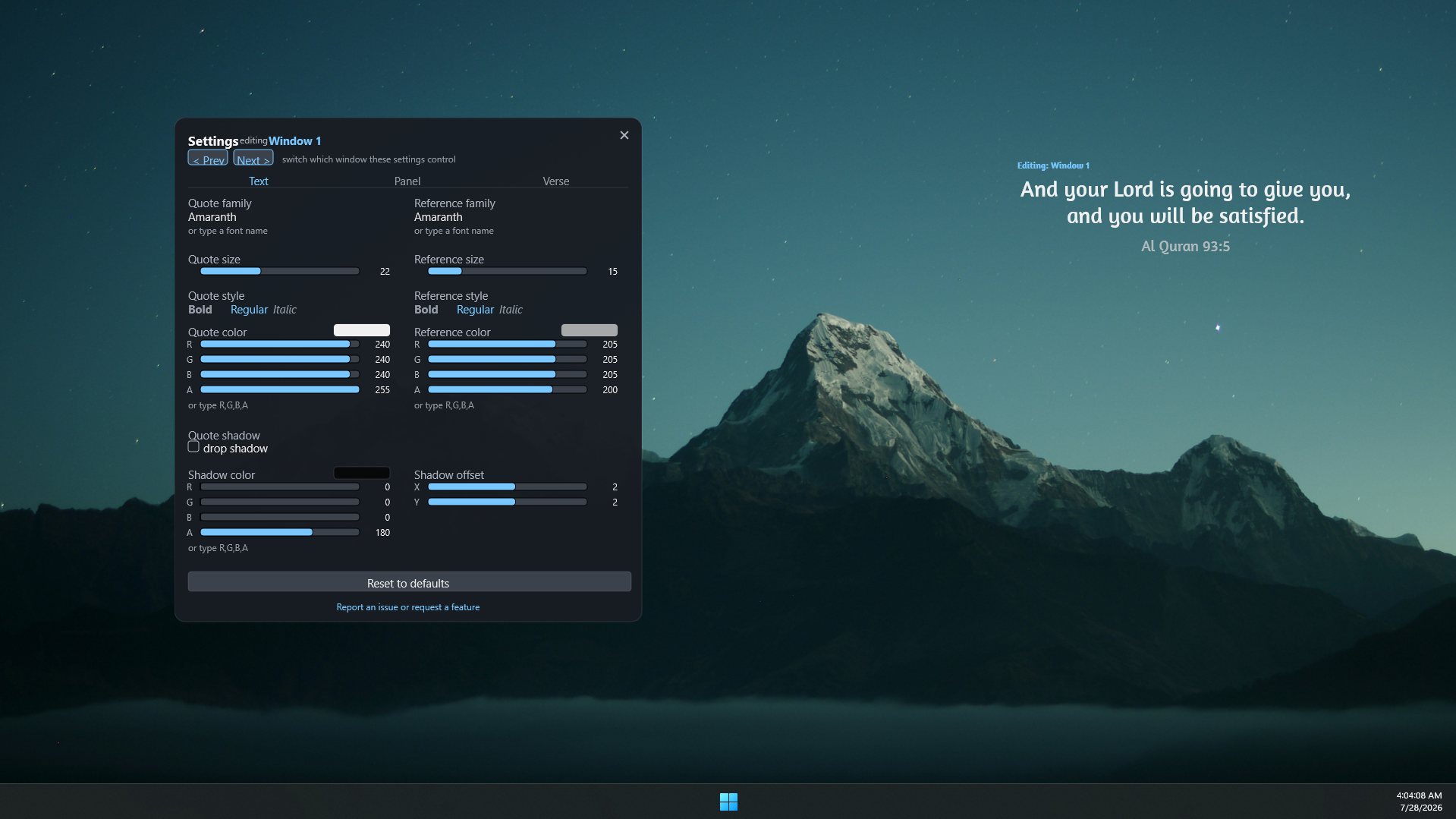
Everything you change applies immediately, and your choices are remembered even after you restart your computer.
Don't see the settings icon? It can be hidden. To bring the settings panel back, open Rainmeter, go to Manage, and load
AlQuranQuote\Settings. See Troubleshooting.
| You want to... | Go to |
|---|---|
| Change the font, size, colour, or add a shadow | Text & Appearance |
| Change the background colour, transparency, or size | Panel & Size |
| Change how often verses rotate, or the reference label | Verses & Content |
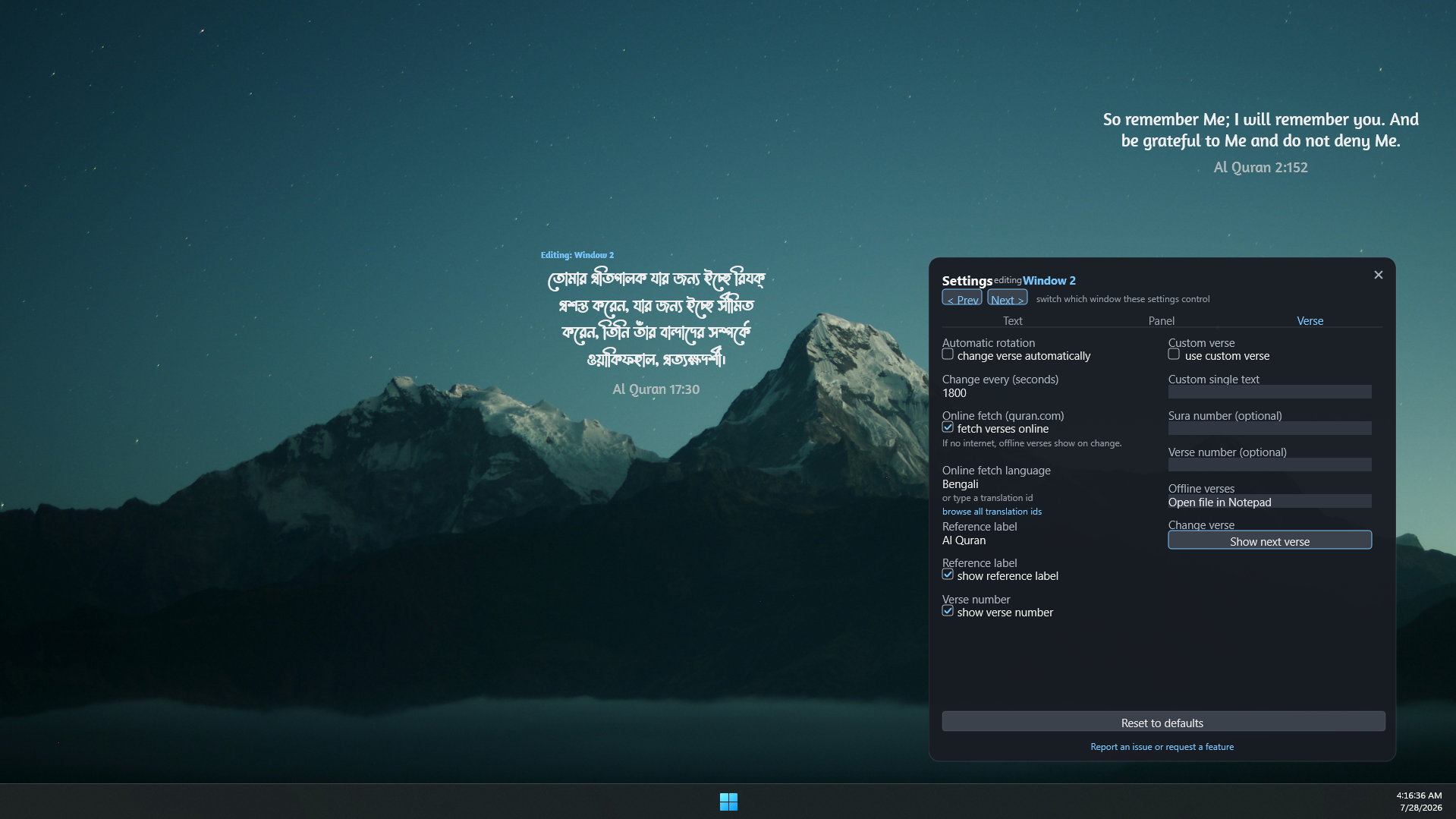
| Show verses in another language or Arabic | Languages |
| Show your own verse or dua | Offline & Custom Verses |
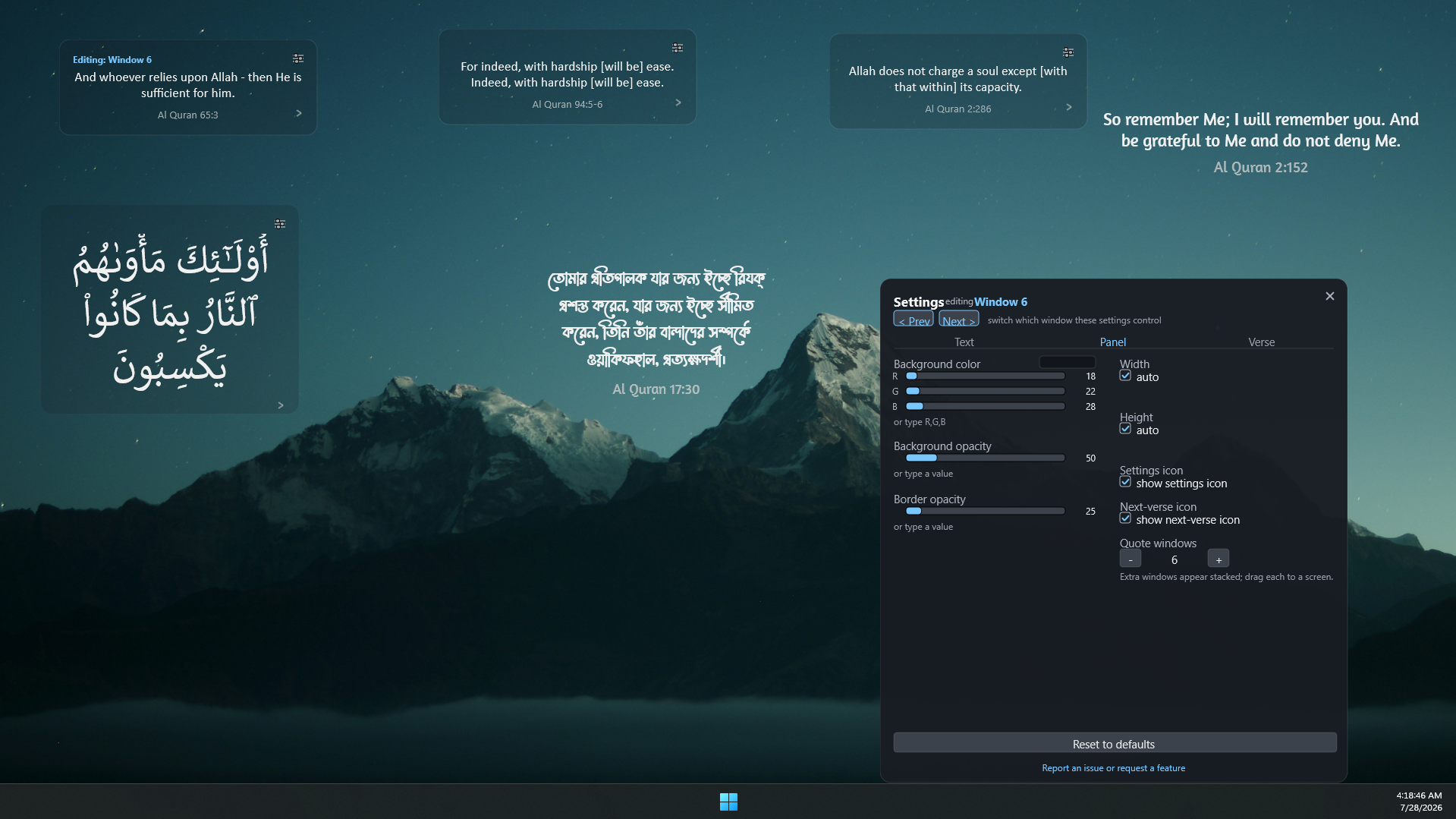
| Put a verse on each monitor | Multiple Windows |
For example, you can show a different verse on each screen, and pick another language such as Bengali:
Next: The Settings Panel