Languages
When online fetch is turned on (see Verses & Content), you can show verses in a language other than English, including the original Arabic.
- Open the settings panel and go to the Verse tab.
- Make sure Online fetch (quran.com) is ticked. (The language only applies to online verses.)
- Click the Language control to open a list of ready-made choices and pick one.
- The next verse appears in that language.
quran.com offers well over a hundred translations. If yours is not in the ready-made list, use the type a translation id box and enter the number for your translation. You can find these ids on the quran.com website. This lets you use any translation they offer.
Arabic is a special option in the list. Instead of a translation, it shows the original Uthmani Arabic of the verse.
A language only displays correctly if the font you picked on the Text tab actually contains that language's letters.
- English and most European languages - almost any font works. The default Calibri is fine.
- Arabic - choose an Arabic-capable font (for example Traditional Arabic, Amiri, or another Arabic font installed on your PC).
- Other scripts (Bengali, Urdu, etc.) - choose a font made for that script. The Bengali screenshots on this wiki use Li Mayukh Unicode, a free Bengali font.
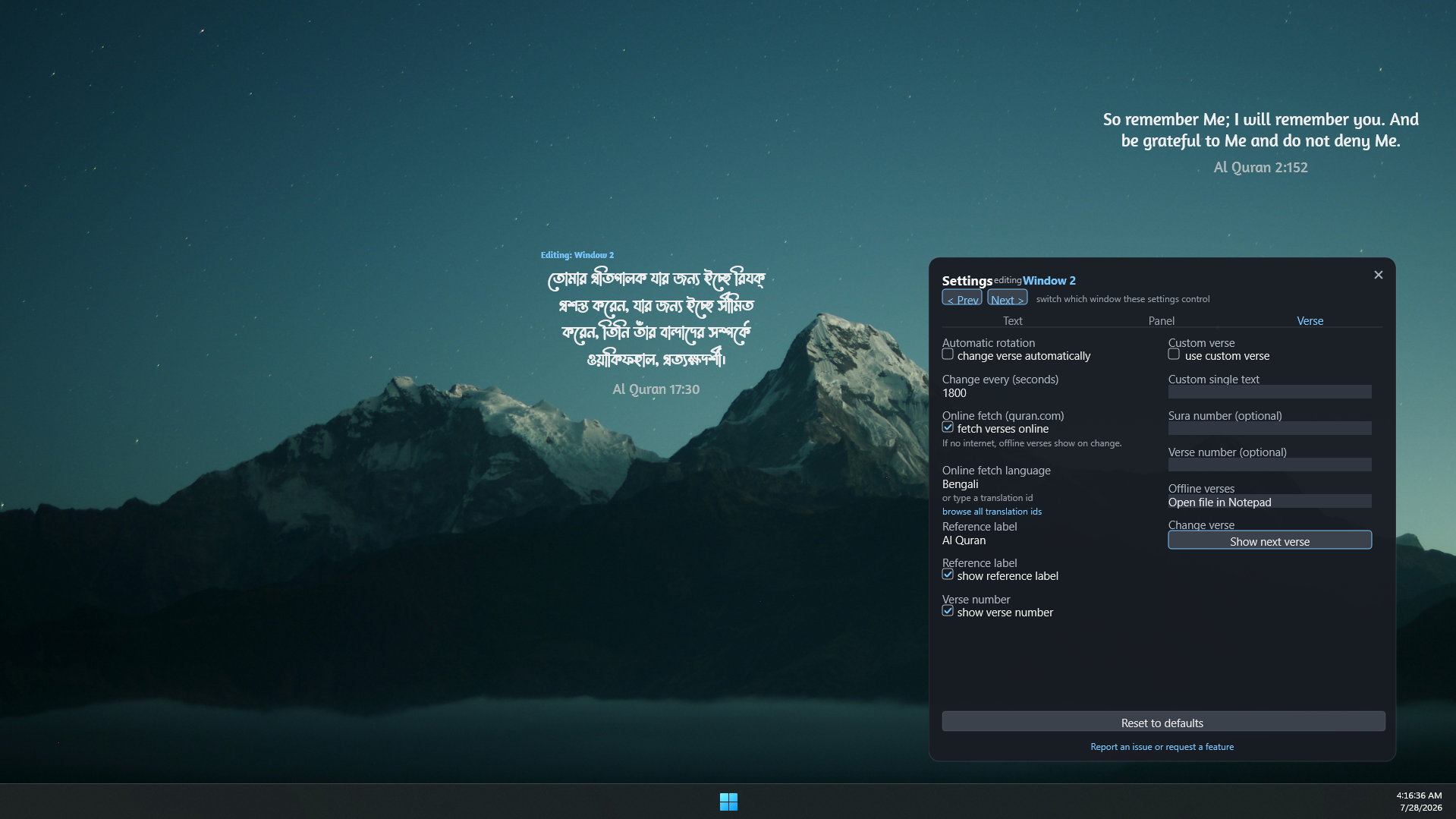
If you switch to a language and see boxes, question marks, or blank text, that is the font, not the skin. Change the quote font on the Text tab to one that supports the script. See Text & Appearance and Troubleshooting.
Next: Multiple Windows