Bulk Rename
Bulk Rename renames files on disk. It does not open the MKV files and does not change track titles or tags. For that reason it is a separate window with its own Rename button rather than part of the analyse/apply flow.
It lives inside Metadata mode because that mode already has a scanned file list to work from.
For recipes, see the bulk rename section of the metadata examples.
- Switch to Metadata mode.
- Set the input path and press
F5to scan. - Press
F11(or Actions ▸ Advanced rename).
A scan is required. Without one you get No scanned Metadata files: select input and run scan before renaming.
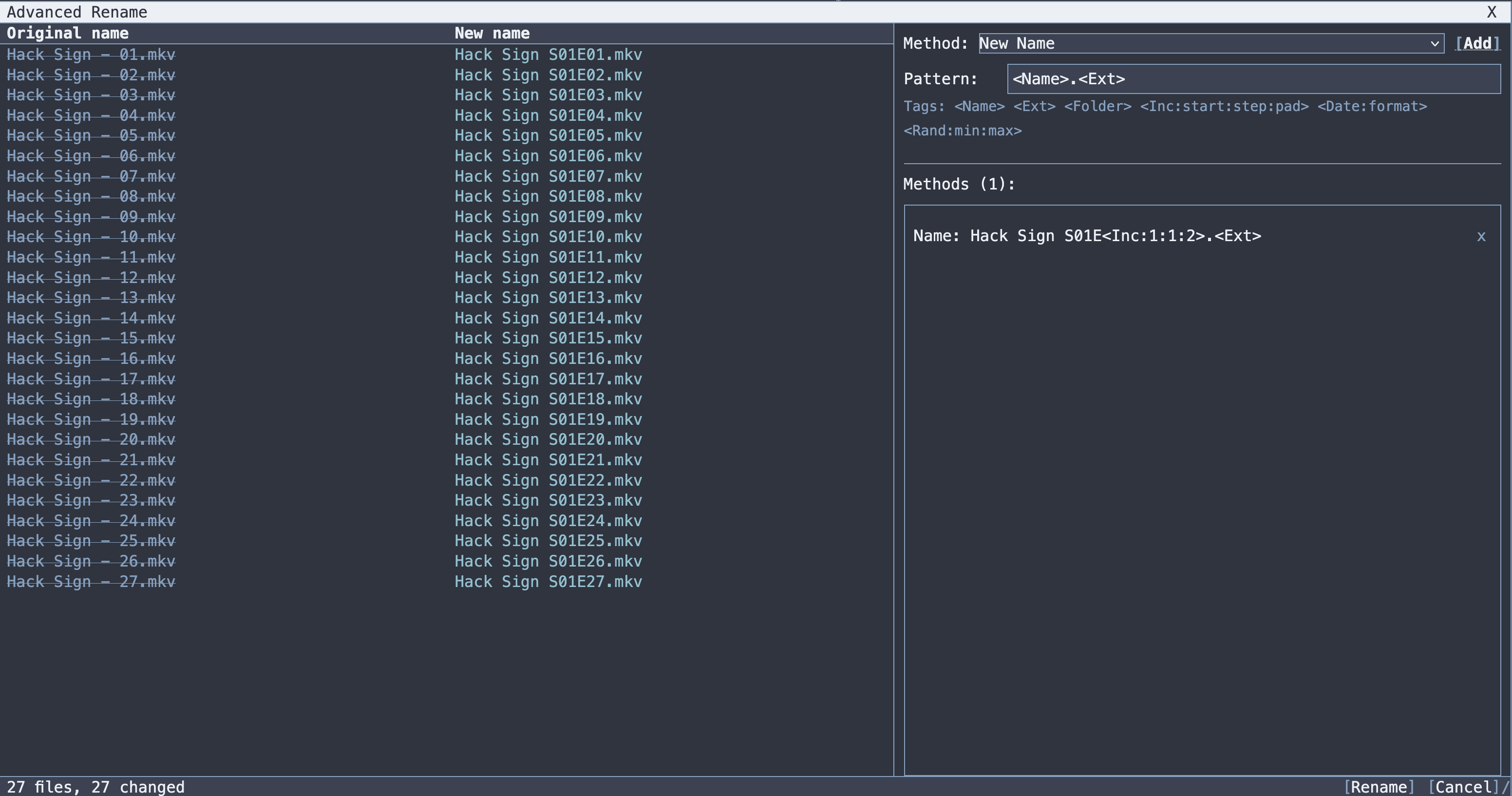
- Pick a Method from the dropdown and fill in its parameters.
- Press Add. It joins the method stack, and the preview updates immediately.
- Add more methods as needed. They apply in stack order.
- Read the preview table, Original name next to New name, for every file.
- Check the status line:
N files, M changedplusX conflictsandY errorswhen there are any. - Press Rename.
Afterwards the metadata scan refreshes automatically, so the file list reflects the new names.
Nothing happens until you press Rename. Building a stack and previewing is free. Build it, look at it, adjust it.
Methods are cumulative: each one operates on the name the previous one produced. This is what makes non-trivial cleanups possible. Strip a release tag, then collapse the dots into spaces, then title-case the result.
Each entry in the stack has ^ / v to reorder and x to remove. Order matters: removing [Group] before you replace . with is not the same as doing it after.
The Rename button is disabled while the stack is empty or the preview has a problem.
Find and replace text.
| Field | Notes |
|---|---|
| Search | text or regex to find |
| Replace | what to put in its place. Empty deletes the match |
| Case sensitive | off by default |
| Use regex | treat Search as a regular expression |
Replace works on the whole filename, extension included. It is the only method that does. Searching for . with regex off will therefore also hit the dot before mkv. Use Remove, or a regex anchored away from the end, to leave the extension separator intact.
With Use regex on, the Replace field supports capture group references ($1, $2). An invalid pattern shows Invalid regex: ... and the method is not applied.
Insert text at a position.
| Field | Notes |
|---|---|
| Text | what to insert |
| Position | 0-based character index |
| From end | count the position from the end instead of the start |
Operates on the name only: the extension is left alone. Position 0 prepends; a position beyond the end of the name appends.
Delete characters, either by position or by pattern. Mode switches between the two.
By position:
| Field | Notes |
|---|---|
| Start | 0-based index to start at |
| Count | how many characters to remove |
| From end | measure from the end of the name |
By pattern:
| Field | Notes |
|---|---|
| Pattern | text or regex to delete |
| Case sensitive | off by default |
| Use regex | treat Pattern as a regular expression |
Operates on the name only. Out-of-range positions are clamped rather than erroring, and a range entirely past the end of the name leaves the file unchanged.
Remove-by-pattern with regex is the usual method for stripping release tags: \[[^\]]*\] deletes every bracketed group.
Change capitalisation.
| Field | Options |
|---|---|
| Mode |
lowercase, UPPERCASE, Title Case
|
| Scope |
Name only, Extension only, Full name
|
Title Case lowercases the value first and then capitalises each word, so BLEACH.S12E08 becomes Bleach.S12E08.
Rebuild the filename from scratch using a tag pattern. Default: <Name>.<Ext>.
| Tag | Value |
|---|---|
<Name> |
original name without extension |
<Ext> |
original extension without the dot |
<Folder> |
parent folder name |
<Inc:start:step:pad> |
incrementing counter |
<Date:format> |
file's last-modified date, using a .NET format string |
<Rand:min:max> |
random integer in the range, inclusive |
The dialog's hint only lists the first three, but all six work.
<Inc:...> takes up to three parameters, all optional, defaulting to start 1, step 1, pad 1:
| Pattern | Result |
|---|---|
<Inc:1:1:2> |
01, 02, 03, … |
<Inc:214:1:3> |
214, 215, 216, … |
<Inc:1:2:2> |
01, 03, 05, … |
So renumbering a folder to continue an existing season:
Bleach.S12E<Inc:214:1:3>.<Ext>
<Date:yyyy-MM-dd> gives 2026-07-30; any .NET date format string works, and an invalid one is left in place literally so you can see what went wrong.
Numbering follows the order of the scanned file list. Check the preview before renaming: if the list order is wrong, the numbering will be too.
Strip leading and/or trailing characters.
| Field | Notes |
|---|---|
| Chars | the set of characters to trim, default a single space |
| Location |
Start, End, Both
|
| Scope |
Name only, Extension only, Full name
|
Chars is a character set, not a string: -_. trims any mixture of spaces, hyphens, underscores and dots from the ends. This is typically used after a Remove has left a dangling separator.
The preview table shows every scanned file with its Original name and its New name. Unchanged files show identical values.
The status line summarises:
24 files, 22 changed, 2 conflicts
| Part | Meaning |
|---|---|
N files |
how many are in the list |
M changed |
how many the stack actually renames |
X conflicts |
two or more files would end up with the same name in the same folder |
Y errors |
a name is invalid: illegal characters, or empty |
Conflicts and errors block the rename. They are not warnings you can push past, because either would mean losing a file. Conflicts are compared per folder, so identical names in different directories are fine.
A conflict normally means the stack removed the part that distinguished the files: a Remove that deleted the episode number, or a New Name pattern containing neither <Inc:...> nor <Name>.
-
There is no undo. Renaming is immediate and RemuxForge does not record the previous names. If the stack is complex, keep a listing (
ls > names.txt) before pressing Rename. - Conflicts and invalid names are refused, so you cannot overwrite one file with another through the preview.
- An invalid regex disables that method rather than being applied partially.
- Only file names change. Nothing inside the files is touched, so metadata, tracks and tags are untouched.
- Under Docker the media mount must be writable. A read-only mount fails the rename.
- Bulk rename recipes: worked examples
- Metadata Mode: the mode this lives in
- Remux Mode: renaming to fix episode matching