Remux Audio and Video
By default, Remux mode does not touch audio or video: tracks are copied bit-for-bit into the new container. This page covers the cases where they are changed: converting an imported dub to a different codec, normalizing levels, reducing bit depth, or re-encoding the video after merging.
Everything here is optional and everything here costs time. Read Remux Mode first.
Two features force audio processing whether you wanted it or not:
| Situation | Why |
|---|---|
| Speed correction is on and Language audio is imported | the stretch is materialised by FFmpeg onto the imported tracks |
| Deep analysis is on and Language audio is imported | the imported tracks are rebuilt onto the corrected timeline |
| Audio source fill is enabled | the fill segment is concatenated onto the imported track |
All three require an Audio format, and an Audio scope of Lang or All. Validation refuses to run otherwise. Deep analysis and Speed correction apply this to the whole batch, including episodes whose analysis produces no operations. See Remux Synchronization.
If neither applies and you simply want a straight remux, leave Audio format empty and the whole section stays out of your way.
Two fields in the Audio post-processing section of the configuration dialog (F2). The second one only appears once the first is set.

Audio format: the target format for processed tracks:
| Format | Lossless | Use for |
|---|---|---|
| FLAC | yes | rebuilding or compressing a track with no generation loss |
| LPCM | yes | uncompressed; the largest output of the five |
| AAC | no | broad device compatibility |
| Opus | no | best quality per bit; not universally supported by TVs and players |
| AC-3 | no | maximum compatibility, including old hardware and pass-through receivers |
Audio scope: which tracks get converted:
| Scope | Effect |
|---|---|
Disabled |
no conversion. Refused when Speed correction, Deep analysis or source fill are active. |
Lang |
every audio track imported from the Language file |
All |
the same processing, extended to the final Source tracks |
Lang converts only the imported tracks and leaves the source tracks byte-identical. All also re-encodes the tracks kept from the Source, which is what is needed when those tracks are themselves the target: compressing PCM from a DVD or Blu-ray to FLAC, or converting LPCM to Opus for a size-constrained encode. It also means source tracks already in the wanted format are re-encoded, at a cost in time and, with a lossy target, in quality.
Disabled is available only when none of Speed correction, Deep analysis or Audio source fill is active. Those three are timeline corrections rather than optional conversions, so Lang is the minimum scope they accept.
The detail panel's AUDIO PROCESSING section reports what happened per track, and it tells you when nothing did:
| Message | Meaning |
|---|---|
codec conversion |
converted to the target format |
mandatory Speed/Deep conversion |
rendered because Speed correction or Deep analysis is active |
audio stretch materialized: factor F, ratio R, FFmpeg tempo T |
the speed-correction factor applied to this track |
deep edit-map |
rebuilt onto the Deep analysis timeline |
source-fill |
fill segments were concatenated |
source-fill configured, no fill above threshold |
source fill was on but no gap exceeded the threshold |
delay materialized in render |
the delay was baked into the samples rather than set as a container offset |
already compatible with configured audio processing |
the track was already in the target format, skipped |
outside generic audio scope |
your scope excluded this track |
no render |
nothing to do |
Reduces 24-bit tracks to 16-bit. Available only with FLAC or LPCM, and only when Audio scope is not Disabled. The toggle simply does not appear otherwise.
It uses the soxr resampler at precision 28 with shibata noise-shaping dither, rather than a plain truncation. The result halves the size of a lossless track with no audible penalty on normal listening material.
If your ffmpeg build lacks soxr or cannot apply shibata dither at the required rate, the operation fails with an explicit message rather than silently degrading. The bundled Docker ffmpeg supports both.
Global multichannel peak normalization to a target in dB. Appears once an Audio format is set and scope is not Disabled. The target must be ≤ 0 dB; anything above that is a validation error.
This is peak normalization, not loudness normalization: it measures the true peak and applies one gain factor so the loudest sample lands on your target. It does not touch dynamics and it does not implement EBU R128 / LUFS targets.
Measuring the true peak requires rendering the track once to a temporary file before encoding it, so normalization roughly doubles the audio work. With source fill enabled, both the source and the language track are measured and normalized before they are concatenated, so the join does not have a level step across it. The full order of operations is in Internals.
If the peak cannot be measured, the track fails with Peak normalization failed: peak not detected for track N.
These are the application-wide encoder settings used whenever a format is applied. Only reachable from Remux mode, and they are global rather than per-job.
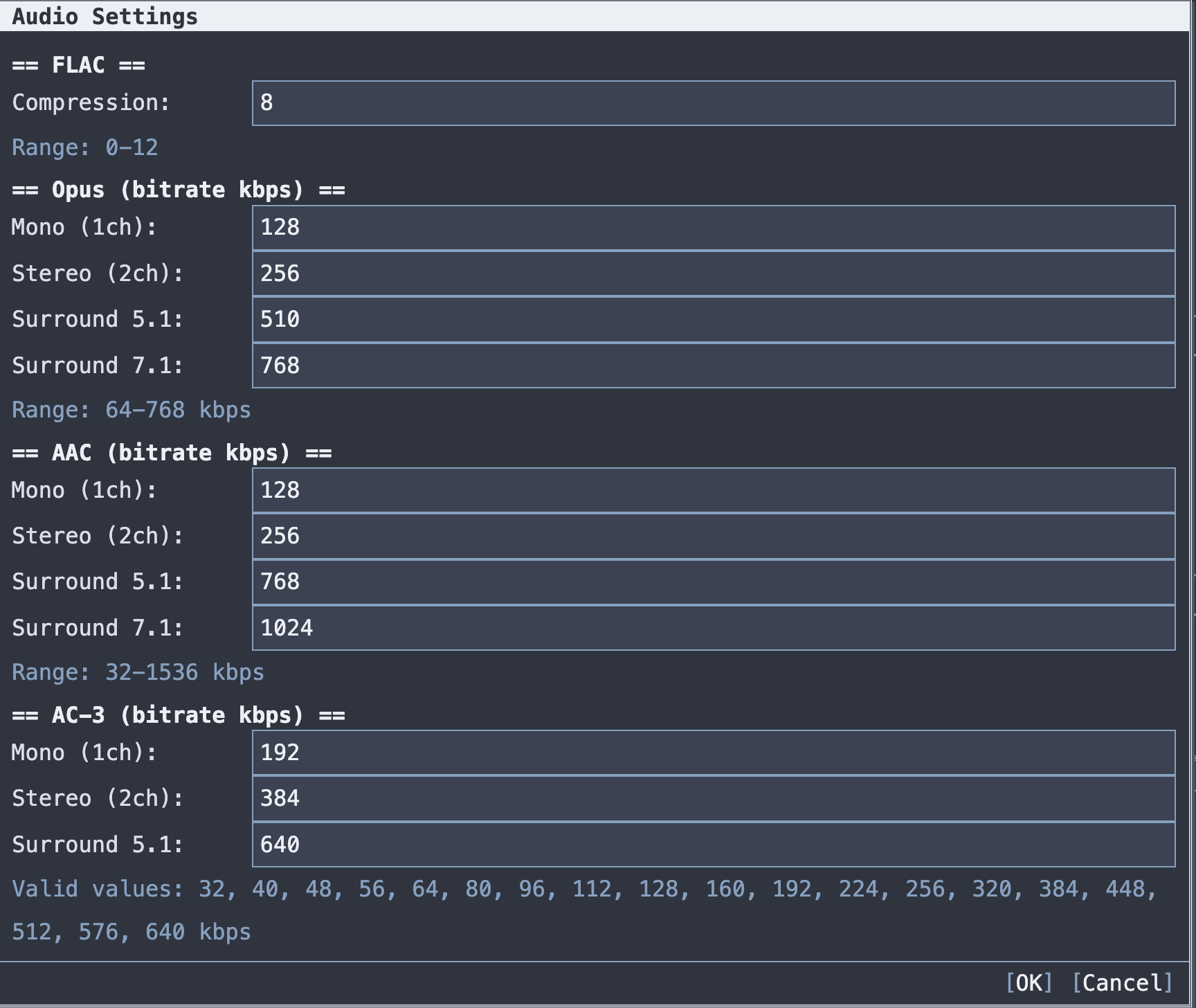
| Setting | Range | Default |
|---|---|---|
| FLAC compression | 0–12 | 8 |
| Opus mono / stereo / 5.1 / 7.1 | 64–768 kbps |
128 / 256 / 510 / 768
|
| AAC mono / stereo / 5.1 / 7.1 | 32–1536 kbps |
128 / 256 / 768 / 1024
|
| AC-3 mono / stereo / 5.1 | fixed set, see below |
192 / 384 / 640
|
Bitrates are per channel layout. RemuxForge picks the right one for each track based on its channel count, so a 5.1 dub and a stereo commentary get appropriate bitrates in the same run without you doing anything.
AC-3 only accepts the bitrates the format defines, and has no 7.1 entry because AC-3 does not support 7.1:
32, 40, 48, 56, 64, 80, 96, 112, 128, 160, 192, 224, 256,
320, 384, 448, 512, 576, 640 kbps
FLAC compression is lossless at every level; the level trades encode time for file size. Level 12 produces a marginally smaller file than level 8 at a significantly higher encode cost, and decodes identically.
Video re-encoding is off by default. To use it you first create a profile, then select it in the configuration's Video post-processing ▸ Video encoding field. Profiles are stored in appsettings.json and shared with the CLI (-ep <name>).
Open Settings ▸ Encoding profiles (Remux mode only), press [New], and fill it in.
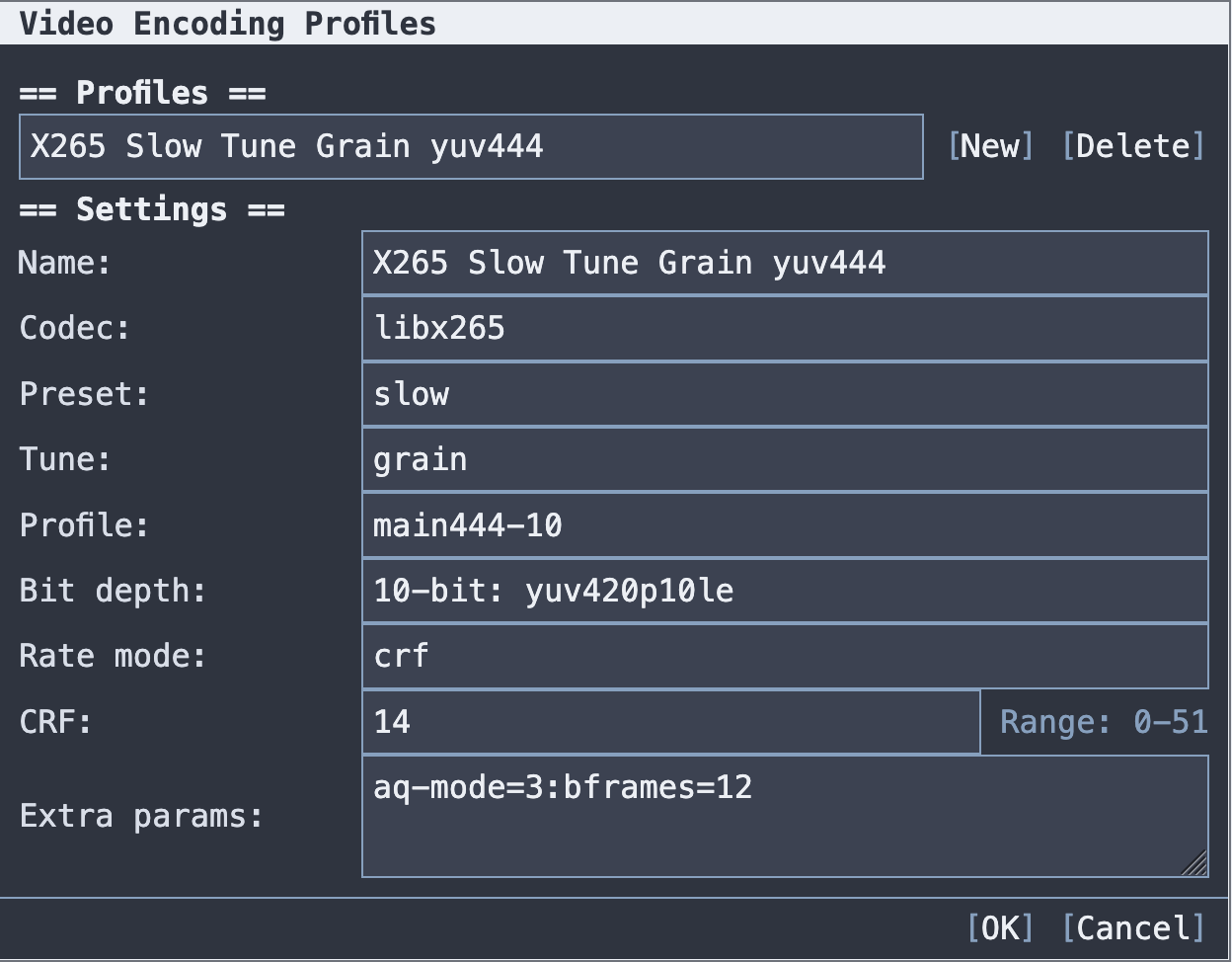
Three software encoders are available. There is no hardware encoding. GPU support is limited to optional FFmpeg decode and Vulkan visual analysis.
| Field | Notes |
|---|---|
| Name | how the profile appears in the config dropdown and in -ep
|
| Codec |
libx264, libx265 or libsvtav1
|
| Preset | speed/efficiency tradeoff. x264/x265: ultrafast…placebo. svtav1: 0–13 (0 slowest/best) |
| Tune | x264: film, animation, grain, stillimage, psnr, ssim, zerolatency, fastdecode. x265: psnr, ssim, grain, zerolatency, fastdecode, animation. svtav1: 0 - VQ, 1 - PSNR, 2 - SSIM
|
| Profile | x264/x265 only. Svtav1 has none, so the field is hidden for it |
| Bit depth | pixel format, e.g. 10-bit: yuv420p10le. x265 also offers 12-bit and 4:2:2/4:4:4 variants |
| Rate mode | x264/x265: crf or bitrate. svtav1 adds qp
|
| CRF / QP | shown for crf/qp. Ranges: x264 0–51 (default 23), x265 0–51 (default 28), svtav1 0–63 (default 35) |
| Bitrate (kbps) | shown for bitrate mode |
| Passes | 1 or 2, x264/x265 bitrate mode only |
| Film grain | svtav1 only. 0 = off, 1–50. Optional Film grain denoise
|
| Extra params | raw encoder arguments appended to the command line, for anything the dialog does not cover |
The full per-codec allowed-value lists are in Settings Reference.
Re-encoding is the slowest operation RemuxForge performs, taking hours per episode at slow presets, and it is lossy: the video is decoded and encoded again, so picture quality that a plain remux would have preserved is not retained.
It produces a smaller or more compatible file at the cost of time and picture quality: shrinking an archive, or converting a codec a target device cannot play. With no profile selected the video is copied unchanged.
Encoding happens after the merge, so the sequence is: merge → re-encode video → final file. The episode status shows Encoding during this phase, and the detail panel reports the outcome:
ENCODING
  Profile: hevc-slow-crf20
  Size: 4.21 GB -> 2.05 GB (reduction 51%)
  Time: 5124300 ms
Running a single episode with F9 first reports the size, the time and the result for that profile, which can be inspected with Result MediaInfo from the context menu before the batch is committed.
- Examples: Remux: worked audio and encoding configurations
- Settings Reference: the full allowed-value tables
- Codec and Language Reference: codec aliases for the import filters