Remux Mode
Remux mode combines two releases of the same content. You keep one release's video and pick tracks out of the other.
The classic case: you have a good English 1080p release and a lower-quality release that carries the Italian dub. You want the good video with the Italian audio added. Remux mode does that for a whole season in one pass, without re-encoding video.
If the two releases do not line up in time, read Remux Synchronization as well. For converting or normalizing the imported audio, see Remux Audio and Video. For complete worked configurations, see Examples: Remux.
Two folders, two roles:
| Role | Config field | What happens to it |
|---|---|---|
| Source | Source |
The release you keep. Its video is copied untouched. Its audio and subtitles are kept unless you filter them out. |
| Language | Language |
The donor. Nothing is written to it. Audio and subtitle tracks matching your target language are extracted from it and added to the output. |
The output is: source video + kept source tracks + imported language tracks.
Remux mode normally works on folders: it scans both, derives an episode ID from each filename with a regex, and pairs files that produce the same ID. One source file plus one language file equals one row in the table.
A single file can also be selected on each side. Source and Language are then paired directly, the match pattern is bypassed, and the table holds one row. See Single-file mode.
If both folders are the same folder, or the Language field is left empty, which means "use Source", you get a filter-only job: no import, just dropping tracks you do not want from the files you already have.
-
Press
F2to open the configuration. - Fill in Source and Language with the
[ .. ]browse buttons. Both accept a folder or a single file. - Set the output: either a Destination folder, or tick Overwrite source. One of the two is required.
- Set Target language to the languages to import:
ita, orita,engfor several. - Decide what to keep from the source: Keep audio, Keep sub, and the codec filters. Leaving them empty keeps everything.
- If the releases might not be in sync, set up Synchronization: see Remux Synchronization.
- Press OK. Validation runs now; errors appear in red at the bottom of the dialog.
-
Press
F5to scan. The table fills with matched episodes. Read the log line:Scan completed: N files found, N ready, N skipped. -
Press
F7to analyze all, or select rows and pressF6. With Frame-sync or Deep analysis on, this is the slow part; without them it is quick. - Click a row and read the right-hand panel. This is the review step. It tells you exactly which tracks go in, in what order, with what delay.
-
Press
F10to process everything, or select rows and pressF9.
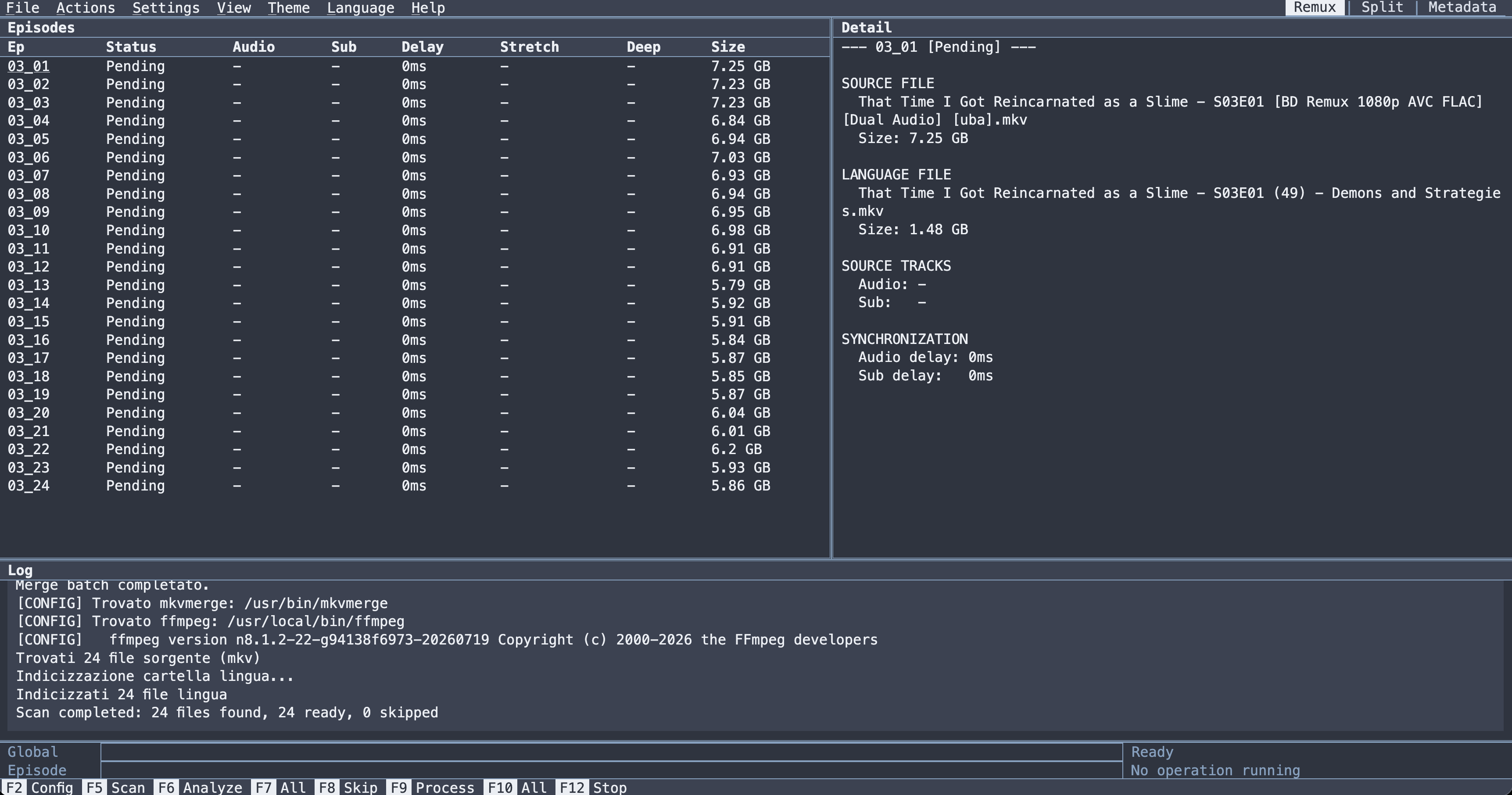
If nothing appears in step 8, the match pattern is almost always the cause. See Episode matching below.
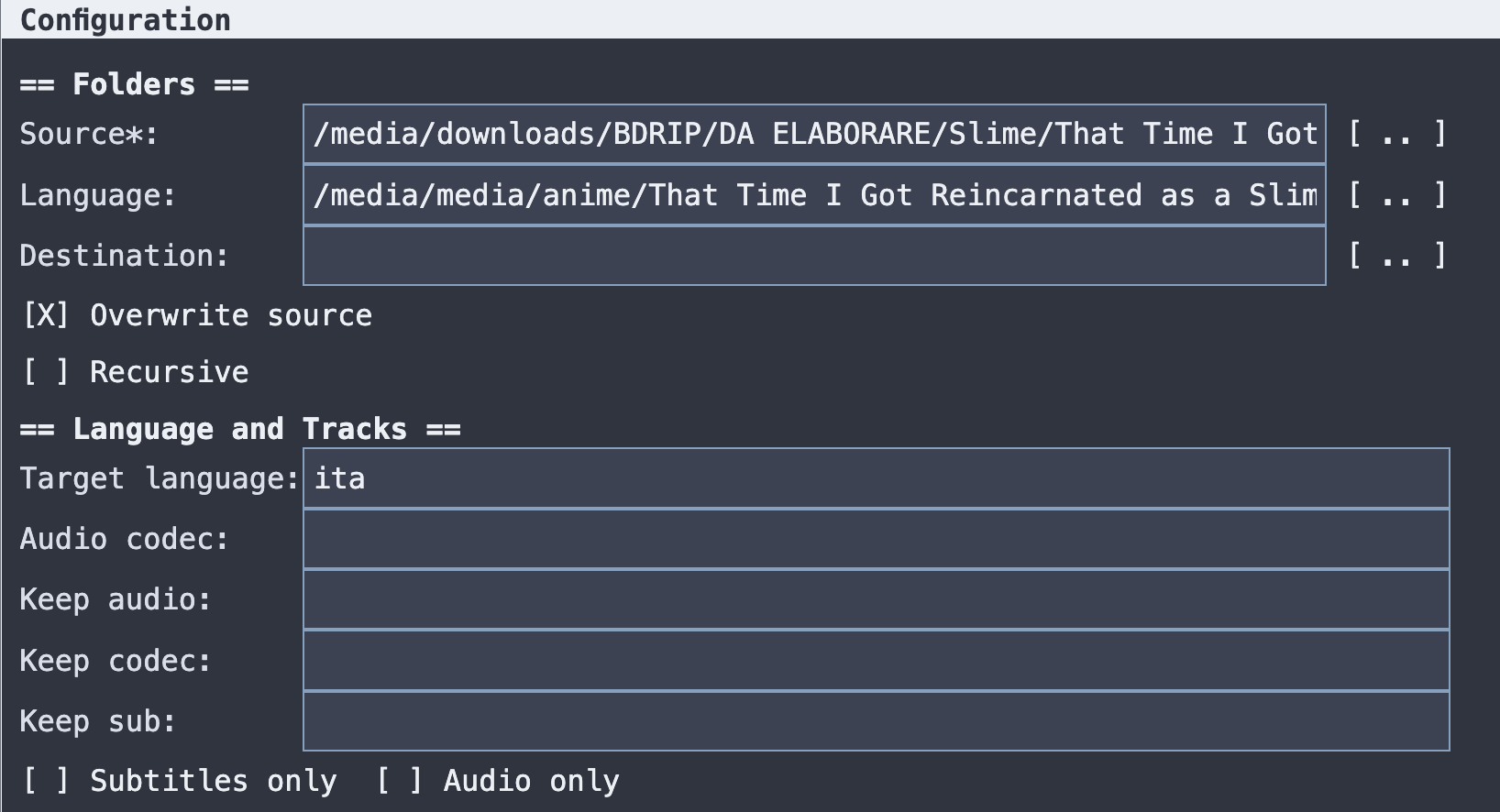
| Field | Notes |
|---|---|
| Source* | Folder with the MKV files you are keeping, or a single MKV file. Required. |
| Language | Folder with the files to import from, or a single MKV file. If empty, Source is used as the language folder too, which gives a filter-only job. |
| Destination | Output folder. Required unless Overwrite source is on; the label shows * while it is required. |
| Overwrite source | Write the result in place of the source file. Mutually exclusive with Destination. |
| Recursive | Include subfolders when scanning. On by default. |
Overwrite source replaces your originals. The merge is done to a temporary file and swapped in, so an interrupted run does not leave a corrupt file, but the original is still gone once it succeeds. A Destination folder leaves the originals in place, which allows the output to be inspected before the source is discarded.
This section decides what ends up in the output. Two independent groups: what to import from the Language file, and what to keep from the Source file.
| Field | Applies to | Notes |
|---|---|---|
| Target language | import | ISO 639-2 codes, comma-separated: ita, or ita,eng. Selects which audio and subtitle tracks are pulled from the Language file. |
| Audio codec | import | Optional codec filter on the import. Empty = every audio track of the target language. Accepts aliases like DTS-HD MA, E-AC-3, ATMOS. |
| Keep audio | source | Audio languages to keep from the Source. Empty = keep every source audio track that is not replaced by an import. |
| Keep codec | source | Optional codec filter on the kept source audio. Empty = no codec filter. |
| Keep sub | source | Subtitle languages to keep from the Source. Empty = keep every source subtitle. |
| Subtitles only | import | Import subtitles only, ignore audio. |
| Audio only | import | Import audio only, ignore subtitles. |
Subtitles only and Audio only are mutually exclusive; setting both is a validation error.
Codec names accept a generous set of aliases, but some of them are broader than they look. Bare DTS matches only the DTS core and not DTS-HD MA, and ATMOS matches both TrueHD and E-AC-3. The full list with all the caveats is in Codec and Language Reference, and it is also in the dialog's help pane.
"Keep" fields are whitelists, and an empty whitelist means keep everything, not keep nothing. If you want only Japanese audio from the source plus an imported Italian track, set Keep audio to jpn. Leaving it empty keeps every source language.
| Field | Default | Notes |
|---|---|---|
| Match pattern | S(\d+)E(\d+) |
Regex used to pair source files with language files. |
| Extensions | mkv |
Extensions to scan, comma-separated. |
See Episode matching below.
Three more sections in the same dialog, documented separately because they are deep topics:
- Synchronization: Speed, Stretch, Frame-sync, Deep analysis, Crop, Sub canvas, Audio/Sub delay → Remux Synchronization
- Audio post-processing: Audio format, Audio scope, Audio source fill, 24→16 bit, Normalization → Remux Audio and Video
- Video post-processing: Video encoding profile → Remux Audio and Video
With all three left alone, RemuxForge performs a straight remux: no analysis, no conversion, no re-encoding. This is the fast path, and it is what runs when the two releases already line up.
| Column | Shows |
|---|---|
| Ep | The episode ID derived from the filename. Blank when nothing matched. |
| Status | See below. |
| Audio | Audio languages in the result: after imports and filters. |
| Sub | Subtitle languages in the result. |
| Delay | Audio delay that will be applied, in ms. - when none. |
| Stretch | Speed-correction factor being applied. - when none. |
| Deep | Number of cut/insert operations Deep analysis found. - when Deep analysis is off or found none. |
| Size | Source file size. |
Audio, Sub, Delay, Stretch and Deep are only meaningful after analysis. Before that they are predictions from the configuration alone.
| Status | Meaning |
|---|---|
Pending |
scanned and matched, not analysed yet |
Analyzing |
analysis running on this file |
Analyzed |
analysed, ready to process, nothing written |
Processing |
merging |
Encoding |
re-encoding video after the merge |
Done |
finished successfully |
Error |
failed. The reason is in the detail panel and the log |
Skipped |
excluded from the batch, see below |
| Reason | Cause |
|---|---|
No episode ID |
the match pattern found nothing in the source filename |
No match |
an ID was derived but no language file produced the same ID |
No matching tracks |
the pair matched, but the Language file has no track in the target language (after your codec filter) |
Skipped by user |
you pressed F8
|
Skipped rows are ignored by F10. Press F8 to un-skip a user-skipped row.
Select a row and the right-hand panel builds a full text report. This is the review step. Read it before processing.
Sections appear as they become relevant:
| Section | Contents |
|---|---|
SOURCE FILE / LANGUAGE FILE
|
paths and sizes of the pair |
SOURCE TRACKS |
every track in the source |
SOURCE TRACKS TO KEEP |
what survives your Keep filters |
TRACKS TO IMPORT |
what will be pulled from the Language file |
FINAL RESULT |
the audio and subtitle layout of the output |
SYNCHRONIZATION |
audio delay, sub delay, stretch, frame-sync offset and confidence, checkpoints, Deep analysis edit operations, or the reason sync failed |
AUDIO PROCESSING |
per-track: what is being re-encoded and why, or why it is being skipped |
ENCODING |
profile, size before/after, reduction %, time |
PROCESSING TIMES |
timings per stage |
RESULT |
the output file that was written |
ERROR / SKIPPED
|
the failure or exclusion reason |
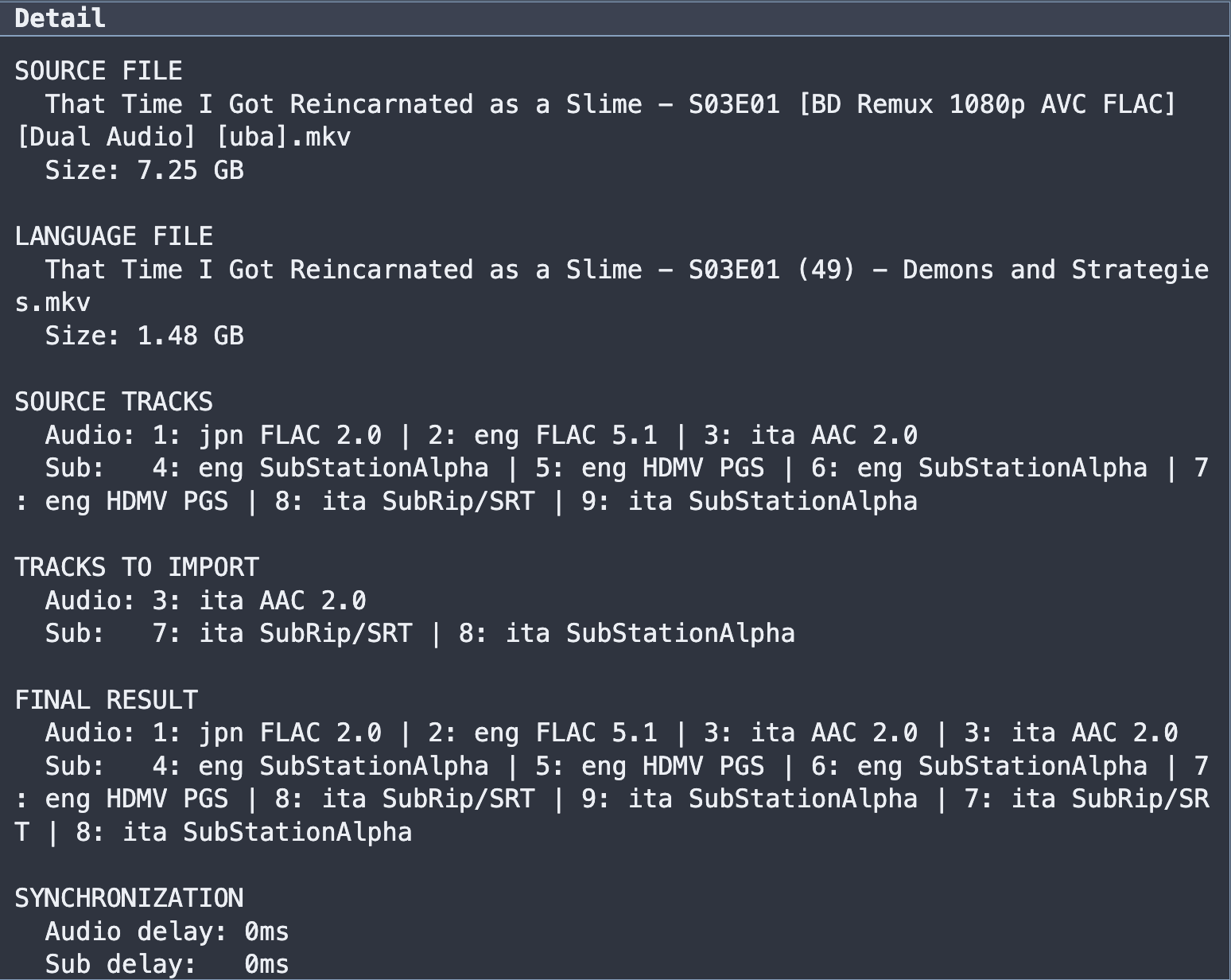
FINAL RESULT is the section to check first. If it does not list the language you expected, the problem is in Target language, the codec filter, or the Keep filters, not in the sync settings.
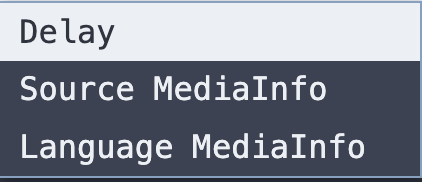
Right-click a row, or select it and press Enter.
| Item | Does |
|---|---|
| Delay | Opens the delay dialog for this episode only |
| Source MediaInfo | Full MediaInfo report for the source file |
| Language MediaInfo | Full MediaInfo report for the language file |
| Result MediaInfo | Full MediaInfo report for the output file, only after processing |
The Delay dialog sets an audio and a subtitle offset in milliseconds for that one episode, on top of whatever automatic synchronization produced. It shows the automatic offset it is adding to (Auto sync offset: N ms) and the resulting effective delay, so you can nudge a single problem episode without touching the batch configuration. See Remux Synchronization.
Result MediaInfo is the definitive verification. After processing, open it and confirm the track list, languages and flags.
Selecting a file rather than a folder as Source switches the pairing off. The Language field must then also point to a file, and the two are paired directly: the episode ID becomes the source filename and the match pattern is never evaluated. The log confirms it with Single language file selected.
The rules validation enforces:
| Message | Cause |
|---|---|
In single-file mode Source and Language must both be files; without merge Language must be empty |
one side is a file and the other a folder, or a Language file was given for a filter-only job |
File extension is not allowed by the configuration: <path> |
the selected file's extension is not in Extensions |
So a single-file job still respects the Extensions setting: pointing at an .mp4 while Extensions says mkv is refused rather than silently skipped.
This is the quickest way to handle a one-off pair whose filenames do not follow any consistent scheme, since no regex has to be written for it.
This applies to folder mode. It is the most common source of "it found nothing".
How it works: the match pattern is applied to each filename (case-insensitively). If the regex has capture groups, the episode ID is the captured groups joined with underscores. If it has no groups, the ID is the whole matched text. Two files pair up when they produce the exact same ID string.
With the default S(\d+)E(\d+):
| Filename | ID |
|---|---|
Bleach.S12E08.1080p.mkv |
12_08 |
Bleach - S12E08 [ITA].mkv |
12_08 |
bleach.s12e08.ita.mkv |
12_08 (matching is case-insensitive) |
Those all pair with each other. Common alternatives:
| Pattern | Matches | ID |
|---|---|---|
S(\d+)E(\d+) |
Bleach.S12E08.mkv |
12_08 |
(\d+)x(\d+) |
Bleach.12x08.mkv |
12_08 |
[Ee]p(?:isode)?[ ._-]?(\d+) |
Episode 366.mkv |
366 |
(\d{3}) |
366.mkv |
366 |
More recipes in Codec and Language Reference.
Since the IDs are compared as strings, zero-padding matters:
-
Bleach.S12E08.mkv→12_08 -
Bleach.S12E8.mkv→12_8
Those do not pair. Use a pattern that normalises the difference away, or rename one side with Bulk Rename.
A checklist when rows come back No match or No episode ID:
- Look at the actual filenames on both sides. Does the pattern appear in both?
- Read the log. It reports how many source files were found and how many language files were indexed. If the language count is 0, the pattern never matched anything on that side.
- Check
Extensions. If the donor files are.mp4, the defaultmkvskips them all. - Check
Recursiveif either side keeps files in per-season subfolders. - Watch out for numbers elsewhere in the name.
(\d{3})onBleach.1080p.366.mkvmatches108before it reaches366. Anchor the pattern better. - If only some episodes match, compare a working filename with a failing one. It is usually padding, or a different separator.
To test a pattern, change it, press OK, press F5 and read the counts in the log. Scanning is inexpensive, so iterating is practical.
Output files keep the source filename. With a Destination folder you get the same names in a new folder; with Overwrite source the file is replaced in place. There is no naming template in Remux mode. Use Bulk Rename afterwards if you want different names.
- Remux Synchronization: when the two releases do not line up
- Remux Audio and Video: audio conversion, normalization, video re-encoding
- Examples: Remux: complete worked configurations
- Troubleshooting