Metadata Mode
Metadata mode edits track titles, languages, default and forced flags, container titles and Matroska tags across a whole library, driven by rules that are written once and reused. The audio, video and subtitle content is never touched.
Analysis and apply are separate steps. Analysis simulates the entire rule pipeline against every file and reports the exact before/after for every field it would touch, without writing anything. Apply runs only when invoked.
This page covers running a metadata job. Writing the rules is Metadata Presets. Renaming the files themselves is Bulk Rename. Worked recipes are in Examples: Metadata.
Metadata mode processes .mkv files only.
Can change:
- Container properties: title, date, segment/muxing/writing application fields
- Per-track metadata: title, language (ISO 639-2 and IETF), default / forced / enabled and the other Matroska flags, plus a long list of technical video, audio and subtitle properties
- Managed Matroska tags:
TITLE,COMMENT,DIRECTOR,GENRE,ENCODER,SUMMARYand others - Track statistics tags: add, refresh or delete
- Track removal: dropping a track from the file entirely
Cannot change: the actual video, audio or subtitle content. Nothing is re-encoded. Filenames are handled by Bulk Rename, not by presets.
A number of fields are blocked: segment UIDs and similar identifiers, where a plausible-looking edit would break file linking or corrupt the container. They are visible in the field browser but not editable. Others are marked Advanced and hidden until you turn on the Advanced fields toggle in a rule. See Metadata Reference.
How a change is written determines how long the job takes. RemuxForge decides this per file:
| Execution | Tool | What happens |
|---|---|---|
PropEdit |
mkvpropedit |
in-place header edit. Seconds, regardless of file size. Nothing is rewritten. |
CopyPropEdit |
copy + mkvpropedit
|
the file is copied to the output folder, then edited in place there. Copy speed. |
MkvMerge |
mkvmerge |
the whole file is remuxed. Minutes per file, and it needs free space for the new copy. |
NoOp |
- | nothing to do for this file |
Any change that only touches headers and tags is PropEdit. Anything that changes the file's structure forces MkvMerge: removing a track, or setting a field that cannot be expressed as a header edit. Choosing an output folder rather than overwriting turns PropEdit into CopyPropEdit.
A single Remove track rule in an otherwise header-only preset turns a 30-second job on 200 files into an hours-long one. The Execution column reports this after analysis, before anything is written. If it reads MkvMerge unexpectedly, look for a track-removal rule or an advanced field in the preset. How the mode is derived is in Internals.
- Select Metadata in the navigation rail.
- Set Input: press
F2, or use the[ .. ]button on the toolbar. A single.mkvfile or a folder. - Tick Subfolders if the library is nested.
- Choose a Preset from the dropdown, or press
F3to create one. See Metadata Presets. - Choose the Output policy:
Overwrite(edit in place) orOutput folder(write copies elsewhere). -
Press
F5to scan. Each file is read with MediaInfo; the table fills with the current track layout. -
Press
F6to analyze. The rule pipeline is simulated against every file. Nothing is written. - Click a row and read the preview panel. Open Simulation detail to see every changed field with its before and after values.
-
Press
F9to apply to the selected file, orF10for everything analysed.

Apply to one file first. F9 on a single row, then re-scan and check the result, before running F10 across a library.
Metadata mode has no configuration dialog; its settings live in the toolbar above the file list.
| Control | Notes |
|---|---|
| Preset | Lists the presets in <data>/.remux-forge/presets/metadata/. You do not browse to a path. No preset means analysis finds nothing to do. |
| Input | File or folder. F2 and the [ .. ] button open the browser. |
| Output |
Overwrite = edit the originals in place. Output folder = write to a separate folder. |
| Subfolders | Recursive scan. |
| Output folder | Appears when the policy is Output folder. |
| Keep folders | Appears with Output folder. Preserves the input's relative folder structure under the output directory; off flattens everything into one folder. |
Overwrite with PropEdit execution is safe and fast: mkvpropedit patches headers in place without rewriting the file. Overwrite with MkvMerge execution rewrites the file, so it needs free space and carries the usual risk of an interrupted write. Check the Execution column before overwriting a library.
| Column | Shows |
|---|---|
| File | filename |
| Tracks | a compact summary of the current track layout |
| Analysis |
NotAnalyzed, Analyzed, Stale, Error
|
| Execution |
NoOp, PropEdit, CopyPropEdit, MkvMerge
|
| Changes | how many individual changes the preset would make to this file |
Changes = 0 on every row means the rules matched nothing. Open the preview panel on a file and compare its actual field values against the rule conditions. See Metadata Presets.
Any change to the input path, output policy, recursion or preset marks every analysed record Stale. The analysis on screen was produced with different settings and no longer describes what would happen.
Press F6 to re-analyze.
Select a row and the right panel splits into two sections.
Current file data shows the current contents of the file: path, status, size, a video summary, and a track table with the columns Sel (the track selector used by mkvpropedit), Type, Lang, Format, Title, Size and Extra (flags such as forced). The Field detail button opens the complete field list for the file.
Pipeline simulation result is populated only after analysis:
| Line | Meaning |
|---|---|
| Rules | how many rules matched this file |
| Changes | how many individual changes they produce |
| Execution | which tool will be used |
| Output | the exact path that will be written |
| track table | the simulated layout, i.e. how the file will look afterwards |
Comparing the two track tables shows what the rules did: if the simulated table does not differ from the current one where a change was expected, the conditions did not match.
Both buttons open the same dialog, which lists every populated field with its token name alongside the value, grouped by section: Container and general information, Video stream, Audio stream, Text stream and File tags.
In the simulated view, changed fields are colour-coded, and hovering one shows which rule changed it, with its before and after values. Removed tracks are marked with the rule that removed them.
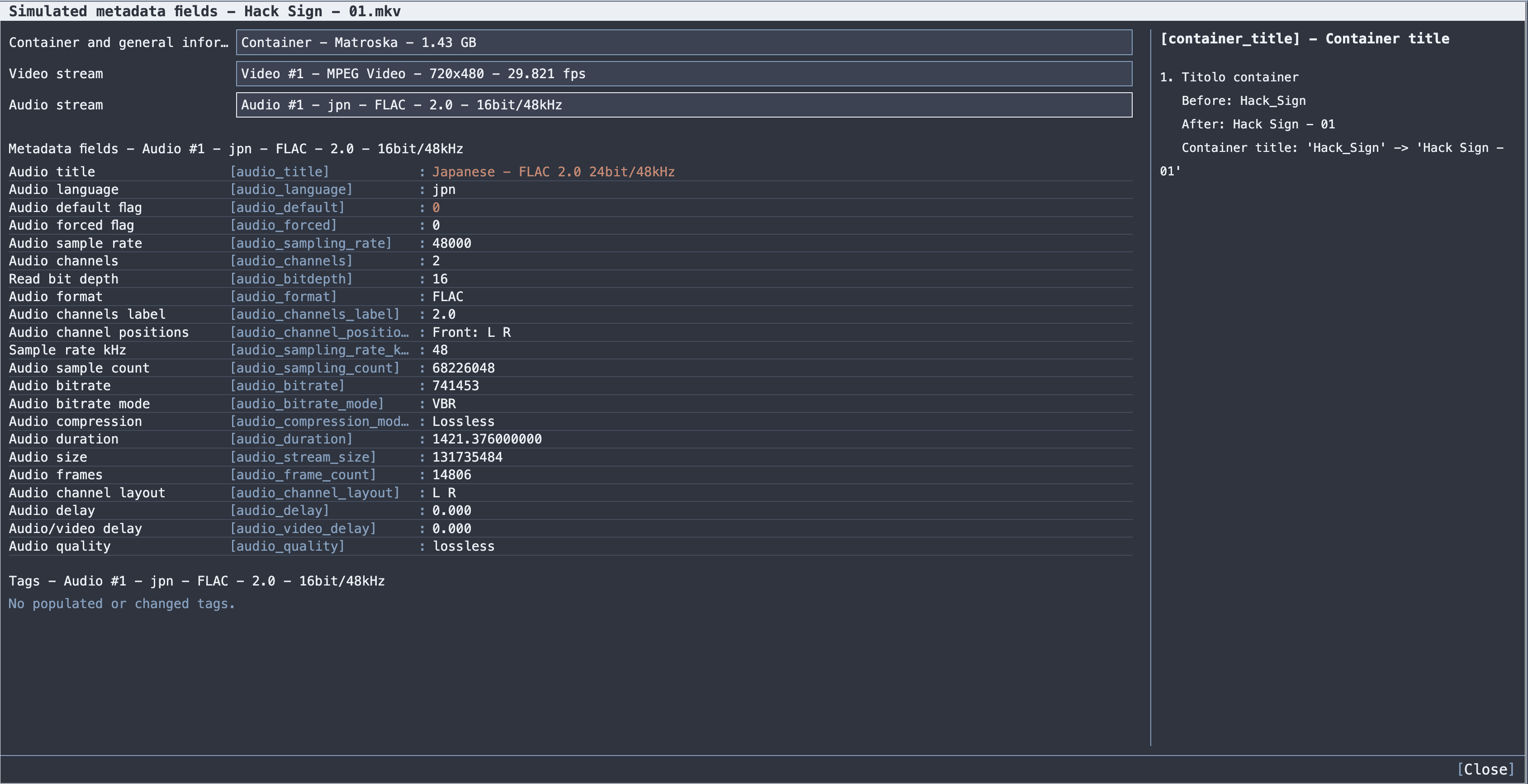
Use this dialog before applying anything to a library.
For single-file corrections that do not justify a preset rule, select a scanned file and press F4. An editable field list appears with Current and New columns; enter the new values and press Apply.
It is restricted:
| Restriction | Reason |
|---|---|
| Cannot remove tracks | that would require a remux |
| Cannot use operations that require remux | manual edit is a fast in-place path only |
| Only UI-managed tags | free-form tag XML is not accepted |
| Some fields cannot be cleared | the field is not clearable; you get Field X cannot be cleared
|
Rejections are explicit: Manual edit cannot remove tracks or require remux, UI-managed tags do not include: X. Applied changes are recorded under the rule description Manual edit so they show up in the same place as preset changes.
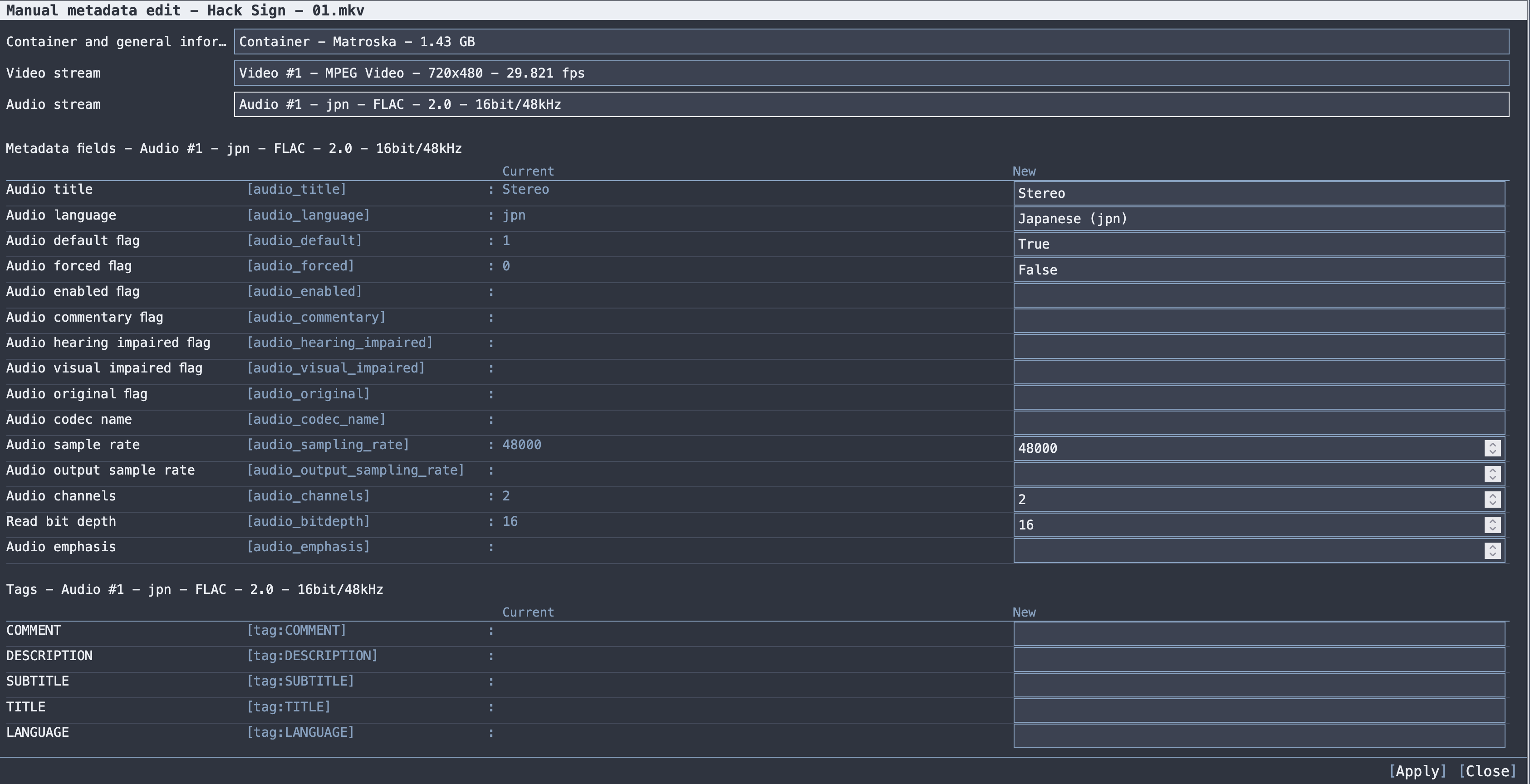
Manual edit works on the selected scanned file, so F5 has to have run first.
F9 applies to the selected file, F10 to every analysed file. The log reports:
Apply metadata completed: 42 files, 0 errors
Non-zero errors mean some files failed. The reason is on the row and in the log. Common ones:
| Message | Cause |
|---|---|
mkvpropedit failed: ... |
the file is read-only, locked, or on a full disk |
mkvmerge failed: ... |
remux failed, usually space or permissions |
Cannot read mkvmerge -J for metadata remux |
the file is damaged or not really an MKV |
Missing track UID for tag X |
a tag was targeted at a track with no UID |
After applying, press F5 to re-scan and confirm the new state. The Analysis column resets, and the track tables then show the real result rather than a simulation.
Empties the file list, the analysis and the log for Metadata mode, and returns you to path selection. It touches nothing on disk.
-
F3: Preset editor. Create and edit the IF/THEN rules that drive everything on this page. See Metadata Presets. -
F11: Bulk Rename. Rename the files on disk. It is a separate operation with its own Rename button, because filename changes have nothing to do with metadata analysis. Requires a completed scan; afterwards the scan refreshes automatically. See Bulk Rename.
- Metadata Presets: writing the rules
- Metadata Reference: every field, token, operator and function
- Examples: Metadata: worked presets
- Bulk Rename