Remux Synchronization
Two releases of the same episode rarely line up. One starts with a distributor logo, one is a PAL transfer running 4% fast, one is the censored TV cut with 30 seconds missing in the middle. Synchronization is the part of Remux mode that deals with this.
It covers several independent mechanisms, each for a different problem. Selecting the wrong one wastes considerable time, so start from the table below.
| What you observe | Use | Cost |
|---|---|---|
| Imported audio is already in sync | nothing: direct merge | instant |
| Audio is off by a constant amount for the whole episode | Frame-sync | analysis pass over both videos |
| Audio drifts progressively, fine at the start, seconds off by the end | Speed correction | imported audio is re-encoded |
| Audio is fine in places and wrong in others; the releases have different edits, missing or added scenes | Deep analysis | slowest; usually forces audio re-encoding |
| You already know the exact offset | Audio delay (manual) | free |
Rules that follow from the code:
- Frame-sync and Deep analysis are mutually exclusive. Enabling one clears the other in the dialog.
- Speed correction is independent and can be combined with either.
- Manual delay is additive: it is applied on top of whatever the automatic method calculated, not instead of it.
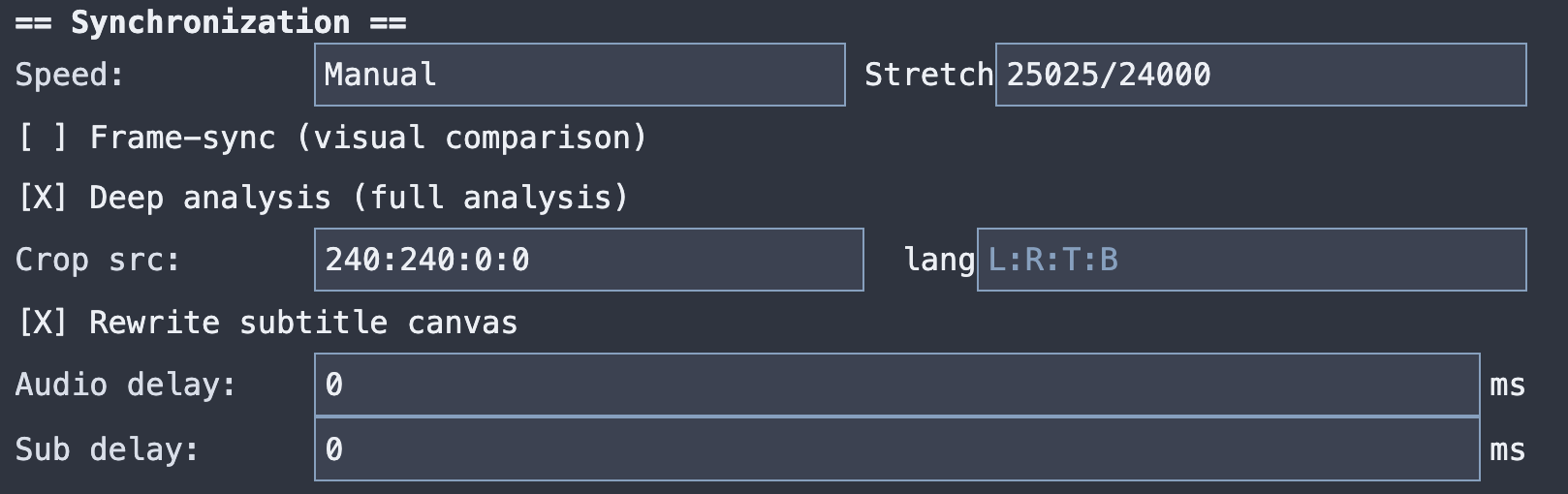
Leave Speed at Off, and both Frame-sync and Deep analysis unticked. Tracks are muxed at their existing timestamps.
Two releases derived from the same master normally agree, so this is often sufficient. Analyze first, read the SYNCHRONIZATION section of the detail panel, and enable an analysis method only if there is a measured problem.
Fixes a global speed difference: the whole episode plays at the wrong rate, so the error grows linearly through the file. The classic case is a PAL transfer (25 fps) against an NTSC/film one (23.976 fps), but it is not limited to that.
The default is Off. To enable correction, select the known Source and Language playback rates:
| UI selection | Internal factor |
|---|---|
Source 23.976 - Lang 25 |
1001/960 |
Source 25 - Lang 23.976 |
960/1001 |
Source 23.976 - Lang 29.97 |
5/4 |
Source 29.97 - Lang 23.976 |
4/5 |
Source 25 - Lang 29.97 |
1200/1001 |
Source 29.97 - Lang 25 |
1001/1200 |
The UI deliberately has no free-text factor. The CLI accepts a decimal or fraction through --stretch-factor for automation and advanced cases. Speed correction verifies the selected ratio visually and resolves the constant offset; it never guesses a ratio from frame-rate metadata.
The correction is a temporal stretch materialised by FFmpeg: the imported Language audio tracks are rendered in the selected audio format, and the video is not re-encoded. The factor shows in the episode table's Stretch column, and the detail panel reports the resolved values as audio stretch materialized: factor F, ratio R, FFmpeg tempo T.
Speed correction therefore requires an audio format when Language audio is imported, on the same terms as Deep analysis. See Audio format requirement.
Frame-sync finds one constant offset after first normalizing the geometry of the two pictures. It uses shared-audio correlation for the initial search when possible, otherwise dHash votes from visual windows at several positions in the episode. Full-rate dHash checkpoints distributed through the file then measure and verify the final offset. The resulting delay is applied to the imported tracks.
Use it when the edit is identical and only the starting point differs, different logo length, different amount of black at the head, a few seconds of trim.
The result is a single number, applied as a constant delay to the imported tracks. Where the required delay changes part-way through the episode, Frame-sync either reports low confidence or locks onto one section and is wrong about the rest. That case needs Deep analysis.
After analysis, the detail panel reports:
SYNCHRONIZATION
  Frame-sync:          applied
  Frame-sync offset:   -1042
  Confidence:          0.94
  Checkpoints:         6/7 valid
| Line | Read it as |
|---|---|
Frame-sync offset |
the delay in ms that will be applied |
Confidence |
how much agreement the matcher found; low values mean treat the result as suspect |
Checkpoints |
how many verification points along the episode agreed with the chosen offset |
Reason |
appears when Frame-sync failed, explaining why |
How the offset is derived, and what the confidence value is computed from, is in Internals.
Low confidence or an outright failure usually means: the common picture geometry could not be established, too few checkpoint frames are visually measurable, or the edits differ. See Analysis crop and Troubleshooting.
Deep analysis builds a timeline edit map containing cut and insert operations that describe how the language release differs from the source, region by region. It handles:
- scenes removed from one release
- scenes added to one release
- different openings, endings or eyecatches
- recap or next-episode-preview differences
- any edit that makes the required delay change mid-file
Enable Deep analysis (full analysis) in the Synchronization section and analyze. It normalizes geometry, decodes one dHash/luminance signal for every frame, finds unambiguous temporal anchors and solves their globally consistent sequence of frame-quantized offset states. Transitions between those states become frame-level operations. Internals describes the process. The episode table's Deep column shows how many operations were found, and the detail panel lists them:
SYNCHRONIZATION
  Deep analysis:       applied
  Edit operations:     3
    Cut    src 00:01:30.000 duration 22.5s
    Insert src 00:12:04.100 duration 8.0s
It is substantially slower than the other methods because it decodes and compares the complete video timelines. Advanced settings independently offer FFmpeg hardware decode and Vulkan visual compute; see Settings Reference and Docker.
After a scan, and before remuxing, select an episode and use Change EditMap in the Deep analysis card. The editor is available whether automatic Deep analysis succeeded or failed; in the latter case it starts from an empty map. It is unavailable before a scan and after an episode has been remuxed.
The two equal preview areas show the complete original Source and Language frames. Each frame is fitted inside its canvas while preserving its sample aspect ratio: the canvas never changes size to follow the video, and the preview is never cropped, geometrically normalized or stretched. Frame numbers are one-based in the UI, while the displayed timestamps are the real presentation timestamps from the files.
The synchronized timeline shows the Source waveform or spectrogram, the projected Language audio, cut boundaries and inserted gaps. Vertical wheel movement and trackpad pinch zoom around the pointer, horizontal wheel movement pans, and double-click fits the complete timeline. Selecting an operation moves the playhead to its beginning. Source and Language frame controls can also be moved independently to inspect the two sides of a cut. The fullscreen precision button expands the timeline, operation list and inspector for frame-level work.
Use Add Cut or Add Insert at the playhead, select an operation in the table, then edit its timestamps, frame numbers or durations in the inspector. A Cut can also be created from a Language timeline selection; an Insert can be moved by dragging its highlighted gap. Values commit on Tab, Enter or when the field loses focus and are snapped to real frame PTS. Invalid edits are restored and reported by a warning. An Insert can define a positive or negative source-fill gain in dB. The operation type and scope are derived from the timeline; to change a type, delete the operation and create the other one.
Apply EditMap is enabled only for a structurally valid map containing at least one operation. Applying rebuilds the audio plan, subtitle timeline, source-fill plan and merge preview, then labels the result as manually modified. Cancel leaves the scanned record unchanged and asks for confirmation when edits are pending. A new scan or analysis resets a manual map; it is not persisted across application restarts.
Keyboard navigation uses the arrow keys for frame stepping, Shift for larger steps, Home/End for timeline bounds, and Delete for the selected operation. Escape first cancels an uncommitted field edit; outside a field it closes the editor, after confirming if necessary.
Speed correction and Deep analysis both rewrite the imported audio timeline, so whenever Language audio is imported they require:
| Setting | Requirement |
|---|---|
| Audio format | one of FLAC, LPCM, AAC, Opus, AC-3 |
| Audio scope |
Lang or All; Disabled is refused |
Validation reports this before anything runs:
Speed Correction requires an audio format when Language audio tracks are importedDeepAnalysis requires an audio format when Language audio tracks are importedWith Speed Correction or DeepAnalysis the minimum audio scope is Language
Deep analysis applies the requirement to the complete batch: every Language track is processed, including episodes whose analysis produces a constant delay with zero cut or insert operations.
The detail panel labels these renders mandatory Speed/Deep conversion, to distinguish them from a conversion requested through the scope alone.
FLAC keeps the result lossless. Lang restricts the work to the imported tracks. See Remux Audio and Video.
Deep analysis is video-led. Unambiguous dHash anchors establish the global sequence of offset regimes; full-rate frame distances, black runs and frames exclusive to one regime refine each boundary. Operation duration is remeasured from the offsets on stable regions at both sides and quantized to Language frames rather than inferred from the width of a detected region.
When a shared audio track is available, its envelope is corroborating evidence: it can select a point inside an ambiguous black interval and settle a one-frame duration ambiguity. Only when the source has a duplicated cadence can a reliable audio measurement veto a visual step whose offset does not move. If shared audio is unavailable or not measurable, the visual pipeline remains valid. The completed map must still explain a calibrated fraction of frames over the whole episode.
Audio is rebuilt from the resulting visual edit map. Enabling Deep analysis for a batch that imports Language audio activates the audio format requirement for every imported Language track.
For investigating a bad result, the CLI can dump the full analysis:
--framesync-diagnostics
--deep-analysis-diagnostics
The optional exports land in .remux-forge/framesync-diagnostics/ and .remux-forge/deepanalysis-diagnostics/. In addition, every Deep analysis run records configuration.json, result.json and run.log under .remux-forge/deepanalysis-runs/, including rejected and cancelled runs.
Two places, both additive to whatever automatic sync produced.
For the whole batch: the Synchronization section has Audio delay and Sub delay in milliseconds. Use these when you know every episode needs the same nudge.
For one episode: right-click the row, choose Delay. The dialog shows the automatic offset it is adding to and the resulting effective values:
Auto sync offset: -1042 ms
Audio delay (ms): [ 40 ]
Sub delay (ms):   [ 0  ]
Effective delay audio: -1002ms, sub: -1042ms
This is how you fix the one episode in a season where Frame-sync landed a few frames off, without re-running the batch or compromising the episodes that were right.
Positive values delay the track; negative values pull it earlier.
Frame-sync and Deep analysis compare pictures. Before temporal matching, RemuxForge detects stable black borders from multiple informative frames distributed across each file, then estimates X/Y scale and translation from secure SIFT/RANSAC matches.
Crop src and Crop lang take pixels to remove, in the format L:R:T:B, measured on the original frame before any scaling:
Crop src:  0:0:130:130      # remove 130px of black bar top and bottom
Crop lang: 8:8:0:0          # remove 8px of edge noise left and right
Empty or 0:0:0:0 leaves automatic border detection enabled. A non-zero value overrides the automatically detected active rectangle for that file; use it for non-black overscan, unstable edge artefacts or a border the detector cannot classify reliably.
This only affects the frames used for matching. It never crops the output video. RemuxForge is not re-framing your file; it is telling the matcher which part of the picture to trust.
Reach for this only when the automatic geometry bootstrap reports a crop/geometry failure or the visible active picture contains edge material that should deliberately be ignored.
Subtitles carry their own coordinate space. Import a subtitle track authored for a 4K release into a 1080p file and the text ends up in the wrong place, or off screen. The same applies when the two releases have different crop or a different active picture area, such as 16:9 pillarboxed video going into a 4:3 source.
Rewrite subtitle canvas rewrites the geometry of imported subtitles. It is off by default and has to be enabled explicitly.
It is tied to visual analysis: it consumes the geometry that Frame-sync or Deep analysis already produced and does not run its own ffmpeg geometry probe. With neither enabled there is no geometry available, so the option is ignored and a warning is logged.
It never crops, scales or re-encodes the final video. It rewrites imported subtitle tracks only, and only where the transform can be expressed in the subtitle format.
| Format | Handled |
|---|---|
| PGS / SUP | canvas, object coordinates and crop, windows, and the bitmaps themselves when the active areas differ in size |
| ASS / SSA | script resolution, style margins and scales, and position, origin, movement, clip and drawing tags |
| VobSub (IDX/SUB) | IDX geometry and file positions, SPU display area and, when scaling is required, the bitmap data |
Cases the transform cannot express are skipped: the untransformed track is used and a warning is logged. The most common is ASS with rotation or shear tags under non-uniform scaling.
The rewrite never fails the remux. An unsupported or unsafe case falls back to the original track, so a successful rewrite and a warned fallback produce the same output file list. The log is the only place the difference appears.
Order of operations: Frame-sync or Deep analysis produces the geometry, Deep analysis may rewrite subtitle timelines first, canvas rewrite runs after that, and the result is validated before it replaces the imported track.
The field-by-field detail, and what each format's rewriter does at bitstream level, is in Internals.
A different problem from sync: the imported audio track is shorter than it needs to be. It starts late, ends early, or Deep analysis wants to insert silence into a gap. Padding with silence is the default behaviour and it sounds like a hole.
Audio source fill takes the missing region from an audio track already present in the Source file and concatenates it onto the imported track instead. The result: the imported dub for the body of the episode, and the source language for the parts the dub does not cover, rather than silence.
The toggle appears in the Audio post-processing section, but only after you choose an Audio format: filling means rebuilding the track, which means encoding.
Once enabled, four things become required:
| Field | Meaning |
|---|---|
| Threshold | Milliseconds. Fill only kicks in when the gap exceeds this. It is not a delay. |
| Source language | Which source audio track to take the fill segments from. |
| Mode | At least one of Start / End / Insert silence. |
| Audio scope | Must be Lang or All, not Disabled. |
| Mode | Condition |
|---|---|
| Start | The positive initial audio delay exceeds the threshold. The first N ms are taken from the Source and prepended to the imported track. Note that imported subtitles are not concatenated: they keep their calculated delay. |
| End |
Source video duration − (rendered Language timeline duration + applied delay) > threshold. The video timeline is always authoritative; if the selected Source audio ends earlier, the uncovered tail is materialized as silence so the final duration remains exact. |
| Insert silence | When an automatic or manually edited EditMap contains an INSERT_SILENCE operation larger than the threshold, the corresponding segment is taken from the Source rather than being filled with silence. |
For insert-silence, source fill uses the frame-level boundary stored in the EditMap, whether it came from Deep analysis or from the visual editor.
Choose the threshold to match what you care about: a 40 ms gap is inaudible and not worth splicing; a 3-second one is. Something in the 100–500 ms range is a reasonable default.
The detail panel's AUDIO PROCESSING section reports what actually happened per track, including source-fill configured, no fill above threshold when the condition never triggered.
Settings ▸ Advanced settings (Remux mode only) exposes a handful of the analysis parameters:
| Section | Fields |
|---|---|
| Analysis | Hardware Acceleration, Vision backend |
Hardware Acceleration probes and enables an explicit FFmpeg hardware method for analysis decode. Vision backend selects CPU or Vulkan for visual compute: geometry SIFT/RANSAC, Deep-analysis dHash, and Speed-correction matching. Frame-sync deliberately keeps its short temporal dHash windows on CPU. Neither setting enables hardware encoding, and analysis never overrides the user's choices.
Frame dimensions, checkpoint counts, confidence thresholds, scan durations and timeouts remain available in appsettings.json, but are deliberately not user controls: they are calibrated parts of the matching algorithms. Reset Defaults restores only the fields offered by the dialog.
The internal values are described in Settings Reference.
- Remux Audio and Video: the audio formats Deep analysis and source fill require
- Examples: Remux: worked sync configurations for real cases
- Troubleshooting: frame-sync failures, audio still out of sync, misplaced subtitles